
By Kshetez Vinayak, founder of SupaSidebar. Last updated June 25, 2026.
TL;DR:
SupaSidebar's Command Panel (⌘⌃K) does far more than search your saved links. It can search directly inside websites like GitHub and YouTube, find nested folders across all your Spaces, open links in specific browser profiles, route URLs through Air Traffic Control, replace your browser's ⌘T new tab, and run AI commands that reorganize your entire sidebar. This tutorial covers 7 features most users never discover, with step-by-step instructions for each.
Looking for something specific?
- Want the release that shipped these features? → SupaSidebar 0.17.0 update
- Routing links to the right browser profile? → Browser profiles on Mac
- Here for Command Panel tips? → Keep reading.
You're using 10% of the Command Panel
After talking to a lot of SupaSidebar users, I've noticed something: most people open Command Panel, type a link name, press Enter, done. That's useful, but it's one of the most important features of SupaSidebar - and you're barely scratching the surface.
Once you learn these 7 features, you'll stop reaching for bookmarks, stop manually switching browsers, and stop scrolling through 15 Spaces looking for that one folder you saved three weeks ago.
1. Search inside specific websites with slash scopes
The problem:
You visited a GitHub repo last week. You remember it existed. You don't remember the name. Typing a generic search gives you results from every website you've ever visited.
The fix:
Slash scopes narrow your search to one website.
How to do it:
- Open Command Panel (⌘⌃K)
- Type
/- you'll see the scope picker appear - Select a website (GitHub, YouTube, Reddit, etc.)
- Press Enter
- Type your search term
Command Panel now shows only results from that website - your browsing history and saved links that match.
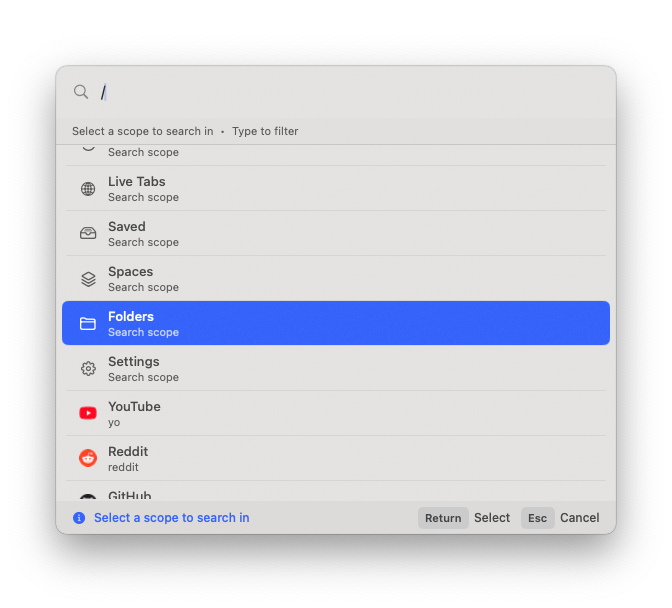
Available scopes:
Live Tabs, Saved, Spaces, Folders, Settings, YouTube, Reddit, GitHub. You can add more in Preferences → Search Shortcuts.
2. Find any folder instantly (even nested ones)
The problem:
You saved something in a folder called "Photos" months ago. You have 10 Spaces, each with multiple nested folders. Finding it manually means clicking through every Space and expanding every folder.
How to do it:
- Open Command Panel (⌘⌃K)
- Type
/ - Select Folders
- Start typing the folder name (e.g., "photo")
- Press Enter on the result
The sidebar jumps directly to that folder - even if it's nested 3 levels deep in a different Space. It switches Spaces automatically.
Bonus:
The same approach works with the Spaces scope. If you remember the Space name, select Spaces from the scope picker to jump between them instantly.
3. Search directly in any website (without opening it first)
The problem:
You want to search for something on Amazon. Normally that means: open browser → type amazon.com → wait for it to load → find search bar → type your query. Five steps.
The fix:
Command Panel can search any website directly. One step.
How to do it:
- Open Command Panel (⌘⌃K)
- Type
/ - Type the website name (e.g.,
Amazon) - Press Enter
- Type your search term (e.g., "cooker")
- Press Enter again
Command Panel opens the website directly with your search results. No navigating. No waiting for pages to load.
Key difference from Feature #1:
Slash scopes search your history on a website. This feature searches the website itself. Different tools for different situations.
Works with:
YouTube, GitHub, Amazon, and any website you add to your search shortcuts (Preferences → Search Shortcuts).
4. Open any link in a different browser or profile
The problem:
You accidentally opened YouTube in Edge, but your profile is logged in on Brave. Or you're working in Safari but need to open a link in Chrome's work profile.
How to do it (Method 1 - keyboard shortcut):
- Be on any webpage in any browser
- Press ⌘⌃B
- Select the target browser from the list
- Select the profile if applicable
- The page opens in your chosen browser
How to do it (Method 2 - from Command Panel):
- Open Command Panel (⌘⌃K)
- Search for any link
- Instead of pressing Enter, press Option+Enter
- Select "Open in Browser"
- Pick the browser and profile
Note:
If the target browser is closed, SupaSidebar opens it for you.
5. Air Traffic Control: links auto-open in the right browser
The problem:
You have different browsers for different workflows - Safari for personal, Chrome for work, Brave for media. Every time you open a link, you have to think about which browser it belongs in.
The fix:
Set up Air Traffic Control rules once, and Command Panel routes links automatically.
How to set it up:
- Go to Preferences → Air Traffic Control
- Create a rule (e.g., URL pattern:
*.homebrew.sh→ Open in: Safari Work profile) - Repeat for other patterns (e.g.,
*.youtube.com→ Brave,*.github.com→ Chrome Dev)
How it works in Command Panel:
- Open Command Panel (⌘⌃K)
- Search for "homebrew"
- Notice the label: "will open in Safari Work (ATC)"
- Press Enter - it opens in the right browser automatically
No more thinking about which browser to use. No more manually moving tabs around. The rule does it for you every time.
6. Replace ⌘T (new tab) with Command Panel
The problem:
You press ⌘T in your browser and get an empty tab. Then you type a URL or search term. But 90% of the time, what you actually want is already in your history, saved links, or open tabs somewhere.
The fix:
Make ⌘T open Command Panel instead - a smarter new tab that shows everything.
How to enable it:
- Open Command Panel (⌘⌃K)
- Search for "Command T"
- Toggle the setting ON
That's it. Now ⌘T in any browser opens Command Panel instead of a blank tab. You get your saved links, recent history, live tabs, and website search - all from the same ⌘T muscle memory.
Don't like it?
Toggle it back off the same way. But give it a week first - most people who try it don't go back to blank tabs.
7. Ask AI: control your sidebar with natural language
The problem:
You have 200 saved links across 10 Spaces and you want to reorganize them. Doing it manually means drag-and-drop for an hour.
The fix:
Tell the AI what you want. It does the work.
How to set it up:
- Go to Preferences → AI
- Add a provider (OpenAI, Anthropic, Google Gemini, Ollama, or MLX)
- Enter your API key (bring your own - no SupaSidebar account needed)
How to use it:
- Open Command Panel (⌘⌃K)
- Press Control+Enter to enter AI mode
- Type a natural language command
- Review the permission prompt (Deny / Allow / Always Allow)
- Done
Example commands:
| What you type | What happens |
|---|---|
| "Show me current open tabs" | Lists all your live tabs |
| "Open all these tabs in Edge" | Moves tabs to Edge browser |
| "Find all GitHub links and create a folder called gh-links" | Searches + creates folder + moves links |
| "Find my last open tab" | Searches history for your most recent page |
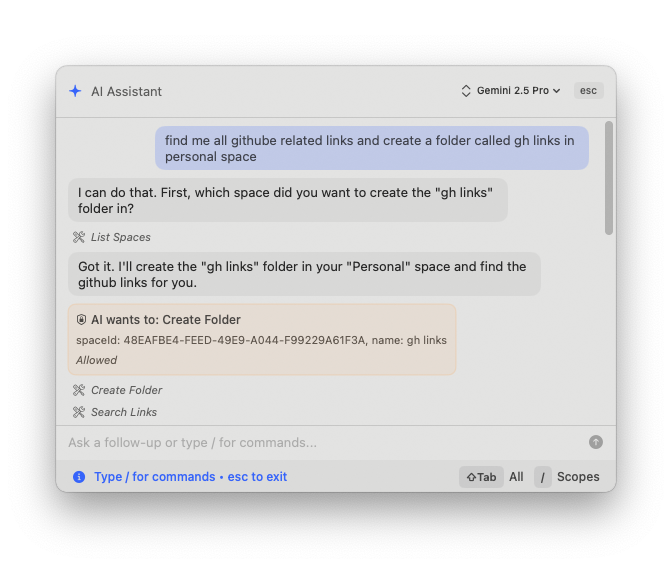
The AI always asks permission before creating, moving, or deleting anything. Nothing destructive happens without your explicit approval.
Quick reference: all keyboard shortcuts
| Shortcut | Action |
|---|---|
| ⌘⌃K | Open Command Panel |
| / | Show search scopes |
| Enter | Open selected result |
| Option+Enter | Show quick actions for selected result |
| Control+Enter | Switch to Ask AI mode |
| ⌘⌃B | Open current tab in another browser |
| Arrow keys | Navigate results |
| Escape | Close Command Panel |
| Shift+Tab | Cycle through scopes |
Frequently Asked Questions
How do I add more websites to the slash search scopes?
Go to Preferences → Search Shortcuts. Any website with a search URL pattern can be added. You provide the base URL and search parameter format, and it appears as a new scope in Command Panel.
Does Command Panel search across all my Spaces?
Yes. Unlike browsing the sidebar manually (which shows one Space at a time), Command Panel searches across ALL Spaces simultaneously. This includes saved links, folders, and pinned items from every Space you've created.
Can I move the Command Panel window?
Yes, as of version 0.17.0 the Command Panel is draggable. Click and drag it anywhere on screen. It has magnetic snap-to-center and remembers its position between sessions.
Is the AI feature free?
The AI feature itself is included in SupaSidebar (free and Pro tiers). However, you need to provide your own API key from OpenAI, Anthropic, Google Gemini, or use a local model via Ollama/MLX. There's no extra SupaSidebar charge for using Ask AI.
Does Command Panel work without the sidebar being open?
Yes. Command Panel is a separate floating window from the sidebar. You can open it with ⌘⌃K at any time, even when the sidebar is hidden. Both can coexist on screen simultaneously.