
By Kshetez Vinayak, founder of SupaSidebar. Last updated 2026-06-15.
Quick navigation:
- Choosing a browser for design work? → Best Browser for Designers on Mac 2026
- Building a deep-work setup? → Mac Workspace Setup for Deep Work 2026
- Student doing design coursework? → Best Mac Apps for Students 2026
- Working designer building a Mac stack? You are in the right place. Keep reading.
TL;DR
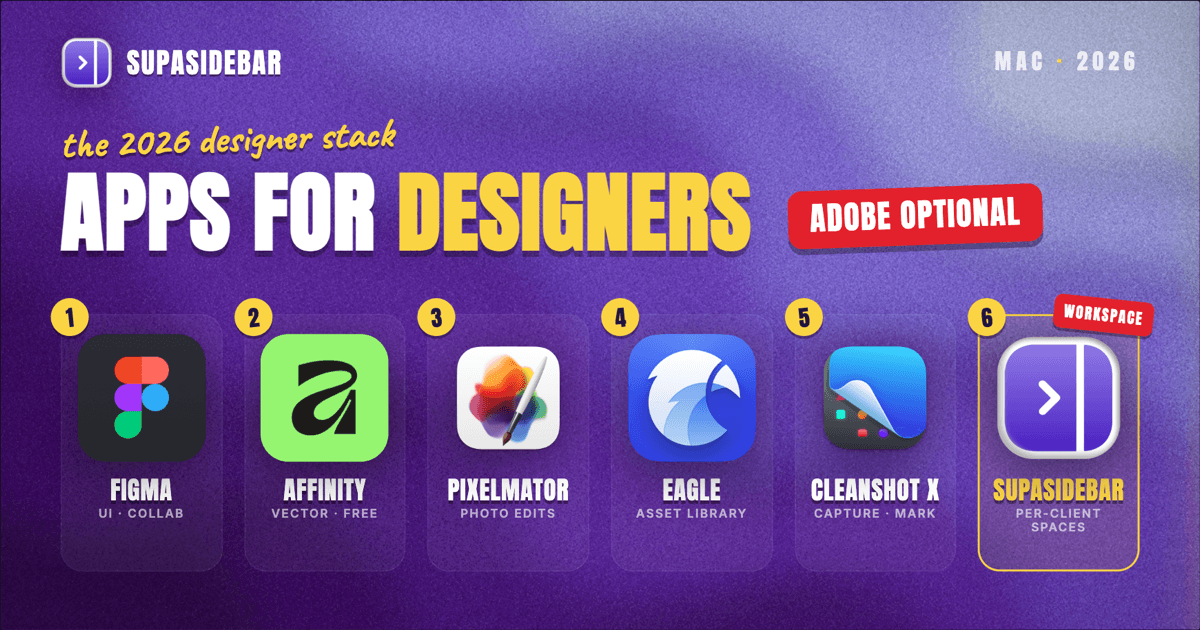
The best Mac apps for designers in 2026 are a six-app stack, not one suite: Figma for UI work and client collaboration, the newly free Affinity by Canva for vector and layout work, Pixelmator Pro for photo and raster edits, Eagle for asset libraries, SupaSidebar for keeping each client's Figma tabs, references, and stock sites organized per project across browsers, and CleanShot X for annotated feedback. Two events reshaped this list: Canva made the full Affinity suite permanently free in October 2025, and Apple completed its acquisition of Pixelmator in early 2025 while keeping it a one-time purchase. A serious freelance design stack now costs under $100 in one-time purchases plus whatever Figma tier the work demands. The category-by-category breakdown, pricing, and the comparison table are below.
Scope:
Mac apps for working graphic, brand, and product designers - design tools, asset managers, color and screenshot utilities, and workspace organization. Not covered: motion and 3D pipelines (After Effects, Blender), browser choice (that is the designer browser comparison), and iPad-only tools.
Why the 2026 designer Mac setup looks different
For a decade the default designer Mac setup was an Adobe Creative Cloud subscription plus whatever filled the gaps. Two changes between late 2024 and early 2026 broke that default.
First, Canva relaunched Affinity as a single free app on October 30, 2025, merging Designer, Photo, and Publisher into one application with vector, pixel, and layout "Studios" - free permanently, by Canva's own announcement. The pro-grade vector and layout tier that used to cost real money now costs nothing on Mac and Windows. The catch is contained: AI features like Generative Fill require a paid Canva plan, but the core toolset does not.
Second, Apple acquired the team behind Pixelmator Pro, completing the deal in February 2025. The app did not get absorbed and shut down, which was the community's fear. Pixelmator Pro remains a $49.99 one-time purchase, now with Apple Intelligence support and an iPad version on the way, plus an optional Apple Creator Studio subscription ($12.99/month or $129/year) for those who prefer that model.
The result: the floor price of a professional design stack on Mac dropped harder in 18 months than in the previous ten years. The apps below are picked with that new landscape in mind.
Design tools: the core three
Figma
Figma is still where client work happens in 2026 - UI design, decks, handoff, and the comment thread where the client says "can the logo be bigger." It runs in the browser or the Mac desktop app, and its real moat is that every stakeholder can open a link without installing anything. The free tier covers a lot of solo work; Professional full seats run $16 per editor per month billed annually at time of writing, per Figma's pricing page, with cheaper collab and dev seat types for non-designers.
Best for: UI and product design, anything collaborative, anything a client needs to open.
Affinity by Canva
The free Affinity app covers the jobs Figma is wrong for: print-resolution vector logos, multi-page brand guidelines, packaging dielines, and detailed pixel retouching. The unified app splits into Vector, Pixel, and Layout Studios, which map to the old Designer, Photo, and Publisher respectively. It works fully offline, which matters for client files under NDA that should not live in a browser tab.
Best for: brand identity, print, and layout work without a subscription. The strongest "leave Adobe" candidate for designers whose work is not motion-heavy.
Pixelmator Pro
Pixelmator Pro is the raster specialist: photo retouching, mockup compositing, batch image edits. It is Mac-native in the literal sense - built on Apple frameworks, fast on Apple Silicon, and now owned by Apple. For designers who mostly need "fix this photo and drop it into the layout," it does the Photoshop jobs that actually come up at a fraction of the cost.
Best for: photo work and raster edits when a full Photoshop subscription is overkill.
Asset management: Eagle
Every designer accumulates the same pile: reference screenshots, client logos, font specimens, stock downloads, and inspiration grabs scattered across Downloads, Desktop, and twelve browser tabs. Eagle is the dedicated answer - a local asset library that ingests images, video, fonts, and PDFs, auto-extracts colors, and finds "that blue gradient reference from March" by color, tag, or folder. It is a $29.95 one-time purchase with a 30-day trial, which makes it one of the cheapest pieces of the stack relative to daily use.
The honest limitation: Eagle organizes files already saved to disk. The references still living as open browser tabs - the moodboard that is "those 14 tabs from last Tuesday" - are outside its reach. That gap is covered two sections down.
Best for: designers with 1,000+ reference images and asset files who currently use Finder folders as a library.
The reference sprawl no design tool solves is a working designer's browser running three clients deep: client A's Figma file, competitor research, and stock search in one pile of tabs; client B's brand portal and moodboard in another; personal inspiration between them, some in Chrome where the agency SSO lives, some in Safari for personal browsing. Tab groups do not fix this because the tabs span browsers, and bookmarks miss the live, open state of a research session.
Keeping each client's reference tabs organized across browsers
SupaSidebar is the cross-browser workspace layer for designers: one Space per client that keeps that client's Figma files, brand portals, and reference tabs together across every browser. It runs natively on macOS and adds one persistent sidebar across every major Mac browser - Safari, Chrome, Firefox, Edge, Arc, Brave, Vivaldi, Comet, Dia, and more (33 browsers counting channel variants). For a designer the unit of organization is the client, and that maps directly to Spaces: one Space per client holding their Figma links, brand portal, stock accounts, and reference tabs, separated from every other client. Live Tabs shows the open tabs from every running browser in one list, so the Chrome work pile and the Safari personal pile stop being separate hunts. Command Panel (⌘⌃K) searches saved links and live tabs across all Spaces in one keystroke.
Two designer-specific details earn the spot in this list. Air Traffic Control rules can route links by pattern - a rule for *.figma.com opens every Figma link in the Chrome work profile automatically, so client files never open in the wrong browser. And Save All Browser Tabs (⌘⌃T) captures an entire research session into a folder in one shortcut, which turns "those 14 moodboard tabs from last Tuesday" into a saved, reopenable set inside the client's Space.
A freelance web developer who works with multiple design agencies described it this way over email: "I really like where you're going with this - I can see this becoming my go-to bookmarking tool. The ability to flick between browsers is so liberating." For a designer running several clients at once, that cross-browser reference separation is where it earns its place. A free version is available, and 3,000+ Mac users have tried SupaSidebar.
Best for: designers juggling two or more clients or projects whose references live across browsers.
Color, screenshots, and feedback
Three small utilities carry a surprising share of daily design work:
- Digital Color Meter - already installed on every Mac (in Applications > Utilities). Point it at any pixel on screen and read the value. No install, no cost, and for quick "what hex is that" checks it beats opening a design tool.
- Sip (or any dedicated color picker) - adds the parts Digital Color Meter lacks: clipboard-ready hex copying, palette history, and format switching between HEX, RGB, and SwiftUI-ready values. Worth it for designers grabbing colors all day.
- CleanShot X - the screenshot and annotation layer. Capture a client's site, draw the arrow, drop the text label, share the link. Scrolling capture handles full-page grabs of long landing pages. For design feedback loops it replaces the "screenshot, open in editor, annotate, export, attach" chain with one flow.
None of these are glamorous. All three remove friction from tasks designers do twenty times a day.
Fonts: manage them before they manage the Mac
Font Book ships with macOS and handles activation and basic organization. It is fine until the font library crosses a few hundred families, at which point a dedicated manager like Typeface earns its place with visual browsing, comparison views, and per-project font sets. The practical rule: a designer who picks type from memory needs Font Book only; a designer who browses type visually before choosing should upgrade. Either way, deactivate unused families - a bloated active font list slows app launches and clutters every font menu in the stack.
The designer stack at a glance
| App | Job in the stack | Pricing model | Standout detail |
|---|---|---|---|
| Figma | UI design, collaboration, handoff | Free tier; Pro full seat $16/editor/mo (annual) | Clients open links with zero install |
| Affinity by Canva | Vector, print, layout | Free (since Oct 2025) | Pro-grade and fully offline |
| Pixelmator Pro | Photo and raster edits | $49.99 one-time | Apple-owned, Apple Silicon fast |
| Eagle | Local asset library | $29.95 one-time | Search references by color |
| SupaSidebar | Per-client workspace across browsers | Free version available | One Space per client, tabs from every browser |
| CleanShot X | Screenshots, annotation, feedback | Paid (one-time tiers) | Scrolling full-page capture |
| Sip / Digital Color Meter | Color picking | Paid / built-in free | Instant hex from any pixel |
| Typeface or Font Book | Font management | Paid / built-in free | Per-project font sets |
Conclusion: Picking the designer Mac setup
The 2026 verdict: start with Figma plus the free Affinity, add Pixelmator Pro only when photo work is regular, and spend the saved subscription money on the workflow layer - Eagle for the asset library and SupaSidebar for per-client tab and reference organization.
By segment: UI and product designers live in Figma and add SupaSidebar to keep client Figma tabs and research separated by Space. Brand and print designers should make free Affinity the core and add Eagle, because reference libraries grow fastest in identity work. Freelancers with multiple clients benefit most from the workspace layer, since client separation is their daily tax; an in-house designer on a single product can skip it and lean on a deep-work setup instead. Students can run the whole list for under $50 by sticking to free tiers, as covered in the student Mac apps guide.
Try SupaSidebar (free tier) if client tabs are scattered across browsers right now. For the browser choice underneath this stack, see the designer browser comparison.
Why we recommend SupaSidebar
SupaSidebar is a macOS app that brings Arc's sidebar to every browser - one sidebar for tabs, bookmarks, files, and apps across 33 browsers including Safari, Chrome, Firefox, Edge, Arc, Brave, Vivaldi, Comet, and Dia. For designers, it turns each client into a Space holding that client's Figma files, brand portals, stock sites, and live research tabs, searchable in one keystroke with Command Panel (⌘⌃K) no matter which browser they are open in. iCloud sync keeps the setup identical across a studio Mac and a laptop, with no account required. macOS 14+ required.
FAQ
What apps do graphic designers use on Mac in 2026?
The common working stack is Figma for UI and collaborative work, Affinity by Canva (free since October 2025) for vector and layout, Pixelmator Pro for photo edits, Eagle for asset libraries, CleanShot X for annotated screenshots, and SupaSidebar for organizing client tabs and references across browsers. Adobe Creative Cloud remains standard in larger agencies, but solo designers increasingly build the stack from these one-time-purchase and free tools.
Is Affinity really free now?
Yes. Canva relaunched Affinity on October 30, 2025 as a single unified app combining the old Designer, Photo, and Publisher into Vector, Pixel, and Layout Studios, and made it permanently free on Mac and Windows. AI features such as Generative Fill require a paid Canva plan, but the full professional toolset does not.
Do designers still need Adobe Creative Cloud on a Mac?
It depends on the work. Motion design, advanced photo compositing, and agency pipelines built on shared Adobe files still justify the subscription. For brand, print, UI, and general graphic design, the free Affinity plus Figma plus Pixelmator Pro covers the day-to-day at a fraction of the cost, which is why the Adobe-by-default era is ending for solo designers.
What is the best free design app for Mac?
Affinity by Canva is the strongest free design app on Mac in 2026 - professional vector, pixel, and layout tools in one offline app at no cost. Figma's free tier is the best free option specifically for UI design and client collaboration. Between the two, most design jobs short of motion work are covered without spending anything.
How do designers organize work for multiple clients on a Mac?
The pieces that matter are separation and retrieval. Separation: one workspace per client, so client A's tabs and files never mix with client B's. Retrieval: search that spans everything. SupaSidebar handles both across browsers with per-client Spaces and Command Panel search over saved links and live tabs; Eagle handles the same two jobs for files and reference images on disk.
Did Apple buy Pixelmator?
Yes. Apple agreed to acquire the Pixelmator team in November 2024 and completed the acquisition in February 2025. Pixelmator Pro continues as a $49.99 one-time purchase on the Mac App Store, has gained Apple Intelligence features, and an iPad version has been announced, so the acquisition strengthened rather than ended the app.
By Kshetez Vinayak, founder of SupaSidebar. Last updated 2026-06-15.