
By Kshetez Vinayak, founder of SupaSidebar. Last updated July 23, 2026.
TL;DR
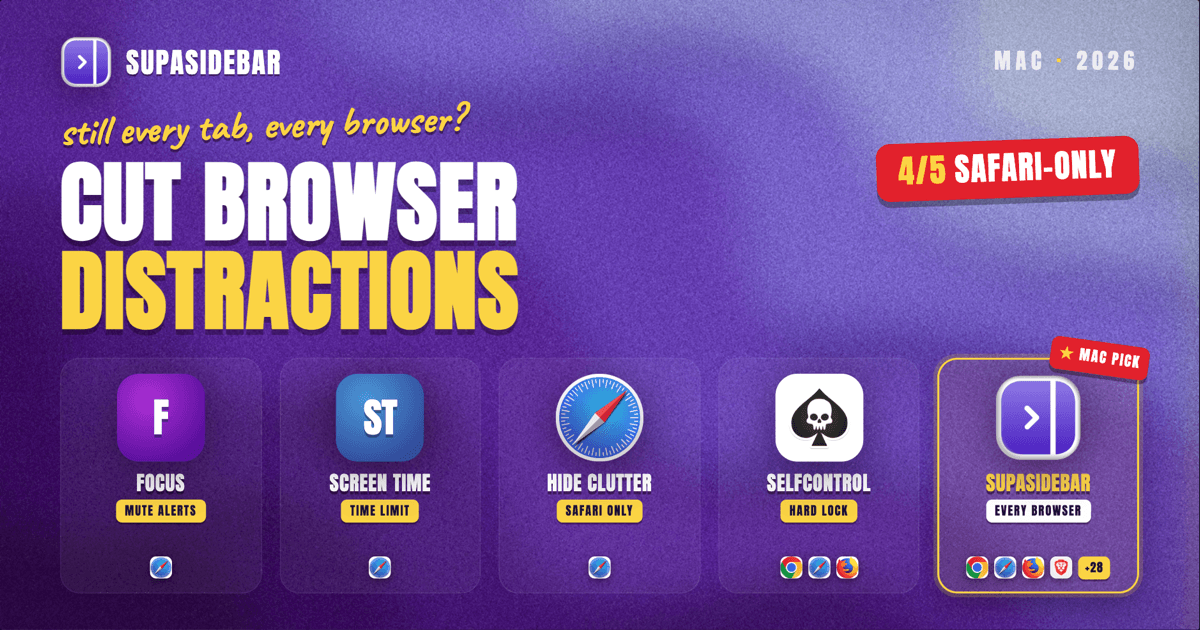
The fastest way to reduce browser distractions on a Mac is to stack three built-in tools, then fix the deeper problem underneath them. Turn on a macOS Focus to silence notifications, set a Screen Time website limit for your worst time-sinks, and use Safari's Distraction Control to hide the noisy parts of a page. Those handle interruptions and specific sites, but the distraction most people actually feel is different: every tab for every project is visible at once, spread across two or three browsers, so the work you are avoiding is always one glance away. The real fix for that is separation, keeping only the current task's tabs in view. Screen Time limits mostly bind to Safari, and browser profiles stop at a single browser, which is the gap a cross-browser sidebar like SupaSidebar closes by giving each context its own Space.
Quick navigation:
- Setting up a full focused workspace, not just fewer distractions? → Mac Workspace Setup for Deep Work 2026
- Distraction is really tab overload and a wandering brain? → ADHD and Browser Tab Overload
- Want one sidebar that spans every browser? → The Mac Sidebar App Guide
- Here to cut browser distractions on your Mac? You are in the right place. Keep reading.
At a glance: ways to cut browser distractions on a Mac
Each method below targets a different kind of distraction: interruptions, specific time-sink sites, on-page clutter, or the constant visibility of everything you are not working on. The honest differences are which browsers each one covers and what it actually stops.
| Method | What it does | Works across all browsers? | Best for |
|---|---|---|---|
| macOS Focus | Silences notifications, can filter Safari Tab Groups | Notifications yes; Safari filters Safari-only | Killing interruptions during deep work |
| Screen Time website limit | Caps time on chosen sites | No, blocks mainly in Safari | One or two known time-sink sites |
| Safari Distraction Control | Hides chosen static items on a page | Safari only | A cluttered page you visit often |
| Dedicated blocker (SelfControl, Freedom, Cold Turkey) | Blocks sites system-wide for a set time | Yes, across every browser | Hard commitment to stay off a list of sites |
| Context separation (Spaces) | Shows only the current task's tabs | Yes, spans every browser | Too many contexts and tabs visible at once |
Turn on a Focus so notifications stop pulling you away
Start with macOS Focus, because the cheapest distraction to remove is the one that interrupts. A Focus pauses and silences notifications, or allows only the ones you choose, and it syncs across your Apple devices. Set one up in System Settings under Focus, name it "Work," and either mute everything or let a short allow-list through, following Apple's guide to setting up a Focus on Mac.
Focus also has a browser hook worth knowing. A Focus filter can tell Safari to show a specific Tab Group while that Focus is on, so a "Work" Focus surfaces only your work tabs. The catch is that the Safari filter is Safari-only, and it changes which Tab Group shows rather than hiding the dozens of other tabs living in your other browsers. It is a good first layer, not the whole answer.
Set a Screen Time website limit for your worst time-sinks
For a specific site that eats your afternoons, a Screen Time limit is the most direct built-in tool. In System Settings, open Screen Time, click App Limits, turn it on, then Add Limit and expand the Websites category to pick a site you have visited, as described in Apple's Screen Time time-limits guide. Once you hit the cap, the site is gated behind a "time's up" screen.
There is one limitation that trips people up, and it is a real one. On a Mac, a Screen Time website limit blocks the site in Safari, but the same site opens normally in Chrome, Firefox, or Edge, a gap users run into and ask about directly on Ask MetaFilter. If your distraction browser is not Safari, Screen Time alone will not hold the line, which is why the blocker and separation methods below matter for a lot of Mac setups.
Hide on-page clutter with Safari Distraction Control
If a page you rely on is buried under banners, autoplay boxes, or a newsletter popup, Safari's Distraction Control removes them from view. Click the Smart Search field, choose Hide Distracting Items, click each element you want gone, then click Done; a blue crossed-out eye icon in the address bar reminds you items are hidden, per Apple's Safari support page. Hidden items stay hidden on other pages of the same site that use them the same way.
Be clear about what it is not. Distraction Control is not an ad blocker, and it works best on static elements, so content that reloads or rotates can come back, a limit Intego's walkthrough spells out. It cleans up a specific page you visit often; it does nothing about the twenty other tabs competing for your attention, and it is Safari-only.
Block distracting sites system-wide with a dedicated blocker
When willpower is the weak link, a dedicated blocker is the tool that actually holds, because it works at the system level across every browser rather than inside one. SelfControl (free and open source), Freedom, and Cold Turkey let you build a blocklist and lock yourself out for a set stretch of time, and because they intercept the sites system-wide, switching from Safari to Chrome does not sneak you back in, an approach covered in MakeUseOf's roundup of Mac focus apps. SelfControl in particular cannot be undone by quitting the app or restarting, which is the point.
The tradeoff is bluntness. A blocker treats a site as all-or-nothing for the timer's duration, which is right for compulsive sites and wrong for a tool you need for work but keep wandering inside. It also does not touch the low-grade distraction of simply seeing every open project at once, which is the part the built-in tools all miss.
The distraction most of these miss: seeing every context at once
Notifications, time limits, and blockers all fight interruptions and named bad sites. The quieter drain is structural. A typical Mac user keeps Chrome open for work because that is where the company login lives, Safari for personal, and maybe a third browser for one specific tool, and every tab from every one of those contexts is visible the moment a browser is in front of them. The half-read article, the side project, the shopping tab, and the actual task all share the same strip. Attention leaks toward whatever is in view, and blocking one site does not help when the distraction is the pile itself.
Browser profiles are the usual attempt at a fix, and they help inside one browser: a work Chrome profile keeps work bookmarks and logins separate from a personal one. The problem is that profiles stop at the browser boundary. They do nothing about the tabs sitting in Safari or the second browser, and switching profiles still leaves you inside the same crowded window. The missing piece is a way to see only the current task's tabs, no matter which browser each one happens to live in.
SupaSidebar: keep each task's tabs in its own Space
SupaSidebar reduces distraction by separation: it puts each context in its own Space so that when you are working, you see the tabs for that work and nothing else. It is a macOS menu bar app, not a browser or an extension, and it adds one sidebar that spans every browser you use, so a Space can hold the right tabs whether they opened in Chrome, Safari, or Firefox. Switching Spaces swaps the whole set in view, which is the move that makes the other projects disappear instead of sitting one glance away.
This maps to how people actually use it. One longtime user described bouncing between several different work areas through the day and leaning on Spaces to keep each of those areas separate, and context switching is one of the most common things SupaSidebar gets used for. Because the sidebar is cross-browser, the separation holds across the exact boundary that Screen Time limits and single-browser profiles cannot cross.
A concrete setup for cutting distraction while working:
| Space | Tabs inside it |
|---|---|
| Deep Work (current task) | the doc you are writing, the one reference tab, the project tracker |
| Comms (checked on a schedule) | gmail.com, slack.com, calendar.google.com |
| Later (out of sight) | the half-read article, the shopping tab, youtube.com |
While the Deep Work Space is active, the Comms and Later tabs are not on screen at all, so the pull to check them drops because they are not visible to click. The honest scope: SupaSidebar is not a website blocker and does not stop you from opening a distracting site or enforce a timer, so it pairs well with SelfControl or a Screen Time limit for sites you genuinely need locked. What it removes is the visual noise of every context at once, and it runs on macOS 14 and later. The Mac sidebar app guide covers how the sidebar sits on top of any browser.
Which distraction fix should you use?
Match the tool to the kind of distraction, and stack them when needed:
- If notifications keep breaking your focus: turn on a macOS Focus and mute everything but a short allow-list.
- If one or two named sites eat your day and you mostly use Safari: set a Screen Time website limit.
- If you cannot trust yourself to stay off a list of sites, in any browser: use SelfControl, Freedom, or Cold Turkey with a locked timer.
- If a page you use daily is cluttered: hide the noise with Safari's Distraction Control.
- If the real problem is too many projects and tabs visible at once, across more than one browser: separate contexts into Spaces so you only see the current task, which is what SupaSidebar does.
Conclusion
Reducing browser distractions on a Mac is a stack, not a single switch: a macOS Focus for interruptions, a Screen Time limit for named time-sink sites, Safari's Distraction Control for a cluttered page, and a blocker like SelfControl when a site has to be off-limits. Single-browser users who mostly live in Safari can get far with the built-in tools alone. Multi-browser users hit the wall those tools share, because Screen Time limits and profiles stay inside one browser while the distraction is spread across all of them, and the fix there is context separation that spans every browser so only the current task is in view. Try SupaSidebar (free tier) if your distraction is the pile of tabs across two or three browsers rather than one specific site.
Why we recommend SupaSidebar
SupaSidebar is a macOS app that brings Arc's sidebar to every browser - one sidebar for tabs, bookmarks, files, and apps across 32+ browsers including Safari, Chrome, Firefox, Edge, Arc, Brave, Vivaldi, Dia, and Orion. Its Spaces keep each project's tabs separate across every browser, so during focused work you see only the task in front of you instead of every context at once, and it runs on macOS 14 and later. More than 3,000+ Mac users have tried SupaSidebar. Feature details live at docs.supasidebar.com.
FAQ
How do I reduce browser distractions on a Mac?
Stack a few tools by the kind of distraction. Turn on a macOS Focus to silence notifications, set a Screen Time website limit for your worst time-sink sites, and use Safari's Distraction Control to hide clutter on a page. For sites you cannot resist, add a system-wide blocker like SelfControl. If the real problem is too many projects visible at once across several browsers, separate them into Spaces with a cross-browser sidebar so you only see the current task.
Does macOS have a built-in focus or distraction-free mode?
Yes. macOS Focus, in System Settings, pauses and silences notifications and can allow only the people or apps you choose. A Focus filter can also tell Safari to show a specific Tab Group while that Focus is on. It handles interruptions well, but it does not hide the tabs open in your other browsers.
Can I block distracting websites on a Mac for free?
Yes. Screen Time can set a time limit on a website at no cost, though on a Mac that limit mainly applies in Safari. For a free system-wide option that works across every browser, SelfControl is open source and blocks a list of sites for a timer that cannot be canceled by quitting the app or restarting.
Why does my Screen Time website limit still let me open the site in Chrome?
Because on a Mac, Screen Time website limits are enforced mainly in Safari. The same site usually opens normally in Chrome, Firefox, or Edge. If your distraction browser is not Safari, use a system-wide blocker or separate your contexts so the tempting tabs are not in front of you.
What is Safari's Distraction Control and what are its limits?
Distraction Control lets you hide chosen items on a webpage: click the Smart Search field, choose Hide Distracting Items, click the elements, then Done. It is not an ad blocker and works best on static elements, so content that reloads can reappear. It also only cleans up the page you are on, not the other tabs competing for attention.
How does separating tabs into Spaces reduce distraction?
Keeping each project in its own Space means only that project's tabs are visible while you work, so the other contexts are out of sight instead of one click away. A cross-browser sidebar like SupaSidebar does this across every browser at once, which is the boundary single-browser profiles and Screen Time limits cannot cross. It does not block sites, so pair it with a blocker for anything you need locked out.
Written by Kshetez Vinayak, founder of SupaSidebar. SupaSidebar adds a cross-browser sidebar to any Mac browser.