
How to use multiple browsers on Mac without losing your tabs
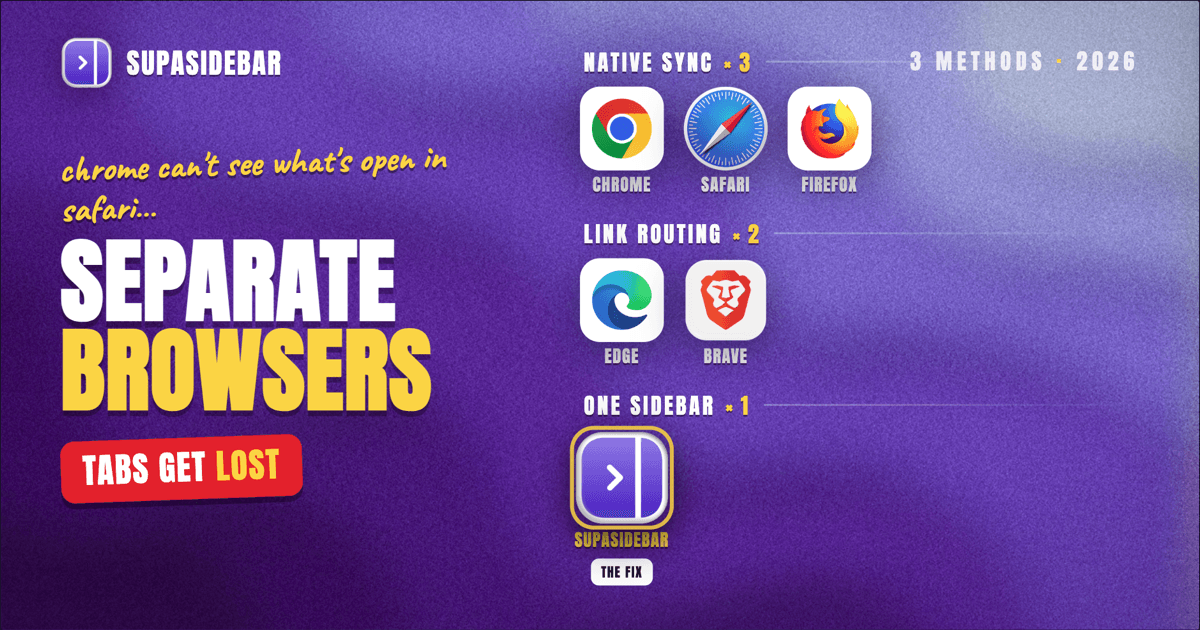
Using multiple browsers on a Mac means running Safari, Chrome, Firefox, or others at the same time and switching between them like any other app, but the tabs you open in one browser stay invisible to the others. The fix is not to pick a single browser. It is to add one layer that sees every browser at once: a Mac sidebar app like SupaSidebar shows the live tabs from all of your browsers in a single list and lets you jump to any of them with one search, so nothing gets buried the moment you switch apps.
This guide covers the three ways people actually run multiple browsers on a Mac (native sync, link-routing tools, and a unified sidebar), what each one does and does not solve, and how to set up a cross-browser workflow that keeps every tab findable. It is about using several browsers side by side on purpose, not about migrating from one browser to another.
Quick navigation:
- Wondering why a multi-browser setup needs one sidebar at all? -> Why Multi-Browser Users Need a Unified Sidebar
- Just want to find one specific open tab fast? -> How to Find an Open Tab Instantly on Mac
- New to the whole Mac sidebar app category? -> Mac Sidebar App: The Complete Guide
- Setting up a multi-browser workflow right now? You are in the right place. Keep reading.
Why running multiple browsers on Mac splits your tabs
There are good reasons to run more than one browser. A typical Mac setup keeps Chrome open for work because company SSO is configured there, Safari for personal browsing and better battery life, and Firefox or a Chromium browser like Brave for a side project or a second set of logins. Each browser keeps work and personal accounts genuinely separate, which browser profiles alone do not always manage cleanly.
The cost shows up the moment there are two or more browsers open. Each browser only knows about its own tabs. A tab open in Chrome is invisible from Safari, so finding "that pricing page from this morning" means guessing which browser it lives in and then scanning a crowded tab strip. Mac users describe keeping several browsers open at once precisely so accounts and contexts stay separated, then losing track of where any given page actually is.
macOS itself only helps with switching between the browsers, not with the tabs inside them. You can move between browsers with Command-Tab, Mission Control, or the Dock, the same way you switch any two apps (Apple's Mission Control guide covers the gestures). That answers how to switch between browsers on Mac, but not where a given tab went. The rest of this guide is about closing that second gap.
Method 1: native browser sync and tab recovery
Every major browser has built-in features that reduce the pain of a multi-browser setup, and they are the right first step because they cost nothing to turn on.
Sync keeps bookmarks, history, and saved passwords consistent so the same reference material is reachable from each browser. Chrome sync, Firefox Sync, and Safari's iCloud syncing all do this within their own ecosystem. Tab recovery covers the lost-session panic: every browser can reopen recently closed tabs (Command-Shift-T in Chrome and Firefox, or the History menu in Safari, per Apple's Safari support), and each restores your session after a crash or restart.
The limit is that sync runs inside one browser family, not across browsers. Chrome sync shows your Chrome tabs on another Mac running Chrome. It does not show those tabs inside Safari or Firefox. So native sync makes each browser self-consistent across devices, but it does nothing to give you a single view of what is open across all of them right now. That is the exact gap a multi-browser user feels every day.
Best for:
keeping bookmarks and saved passwords consistent, and recovering a closed session inside any single browser.
Method 2: link-routing and browser-switcher tools
The next layer is a set of small Mac utilities that decide which browser a link opens in. Instead of one default browser, tools like Choosy and Browser Fairy sit between a clicked link and your browsers: click a link, and a picker (or a rule you set) sends it to the right browser. Menu-bar helpers can also move the current page from one browser to another in a click. Roundups of Mac browser-management apps have recommended these for years (MakeUseOf's browser-management guide and Macworld's multiple-browser tips both cover the category).
This solves routing, which is genuinely useful: work links land in the work browser, personal links land in the personal browser, without you thinking about it. SupaSidebar includes this too through Air Traffic Control, where a rule like "anything from figma.com opens in Chrome Work" runs automatically, and Open in Other Browser (Command-Control-B) moves the current tab to a different browser on demand.
The limit is that routing decides where a link opens, not where all your open tabs can be seen. After the link opens, the tab is back inside one browser, invisible to the others. Browser switchers manage the doorway between browsers; they do not give you a window into every browser at once.
Best for:
automatically opening the right link in the right browser or profile.
Method 3: one sidebar that sees every browser
For finding and switching tabs across browsers, use a Mac sidebar app that reads the live tabs from all of your browsers at once, and SupaSidebar is the clearest fit because that cross-browser view is the whole point of the app. It is a native macOS app that adds a persistent sidebar to any browser, and its Live Tabs section shows the tabs currently open in Safari, Chrome, Firefox, Edge, Arc, Brave, Vivaldi, DuckDuckGo, and Orion (32+ browsers in total), grouped by browser, in one list. Clicking a tab activates the existing tab instead of opening a duplicate.
That single view is what native sync and link routers never give you. The problem in a multi-browser setup is not opening links, it is losing them across browser boundaries; SupaSidebar removes the boundary by putting every browser's tabs in the same place. The Command Panel (Command-Control-K) then searches across all of them at once, so "that pricing page" is one keystroke and one query away no matter which browser opened it. Spaces let you keep each context (work, personal, a side project) as its own set of saved links, switchable in a click.
A concrete setup for someone running three browsers looks like this:
| Space | Links inside it |
|---|---|
| Work (Chrome) | gmail.com, docs.google.com, figma.com, linear.app |
| Personal (Safari) | youtube.com, reddit.com, feedly.com |
| Side project (Firefox) | github.com, vercel.com, notion.so |
Switching Spaces swaps which set of saved links is in front of you, while Live Tabs keeps showing whatever is open across every browser underneath, so context and live state are both one click away.
SupaSidebar organizes the tabs and links around your work; it does not merge browser sessions or replace each browser's own profiles, and it runs on macOS 14 and later. It is not a browser and installs no extension. A free version is available.
How to set up a multi-browser workflow on Mac
A workable cross-browser setup takes a few minutes:
- Keep your browsers, do not consolidate. Decide what each browser is for (work SSO in Chrome, personal in Safari, a project in Firefox) so the separation stays meaningful.
- Turn on sync inside each browser. Enable Chrome sync, Firefox Sync, and Safari iCloud syncing so bookmarks and passwords stay consistent per browser.
- Add a layer that sees all of them. Install a Mac sidebar app such as SupaSidebar and choose Live Tabs during onboarding so every browser's open tabs appear in one list.
- Set routing rules once. Use Air Traffic Control (or a tool like Choosy) so links open in the correct browser automatically.
- Learn one search shortcut. Command-Control-K opens a search across every browser's tabs and your saved links, which is the move that ends tab hunting.
What to use for a multi-browser Mac setup
For most people running multiple browsers on a Mac, the answer is a combination: native sync for consistency, plus one sidebar layer for a unified view. Sync alone keeps each browser tidy but never crosses browser lines. Link routers alone place links well but leave tabs scattered. The piece that actually stops tabs from getting lost is a single cross-browser list.
- If you only need bookmarks and passwords to match across browsers: native sync is enough on its own.
- If links keep opening in the wrong browser: add a router (Air Traffic Control in SupaSidebar, or Choosy) and stop there.
- If you lose track of open tabs across two or more browsers: add a Mac sidebar app so every browser's live tabs sit in one searchable place.
SupaSidebar is a macOS app that brings Arc's sidebar to every browser - one sidebar for tabs, bookmarks, files, and apps across 32+ browsers including Safari, Chrome, Firefox, Edge, Arc, Brave, Vivaldi, DuckDuckGo, and Orion. For a multi-browser Mac workflow, that cross-browser sidebar is what keeps tabs from disappearing every time you switch apps. Try SupaSidebar (free tier).
FAQ
How do I use multiple browsers on a Mac at the same time?
Open each browser like any other app and switch between them with Command-Tab, Mission Control, or the Dock. To keep their tabs from getting lost, add a Mac sidebar app that reads the live tabs from every browser into one list, so you can see and reach any open tab regardless of which browser opened it.
How do I switch between browsers on a Mac quickly?
Command-Tab cycles between open apps including browsers, and Mission Control shows them all at once. That switches the browser window, not the tab inside it. To jump to a specific tab in any browser, a cross-browser search (such as SupaSidebar's Command Panel at Command-Control-K) finds it directly without cycling through windows.
Do my tabs sync between different browsers?
No. Chrome sync, Firefox Sync, and Safari iCloud syncing each work only within their own browser family, so a Chrome tab never appears inside Safari or Firefox. Sync keeps one browser consistent across devices; it does not give a single view across different browsers on the same Mac. A sidebar app that shows every browser's live tabs is what unifies them.
How do I manage multiple browsers without losing track of tabs?
Combine three things: turn on each browser's built-in sync, set link-routing rules so pages open in the right browser, and add a sidebar app that lists the live tabs from all browsers in one searchable place. The sidebar layer is what keeps open tabs findable across browser boundaries.
Can I open a link in a specific browser automatically on Mac?
Yes. Rule-based tools decide which browser a link opens in. SupaSidebar's Air Traffic Control can route by URL pattern (for example, work domains to a Chrome profile), and dedicated utilities like Choosy do the same. This handles where links open, though not where already-open tabs can be seen.
Is running multiple browsers bad for my Mac?
Running two or three browsers is fine for a modern Mac, though each open browser uses memory, so many tabs across several browsers can add up. Keeping only what you need open, and using a single sidebar to see and close stray tabs across browsers, keeps the footprint manageable.
By Kshetez Vinayak, founder of SupaSidebar. Last updated 2026-07-22.