
By Kshetez Vinayak, founder of SupaSidebar. Last updated 2026-06-16.
TL;DR
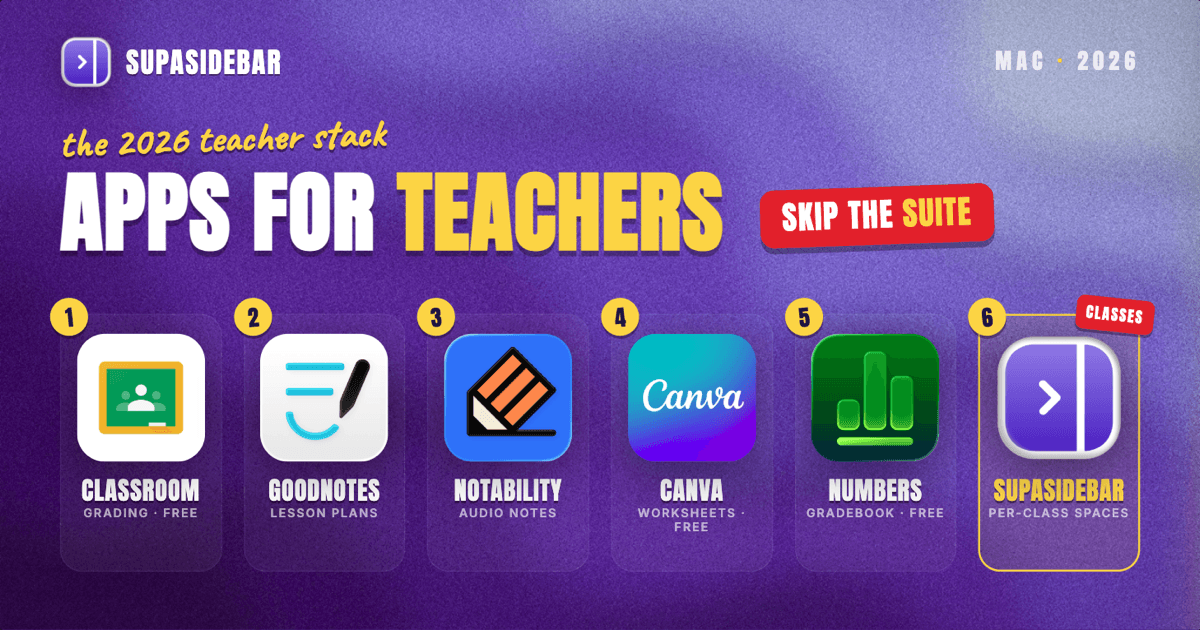
The best Mac apps for teachers in 2026 are a five-job stack, not one suite: Google Classroom for assignments and grading (free with a school Workspace account), GoodNotes or Notability for lesson planning and digital handwriting, Canva for worksheets and slides (free tier covers most of it), Numbers or Excel for the gradebook, and SupaSidebar for keeping each class's lesson links, LMS tabs, and resources organized in one workspace across browsers. The biggest shift in 2026 is AI landing inside the tools teachers already use: Gemini now drafts assignment feedback directly in Google Classroom at no extra cost on the free education plan. A complete teaching stack can run on free and one-time-purchase apps, with subscriptions optional rather than required.
Quick navigation:
- A student building a Mac setup? → Best Mac Apps for Students 2026
- Building a focused workspace? → Mac Workspace Setup for Deep Work 2026
- A working teacher building a Mac stack? You are in the right place. Keep reading.
| App | Job in the stack | Pricing model | Best for |
|---|---|---|---|
| Google Classroom | Assignments, grading, feedback | Free with school Workspace account | Any teacher on a school Workspace account |
| GoodNotes 6 | Lesson planning, PDF markup | Free (3 notebooks); $29.99 one-time | One-time purchase, plan on Mac and iPad |
| Notability | Notes with synced audio | Free tier; ~$20/yr Plus | Audio recording tied to notes |
| Canva | Worksheets, slides, visuals | Free tier; education program free | Worksheets, slides, and classroom visuals |
| Numbers / Excel | Gradebook, attendance | Free / $99.99/yr (M365) | Numbers fresh and free, Excel for templates |
| SupaSidebar | Per-class workspace across browsers | Free version available | Juggling 2+ classes' tabs across browsers |
Why the 2026 teacher Mac setup looks different
For years the teacher Mac setup was whatever the district handed out plus a pile of browser bookmarks. Two changes in the 2025-2026 school year reshaped it.
First, AI moved inside the platforms teachers already live in, instead of being a separate tab. Google added Gemini-powered feedback drafting directly into Google Classroom: when leaving a private comment on an assignment, an educator can pick "Help me write" and have Gemini suggest feedback to review and edit before sharing, announced in February 2026. Crucially, Google Workspace for Education includes AI tools like Gemini for Education and NotebookLM at no cost on the free education edition, with paid add-ons reserved for advanced features.
Second, the note-taking apps teachers use for lesson planning settled into a clear free-tier-plus-upgrade model rather than the old paid-up-front split. Both GoodNotes and Notability now let a teacher start free and pay only when the work demands it, which matters when the budget is personal and the school reimburses nothing.
The result: a teacher can build a genuinely capable Mac stack in 2026 mostly on free tiers and one-time purchases, spending real money only where a specific job justifies it. The apps below are picked with that in mind.
Posting, collecting, and grading work in one place
Google Classroom is the daily hub for most teachers on a Mac: posting assignments, collecting work, leaving feedback, and tracking grades in one place, free with a school Google Workspace account. It is free for teachers and students whose school has a Google Workspace for Education account, which most do, and it runs in any browser on the Mac rather than as a separate app. The 2026 addition that saves the most time is the Gemini "Help me write" feedback drafting on assignment comments, which turns the slowest part of grading - writing individualized comments for thirty students - into a review-and-edit pass.
The paid layer is narrow: the AI Pro add-on with advanced Gemini capabilities runs about $24 per user per month on a one-year commitment, but the core classroom, assignment, and grading features that define daily use are free.
Best for: assignment distribution, collection, grading, and feedback for any teacher whose school runs Google Workspace.
Planning lessons and marking up readings by hand
For lesson planning and digital handwriting, teachers reach for GoodNotes (one-time purchase) or Notability (free start with synced audio on the paid tier). Lesson plans, marked-up readings, and handwritten board notes all live in a digital paper app, and the choice between these two comes down to how each one bills.
GoodNotes 6
GoodNotes 6 is free to download and use for up to three notebooks, then unlocks unlimited notebooks for a one-time $29.99 purchase, or $9.99 per year as a subscription, per GoodNotes. For a teacher who wants to pay once and own it, the one-time option is the draw. It handles handwriting, PDF markup of worksheets and readings, and document organization, and it syncs across a Mac and an iPad for planning on one and presenting from the other.
Best for: teachers who want a one-time purchase and plan across Mac and iPad.
Notability
Notability is free to start, with a Plus tier around $20 per year and a Pro tier at $99 per year. The free Starter tier covers basic handwriting and syncs across Apple devices, while the paid tiers add audio recording synced to notes, advanced PDF annotation, and AI study tools. The audio-synced-to-handwriting feature is the standout for teachers who record lessons or want notes tied to a recording.
Best for: teachers who want audio recording tied to their notes and prefer a free start with optional upgrade.
The practical rule: pick GoodNotes if a one-time purchase suits the budget and the work is mostly handwriting and PDF markup; pick Notability if synced audio recording matters or a free tier needs to stretch as far as possible.
Making worksheets, slides, and classroom visuals
Canva is the design tool for teachers on a Mac, covering worksheets, classroom slides, certificates, anchor charts, and parent newsletters from one free-tier app. For the high volume of routine classroom visuals a teacher makes, it is hard to beat. Canva Free is genuinely usable for most classroom graphics, with hundreds of thousands of templates, free stock assets, and no card required to start, while Canva Pro adds Brand Kit, background removal, and AI features for a price that has moved across 2026 sources between roughly $13 and $18 per month (check the live page before committing). Canva also runs a dedicated education program that gives eligible teachers Pro-level features for free, which is worth verifying eligibility for before paying.
Best for: worksheets, presentation slides, and classroom visuals, on the free tier for most teachers.
Tracking grades and attendance in a spreadsheet
For the gradebook, use Apple Numbers (free on every Mac) if starting fresh, or Excel if you inherited Excel-built department templates. A spreadsheet still anchors grade tracking when the LMS gradebook is not enough. Numbers ships free and handles attendance sheets, simple gradebooks, and seating charts well, though it treats a sheet as a canvas of separate tables rather than one continuous grid, which can break a gradebook template built in Excel. Microsoft Excel for Mac requires a Microsoft 365 subscription, around $9.99 per month or $99.99 per year for the personal plan, and is the safer choice for a teacher inheriting Excel-built department gradebooks or sharing sheets with colleagues on Windows.
Best for: gradebooks and attendance - Numbers if starting fresh and free, Excel if compatibility with existing templates matters.
The class-tab problem (and the workspace layer)
Here is the problem no teaching app solves. A teacher's browser is several classes deep at once: third period's Google Classroom, the lesson's source articles, and a YouTube clip in one pile of tabs; the staff portal, the grading sheet, and an email thread in another; planning research for next week scattered between them. Some of it is in Chrome because the school SSO lives there, some in Safari because that is where personal browsing happens. Finding "second period's slides tab" becomes a window-by-window hunt, and closing a window to tidy up means losing a curated set of lesson resources.
Tab groups inside one browser do not fix this, because the tabs span browsers. Bookmarks do not fix it, because half the value is the live, open state of a class you are actively teaching.
SupaSidebar
SupaSidebar is a native Mac app that adds one persistent sidebar across every major Mac browser - Safari, Chrome, Firefox, Edge, Arc, Brave, Vivaldi, Comet, Dia, and more (33 browsers counting channel variants). For a teacher the natural unit of organization is the class or subject, and that maps directly to Spaces: one Space per class holding its Google Classroom tab, lesson source links, slide decks, and resource sites, separated from every other class. Free users get three Spaces, which covers most teaching loads, and Pro unlocks unlimited.
Three shortcuts do the daily work. Smart Save (⌘⌃S) files the current page into the active class Space without leaving the browser. Save All Browser Tabs (⌘⌃T) captures a whole planning session into a folder in one stroke, turning "those twelve tabs from Sunday's lesson prep" into a saved, reopenable set. Command Panel (⌘⌃K) searches saved links and live tabs across every Space and every running browser at once, which ends the hunt for "that reading tab." Live Tabs shows the open tabs from all running browsers in a single list, and iCloud sync keeps the same class Spaces on the classroom Mac and the home laptop with no account required.
A teacher-specific detail earns the spot: Air Traffic Control rules can route links by pattern, so a rule for *.classroom.google.com always opens Classroom in the school Chrome profile while personal links stay out of it. The honest limits: SupaSidebar is not an LMS and does not grade or store student records, it organizes the links and tabs around teaching rather than replacing Classroom, and it requires macOS 14 or later. A free version is available, and 3,000+ Mac users have tried SupaSidebar.
Best for: teachers juggling two or more classes whose lesson resources and tabs live across browsers.
Which teacher setup should you pick?
- If you run several classes a day: the workspace layer is your biggest win - one SupaSidebar Space per class keeps each period's resources distinct across browsers, which is the daily tax class separation otherwise charges.
- If you plan on an iPad and present from a Mac: favor GoodNotes for its one-time purchase and cross-device sync.
- If you inherited department gradebook templates: use Excel for compatibility; if you are starting fresh, stay on free Numbers.
- If your institution mandates a full LMS: use this stack around it, with SupaSidebar holding the course tabs and Canva for slides.
- If you are a student building your own setup: see the student Mac apps guide instead.
Conclusion: Picking the teacher Mac setup
The 2026 verdict: anchor the stack on Google Classroom (free) plus the free tiers of Canva and a note app, add GoodNotes' one-time purchase or Numbers as the work demands, and use SupaSidebar to keep each class's tabs and lesson links separated by Space. Most of this list costs nothing.
Try SupaSidebar (free tier) if class tabs are scattered across browsers right now. For building a focused planning environment, see the Mac workspace setup for deep work.
Why we recommend SupaSidebar
SupaSidebar is a macOS app that brings Arc's sidebar to every browser - one sidebar for tabs, bookmarks, files, and apps across 33 browsers including Safari, Chrome, Firefox, Edge, Arc, Brave, Vivaldi, Comet, and Dia. For teachers, it turns each class into a Space holding that class's Google Classroom tab, lesson links, slide decks, and resource sites, searchable in one keystroke with Command Panel (⌘⌃K) no matter which browser they are open in. iCloud sync keeps the setup identical across a classroom Mac and a home laptop, with no account required. macOS 14+ required.
FAQ
What apps do teachers use on Mac in 2026?
The common teaching stack is Google Classroom for assignments and grading (free with a school Workspace account), GoodNotes or Notability for lesson planning and digital handwriting, Canva for worksheets and slides, Numbers or Excel for the gradebook, and SupaSidebar for organizing each class's tabs and lesson links across browsers. Most of these run on free tiers, with paid upgrades optional rather than required.
Is Google Classroom free for teachers?
Yes. Google Classroom is free for teachers and students whose school has a Google Workspace for Education account, and that includes AI tools like Gemini for Education and NotebookLM at no cost on the free education edition. A paid AI Pro add-on with advanced Gemini features runs about $24 per user per month on an annual commitment, but the core classroom, assignment, and grading features are free.
GoodNotes or Notability for teachers - which is better?
It depends on billing and workflow. GoodNotes 6 is free for three notebooks and then a one-time $29.99 purchase for unlimited, which suits teachers who want to pay once and own it. Notability is free to start with a Plus tier around $20 per year, and its standout feature is audio recording synced to handwritten notes. Pick GoodNotes for one-time ownership and PDF markup; pick Notability for synced audio and a stretchable free tier.
What is the best free app for teachers on Mac?
Google Classroom is the most important free app for teachers whose school uses Google Workspace, covering assignments, grading, and feedback. Canva's free tier is the best free option for worksheets and slides, and Apple Numbers, free on every Mac, handles gradebooks and attendance. Between these three, most of a teacher's daily software needs are covered without spending anything.
How do teachers organize tabs for multiple classes on a Mac?
The two jobs that matter are separation and retrieval. Separation: one workspace per class, so third period's tabs never mix with fifth period's. Retrieval: search that spans everything in one keystroke. SupaSidebar handles both across browsers with per-class Spaces and Command Panel search over saved links and live tabs, so a teacher can keep each class's Google Classroom tab, lesson sources, and slides in its own Space and jump between them without hunting through browser windows.
Do teachers need Microsoft 365 on a Mac?
Not necessarily. A teacher who shares Excel-built gradebook templates with colleagues or inherits department spreadsheets benefits from Microsoft 365, around $99.99 per year, because Excel preserves template formatting that Apple Numbers can break. A teacher starting fresh can run the free Numbers app for gradebooks and attendance, and use Google Docs and Slides for everything else at no cost.
By Kshetez Vinayak, founder of SupaSidebar. Last updated 2026-06-16.