
TL;DR:
Your entire Arc Browser sidebar lives in a single file called
StorableSidebar.json. Find it at~/Library/Application Support/Arc/, copy it somewhere safe, and import it into SupaSidebar to keep your pinned tabs, spaces, and bookmarks alive in any browser. Takes about 5 minutes.
Looking for something specific?
- Comparing every Arc alternative? → Arc Browser alternative guide (the pillar comparison)
- Leaving Arc and want the full migration playbook? → Switching from Arc Browser
- Already have your StorableSidebar.json? → Keep reading.
Arc Browser stored your sidebar data - pinned tabs, spaces, folders, bookmarks - in a JSON file called StorableSidebar.json. Whether you're leaving Arc because of the Atlassian acquisition, performance issues, or just want your sidebar in Safari or Chrome, this file is how you take your data with you.
I built SupaSidebar partly because I kept hearing from Arc users who wanted their sidebar in other browsers. Thousands of Mac users now rely on it, and Arc import via StorableSidebar.json is one of the most-used features. One user put it simply: "Moved from Arc to Safari, only thing I missed was the sidebar. This is it."
This guide covers exactly how to find, export, and import your Arc sidebar data.
What is StorableSidebar.json?
StorableSidebar.json is Arc Browser's internal data file for your sidebar. It's a standard JSON file that contains your complete sidebar structure: every pinned tab URL, every space name, every folder, and every bookmark you saved.
Here's what's inside:
- Pinned tabs - URLs, titles, and which space they belong to
- Spaces - Your workspace names and configurations
- Folders - Any organizational folders you created in Arc's sidebar
- Bookmarks - Saved links and their positions in the sidebar hierarchy
What it does not contain: browsing history, saved passwords, cookies, extension data, or Arc-specific features like split views or easels. Those are stored in separate files or Arc's servers and can't be exported this way.
The file is usually between 100KB and 5MB depending on how much you stored. If you were a heavy Arc user with dozens of pinned tabs across multiple spaces, expect the larger end.
How to Find and Export StorableSidebar.json
Step 1: Open the Arc data folder
Open Finder and press Cmd+Shift+G (Go to Folder). Paste this path:
~/Library/Application Support/Arc/
Hit Enter. You'll land in Arc's configuration directory. If this folder doesn't exist, either Arc was never installed on this Mac or the application data was already deleted.
Step 2: Locate StorableSidebar.json
Look for StorableSidebar.json in the Arc folder. It should be right there at the top level - not buried in a subfolder.
If you see multiple files with similar names (like StorableSidebar.json.backup), grab the main StorableSidebar.json - that's the current one. The backup files are Arc's own safety copies and may be slightly older.
Step 3: Copy it somewhere safe
Don't move the file
- if Arc is still installed, it needs the original. Right-click, select Copy, then paste it to your Desktop or Documents folder.
If you've already uninstalled Arc, the file might still be at that path. macOS doesn't always clean up ~/Library/Application Support/ when you trash an app. Check there first, then check your Trash.
No file anywhere? If you use Time Machine, you can recover it from a backup. Navigate to the same path in Time Machine and restore the file.
Step 4: Import into SupaSidebar
This is where your sidebar data gets a second life. SupaSidebar is a Mac sidebar app that reads StorableSidebar.json and recreates your Arc sidebar structure in a universal sidebar that works with Safari, Chrome, Firefox, Brave, Edge, and any other browser.
- Open SupaSidebar (download from supasidebar.com if you haven't - free tier works)
- Go to Preferences (Cmd+,)
- Click the Import & Export tab
- Select Arc Browser as the source
- Click Import
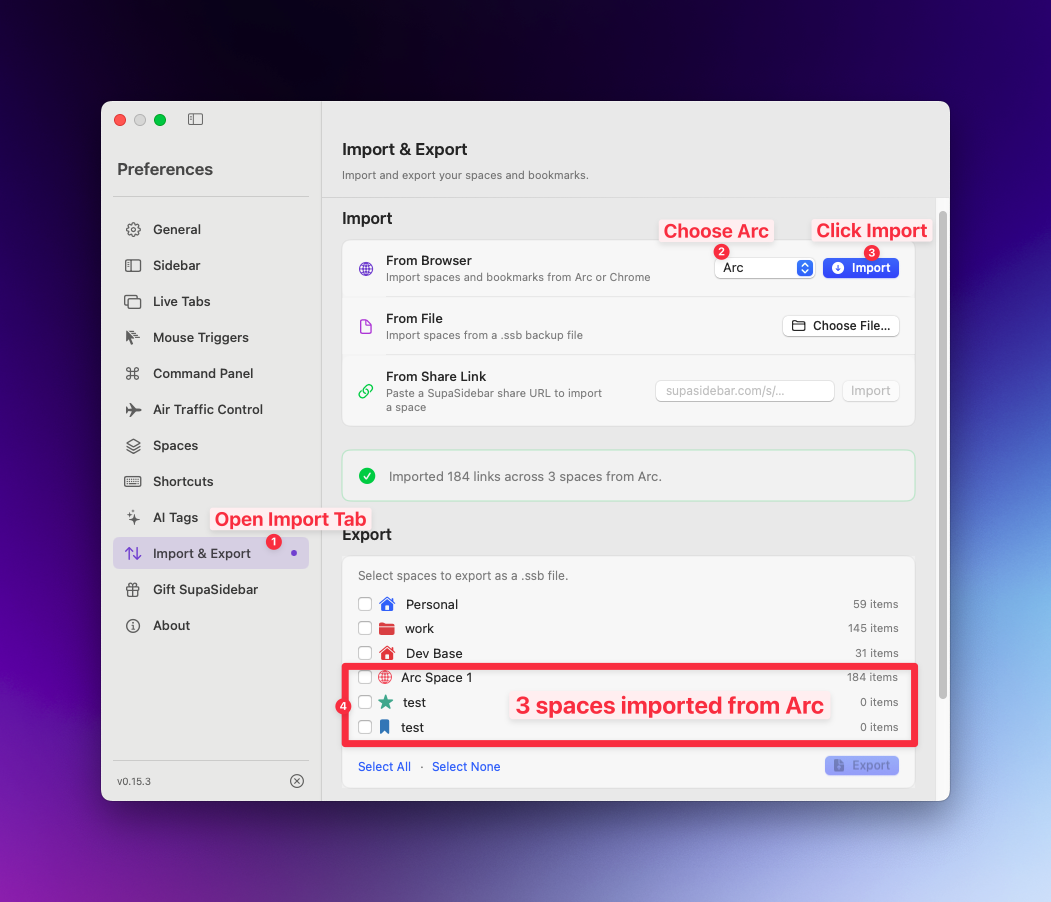
SupaSidebar reads your StorableSidebar.json automatically - it knows where Arc stores the file. If you moved the file or Arc is uninstalled, you may need to point it to your saved copy manually.
Step 5: Check your imported data
After the import finishes, flip through your Spaces in SupaSidebar. Each Arc space becomes a SupaSidebar space. Pinned tabs show up as saved links. Folders maintain their structure.
A few things to know about what transfers and what doesn't:
| Arc Feature | Imports to SupaSidebar? | Notes |
|---|---|---|
| Pinned tabs | Yes | Become saved links in SupaSidebar |
| Spaces | Yes | Each Arc space = one SupaSidebar space |
| Folders | Yes | Structure preserved |
| Bookmarks | Yes | Imported as saved links |
| Split views | No | Arc-only UI feature |
| Easels | No | Arc-only feature |
| Tab groups (unpinned) | No | Temporary tabs aren't stored in sidebar data |
| Boosts/themes | No | Arc customization layer, not sidebar data |
The free tier of SupaSidebar gives you 3 spaces. If your Arc setup had more than 3 spaces, you'll need a paid plan (monthly, yearly, or lifetime) to access them all. There's a 14-day money-back guarantee either way.
Why Export Your Arc Sidebar Data Now
If you're still on Arc but thinking about leaving, export your StorableSidebar.json today even if you're not ready to switch yet. Here's why:
Arc is no longer actively developed as a standalone browser. The Browser Company shifted focus to Dia, their new AI-focused browser. Arc will receive maintenance updates, but no new features. At some point, updates may stop entirely.
When that happens, your sidebar data goes with it. StorableSidebar.json exists on your local machine right now, but if a future macOS update breaks Arc or Arc's servers go offline, you may not be able to launch the app to access your data.
Copy the file. Put it in iCloud Drive or wherever you keep important files. It's a 2-minute insurance policy for potentially years of curated links.
What Arc Users Say About Migrating
The Arc-to-SupaSidebar migration is one of the most common paths I see. Some quotes from users who made the switch:
"I just found this today and love the fact that I can have the only thing I liked about Arc straight into the comfort of my Safari - AND have it sync'd via iCloud" - Reddit user
"This is exactly what I needed, been looking for something like this since I switched from Arc" - Reddit user
"I miss Arc's sidebar the most. Everything else I can live without" - Reddit user
The pattern is consistent: people love Arc's sidebar concept but want it in a browser that's actively maintained and integrated with macOS. SupaSidebar gives you the sidebar without locking you into a specific browser - it works across Safari, Chrome, Firefox, Brave, and Edge simultaneously.
Alternative: Manual Export
If you don't want to use SupaSidebar or any import tool, you can still work with StorableSidebar.json directly. It's a standard JSON file. Open it in any text editor (VS Code, Sublime Text, even TextEdit in plain text mode).
The structure is nested but readable. You'll see objects for each space, with arrays of items inside them. Each item has a title and data field containing the URL. You could write a script to extract all URLs, convert them to an HTML bookmarks file, or process them however you need.
I won't sugarcoat it though - manually parsing the JSON is tedious if you had more than a dozen pinned tabs. The file structure has nested containers and metadata that make it annoying to work with by hand. If you just want standard bookmarks out of the file, our free Arc Sidebar Exporter converts StorableSidebar.json to importable bookmarks HTML or CSV right in your browser - nothing gets uploaded. The SupaSidebar import handles all of it automatically, spaces and folders included.
Frequently Asked Questions
Where is StorableSidebar.json located on Mac?
StorableSidebar.json is located at ~/Library/Application Support/Arc/ on macOS. Open Finder, press Cmd+Shift+G, and paste that path. The Library folder is hidden by default in Finder, which is why you need the Go to Folder shortcut to reach it.
Can I export my Arc sidebar after uninstalling Arc Browser?
Possibly. macOS doesn't always delete the ~/Library/Application Support/Arc/ folder when you uninstall an app. Check that path first. If the folder is gone, check your Trash (it might still be there if you haven't emptied it). Your last resort is Time Machine - if you have backups, navigate to that path in Time Machine and restore StorableSidebar.json.
What data does StorableSidebar.json contain?
It contains your full Arc sidebar structure: pinned tab URLs and titles, space names and configurations, folder hierarchy, and saved bookmarks. It does not contain browsing history, saved passwords, cookies, or extension data. The file is plain JSON and can be opened in any text editor.
How do I import StorableSidebar.json into SupaSidebar?
Open SupaSidebar, go to Preferences (Cmd+,), click the Import & Export tab, select Arc Browser, and click Import. SupaSidebar automatically finds and reads the file. If Arc is uninstalled, you may need to point to your saved copy. The import works on the free tier - you don't need to pay to test it.
Does the Arc sidebar export work on Windows?
Arc Browser was Mac-only for most of its life. A Windows version existed briefly but used a different internal structure. StorableSidebar.json and the export process described here are specific to macOS. SupaSidebar is also Mac-only, so the full export-import workflow applies exclusively to Mac users.
Kshetez Vinayak is the indie developer behind SupaSidebar, a Mac sidebar app that brings Arc's sidebar to every browser. Free to download with 3 spaces included.