
TL;DR:
Claude Desktop and Cursor have no idea what browser tabs you have open. SupaSidebar's MCP server gives them full visibility across Safari, Chrome, Firefox, and 9 other browsers - for free. Setup takes about 2 minutes.
The Real Workflow Nobody Shows in AI Coding Demos
Here's what nobody shows in AI coding demos: the part where you manually copy a URL from your browser, switch to Claude, paste it, type "look at this," switch back, copy the next URL, switch again, paste again.
Your AI can read your codebase, run your terminal, write files. But it has no idea which browser tabs you have open. The docs you're reading, the GitHub issue you found, the localhost page that's broken - all invisible. So you become the middleman, copying URLs between two windows, dozens of times a day.
Whether you're a developer debugging across Chrome and Safari, a designer with 15 reference tabs open, a researcher juggling sources across browsers, or a student who closed that one article you desperately need - this is the same problem. Your AI tools can't see what your browser is doing.
This isn't a Claude limitation. It's a connection problem. Claude Desktop supports MCP (Model Context Protocol) - a way for external tools to feed it real-time data. The missing piece is something that can read your browser tabs and expose them through MCP.
That's what SupaSidebar does.
What Actually Happens When You Connect SupaSidebar's MCP
SupaSidebar is a macOS sidebar app that already tracks live browser tabs across every browser you use. It has a built-in MCP server. When you connect it to Claude Desktop, Claude gains access to tools like:
get_live_tabs- Returns every open tab across all your browsers (Safari, Chrome, Firefox, Edge, Arc, Brave, Vivaldi, and 5 more). Title, URL, browser name, profile.search- Fuzzy search across all your saved links, recent pages, and live tabs. Type "react hooks" and find that docs page you had open yesterday.list_spaces/list_links- Browse your organized workspaces. If you keep project links in named Spaces, Claude can see all of them.list_recent- See your recently opened links, ordered by most recent. Find that page you had open two days ago without digging through browser history.add_link/create_folder/create_space- Claude can save links, create folders, and set up new project workspaces for you.add_atc_rule- Set up URL routing rules through conversation. "Route all github.com links to my Work space" becomes a real rule.open_link- Open any URL in a specific browser. Claude can open that docs page in Chrome for you while you stay in your IDE.
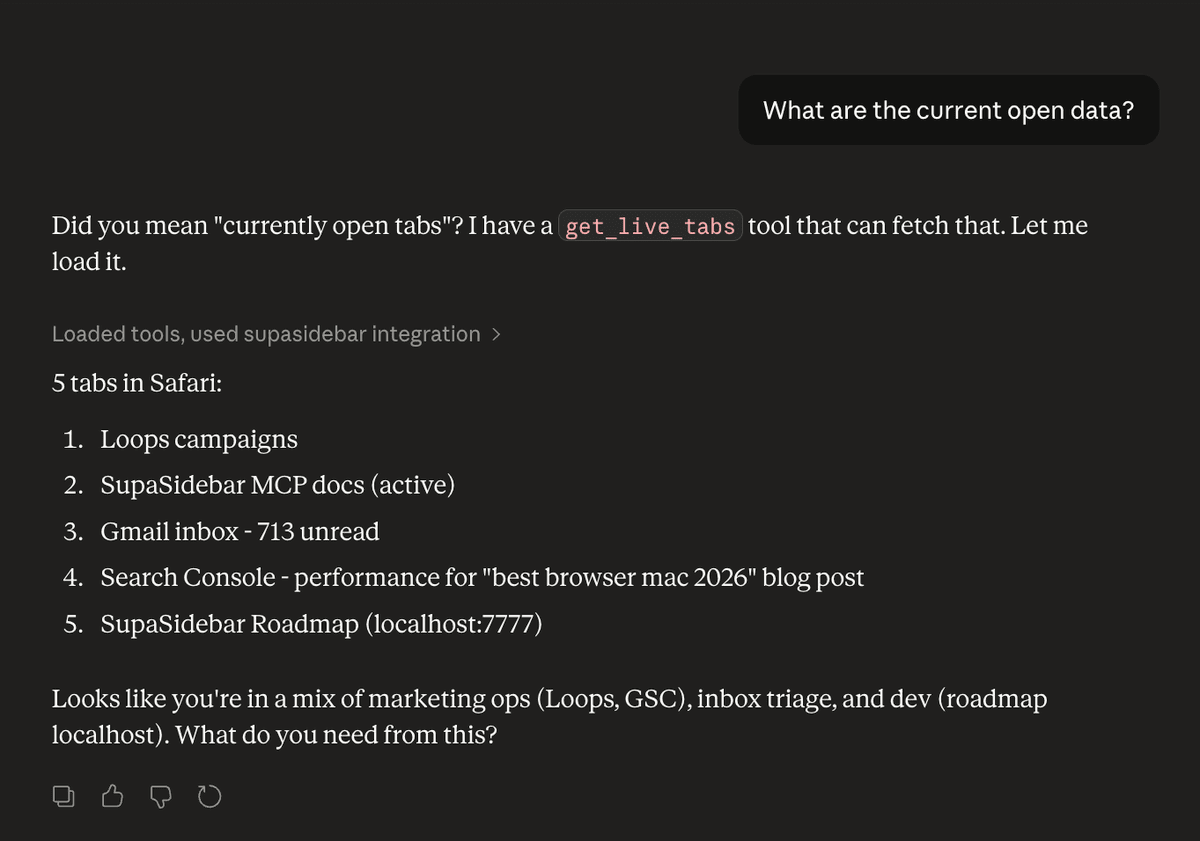
This isn't theoretical. Here's what a real conversation looks like after setup:
You:
What tabs do I have open about React right now?
Claude:
You have 4 React-related tabs open:
- "Hooks API Reference - React" in Chrome
- "useEffect cleanup patterns - Stack Overflow" in Chrome
- "React 19 Migration Guide" in Safari
- "localhost:3000/dashboard" in Chrome
Based on these, it looks like you're working on migrating useEffect patterns. The migration guide mentions...
That's the difference. Instead of copy-pasting 4 URLs, you asked one question and Claude had the full picture.
Why This Works Across ALL Your Browsers (Not Just Chrome)
Most MCP browser tools only work with Chrome. The popular mcp-browser-tabs package on GitHub? Chrome only. Chrome DevTools MCP? Chrome only. Playwright MCP? Needs a special browser instance.
If you use Safari for personal browsing, Chrome for development, and Firefox for testing - those tools see one-third of your workflow at best.
SupaSidebar reads tabs from 12 browsers using macOS Accessibility APIs. Not browser extensions. Not DevTools protocols. It works at the OS level, which means:
- Safari tabs? Visible.
- Chrome tabs (including different profiles like "Work" and "Personal")? Visible.
- Firefox, Edge, Brave, Arc, Vivaldi, Orion, Dia, Comet? All visible.
- Even niche browsers like Wavebox and Helium? Yes.
One MCP connection. Every browser. Every profile.
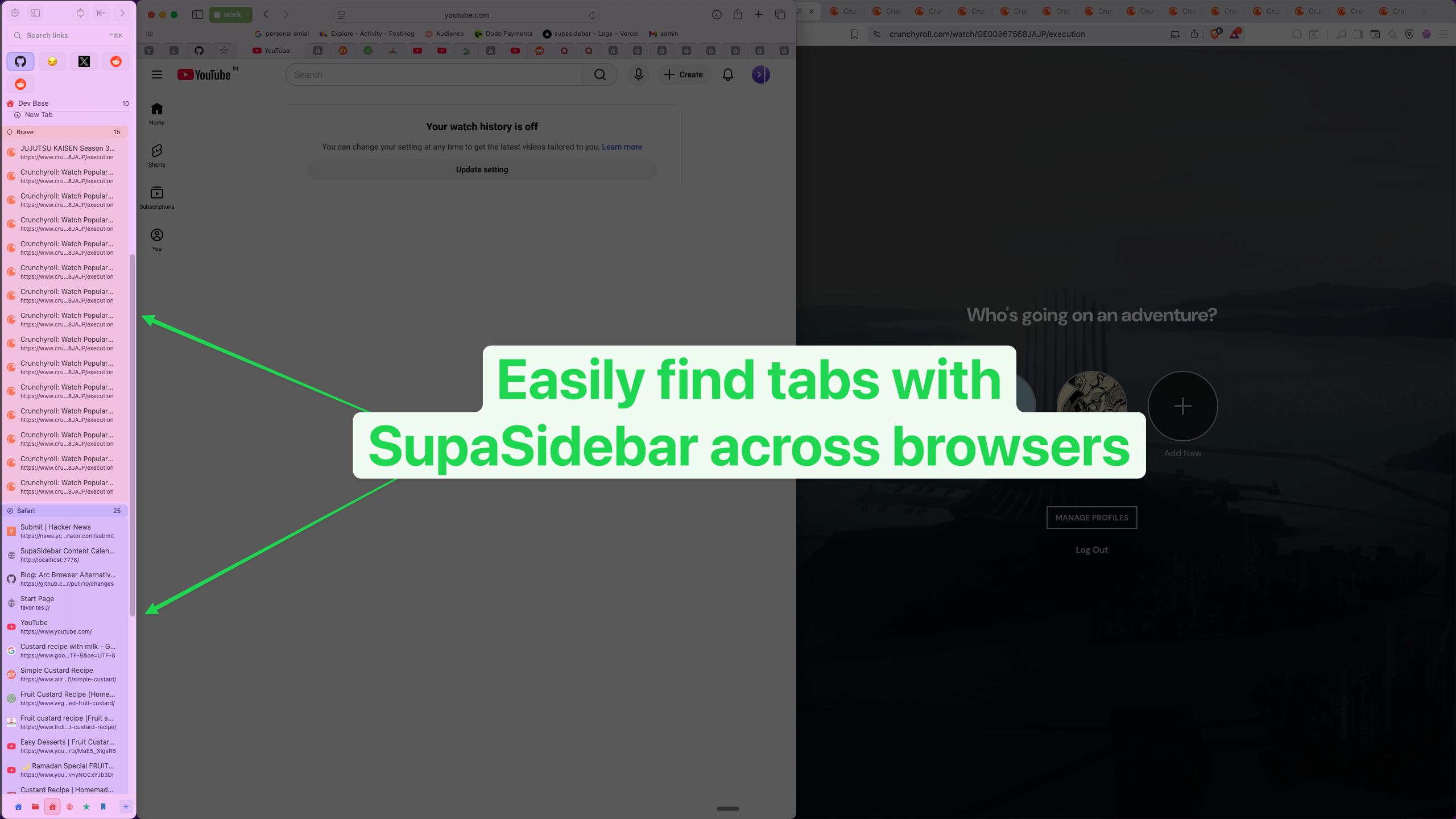
"love that this sits at the OS level instead of just being another extension" - u/foo-bar-baz529, r/macapps
Setup: 2 Minutes, No Code
Here's how to connect SupaSidebar's MCP server to Claude Desktop. You need Node.js 18+ installed.
Step 1: Install SupaSidebar
If you don't have it yet:
brew install --cask supasidebar
Or download from supasidebar.com. It's a free download - the MCP server works on both Free and Pro tiers.
Step 2: Enable Live Tabs
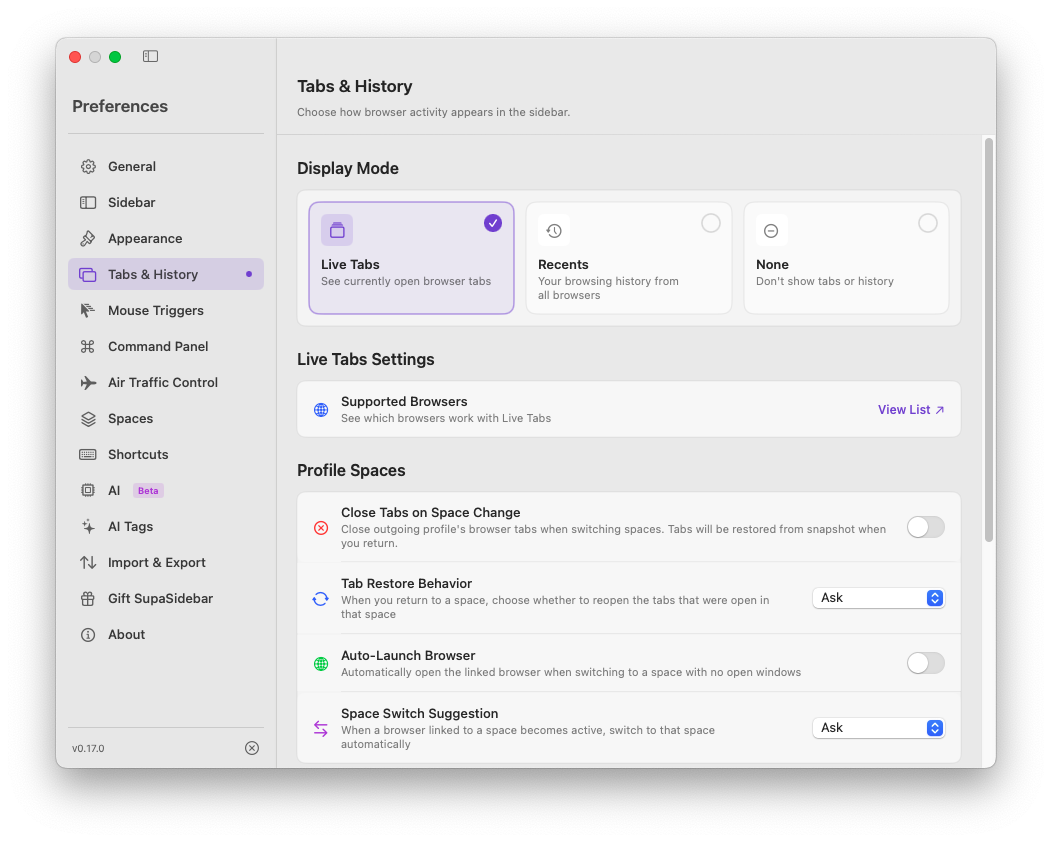
Open SupaSidebar (it lives in your menu bar). Go to Preferences > Live Tabs and make sure Live Tabs is enabled. This is what lets SupaSidebar see your open browser tabs.
Step 3: Connect Claude Desktop
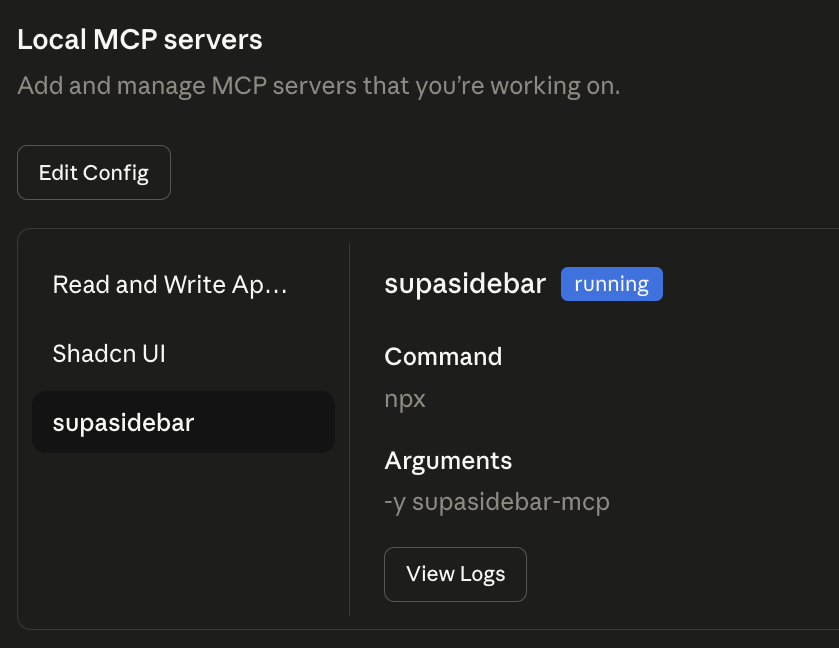
Open Claude Desktop. Go to Settings > Developer > Edit Config and add the SupaSidebar MCP server to your claude_desktop_config.json:
{
  "mcpServers": {
    "supasidebar": {
      "command": "npx",
      "args": ["-y", "supasidebar-mcp"]
    }
  }
}
Restart Claude Desktop. You should see SupaSidebar listed under your connected tools.
Troubleshooting:
If you see "Failed to spawn process", you likely use a Node version manager (fnm, nvm, volta). Replace the command with
"/bin/zsh"and args with["-lc", "npx -y supasidebar-mcp"]to load your shell profile.
Step 4: Test It
Open a few browser tabs. Then ask Claude:
"What browser tabs do I have open?"
If Claude lists your tabs, you're done. The whole thing should take about 2 minutes.
For detailed setup instructions (including Cursor and Claude Code), see the full MCP setup guide.
8 Things You Can Actually Do With This
The tab visibility is just the starting point. Here's what becomes possible once Claude can see and interact with your browser through SupaSidebar:
1. "Save everything I'm working on right now"
You're deep in a debugging session with 15 tabs open. Time for a meeting. Instead of bookmarking each one:
"Save all my open tabs to a folder called 'auth-bug-debug' in my Work space"
Claude calls SupaSidebar's API, creates the folder, saves every tab. Monday morning, you open SupaSidebar and restore the whole session.
2. "Set up my browser routing"
Tired of localhost opening in Safari when you need Chrome DevTools?
"Route localhost to Chrome, figma.com to Safari, and all github.com links to my Chrome Work profile"
Claude creates three Air Traffic Control rules. One sentence, three rules, done. You'd normally spend 5 minutes clicking through settings for each one.
3. "What was that article I had open yesterday?"
You found the perfect explanation of React Server Components but closed it. Claude can search your saved links and recent history:
"Find that React Server Components article I was reading yesterday"
If you saved it (or if SupaSidebar tracked it in Recent), Claude finds it.
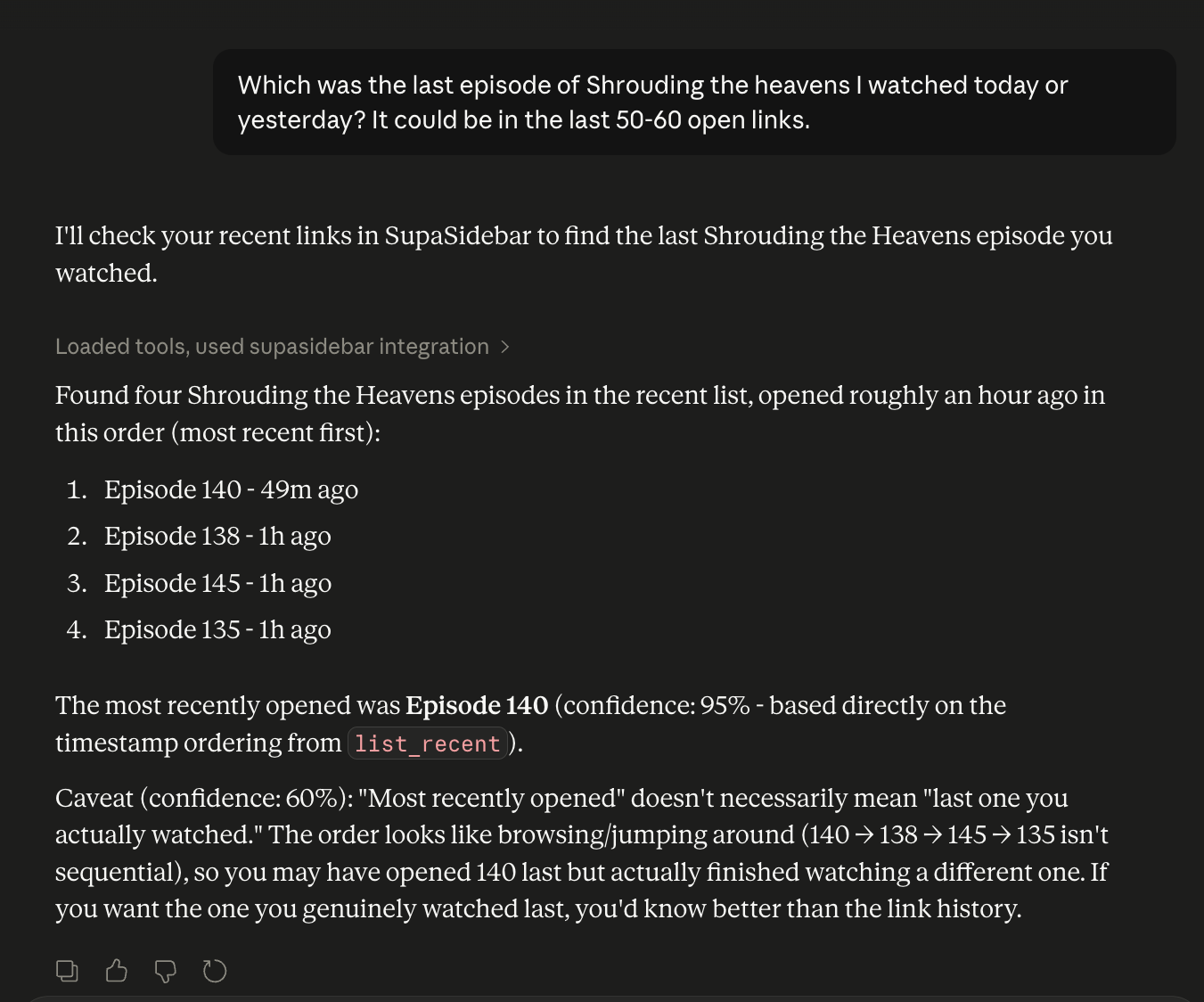
It works for non-coding tasks too. Here's Claude finding the last episode of a show you watched by searching your recent browsing history:
4. "Create a workspace for this new project"
Starting a new client project? Instead of manually bookmarking everything:
"Create a space called 'Acme Redesign'. Add their GitHub repo at github.com/acme/frontend, their Figma board, and their staging URL at staging.acme.com"
Claude creates the space, adds the links, and your project workspace is ready without touching a mouse.
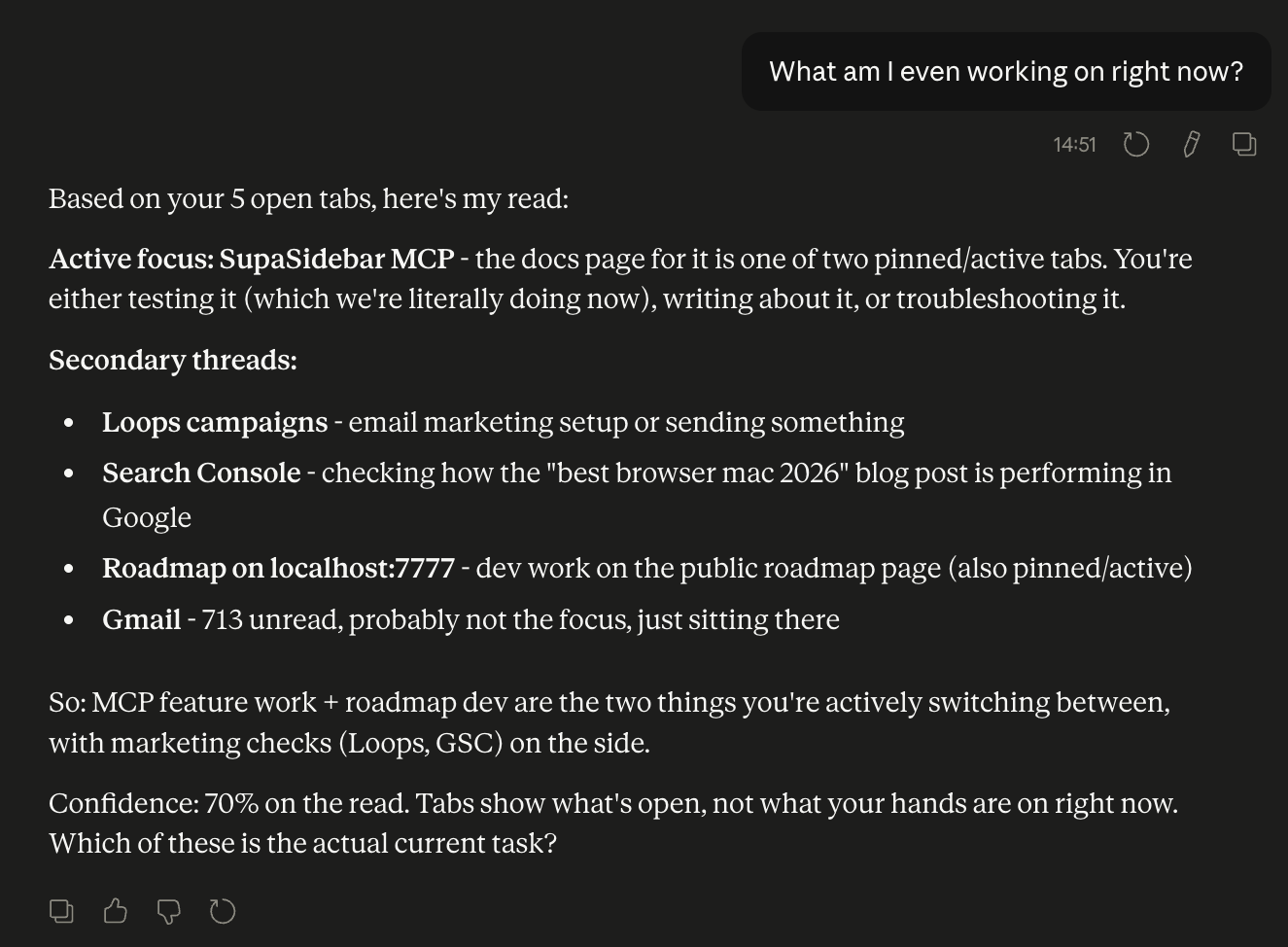
5. "What am I even working on right now?"
You've got 20 tabs scattered across three browsers and you've lost the thread. Ask Claude:
"Look at my open tabs and tell me what I'm working on"
Claude reads the tab titles and URLs across all your browsers, figures out you're debugging an auth flow based on the Stack Overflow tabs, the GitHub issue, and the localhost page - and gives you a summary. Useful when you come back from lunch and need to remember where you left off.
6. "I have 30 tabs open. Organize this mess."
Tab hoarding is real. Instead of manually sorting through them:
"Group my open tabs by topic and save each group to a separate folder in my Work space"
Claude reads all 30 tabs, clusters them (React docs here, API references there, that random recipe you opened at lunch in its own group), creates folders, and saves everything. Five seconds instead of ten minutes of dragging and dropping.
7. "Research this and save the important links"
You're starting research on a new topic. Instead of searching, opening tabs, then manually bookmarking the good ones:
"Research the best approaches to OAuth 2.0 in Next.js and save the most useful links to my Auth Project space"
Claude does the research, finds relevant resources, and saves them directly into your SupaSidebar workspace. Your research is organized before you've even read it.
8. "Open this in Chrome for me"
You're in Claude Desktop (or Cursor) and need to check something in the browser:
"Open the MDN page for IntersectionObserver in Chrome"
Claude searches for it and opens it. You stay in your flow.
Works With Cursor and Claude Code Too
This isn't limited to Claude Desktop. Any MCP-compatible client can connect:
- Cursor - Add SupaSidebar as an MCP server in Cursor's settings. Same setup, same tools.
- Claude Code - Configure via
.mcp.jsonin your project root. Share the config with your team. - Any MCP client - The protocol is open. If your AI tool supports MCP, it can connect.
The setup is identical for each: point the MCP client at SupaSidebar's bridge, restart, done.
The AI Features Are Free (Bring Your Own Key)
One thing worth mentioning: SupaSidebar's MCP server works on the Free tier. You don't need a Pro subscription for Claude to see your tabs.
SupaSidebar also has a built-in AI chat (Ask AI) accessible from the command panel. It supports 6 providers - OpenAI, Anthropic, Google Gemini, Ollama, MLX, and any OpenAI-compatible endpoint. Bring your own API key. If you have a free Gemini API key, you get AI features at zero cost. If you run Ollama locally, full privacy with no API calls.
The MCP server is separate from Ask AI - it's the bridge that lets external tools like Claude Desktop talk to SupaSidebar. Both are free.
FAQ
Does SupaSidebar's MCP server work with ChatGPT or other AI tools?
The MCP server works with any client that supports the Model Context Protocol. As of April 2026, that includes Claude Desktop, Cursor, Claude Code, and a growing list of tools. ChatGPT doesn't support MCP yet, but SupaSidebar's built-in Ask AI works with OpenAI's API directly.
Do I need to keep SupaSidebar open for the MCP server to work?
Yes. SupaSidebar runs in your menu bar and needs to be active for the MCP bridge to respond. It uses about 30-50MB of RAM and has minimal CPU impact.
Which browsers are supported for Live Tabs?
Safari, Chrome, Firefox, Edge, Arc, Brave, Vivaldi, Dia, Comet, Orion, Wavebox, and Helium. That's 12 browsers, including profile-specific tab views for Chrome and other Chromium browsers.
Is my browser data sent to any server?
No. The MCP server runs locally on your Mac. Your tab data goes from SupaSidebar to Claude Desktop (or whatever MCP client you use) - all on your machine. Nothing leaves your computer unless you're using a cloud-based AI model, in which case the model provider's normal privacy policy applies.
Can Claude close or control my browser tabs?
No. SupaSidebar's MCP tools are primarily read + organize. Claude can see your tabs, search them, save links, create workspaces, and open URLs. It cannot close tabs, click on page elements, or inject content into web pages. It's browser awareness, not browser control.
Does this work on Windows or Linux?
SupaSidebar is macOS only. It uses macOS-specific APIs (Accessibility, AppleScript) to read browser tabs across all browsers. There's no Windows or Linux version currently.