
By Kshetez Vinayak, founder of SupaSidebar. Last updated July 6, 2026.
The Firefox Bookmarks Toolbar is the strip of one-click bookmarks that sits directly under the address bar. It is enabled in three modes (Always Show, Never Show, Only Show on New Tab) and toggled with Ctrl+Shift+B on Windows and Linux or Cmd+Shift+B on Mac, per Mozilla Support. Once visible, it holds individual bookmarks and folders, supports drag-to-reorder, accepts keyword shortcuts that turn the address bar into a launcher, and syncs across devices through a free Mozilla account. It is also the most underused power-user feature in Firefox, mostly because the customization options live behind a Customize Toolbar drawer most people never open. This guide walks through setup, the keyword-shortcut workflow, folder structure, sync, the four most common "missing toolbar" fixes, and the one limit no setting in Firefox can solve - the toolbar only shows Firefox bookmarks.
Looking for something specific?
- Want a single bookmarks toolbar that works across Firefox, Chrome, and Safari? -> Cross-Browser Bookmark Sync on Mac
- Picking a bookmark manager beyond what browsers offer? -> Best Bookmark Manager for Mac and Chrome (2026)
- Comparing Raindrop, Pinboard, and other apps? -> Raindrop.io Alternatives (2026)
- Need to save all open tabs in Firefox? -> How to Save Tabs in Firefox
Show or hide the Firefox Bookmarks Toolbar
There are three ways to toggle the Bookmarks Toolbar, all of which produce the same result. Pick whichever fits the moment.
Keyboard shortcut (fastest):
Press Ctrl+Shift+B on Windows or Linux, or Cmd+Shift+B on Mac. This toggles between "Always Show" and "Never Show." If the toolbar was set to "Only Show on New Tab," the shortcut flips to "Always Show" instead. Confirmed in current Firefox via the Mozilla Bookmarks Toolbar reference.
Right-click on the tab strip:
Right-click any empty area of the tab bar, hover over "Bookmarks Toolbar" in the menu, and pick one of "Always Show," "Never Show," or "Only Show on New Tab." The "Only Show on New Tab" mode is the underrated default for users who want a clean writing surface during normal browsing but quick access to bookmarks when opening fresh tabs.
Menu button -> Customize toolbar:
Click the hamburger menu in the top-right corner, choose More Tools -> Customize Toolbar, then click the "Toolbars" dropdown at the bottom of the customize screen and tick "Bookmarks Toolbar." The Customize Toolbar drawer is also where the next section's power-user moves live, so this method has the highest hit rate over time.
All three methods write to the same Firefox preference. If the toolbar is still missing after toggling, the issue is profile-level, not preference-level - see the troubleshooting section below.
Custom folder structure: how to actually use the toolbar
A blank Bookmarks Toolbar is just a strip of favicons. The reason it earns or wastes its 32 pixels of vertical space is folder structure. Three patterns work consistently.
Pattern 1: top-level folders only.
Replace every single bookmark on the toolbar with a folder. Folders open into menus on click, which means a toolbar of 8 well-named folders covers 80 bookmarks without scrolling. Common labels: Work, Personal, Tools, Research, Reading List, Dev, References, Inbox. The folder-only approach trades one click for an order-of-magnitude denser toolbar.
Pattern 2: smart spacing with separators.
Right-click any toolbar item -> Add Separator. Use separators to group folders by context (work folders | personal folders | reference folders). The separators are pure visual cues, but on a wide monitor they make the toolbar scannable in a way labels alone do not.
Pattern 3: keyword shortcuts.
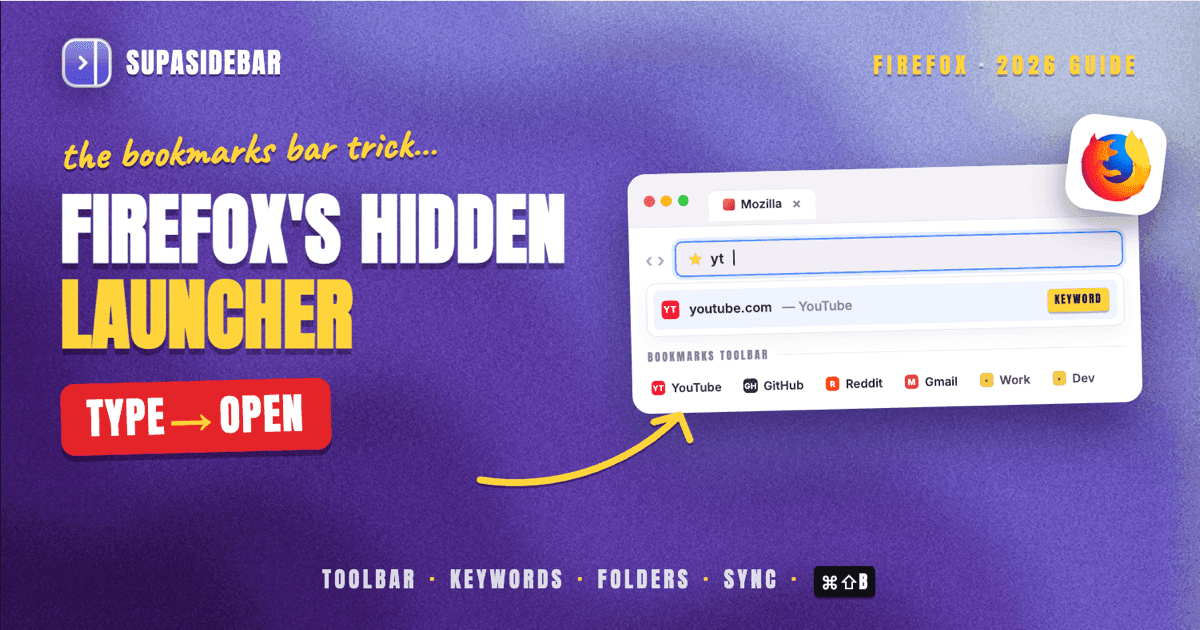
This is the one most Firefox users miss. Right-click any bookmark on the toolbar -> Properties -> set a Keyword. The address bar now treats that keyword as a shortcut. A Reddit thread on r/firefox last year (236 upvotes) walked through using pw for about:logins, gm for Gmail, yt for YouTube. The pattern works for any URL, including internal Firefox pages like about:addons, about:preferences, and about:profiles. The bookmark does not need to be visible on the toolbar - it just needs to exist in the bookmarks tree. Keywords turn the toolbar from a click target into a launcher.
The thread author put it directly: "I wish I knew about this 15 years ago." Keywords have been in Firefox since the original Phoenix builds in 2002, but they are still invisible in the default UI.
Move the Bookmarks Toolbar items to a different bar
A less-known move: the toolbar items themselves can be relocated to other bars via Customize Toolbar.
- Right-click any empty area of the tab bar -> Customize Toolbar
- Find the "Bookmarks Toolbar items" widget in the customize palette
- Drag it onto any other toolbar (tab strip, address bar row, or a custom strip)
- Click Done
A recent r/firefox post demonstrated using this to move bookmarks next to the tab strip, freeing the full row under the address bar for content. The same Customize Toolbar drawer also lets users add separators, flexible spaces, and overflow menu indicators to any custom toolbar.
This is the closest Firefox gets to vertical bookmark layout without extensions. The Bookmarks Toolbar itself is locked horizontal, but the Bookmarks Menu button (a folder icon that opens the full tree as a dropdown) can be dragged to any toolbar and serves as a vertical-friendly entry point for users on narrow screens.
Firefox bookmarks sync: how it works and what breaks
Firefox Sync requires a free Mozilla account. With sync enabled, the bookmarks tree (including the Bookmarks Toolbar folder) replicates across every signed-in Firefox profile on every device. Setup: Menu -> Sign In to Firefox -> create or sign in to a Mozilla account -> verify email. The first sync after sign-in pulls every bookmark on the device into the cloud, encrypted client-side per Mozilla's Sync security model.
What syncs reliably:
- Bookmarks tree (folders, separators, keywords, descriptions)
- Bookmark order within folders
- Bookmarks Toolbar contents
- Tags
What does not sync:
- Bookmarks Toolbar visibility setting (each device keeps its own Always/Never/On-New-Tab choice)
- Customize Toolbar arrangements (per-device)
- Bookmark icons that came from a site that has since changed its favicon (Firefox refetches per device, so different devices can show different icons for the same bookmark for short windows)
The common sync failure mode: a bookmark added on Device A does not appear on Device B for hours or days. The fix is almost always the same - on Device B, sign out, sign back in, and force a sync via Menu -> Settings -> Sync -> Sync Now. The Firefox Sync infrastructure handles bookmark merges at a record level, so signing out does not lose anything; it just re-pulls the canonical server state.
If a bookmark was deleted on one device and reappears on another, that is a known merge edge case Mozilla has tracked since Bug 1444446. The workaround is to delete the bookmark from the device showing it, force a sync, and verify the deletion propagated.
Troubleshooting: bookmarks toolbar missing or not working
Four scenarios cover the vast majority of "missing toolbar" reports.
Scenario 1: Toolbar disappeared after a Firefox update.
Right-click the tab strip -> Bookmarks Toolbar -> Always Show. Updates occasionally reset the toolbar setting back to "Only Show on New Tab" on profiles that pre-date the three-mode setting (introduced in Firefox 95). The fix is one click.
Scenario 2: Toolbar visible, but bookmarks empty.
The toolbar is showing but the underlying "Bookmarks Toolbar" folder in the bookmarks tree is empty. Open the Library (Cmd+Shift+O on Mac, Ctrl+Shift+O on Windows/Linux), expand the bookmarks tree, and check whether bookmarks live under "Other Bookmarks" or "Bookmarks Menu" instead of "Bookmarks Toolbar." Drag them into the right folder.
Scenario 3: Bookmarks toolbar missing after profile reset or fresh install.
Sign in to the Mozilla account that previously synced bookmarks. Allow 5-15 minutes for the first sync to complete (the initial pull is heavier than incremental syncs). If bookmarks still do not appear, check Menu -> Settings -> Sync to confirm Bookmarks is in the sync set.
Scenario 4: Bookmarks toolbar showing wrong items or stale state.
This usually means two Firefox profiles are conflicting - one on the work machine, one on personal. Visit about:profiles in the address bar to see every profile on the device. The profile marked "default" is the one Firefox launches normally. If a different profile holds the correct bookmarks, set that one as default and restart Firefox.
For deeper issues - corrupted places.sqlite, partial database loss, or sync that refuses to reconcile - Mozilla's recovery walkthrough covers restoring from a JSON backup. Firefox writes daily JSON backups to the profile's bookmarkbackups folder for the last 15 days, which makes most "lost bookmarks" recoverable without sync.
The cross-browser limit no Firefox setting can fix
Firefox's Bookmarks Toolbar only shows Firefox bookmarks. This sounds obvious - it is the Firefox Bookmarks Toolbar after all - but it is also the single biggest reason multi-browser users find the toolbar incomplete.
A typical Mac user keeps Chrome open for work because that is where the company SSO is configured, Safari for Apple ecosystem integration, and Firefox for privacy-sensitive sessions or developer work. Each browser keeps its own bookmarks tree. A bookmark saved in Chrome does not appear in Firefox's toolbar. A bookmark saved in Safari does not appear in either. The user ends up with three partial bookmark sets, none of which is the canonical one. As one Reddit user put it bluntly: "I hate having bookmarks scattered across 3 different browsers."
There is no Firefox setting that solves this. Firefox Sync is bookmark-tree sync within Firefox; it does not reach into Chrome's tree or Safari's. Bookmark import (Library -> Import and Backup -> Import Data from Another Browser) is a one-shot copy, not a live sync - import Chrome bookmarks today, change one in Chrome tomorrow, the Firefox copy stays frozen.
The cross-browser pain has been the consistent multi-browser complaint in r/firefox, r/chrome, and r/macapps over the last year. Users describe it as "scattered" or "three browsers, three bookmarks bars, no source of truth."
SupaSidebar approaches this from outside any single browser. It is a macOS sidebar app that sits next to whichever browser is active - Firefox, Chrome, Safari, Arc, Brave, Vivaldi, Dia, and every other major Mac browser - and holds one bookmarks tree that is accessible regardless of which browser is on screen. A bookmark added to SupaSidebar from a Chrome tab is still visible when the active browser is Firefox, and vice versa. The Bookmarks Toolbar inside Firefox keeps doing what it does well, but the cross-browser bar lives outside Firefox, in the persistent sidebar.
Conclusion: Picking what to use
For users who live in Firefox, the Bookmarks Toolbar is the highest-leverage UI element in the browser and is worth the 15 minutes to set up properly. Build a folder-only toolbar, add separators for visual grouping, assign keyword shortcuts to the 5-10 sites visited most, and turn on Firefox Sync. That setup handles the single-browser case completely.
For users who keep more than one browser open daily, the Bookmarks Toolbar alone cannot be the source of truth. Two paths work:
-
Stay in Firefox, accept the limit.
Use the Firefox Bookmarks Toolbar for Firefox-specific saves (privacy research, dev tools, Mozilla-extension docs) and keep separate bookmark surfaces inside Chrome and Safari for their respective workflows. This is the cleanest mental model for users who genuinely segment browsers by purpose.
-
Move the bookmarks bar outside the browser.
Use a tool like SupaSidebar that holds one bookmark surface across every browser on the Mac. The Firefox Bookmarks Toolbar stays for Firefox-only items; the cross-browser bar lives in the sidebar. This is the path for users who want one canonical bookmarks list.
Try SupaSidebar (free tier) - the free tier includes the cross-browser sidebar, command panel, and three Spaces, which is enough to test whether the multi-browser bookmark workflow holds up against the current setup.
Why we recommend SupaSidebar
SupaSidebar is a macOS app that brings Arc's sidebar to every browser - one sidebar for tabs, bookmarks, files, and apps across 32+ browsers including Safari, Chrome, Firefox, Arc, Vivaldi, Brave, Helium, and Dia. The bookmark surface, command panel, and Spaces all live outside any single browser, so they stay accessible when switching from Firefox to Chrome to Safari. Bookmarks added in any context show up in every context. The Firefox Bookmarks Toolbar keeps its Firefox-only role; the cross-browser layer is what sits in the sidebar.
Frequently Asked Questions
How do I show the Firefox Bookmarks Toolbar?
Press Ctrl+Shift+B on Windows or Linux, or Cmd+Shift+B on Mac. Alternatively, right-click any empty area of the tab bar, hover over "Bookmarks Toolbar," and pick "Always Show." Both methods produce the same result and toggle a single Firefox preference.
Why is my Firefox Bookmarks Toolbar missing?
Most often, the toolbar setting reset to "Never Show" or "Only Show on New Tab" after a Firefox update or profile reset. Right-click the tab strip -> Bookmarks Toolbar -> Always Show fixes it in one click. If the toolbar is visible but empty, the bookmarks themselves likely live under "Other Bookmarks" instead of the "Bookmarks Toolbar" folder - open the Library (Cmd+Shift+O on Mac, Ctrl+Shift+O on Windows) and move them into the right folder.
How do I sync Firefox bookmarks across devices?
Sign in to a free Mozilla account via Menu -> Sign In to Firefox, verify the email, and confirm Bookmarks is enabled in Menu -> Settings -> Sync. The first full sync can take 5-15 minutes; later syncs are incremental and near-instant. Toolbar visibility settings are per-device and do not sync.
Can the Firefox Bookmarks Toolbar show Chrome or Safari bookmarks?
No. The Firefox Bookmarks Toolbar only shows Firefox bookmarks. Firefox Sync replicates bookmarks within Firefox across devices, but it does not reach into Chrome's or Safari's bookmarks. The closest in-browser option is a one-time bookmark import (Library -> Import and Backup -> Import Data from Another Browser), which copies bookmarks once but does not stay in sync. For a live cross-browser bookmark bar, a sidebar app that sits outside any single browser is the only consistent option.
How do I customize the Firefox Bookmarks Toolbar?
Right-click any empty area of the tab bar and choose Customize Toolbar. The customize drawer lets users drag the "Bookmarks Toolbar items" widget to other toolbars, add separators and flexible spaces, and toggle the Bookmarks Toolbar visibility from a single panel. Folders and keyword shortcuts are managed by right-clicking individual items on the toolbar.
What is the Firefox bookmark keyword shortcut feature?
Every bookmark in Firefox can be assigned a short keyword (right-click the bookmark -> Properties -> Keyword). Typing that keyword in the address bar then opens the bookmark directly. This works for any URL, including internal Firefox pages like about:logins, about:addons, and about:profiles. Keywords have been in Firefox since the early 2000s but are not exposed in the default UI, which is why most users miss them.
Where are Firefox bookmarks stored on disk?
Firefox stores bookmarks in places.sqlite inside the user's profile folder. Daily JSON backups for the last 15 days live in the bookmarkbackups subfolder of the same profile. If places.sqlite is corrupted, the Firefox bookmark recovery walkthrough walks through restoring from one of those JSON backups.
Does the Firefox Bookmarks Toolbar work on Firefox for Android?
Firefox for Android does not have a Bookmarks Toolbar in the desktop sense. Bookmarks are accessed through the menu -> Bookmarks list. Bookmarks added on Android sync to desktop Firefox profiles via the same Mozilla account, where they appear in the bookmarks tree and can then be moved into the Bookmarks Toolbar folder for desktop visibility.
By Kshetez Vinayak, founder of SupaSidebar. Last updated July 6, 2026.