
Part 1 - The basics: sidebar, Spaces, pinned tabs, and the command bar.
Part 2 - The advanced stuff: Air Traffic Control, Split View, Search a Website, Little Arc, and more, across Chrome, Safari, and any browser you use.
If you want to switch from Arc Browser but you're still attached to the sidebar, Spaces, pinned tabs, and the command bar, you don't have to give them up. You also don't have to wait for another browser to copy Arc and hope they get it right.
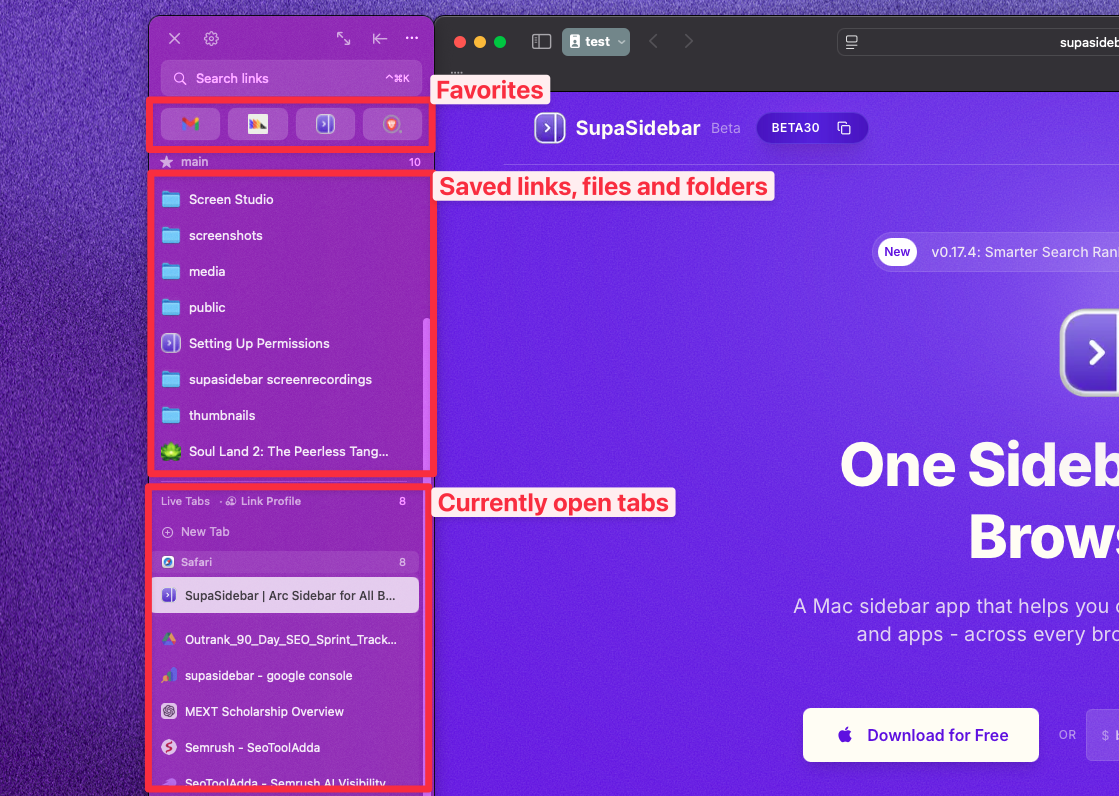
This is a tutorial for keeping every Arc feature you actually used, but in any browser you want - Safari, Chrome, Brave, Firefox, or Edge. The tool doing the heavy lifting is SupaSidebar, a Mac sidebar app I built specifically for this problem. Free tier covers 3 Spaces, which is enough to replicate the basic Arc workflow.
The video above walks through the exact 9-minute setup. The article below has every step, every screenshot, and the gotchas that aren't obvious from the video.
TL;DR
Install SupaSidebar (free). Grant Accessibility and Automation permissions. Turn on Smart Attach so the sidebar docks to your browser. Recreate Arc's Spaces, pinned tabs, and command bar inside SupaSidebar. The sidebar then works across every browser on your Mac, not just one. Total setup time: about 10 minutes.
Why "switch from Arc browser" is a weird search query
Most "switch from Arc" searches end with someone trying Brave or Zen, missing the sidebar within a week, and going back. Arc's sidebar isn't a tab manager. It's a workspace - pins, Spaces, command bar, all docked next to your browser. No mainstream browser ships that.
Arc Browser entered maintenance mode in May 2025 after The Browser Company shifted to Dia. The feature freeze means no new improvements, but the bigger problem is that Dia doesn't replicate Arc's sidebar - it's a completely different product. Anyone trying to leave Arc has to either accept a downgrade or rebuild the workflow somewhere else.
The shortcut is to keep using whatever browser you actually want, then layer the Arc-style sidebar on top of it. That's what this guide walks through.
What you'll need before starting
- A Mac (SupaSidebar is macOS only - Apple Silicon or Intel both work)
- Any browser you want to use - Safari, Chrome, Brave, Firefox, Edge, Arc itself, or any of the 25 supported browsers
- About 10 minutes for first-time setup
- Free SupaSidebar account - download at supasidebar.com
That's it. No browser switch required, no profile migration, no extension store account.
Step 1: Move the sidebar to your browser (Smart Attach)
The first Arc behavior to replicate is the most important one: the sidebar should stick to the browser, not to a screen edge.
Out of the box, SupaSidebar opens on the side of your screen and stays there even if you move the browser. That's the Independent mode. To make it behave like Arc - where the sidebar follows the browser around - you turn on Smart Attach.
Required permissions first:
- Open SupaSidebar Preferences
- Go to docs.supasidebar.com (or click the in-app link)
- Click "Open" next to each permission - it jumps you straight to the right macOS Settings panel
- Grant Automation permission (needed to copy URLs, save tabs, and read browser state)
- Grant Accessibility permission (needed for the sidebar to track which browser window is active and switch between tabs)
Both permissions are macOS-level controls. They live in System Settings > Privacy & Security. SupaSidebar can't bypass them, which is the same trade-off any window-management Mac app makes.
Then turn on Smart Attach:
- Open Preferences > Sidebar
- Set Browser Integration Mode to Smart Attach
- Optional but recommended: enable Prevent Browser Overlap - this stops the browser window from sliding under the sidebar
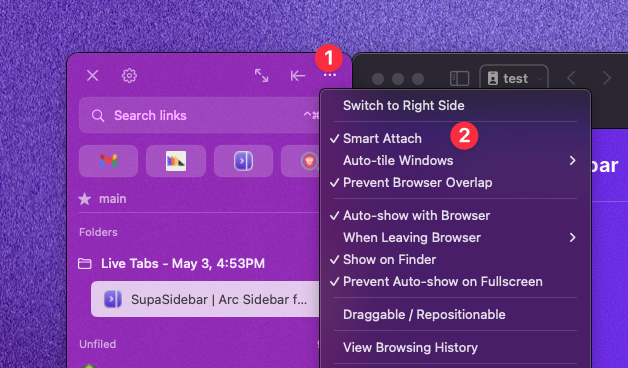
Now if you drag the browser window around, the sidebar follows. If you move the browser under the sidebar, it bounces back. This is the Arc behavior people miss the most when they switch.
Optional: Fill Screen mode (⌘⌥F)
Arc has a behavior where hiding the sidebar lets the browser take over the full screen width. SupaSidebar does the same thing through the "When Sidebar Hides" setting:
- Restore browser position: browser snaps back to its original size before you opened the sidebar
- Fill remaining space: browser expands to fill the entire screen when sidebar is hidden, then shrinks when you open it again
Pick whichever matches your habit. I default to Fill Remaining Space because it feels closest to Arc.
Step 2: Recreate Arc Spaces
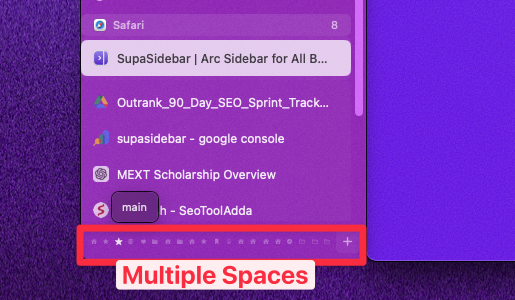
Arc Spaces are the biggest workflow loss for most people switching. SupaSidebar Spaces are the closest direct equivalent - separate workspaces with their own pinned tabs, saved links, and emoji/color icons.
Create a Space from scratch:
- Click the Space selector at the top of the sidebar
- Click Create New Space
- Name it (Work, Personal, Side Project, whatever)
- Pick an emoji or upload an image
- Choose a color
Or convert an existing folder:
Right-click any folder and choose Convert to Space. The folder becomes a Space and all its contents move with it. This is the fast way if you already organized your sidebar with folders.
Free tier limits:
3 Spaces. If you only had 2 or 3 Spaces in Arc - which is what most users actually had - you can do this entirely on the free plan. The 30-day SSB analytics show that the median Arc refugee imports between 2 and 4 Spaces, so 3 covers most cases.
If you had more, the Pro tier unlocks unlimited Spaces - see pricing.
One thing Arc users miss:
Spaces in Arc isolate browser sessions. SupaSidebar Spaces don't - they organize your saved links and pins, not your cookies. If you specifically need session isolation per Space, link each SupaSidebar Space to a separate browser profile (Chrome, Brave, and Edge all support this natively).
Importing your existing Arc setup
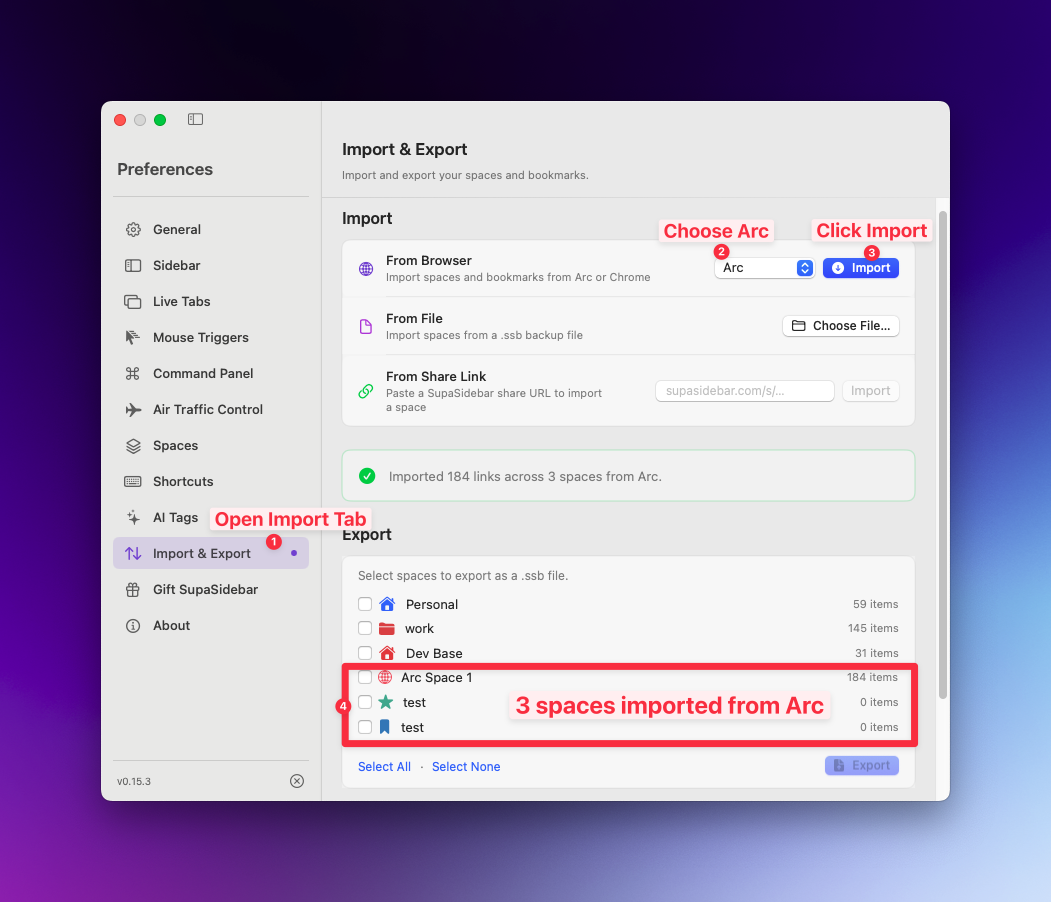
If you still have Arc installed, you can export StorableSidebar.json from Arc and import it directly into SupaSidebar. The full export walkthrough is in How to Export Your Arc Browser Sidebar - it covers where the file lives, what's inside, and how to grab it before Arc stops opening on your Mac. SupaSidebar reconstructs your pinned tabs, folders, and Spaces from that file. This is the only Arc importer I know of that handles StorableSidebar.json - I built it specifically for the Arc-refugee use case.
Step 3: Pinned tabs (with the per-Space twist)
Arc's pinned tabs are sticky - they stay at the top of the sidebar in the current Space. SupaSidebar pinned tabs work the same way, with one upgrade: you choose whether they're per-Space or global across every Space.
To pin a tab:
- Drag and drop a link into the Pinned section at the top, OR
- Right-click any saved link and choose Pin to Sidebar
To pick the pin behavior:
- Open Preferences > Pinned Tabs
- Toggle between Per-Space pinned tabs (each Space has its own pins) or Global pinned tabs (the same 9 pins show in every Space)
Per-Space pinned tabs is the Arc-style behavior. Global pinned tabs is what Arc didn't offer - useful if you want, say, Gmail and Notion always visible regardless of which Space you're in.
Keyboard shortcuts:
Press ⌘⌥1 through ⌘⌥9 to open the first 9 pinned tabs instantly. This requires Accessibility permission. It's the same shortcut Arc used.
Step 4: Live Tabs - manage browser tabs from the sidebar
Arc lets you manage your open tabs from the sidebar. SupaSidebar does too, but you have to enable it - it's off by default because some users prefer the Recent Items view.
To turn on Live Tabs:
- Click the three-dot menu in the sidebar
- Choose View Current Open Tabs, OR
- Open Preferences > Tabs and History > Set bottom section to Live Tabs
Once it's on, the bottom section of your sidebar mirrors your currently-open browser tabs in real time. Click any tab to activate it. Cmd+click or right-click for the close/duplicate/move options.
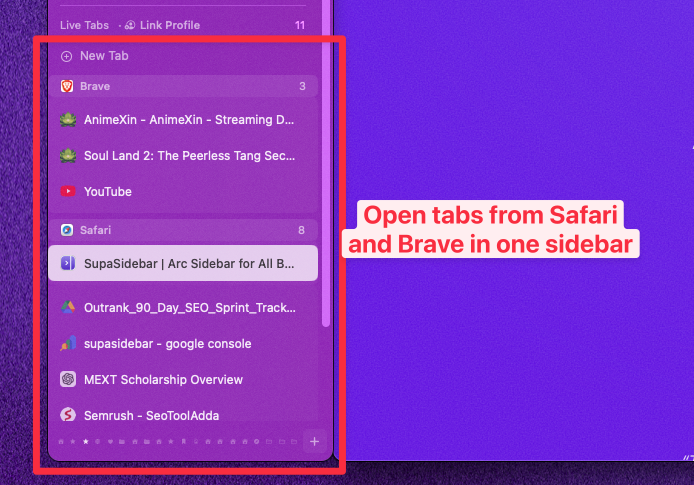
The thing Arc literally cannot do:
SupaSidebar's Live Tabs shows tabs from every browser you have open. If you have Chrome and Brave running side by side, both sets of tabs appear in one sidebar. Arc only shows tabs from Arc itself. This is the single biggest reason multi-browser users prefer SupaSidebar over going back to Arc.
Step 5: The command bar (Cmd+T behavior included)
Arc's command bar is the muscle-memory feature people miss within hours of switching. SupaSidebar has its own Command Panel that does the same thing - and one extra thing.
Set up the Command Panel shortcut:
- Open Preferences > Shortcuts
- Set Open Command Panel to a global shortcut (default is ⌘⌃K, you can change it)
- Optional: enable Replace Cmd+T in browsers - this is the killer feature
What "Replace Cmd+T" does:
Normally, Cmd+T opens a new browser tab. With this enabled, Cmd+T inside any browser opens SupaSidebar's Command Panel instead. You start typing - it fuzzy-matches against your saved links, your live tabs across every browser, your recent history, and any direct search shortcuts you've set up.
This is what Arc's command bar does. Same muscle memory, but it works in Safari, Chrome, Brave, Firefox, and Edge.
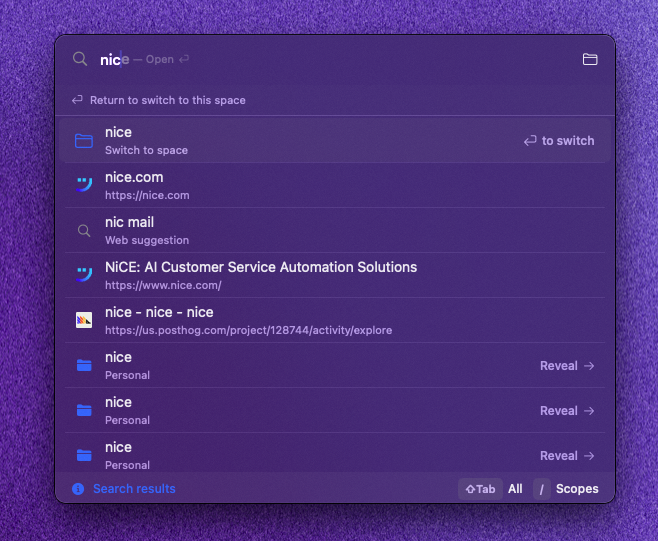
Search Shortcuts (the Arc command bar doesn't have these):
In Preferences > Command Panel > Website Shortcuts, you can add direct site searches. Type /yt english learning and it searches YouTube. Type /gh repo-name for GitHub. Type /r macapps for Reddit. There are pre-built shortcuts for the common sites and you can add more.
This is genuinely better than Arc's command bar. I default to YouTube on /yt, Reddit on /r, GitHub on /gh, and Google as the fallback engine.
The bonus feature Arc didn't have: Compact Mode
Compact Mode shrinks the sidebar to 60 pixels wide - icons only, no labels. You still get Space switching, folder previews, browser tab management, and pinned shortcuts. It just takes up less screen.
Press ⌘[ to enter Compact Mode and ⌘] to expand back. Hover any icon for a tooltip with the full label. Folders show a hover-preview of their contents.
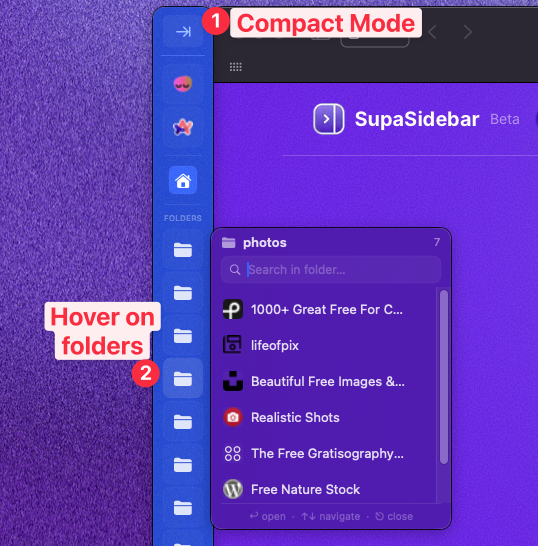
Arc never shipped a compact view. People asked for it on the Arc community forums for over a year. SupaSidebar has it built in.
Comparison table: Arc features vs SupaSidebar equivalents
| Arc feature | SupaSidebar equivalent | Notes |
|---|---|---|
| Sidebar attached to browser | Smart Attach | Works with any browser, not just Arc |
| Spaces | Spaces | Free tier: 3, Pro: unlimited |
| Pinned tabs | Pinned items | Per-Space or global, ⌘⌥1-9 shortcuts |
| Command bar (⌘T) | Command Panel (⌘⌃K + Replace Cmd+T) | Plus search shortcuts (/yt, /gh, /r) |
| Auto-archive tabs | Live Tabs | Live view of currently-open tabs |
| Sidebar fills screen on hide | "When sidebar hides" setting | Restore position OR fill remaining space |
| StorableSidebar export | StorableSidebar import | Direct migration path |
| Browser session isolation per Space | Link Space to browser profile | Use native browser profiles for isolation |
| Tab preview on hover | Folder preview on hover | Different - SSB previews folders, not tabs |
| - | Compact Mode | Arc never shipped this |
| - | Cross-browser sidebar | Arc only worked with Arc |
Frequently Asked Questions
Can I keep using Arc Browser while I test SupaSidebar?
Yes. SupaSidebar runs alongside any browser including Arc itself. You can use Arc and SupaSidebar at the same time and migrate gradually. There's no conflict between the two.
Does SupaSidebar work with Safari?
Yes. SupaSidebar supports Safari, Chrome, Brave, Firefox, Edge, Arc, and 19 other browsers - 25 total. The sidebar is a standalone macOS app, not a browser extension, so it works regardless of which browser you have open.
Will I lose my Arc bookmarks and pins?
No. Arc lets you export a StorableSidebar.json file from its settings. SupaSidebar imports that file directly and rebuilds your pinned tabs, folders, and Spaces. This is the only third-party tool I know of that supports StorableSidebar.json import.
How is SupaSidebar different from a vertical tabs extension?
Vertical tab extensions are tied to one browser - install Sidebery in Firefox and it only works in Firefox. SupaSidebar is a system-wide app that shows tabs from every browser you have open in one sidebar. It's also Mac-native, not a web extension, so it doesn't slow down your browser.
Is there a free tier?
Yes. The free tier includes the sidebar, Smart Attach, the Command Panel, all 25+ browser integrations, and 3 Spaces. Most Arc refugees fit comfortably in 3 Spaces. The Pro tier adds unlimited Spaces and early access to new features - see pricing.
Why did The Browser Company stop developing Arc?
The Browser Company put Arc into maintenance mode in May 2025 to focus on Dia, an AI-first browser. In late 2025, Atlassian acquired the company for $610 million. Arc still receives security patches but no new features. Dia is a completely different product - it does not include Arc's sidebar or Spaces.
Does any of this require a browser extension?
No. SupaSidebar is a standalone macOS app that integrates with browsers via AppleScript and the Accessibility API. There's nothing to install in Chrome, Safari, or any other browser.
Where to start
The full setup takes about 10 minutes. The order I'd recommend:
- Download SupaSidebar from supasidebar.com
- Grant Accessibility and Automation permissions (the in-app guide opens System Settings to the right place)
- Turn on Smart Attach
- Import your Spaces directly into SupaSidebar instantly - read this blog for the full walkthrough. Or recreate your Spaces manually if you no longer have Arc installed.
- Set up the Command Panel shortcut and toggle "Replace Cmd+T"
If you get stuck, the docs at docs.supasidebar.com cover every step in more detail. Email me at admin@supasidebar.com if something is broken - I respond directly.
I'm building this solo, the way I wanted it to work after I left Arc myself. Honest feedback always welcome.