
By Kshetez Vinayak, founder of SupaSidebar. Last updated May 9, 2026.
The fastest way to save every open tab in Chrome, Firefox, or Edge is the keyboard shortcut ⌘⇧D on Mac (or Ctrl+Shift+D on Windows and Linux), which bookmarks every tab in the current window into a new folder. Per Chrome's official help, Firefox's bookmark documentation, and Microsoft Edge's docs, this shortcut works the same across all three. Safari uses the Bookmarks → Add Bookmarks for These [N] Tabs menu instead. The full per-browser breakdown, an extension comparison, and the cross-browser problem none of these methods solve are below.
Looking for something specific?
- Just want the universal answer? → You're in the right place. Keep reading.
The problem nobody talks about
Most "how to save tabs" guides answer one question: how do you bookmark the tabs in your current browser before you close it? That's a fine question. The answer is a keyboard shortcut.
But that's not the question people with an actual tab problem are asking.
The real question is: 30 tabs open in Chrome for work, 12 tabs in Firefox for a side project, and 8 tabs in Safari because that's where the Apple Notes login lives. How do you save all of those into one place to come back to?
Every browser's "save tabs" feature is locked to that browser. Chrome's bookmarks live in Chrome. Firefox's bookmarks live in Firefox. Cross-browser users - and there are more of them than most people realize - get stuck managing three separate tab graveyards.
A Reddit user on r/browsers put it plainly: "Cross-browser bookmark fragmentation is such an underrated pain point." Another user on r/firefox confessed to 3,800 tabs accumulated in their Firefox window because the alternative was losing them to a separate browser. The full thread is on r/firefox and the responses are mostly other people in the same boat.
This guide answers both questions. The next two sections cover the universal save-all-tabs shortcut and the per-browser native methods. Then the extension landscape, the cross-browser gap none of them fill, and the Mac app that fills it.
The universal shortcut: ⌘⇧D / Ctrl+Shift+D
If your goal is to save every tab in your current browser window before you close it, this works in Chrome, Firefox, Microsoft Edge, Brave, Vivaldi, Opera, and most other Chromium-based browsers:
- Mac: ⌘⇧D
- Windows / Linux: Ctrl+Shift+D
The shortcut bookmarks every tab in the active window into a new folder. The browser asks you to name the folder and pick a parent location. Pick something descriptive like "research-2026-05-09" so you can find it later. You can then close the window safely - the tabs are saved as bookmarks and will reopen when you click the folder.
A few caveats per browser, all sourced:
- Chrome: Per Google's Chrome help center, the shortcut bookmarks all tabs in the current window only. Tabs in other Chrome windows aren't included. If you want all tabs across all Chrome windows, you need to merge them first or use the Bookmark All Tabs menu option from the three-dot menu.
- Firefox: Per Mozilla's bookmarks documentation, the shortcut works the same way. You can also right-click any tab, choose Select All Tabs, then right-click again and choose Bookmark Tabs for the same result.
- Microsoft Edge: Edge uses the same keyboard shortcut and behavior. Edge also has a Collections feature (the icon with two stacked rectangles in the toolbar) that's a more visual alternative - described in detail below.
- Safari: Safari does NOT use ⌘⇧D for this. In Safari, ⌘⇧D adds the current page to the Reading List. To save all tabs, use the menu: Bookmarks → Add Bookmarks for These [N] Tabs. There's no default keyboard shortcut, but you can assign one in System Settings → Keyboard → Keyboard Shortcuts → App Shortcuts.
This shortcut is the answer to the most common version of the question. It doesn't solve everything. The next sections cover the rest.
Saving all open tabs by browser
Each major browser handles tab-saving slightly differently. Here's the short version per browser, ordered by how many people use them on Mac. For Chrome and Firefox, dedicated satellite posts go deep on each - what's below is the overview.
Chrome
Three native options:
- Keyboard shortcut (⌘⇧D / Ctrl+Shift+D): Bookmarks all tabs in the current window into a new folder. Window-scoped, not session-scoped.
- Tab Groups → Save Group: Right-click a tab → Add Tab to New Group → name and color the group → right-click the group label → Save Group. The saved group appears in the bookmarks bar. Click it later to reopen all tabs in the group.
- Continue where you left off: Settings → On startup → Continue where you left off. This isn't really "saving" - it's just reopening the previous session every time Chrome launches. Useful but fragile. A crash before this triggers can lose tabs.
Chrome support documentation has the complete reference for all three.
Firefox
Firefox has the lowest keyword difficulty in this cluster (KD 2-11 across save-tabs queries) which means there's less competition and Firefox-specific guides actually rank. Native methods:
- Keyboard shortcut (⌘⇧D / Ctrl+Shift+D): Same as Chrome.
- Right-click → Select All Tabs → Bookmark Tabs: The non-shortcut version. Useful if you only want to save a subset - Cmd+click to deselect tabs you don't want.
- Session Restore: Per Mozilla's session restore documentation, Firefox automatically reopens your last session if you closed it normally. Settings → General → Open previous windows and tabs enables this permanently.
Safari
Safari is the most awkward of the major browsers for tab-saving. There's no keyboard shortcut (⌘⇧D is taken by Reading List). Native methods:
- Bookmarks menu → Add Bookmarks for These [N] Tabs: The full save-all-tabs option.
- Tab Groups (Safari 15+): Per Apple's Safari User Guide, you can group tabs and the groups persist. They sync via iCloud across your Apple devices, which is the one place Safari actually pulls ahead.
- Reading List: Saves a single page, not all tabs. Worth mentioning because most people accidentally hit ⌘⇧D and end up with one bookmark instead of all of them.
Safari's lack of a save-all-tabs shortcut is genuinely surprising for a browser that ships pre-installed on every Mac. You can assign one yourself via System Settings, but it's friction that none of the other browsers impose.
Microsoft Edge
Edge inherits Chrome's behavior since both are Chromium-based, plus adds Collections:
- Keyboard shortcut (⌘⇧D / Ctrl+Shift+D): Same as Chrome.
- Collections (the toolbar icon with two stacked rectangles): Click the icon, click Start new collection, then add the current page or all tabs. Collections persist, sync across Edge devices via your Microsoft account, and can be shared. This is the closest thing to Tab Groups in any non-Chrome browser per Microsoft's Collections documentation.
Edge Collections is underrated. If you're already on Edge, it's strictly better than Chrome's bookmark folders for save-and-restore workflows.
Brave, Vivaldi, Opera, Arc, Zen, Helium
These are all Chromium-based (with some Firefox-based exceptions). The save-all-tabs shortcut works the same as Chrome.
- Brave: Same as Chrome. ⌘⇧D bookmarks all window tabs.
- Vivaldi: Adds Sessions as a first-class concept. Save → File menu → Save Open Tabs as Session. Per Vivaldi's session management docs, sessions are richer than bookmarks - they preserve scroll position, tab order, and tab group state.
- Opera: Same as Chrome plus Tab Islands for grouping.
- Arc Browser: Arc's been in maintenance mode since The Browser Company's May 27, 2025 announcement, but the save-tabs methods still work. Arc's sidebar persists tabs by default - closing Arc doesn't lose tabs. For Arc-specific migration including how to export your Arc data, see Switching from Arc Browser and the Arc Browser Alternative Guide.
- Zen Browser: Firefox-based. Same shortcut as Firefox plus a Spaces concept inherited from Arc.
- Helium: A Chromium-based minimalist browser. Standard Chromium save-tabs behavior.
For the full list of browsers SupaSidebar works with (25 in total), see the SupaSidebar product reference.
The extension landscape
Native save-tabs is good for the moment-of-closing-this-window use case. It's bad for everything else: long-term tab management, sessions across closures, sharing tab lists, and recovering from crashes. That's where extensions come in.
Here's the short version of who's worth installing.
The full comparison with the browser-support matrix, pricing models, and a "which tool for which use case" framework lives in our best tab saver extension guide.
- OneTab (Chrome / Firefox): Per the OneTab homepage, it claims up to 95% memory savings by collapsing all open tabs into a single list. Cross-browser sync is paid. The free version is single-browser only.
- Session Buddy (Chrome): The most powerful Chrome session manager. Saves tabs, restores previous sessions, exports to JSON or HTML. Chrome only.
- Tab Stash (Firefox): Save batches of tabs as bookmarks with one click. Firefox only.
- Tab Session Manager (Firefox / Chrome): Auto-saves sessions on a schedule. Cross-browser via cloud sync.
- Toast (their site): Cross-platform real-time tab sync across Chrome, Safari, Firefox, Edge, and Opera. Closest to a true cross-browser solution among extensions.
Important: do not install The Great Suspender.
Per Google's February 2021 takedown, the original extension was delisted for malware that ran arbitrary remote code. The malware-free fork is The Marvellous Suspender. Auto Tab Discard is also a safe option for memory-saving.
A common pattern: people stack three or four of these extensions, then forget which one saved which session. The fragmentation problem repeats one layer up.
What none of these solve
There's a specific gap none of the methods above close. Native save-tabs is browser-locked. Extensions are mostly browser-locked. Even cross-platform extensions like Toast still treat each browser as a separate world that needs its own sync setup.
Three things consistently break for cross-browser users:
1. Multi-browser users get fragmented.
A typical Mac user keeps Chrome open for work because that's where the company SSO is configured, Safari for personal accounts because Keychain handles the passwords, and Firefox for anything they don't want tracked. That's three tab graveyards to manage separately. A Reddit user on r/macapps captured the moment of recognition: "They share the same tabs among different browsers? Thats interesting not gonna lie."
2. "Saved" usually means "bookmarked and forgotten."
Most people have folders of bookmarks from years ago with names like "research-temp" that nobody ever opens again. Bookmarks aren't the right shape for "things to come back to today." They're the right shape for "things that might be needed someday." Most save-tabs flows funnel everything into the bookmarks bar, which is a graveyard, not a workspace.
3. The save-tabs shortcut isn't really a workflow.
Saving tabs is one moment. The other 99% of the time, you're trying to find a tab you already saved or quickly switch between contexts. Native save-tabs doesn't help you get back to the saved tabs. It just stops them from disappearing.
A Reddit user on r/macapps summed up the multi-browser piece directly: "I've been wanting a way to manage my multiple browsers from a single source."
The cross-browser approach
One Mac app takes a different approach to all of this: SupaSidebar. It's not a browser. It's not an extension. It runs in the menu bar, shows up on top of whatever browser is active, and keeps tabs and saved links in one place across 25 browsers including Safari, Chrome, Firefox, Arc, Zen, Vivaldi, Brave, Helium, and Dia.
For the save-tabs question specifically, four SupaSidebar features matter:
Save All Browser Tabs (⌘⌃T).
Press ⌘⌃T anywhere - including from inside any browser - and SupaSidebar saves every open tab from the active browser into a folder in the sidebar. The folder belongs to the current Space, not to the browser. So pressing ⌘⌃T in Chrome at 10am, switching to Safari, then pressing it again at noon leaves both folders sitting in the sidebar regardless of which browser is open next.
Live Tabs across every browser.
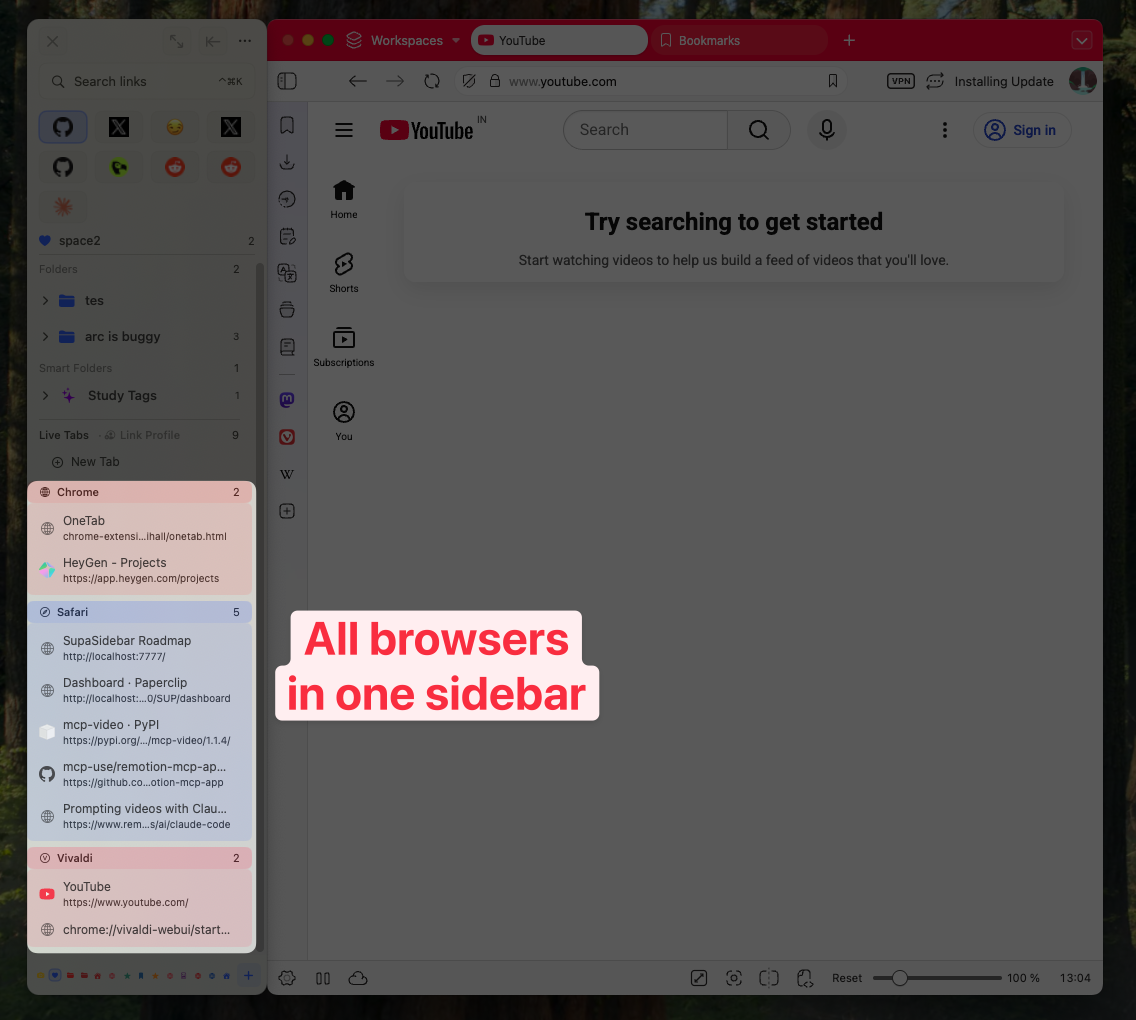
Save All Browser Tabs is for committing a snapshot. Live Tabs is the opposite: it shows every currently-open tab from every running browser, in real time. With Chrome at 14 tabs and Firefox at 9, Live Tabs shows all 23 in the sidebar grouped by browser. Clicking any tab in Live Tabs activates the existing tab in the source browser instead of opening a duplicate. This is the part that surprises people - most save-tabs solutions are about the moment of saving. Live Tabs is about seeing all your tabs at once without having to save them in the first place.
Spaces for context separation.
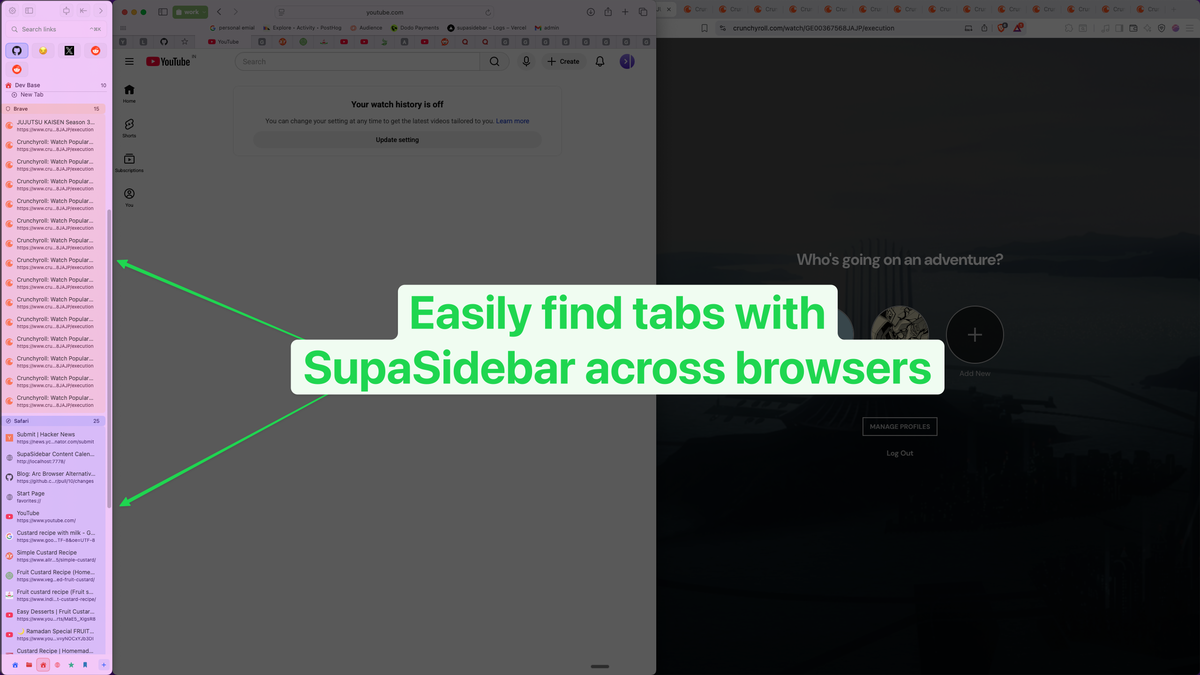
Each Space (Personal, Work, Side Project, etc.) holds its own saved tabs and pinned items. ⌘⌃1 through ⌘⌃9 jump to a Space. So saved tabs from work don't pollute the saved tabs from a side project, and switching contexts is one keystroke instead of digging through bookmark folders. Free tier includes 3 Spaces; Pro includes unlimited. Almost everything else in SupaSidebar works in the free tier.
iCloud sync for saved tabs.
Saved links and folders sync across all your Macs via iCloud automatically. Live Tabs doesn't sync (it's per-machine, by definition), but the saved tab folders do. So saving 30 Chrome tabs on a MacBook and opening them on an iMac the next day is just opening SupaSidebar and clicking the folder.
The combination is what nothing else offers: a single save-tabs target that works regardless of which browser the tabs are in, and a single place to find them again that doesn't depend on which browser you happen to have open.
A Reddit user from r/macapps who tested this said it cleanly: "This looks great! I've been wanting a way to manage my multiple browsers from a single source."
Save-tabs solutions compared
| Solution | Save in Chrome | Save in Firefox | Save in Safari | Cross-browser unified | Free tier |
|---|---|---|---|---|---|
| Native ⌘⇧D shortcut | Yes | Yes | No (different shortcut) | No - browser-locked | Yes |
| Chrome Tab Groups → Save Group | Yes | No | No | No - Chrome only | Yes |
| Edge Collections | No | No | No | No - Edge only | Yes |
| Vivaldi Sessions | No | No | No | No - Vivaldi only | Yes |
| Safari Tab Groups | No | No | Yes | No - Apple ecosystem only | Yes |
| OneTab extension | Yes | Yes | No | Paid sync, separate accounts | Free + Paid |
| Session Buddy | Yes | No | No | No - Chrome only | Free |
| Tab Stash | No | Yes | No | No - Firefox only | Free |
| Tab Session Manager | Yes | Yes | No | Cloud sync, separate accounts | Free + Paid |
| Toast | Yes | Yes | Yes | Yes (real-time) | Free + Paid |
| SupaSidebar (Save All Browser Tabs ⌘⌃T) | Yes | Yes | Yes | Yes - one sidebar across 25 browsers | Yes (3 Spaces, 7-day Pro trial) |
Conclusion: Picking what to use for saving open tabs
The fastest universal answer is ⌘⇧D on Mac (Ctrl+Shift+D on Windows/Linux), which bookmarks every tab in the current window in Chrome, Firefox, Edge, Brave, and Vivaldi. Safari uses Bookmarks → Add Bookmarks for These [N] Tabs instead. That covers the moment-of-closing question for ~90% of single-browser sessions.
Different reader segments need different answers beyond the shortcut:
- Single-browser users: The native shortcut plus a session manager like Session Buddy (Chrome) or Tab Stash (Firefox) handles 95% of save-tabs needs. Nothing else needed.
- Multi-browser users (Chrome + Safari + Firefox): Native bookmarks fragment tabs across three separate piles. The two cross-browser solutions worth considering are Toast (extension across Chrome/Safari/Firefox/Edge/Opera) and SupaSidebar (Mac sidebar across 25 browsers).
- Tab hoarders (200+ open tabs): OneTab collapses all tabs into a single list and claims up to 95% memory savings. Tab Session Manager auto-saves on a schedule.
- Crash-recovery focus: Firefox's Settings → General → Open previous windows and tabs (or Tab Session Manager for hourly backups).
For multi-browser users on Mac, SupaSidebar's free tier is worth trying since it includes Save All Browser Tabs (⌘⌃T), Live Tabs across all running browsers, and 3 Spaces for context separation.
Why we recommend SupaSidebar for cross-browser save-tabs workflows
SupaSidebar is a macOS app that brings Arc's sidebar to every browser - one sidebar for tabs, bookmarks, files, and apps across 25 browsers including Safari, Chrome, Firefox, Arc, Zen, Vivaldi, Brave, Helium, and Dia. For the save-tabs question specifically, four features matter: Save All Browser Tabs (⌘⌃T) saves every open tab from any active browser into a folder, Live Tabs shows currently-open tabs from every running browser in real time, Spaces separate work and personal contexts, and iCloud sync keeps saved-tab folders consistent across Macs. The free tier includes all four features plus 3 Spaces. macOS 14+ required.
Frequently Asked Questions
What is the keyboard shortcut to save all open tabs?
On Mac it's ⌘⇧D (Command+Shift+D). On Windows and Linux it's Ctrl+Shift+D. This works in Chrome, Firefox, Microsoft Edge, Brave, Vivaldi, and most other Chromium-based browsers. It bookmarks every tab in the active window into a new folder. Safari does not use this shortcut for save-all-tabs - Safari uses Bookmarks → Add Bookmarks for These [N] Tabs from the menu.
How do I save all open tabs in Chrome before closing?
Press ⌘⇧D (Mac) or Ctrl+Shift+D (Windows). Chrome asks you to name a new bookmarks folder; the folder will contain every tab in the current window. You can also use Tab Groups → Save Group or enable Settings → On startup → Continue where you left off. Per Chrome's official help, all three methods are documented.
How do I save all my tabs in Firefox?
Three ways. First, ⌘⇧D / Ctrl+Shift+D bookmarks every tab in the current window into a folder. Second, right-click any tab → Select All Tabs → Bookmark Tabs achieves the same thing. Third, Settings → General → Open previous windows and tabs makes Firefox automatically restore your last session when you reopen it. Per Mozilla's bookmarks documentation, all three are supported.
Is there a way to save tabs across multiple browsers in one place?
Native browser features can't do this - each browser saves only its own tabs. Browser extensions are usually locked to a single browser. Cross-browser solutions include Toast (real-time tab sync across Chrome/Safari/Firefox/Edge/Opera) and SupaSidebar (a Mac app that adds a unified sidebar across 25 browsers including a Save All Browser Tabs shortcut at ⌘⌃T that saves to one sidebar regardless of source browser).
What's the best Chrome extension to save tabs?
For session management: Session Buddy (free, saves and restores entire sessions). For collapsing many tabs into a list: OneTab (claims up to 95% memory savings). For automatic backups: Tab Session Manager. Avoid The Great Suspender - the original was delisted from the Chrome Web Store in February 2021 for malware. Use The Marvellous Suspender (the malware-free fork) or Auto Tab Discard if memory is the concern.
Will saved tabs sync across my devices?
It depends on the method. Browser-native bookmarks sync across devices logged into the same browser account (Chrome sync, Firefox sync, Safari iCloud, Edge sync). Extensions usually require a separate paid sync account. SupaSidebar's saved tabs sync via iCloud across Macs automatically - no SupaSidebar account needed. Live Tabs (currently-open tabs) is local-only by design since the tabs themselves are tied to the local machine.
How many tabs can I save at once?
There's no hard limit in Chrome, Firefox, Safari, or Edge - the bookmark folder will hold whatever you put in it. The practical limit is performance when you reopen them: opening 200 tabs at once will slow any browser down. Tools like OneTab and Session Buddy save lists rather than reopening tabs immediately, which avoids this. SupaSidebar saves tabs as folder entries that you reopen on demand, also avoiding the immediate-reopen problem.
Written by Kshetez Vinayak, founder of SupaSidebar. Last updated May 9, 2026. SupaSidebar is a Mac app that brings Arc's sidebar to every browser - one sidebar for tabs, bookmarks, files, and apps across 25 browsers including Safari, Chrome, Firefox, Arc, Zen, Vivaldi, Brave, Helium, and Dia.