
By Kshetez Vinayak, founder of SupaSidebar. Last updated May 11, 2026.
The fastest way to save every open tab in Chrome is the keyboard shortcut ⌘⇧D on Mac or Ctrl+Shift+D on Windows and Linux, which bookmarks every tab in the active Chrome window into a new folder. Per Chrome's official help center, this shortcut is window-scoped, not browser-scoped, which is the single biggest gotcha most guides skip. Chrome also has four other ways to save tabs: Tab Groups → Save Group (per-group, syncs across devices), Reading List (one page at a time), Continue Where You Left Off (auto-restore on launch), and the History → Recently closed list. The full breakdown, sync limits, the extension landscape, and the cross-browser problem none of them solve are below.
Quick navigation:
- All browsers (Chrome, Firefox, Safari, Edge)? → How to save all open tabs (the pillar)
- Best extension across browsers? → Best tab saver extensions 2026
- Tab groups specifically? → How to save tab groups in Chrome
- Crash recovery / sessions? → Tab Session Manager guide
- Chrome + Safari together on Mac? → How to use Safari and Chrome together (coming soon)
The five native ways Chrome saves tabs
Chrome has more save-tabs options than most users realize. Each one is good at a different job. Picking the wrong one is how tabs end up lost.
1. Bookmark All Tabs (⌘⇧D / Ctrl+Shift+D)
The fastest method. Press the shortcut in any Chrome window and Chrome opens a dialog asking for a folder name and a parent location in the bookmarks tree. Every tab in that window goes into the new folder.
Three things this method does NOT do, all of which trip people up:
- It is window-scoped, not browser-scoped. Tabs in other Chrome windows are not included. To save all tabs across all open Chrome windows, merge them first (drag tabs from one window into another) or save each window separately.
- It does not save scroll position, form data, or session cookies. It saves URLs. Opening the bookmark folder later opens fresh page loads for each URL. Forms-in-progress are gone.
- It does not save pinned tabs as pinned. Pinned tabs become regular bookmarks. Re-pinning has to be done manually.
Alternative path without the shortcut: right-click any tab → Bookmark all tabs…, or three-dot menu → Bookmarks and lists → Bookmark all tabs. Same result.
2. Tab Groups → Save Group
Per Chrome's Tab Groups documentation, saved tab groups are the closest Chrome has to a session feature. The flow:
- Right-click any tab → Add tab to new group (or drag a tab onto an existing group label)
- Name the group and pick a color
- Right-click the group label → Save group
- The group appears in the bookmarks bar as a colored pill
Click the pill later to reopen every tab in the group, with the original group name and color preserved.
Saved tab groups have one big advantage over bookmark folders: they sync across devices via Chrome sync. A group saved on a MacBook shows up on the desktop Chrome on the same Google account, with the same name and color. Bookmark folders also sync, but they reopen as plain tabs in a plain window. Saved tab groups reopen as a group.
What saved tab groups do NOT preserve: scroll position, form state, or session cookies (same as bookmarks). What they DO preserve and bookmarks don't: group name, group color, and the conceptual grouping of "these tabs belong together."
3. Continue Where You Left Off (auto-restore on launch)
The hands-off option. Three-dot menu → Settings → On startup → Continue where you left off. Per Google's reopen-tabs documentation, Chrome will reopen every tab and window from the previous session every time it launches.
This is not really saving tabs. It is delaying their disappearance. Caveats:
- A crash before Chrome's shutdown writes the session file can lose tabs. Chrome saves session state on graceful shutdown. A force-quit, system crash, or kernel panic interrupts that write. The recovery section below covers what to do when this happens.
- Closing a window without closing all of Chrome does not save the window's tabs. Only the last-closed window's tabs are restored. Open multiple windows and close one before quitting Chrome → that window's tabs are gone.
- Profile-scoped, not Google-account-scoped. This setting applies to the local Chrome profile. Sign in elsewhere → different setting state.
4. Reading List
Reading List is Chrome's read-it-later feature, not a tab-saving feature. ⌘⇧D variants don't go here; pages have to be added one at a time via the side panel or three-dot menu → Bookmarks and lists → Add to reading list.
Reading List exists because most people don't actually want to "save 30 tabs." They want to come back to 4 specific articles. Reading List is built for that - flagged read/unread, syncs across devices via Chrome sync.
For save-all-tabs use cases, Reading List is the wrong tool. For save-three-things-to-finish-tonight, it is the right one.
5. History → Recently Closed
The escape hatch. ⌘+Y (Mac) or Ctrl+H (Windows) opens History. The top of the list shows "Recently closed" with the last few closed tabs and windows.
This is the only Chrome feature that recovers tabs after they've been lost. Per Chrome's history documentation, recently closed tabs and windows are surfaced at the top of History (Cmd+Y on Mac, Ctrl+H on Windows), and full browsing history is retained per Chrome's history retention settings. If a crash takes out a session and Continue Where You Left Off didn't catch it, History → Recently Closed is the next place to check.
It is also where tabs from incognito windows do NOT appear. Incognito tabs are gone the moment the incognito window closes, by design.
The window vs profile vs sync confusion (Chrome-specific)
Chrome has three scopes for tab data and they get conflated all the time. Knowing which one a save-tabs method operates on is the difference between "all my tabs are safe" and "where did my tabs go?"
| Scope | What it covers | What syncs |
|---|---|---|
| Window | Tabs in one specific Chrome window | Nothing - per-window state |
| Profile | All tabs across all windows for one Chrome user profile | Via Chrome sync if signed in |
| Sync (cloud) | Bookmarks, saved tab groups, Reading List, history | Across devices on same Google account |
⌘⇧D saves at window scope. Continue Where You Left Off restores at profile scope. Bookmarks and saved tab groups upload at sync scope.
The trap: someone opens Chrome on Profile A, has 40 tabs across 3 windows, presses ⌘⇧D in the active window, saves a folder, switches to Profile B, comes back to Profile A, finds two of the three windows didn't get saved. They blame Chrome sync. The actual problem was scope: ⌘⇧D only ever saved the window it was pressed in.
Practical rules:
- Saving a single moment of work? ⌘⇧D in each window, or use a Tab Group. Window-scoped.
- Saving across devices? Sign in to Chrome and enable bookmarks sync. Profile + sync scope.
- Switching between work and personal? Use separate Chrome profiles, not separate windows. Each profile has its own sync, its own bookmarks, its own saved tab groups. Profile scope.
Cross-browser users (Chrome + Safari, or Chrome + Firefox) get a fourth scope nobody talks about: cross-browser scope. Chrome cannot save Safari's tabs and Safari cannot save Chrome's. That's a separate problem with a separate solution, covered below.
Chrome sync: what actually syncs
Chrome sync is more nuanced than the on/off toggle suggests. Per Google's sync documentation, the per-data-type controls live at Settings → You and Google → Sync and Google services → Manage what you sync.
The categories that matter for save-tabs:
- Bookmarks - sync across devices. This includes folders created by Bookmark All Tabs.
- Tabs - this is the "open tabs on other devices" feature. It surfaces tabs from other signed-in Chromes under History → Tabs from other devices. It does NOT push saved tabs.
- Reading List - syncs across devices.
- Saved Tab Groups - syncs across devices when signed in to Chrome, per Chrome's Tab Groups documentation.
- History - syncs across devices, which is how recently-closed tabs from one Chrome show up in another.
What does NOT sync, even with sync turned on: extension state, session cookies, scroll position, form data, pinned-tab pinned-state. Saved tab groups are the closest Chrome has to a "session saver" that survives a device move, but they still lose form state and scroll position.
For users signed in to Chrome on multiple Macs, this means: save a tab group on the work MacBook → it appears on the home iMac when the iMac syncs. Same name, same color, same URLs. Click and reopen. That part works.
The Chrome extension landscape (May 2026)
Chrome's native save-tabs methods cover the obvious cases. The Chrome Web Store has dozens of extensions that cover the rest, ranked in our best tab saver extension guide. Five worth knowing:
Session Buddy
The default recommendation for power users. Per Session Buddy's Chrome Web Store listing, it captures all open tabs into a named session, restores entire sessions on demand, and exports sessions to HTML, JSON, CSV, or plain text. Chrome only.
Use case: power users with 50+ tabs who want named save points ("client-project-research-2026-05-10") and want to keep older sessions for reference.
OneTab
The lightweight option. Per the OneTab homepage, it collapses every open tab into a single list of links in one tab, claiming up to 95% memory savings. It is free with no signup. The list stays local to the browser - moving it across devices is manual, via exporting the list of URLs or sharing it as a web page.
Use case: 30+ tabs eating RAM, none of them being actively used, but the URLs need to be kept reachable. OneTab is one click → all tabs become a list → all RAM freed.
Caveat: OneTab does not preserve tab groups, pinned tabs, or window layouts. It flattens everything to a list.
Save my Tabs
A simpler version of OneTab. Per the Save my Tabs Chrome Web Store listing, one click saves all open tabs as bookmarks in a chosen folder. No list view, no memory-saving feature - just bookmark all tabs with one click instead of two menu items.
Use case: users who already know how to use Chrome bookmarks and want the ⌘⇧D shortcut as a toolbar button instead.
Tab Session Manager
The auto-backup option. Per the Tab Session Manager Chrome Web Store listing, it saves the entire session on a schedule (every 5 minutes, every hour, etc.) and on window close. Free version is local. Cloud sync via Google Drive syncs sessions across devices. Cross-browser via Firefox add-on too.
Use case: crash paranoia. If Chrome crashes every few days and Continue Where You Left Off keeps losing tabs, automatic hourly backups make it impossible to lose more than an hour.
The Marvellous Suspender (NOT The Great Suspender)
Memory management, not save-tabs. Worth including because of one warning: do not install The Great Suspender. Per The Verge's February 2021 report, the original extension was sold to a new owner who pushed an update containing malware that ran arbitrary remote code. Google removed it from the Chrome Web Store.
The safe alternatives:
- The Marvellous Suspender - a community fork of the pre-malware version, code-audited and open source
- Auto Tab Discard - uses Chrome's built-in tab discarding API, also open source
Neither saves tabs as bookmarks. Both free up RAM for tabs that are open but not currently being used.
Comparison: Chrome native vs extensions
| Method | Saves all tabs in one click | Restores as a session | Syncs across devices | Free | Works outside Chrome |
|---|---|---|---|---|---|
| ⌘⇧D / Bookmark All Tabs | Yes (window-scoped) | No (opens as bookmarks) | Yes (Chrome sync) | Yes | No |
| Tab Groups → Save Group | No (per-group) | Yes (as group) | Yes (Chrome sync) | Yes | No |
| Continue Where You Left Off | Auto on launch | Yes | No | Yes | No |
| Reading List | No (per-page) | No | Yes (Chrome sync) | Yes | No |
| Session Buddy | Yes | Yes | No (Chrome only) | Yes | No |
| OneTab | Yes | Yes (as list) | No (manual export) | Yes | No |
| Save my Tabs | Yes | No | Via Chrome sync | Yes | No |
| Tab Session Manager | Yes (auto-schedule) | Yes | Free (Google Drive) | Yes | Firefox version |
| SupaSidebar (⌘⌃T) | Yes (any browser) | Yes (folder) | iCloud, free | Yes (3 Spaces, 7-day Pro trial) | Yes (25+ browsers) |
Chrome session crash recovery
Chrome stores session data in files inside the profile directory. When Chrome launches, it reads these files to restore the previous session if Continue Where You Left Off is enabled. The files are updated while Chrome runs, but the final write happens on graceful shutdown.
When a crash, force-quit, or system kernel panic interrupts Chrome before that final write, the previous session can sometimes be recovered. This is not a guaranteed flow - file formats are internal to Chrome and behavior can change between versions - but the general approach:
- Don't open Chrome yet. Chrome will read and rewrite session files on launch. If the previous session is still present in the files, opening Chrome can overwrite them.
- Quit Chrome completely. Right-click the Chrome icon in the Dock → Quit, or use Activity Monitor → Force Quit on every Google Chrome process.
- Navigate to Chrome's user data folder. On Mac:
~/Library/Application Support/Google/Chrome/Default/. On Windows:%LOCALAPPDATA%\Google\Chrome\User Data\Default\. Per Chromium's documentation, these are the standard profile directory locations. - Look for the session files. Files named along the lines of
Current Session,Current Tabs,Last Session,Last Tabsare Chrome's internal session-state files. TheLast *files generally contain the previous session. - Back up the four files. Copy them to a separate folder before launching Chrome again.
- Launch Chrome. If Continue Where You Left Off is enabled and the files were not corrupted, Chrome may restore the previous session. If recovery succeeds, the tabs reopen.
This is best-effort recovery. Chrome's session files are not a documented public API, and there are scenarios (corrupted writes, mid-update kernel panics) where recovery fails. The reliable answer for users who hit crashes regularly is to install Tab Session Manager and set it to save every 15 minutes. The next crash loses 15 minutes of tabs instead of all of them.
What none of this solves: cross-browser
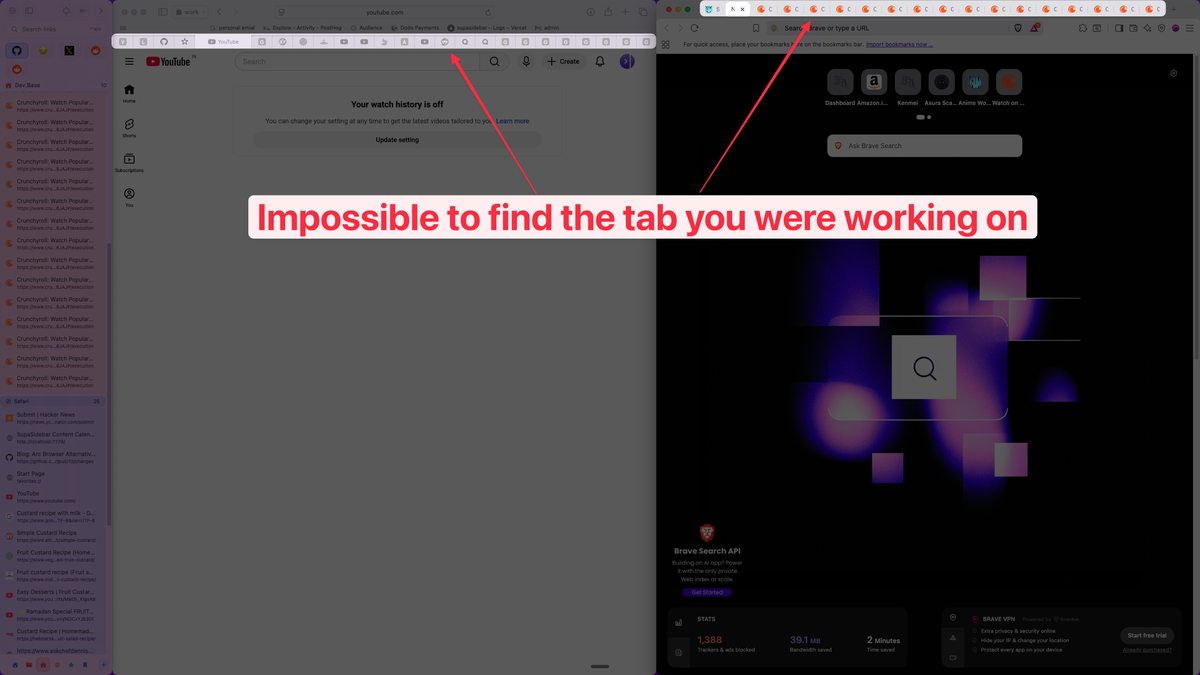
Every method above only saves Chrome tabs. A typical Mac user has tabs in two or three browsers at once - Chrome for work, Safari for personal accounts (Keychain handles the passwords), Firefox for anything they don't want tracked. Three separate tab graveyards.
A Reddit user on r/macapps put it directly: "I've been wanting a way to manage my multiple browsers from a single source." Another captured the multi-workflow case: "I use different browser for different workflows like Safari for social media, Chrome for web development, and Firefox for research." A third was blunter: "I hate having bookmarks scattered across 3 different browsers."
Chrome's save-tabs methods don't help here. Even cross-browser extensions like Toast install separately in each browser and sync via the extension's own cloud. The browsers themselves remain isolated.
The cross-browser approach
One Mac app takes a different approach. SupaSidebar is not a browser and not a Chrome extension. It runs in the menu bar, shows up over whatever browser is active, and keeps tabs and saved links in one place across 25+ browsers including Safari, Chrome, Firefox, Arc, Zen, Vivaldi, Brave, Helium, and Dia.
Three SupaSidebar features matter for the save-tabs-from-Chrome question:
Save All Browser Tabs (⌘⌃T).
Press ⌘⌃T anywhere - including from inside Chrome - and SupaSidebar saves every open tab from the active Chrome window into a folder in the sidebar. The folder belongs to the current Space, not to Chrome. So pressing ⌘⌃T in Chrome at 10am, switching to Safari, then pressing it again at noon leaves both folders sitting in the sidebar regardless of which browser is open next.
Live Tabs across every browser.
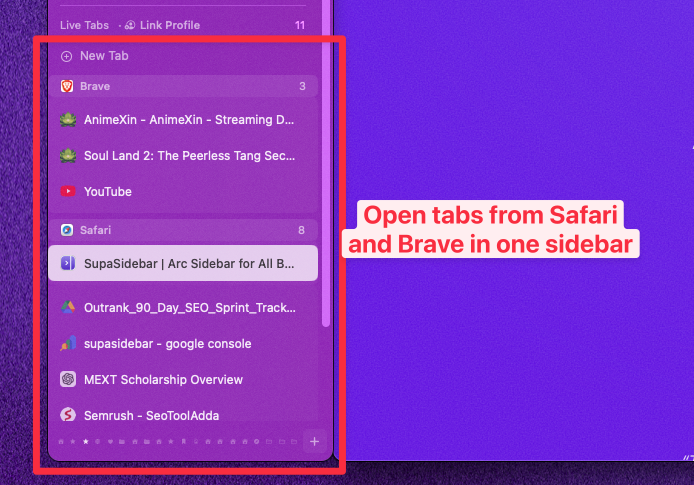
Live Tabs is the opposite of saving: it shows every currently-open tab from every running browser in real time. With Chrome at 14 tabs and Firefox at 9, Live Tabs shows all 23 in the sidebar grouped by browser. Clicking any tab activates the existing tab in the source browser instead of opening a duplicate. For Chrome users specifically, this is the difference between "save and lose the live state" and "see all your live tabs without saving."
Spaces for context separation.
Each Space (Personal, Work, Side Project, etc.) holds its own saved tabs. ⌘⌃1 through ⌘⌃9 jumps to a Space. Saved Chrome tabs from a work session don't pollute saved Chrome tabs from a side project. iCloud sync keeps Spaces consistent across all Macs on the same Apple ID. The free tier includes 3 Spaces.
The combination is what Chrome alone cannot offer: saving Chrome tabs to a target that also holds Safari tabs and Firefox tabs, and seeing all of them in one sidebar regardless of which browser is open.
Conclusion: Picking what to use for saving Chrome tabs
The fastest universal answer for Chrome-only users is ⌘⇧D on Mac or Ctrl+Shift+D on Windows, which bookmarks every tab in the current window into a folder. For everything beyond that, the choice depends on what's actually breaking.
Different reader segments need different answers:
- Chrome-only users on one device: Native ⌘⇧D plus enable Continue Where You Left Off. Covers 95% of save-tabs needs without installing anything.
- Chrome-only users with 50+ tabs and frequent context switches: Session Buddy for named save points, or saved Tab Groups if the workflow is naturally grouped.
- Chrome-only users worried about crashes: Tab Session Manager on a 15-minute auto-save schedule. The next crash loses 15 minutes.
- Chrome users who also use Safari, Firefox, or Arc: Cross-browser save-tabs is a different problem. The two options worth trying are Toast (real-time sync extension across Chrome/Safari/Firefox/Edge/Opera) and SupaSidebar (a Mac sidebar across 25+ browsers with a single save-all-tabs shortcut and Live Tabs visibility).
- Memory-management focus: The Marvellous Suspender or Auto Tab Discard. Never The Great Suspender (delisted February 2021 for malware).
For multi-browser users on Mac, SupaSidebar's free tier is worth trying since it includes Save All Browser Tabs (⌘⌃T), Live Tabs across every running browser, and 3 Spaces for context separation. For the universal cross-browser version of this guide, see How to save all open tabs.
Why we recommend SupaSidebar for cross-browser save-tabs workflows
SupaSidebar is a macOS app that brings Arc's sidebar to every browser - one sidebar for tabs, bookmarks, files, and apps across 25+ browsers including Safari, Chrome, Firefox, Arc, Zen, Vivaldi, Brave, Helium, and Dia. For Chrome users specifically, three features matter: Save All Browser Tabs (⌘⌃T) saves every open Chrome tab into a folder that also holds tabs saved from other browsers, Live Tabs shows currently-open Chrome tabs alongside tabs from every other running browser in real time, and Spaces separate work and personal contexts with one keystroke. The free tier includes all three features plus 3 Spaces. macOS 14+ required.
Frequently Asked Questions
What is the keyboard shortcut to save all open tabs in Chrome?
On Mac it's ⌘⇧D (Command+Shift+D). On Windows and Linux it's Ctrl+Shift+D. This works in Chrome and every Chromium-based browser including Edge, Brave, and Vivaldi. It bookmarks every tab in the active window into a new folder. The shortcut is window-scoped, not browser-scoped, so tabs in other Chrome windows are not included.
How do I save all open tabs in Chrome before closing the browser?
Three options. First, press ⌘⇧D (Mac) or Ctrl+Shift+D (Windows) to bookmark every tab in the current window into a folder. Second, use Tab Groups → Save Group to save tabs as a named group that syncs across Chrome devices. Third, enable Settings → On startup → Continue where you left off to make Chrome auto-restore the previous session every launch. Per Chrome's official help, all three methods are documented.
Does Chrome save my tabs when I close the browser?
By default, no. Chrome closes and the open tabs are gone. The exception is if "Continue where you left off" is enabled under Settings → On startup, in which case Chrome reopens the previous session on next launch. Saved tab groups and bookmarked tabs persist regardless of this setting.
How do I save Chrome tabs across multiple devices?
Sign in to Chrome with a Google account and enable Bookmarks sync (Settings → You and Google → Sync and Google services). Bookmark folders created by ⌘⇧D and Saved Tab Groups both sync via Chrome sync. Cross-browser (Chrome to Safari, for example) does not sync natively - that requires either a cross-browser extension like Toast or a Mac app like SupaSidebar that adds a unified sidebar across 25+ browsers.
What is the best Chrome extension to save tabs?
Session Buddy is the most powerful Chrome session manager - it saves named sessions, restores them on demand, and exports to JSON, HTML, or CSV. OneTab is the simplest for collapsing many tabs into a single list to free RAM. Tab Session Manager handles automatic scheduled backups. Avoid The Great Suspender - it was delisted from the Chrome Web Store in February 2021 for malware that ran arbitrary remote code. Use The Marvellous Suspender (the malware-free fork) or Auto Tab Discard instead.
How do I recover lost Chrome tabs after a crash?
The first place to check is History (⌘+Y on Mac, Ctrl+H on Windows), which surfaces recently closed tabs at the top. For deeper recovery: do not open Chrome yet, quit it completely from Activity Monitor, then back up the session files in Chrome's profile folder (~/Library/Application Support/Google/Chrome/Default/ on Mac, or %LOCALAPPDATA%\Google\Chrome\User Data\Default\ on Windows). The files are named along the lines of Current Session, Current Tabs, Last Session, Last Tabs. Launching Chrome with Continue Where You Left Off enabled may then restore the previous session. This is best-effort recovery, not a guaranteed flow.
How many tabs can Chrome save at once?
There's no hard limit on the number of bookmarks in a folder. The practical limits are memory and performance: opening a 200-tab bookmark folder reopens all 200 tabs simultaneously, which will slow Chrome to a crawl on most machines. Tools like OneTab and Session Buddy save URLs as a list rather than reopening tabs immediately, which avoids this. SupaSidebar saves tabs as folder entries that reopen on demand, also avoiding the immediate-reopen problem.
Written by Kshetez Vinayak, founder of SupaSidebar. Last updated May 11, 2026. SupaSidebar is a Mac app that brings Arc's sidebar to every browser - one sidebar for tabs, bookmarks, files, and apps across 25+ browsers including Safari, Chrome, Firefox, Arc, Zen, Vivaldi, Brave, Helium, and Dia.