
By Kshetez Vinayak, founder of SupaSidebar. Last updated June 30, 2026.
TL;DR:
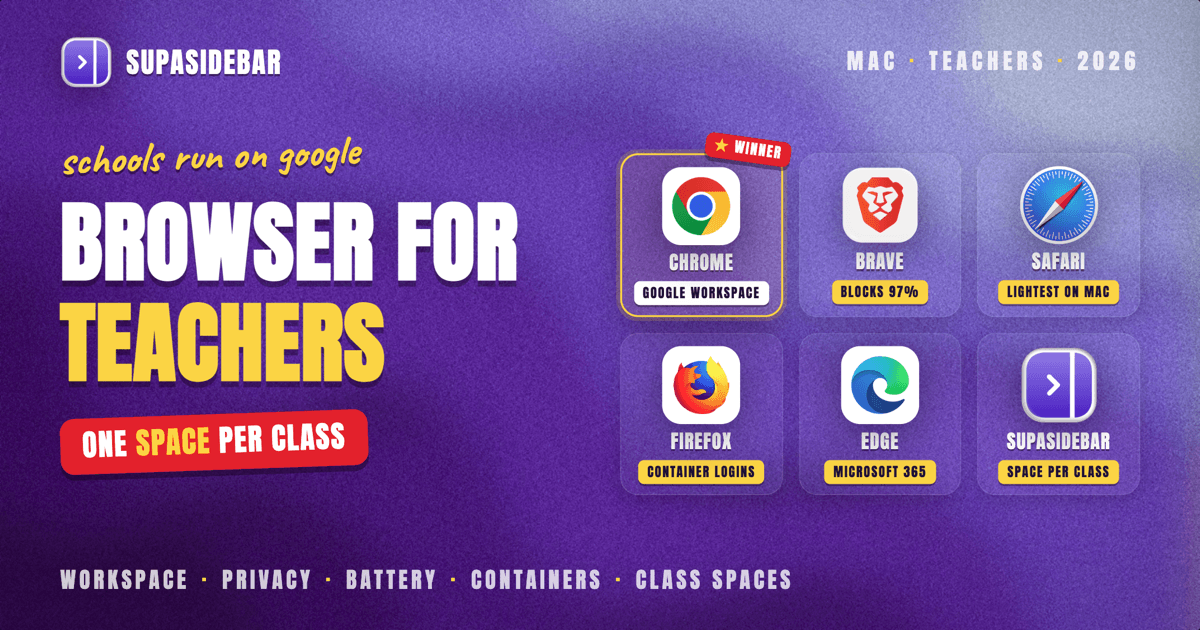
For most teachers on a Mac, Chrome is the best browser in 2026, because nearly every school runs on Google Workspace for Education and Chrome's profile switching keeps your school Google account cleanly separate from your personal one in two clicks. If privacy matters more than the Google ecosystem, Brave blocks the most trackers out of the box. Safari is the lightest option for an all-Apple classroom, and Firefox with Multi-Account Containers is the best open-source pick for juggling many logins. The real friction for teachers, though, is not the browser. It is the dozen LMS, grading, and resource tabs each class generates, which is where a sidebar like SupaSidebar keeps every class in its own Space across whichever browser you choose.
Quick navigation:
- Looking for the apps, not the browser? → Best Mac Apps for Teachers 2026
- A student rather than an educator? → Best Browser for Students on Mac 2026
- Comparing every Mac browser, not just for teaching? → Best Browser for Mac in 2026
- Choosing a browser to run your classroom from a Mac? You are in the right place. Keep reading.
Best browser for teachers on Mac at a glance
The table below is the fast answer. Each browser is scored on what actually matters in a classroom: how well it handles a school Google account, account separation, privacy defaults, and how heavy it is on an older school-issued MacBook.
| Browser | Google Workspace fit | Account separation | Privacy default | Weight on older Mac | Best for |
|---|---|---|---|---|---|
| Chrome | Native, full | Profiles (2-click switch) | Basic, needs setup | Heavy | Google Workspace schools |
| Brave | Strong (Chromium) | Profiles | Blocks ~97% trackers | Medium | Privacy-conscious teachers |
| Safari | Good | Profiles + iCloud | ITP on by default | Lightest | All-Apple classrooms |
| Firefox | Good | Multi-Account Containers | Enhanced Tracking Protection | Medium | Many separate logins |
| Edge | Native (Microsoft + Google) | Profiles | Basic | Heavy | Microsoft 365 schools |
One table cannot capture how each browser feels across a full teaching week, so the sections below go deeper on the four that matter most for educators.
Why a teacher's browser problem is different
A teacher does not browse the way a casual user does. A single school day moves through a learning management system, a grading portal, a district email account, a personal email account, a slide deck, three reference sites for a lesson, and a parent-communication tool. Most of those live behind a login, and several of them are tied to a Google or Microsoft account that the school controls.
That creates two specific problems a browser has to solve. The first is account separation: your school identity and your personal identity must not bleed into each other, or you end up emailing a parent from your personal address or signing into a lesson site as the wrong person. The second is sheer tab volume, because every class you teach spins up its own set of tabs, and by third period you have forty of them open with no way to tell which belongs to which class.
The browser choice solves the first problem. It does not solve the second, which is why the comparison below names a winner but does not stop there.
Chrome: the default for Google Workspace schools
Chrome is the best browser for most teachers on a Mac in 2026 because it is the native home of the Google Workspace for Education tools that schools already run on. Google Classroom, Google Docs, Slides, and Forms all behave best in Chrome, and Chrome's profile system was practically designed for the school-account-plus-personal-account reality every teacher lives in.
The killer feature for educators is profile switching. Chrome lets you create one profile for your school Google account and another for your personal account, each with its own bookmarks, history, passwords, and extensions, and you switch between them in two clicks (Google Chrome Help). School technology guides have recommended exactly this setup for years, because it keeps a teacher's classroom browsing fully separate from their home browsing (AASL Knowledge Quest).
The trade-off is weight. Chrome is the most memory-hungry mainstream browser, and on an older school-issued MacBook with many tabs open it can feel sluggish. Its privacy defaults are also basic, so a privacy-minded teacher has to add extensions or change settings to match what other browsers do out of the box.
Best for:
teachers at a Google Workspace school who want the smoothest path to Classroom, Docs, and Slides.
Brave: the privacy pick that still runs Google tools
Brave is the best browser for teachers who want strong privacy without giving up the Google Workspace tools their school relies on. Because Brave is built on Chromium, Google Classroom, Docs, and Chrome extensions all work, but Brave blocks ads and trackers by default with no configuration.
In independent privacy tests, Brave consistently blocks 97% or more of trackers out of the box, the highest score among mainstream browsers (PrivacyOn). Its Brave Shields feature gives per-site control, so if a district tool breaks because a tracker was blocked, you can loosen protection for that one site without dropping your guard everywhere else. Brave also supports profiles the same way Chrome does, so the school-account-versus-personal-account separation still works.
Brave is not an analysis or grading tool, and it will not change how your LMS works. It changes what loads in the background, which for a teacher handling student data in a browser all day is a meaningful trust improvement.
Best for:
privacy-conscious teachers who still need Chromium compatibility for school tools.
Safari: the lightest choice for an all-Apple classroom
Safari is the best browser for teachers whose classroom and devices are entirely Apple, because it is the lightest option on a Mac and its privacy protection is on by default. Safari's Intelligent Tracking Prevention has blocked cross-site trackers and limited cookie lifetimes since 2017, years before most browsers caught up (Surfshark).
Safari now supports profiles too, so you can keep a school profile and a personal profile separated, and iCloud+ subscribers get Private Relay, which hides your browsing from any single observer. On battery, Safari is the gentlest browser on a MacBook, which matters when a school-issued laptop is a few years old and spends the day unplugged on a cart.
The limit is obvious: Safari is Apple-only, and many district tools and LMS integrations assume Chrome. If your school's grading portal warns you to use Chrome, Safari is the wrong default for that task even if it is the best for everything else.
Best for:
teachers in an all-Apple environment who want the lightest, most private default.
Firefox: the open-source pick for many separate logins
Firefox is the best browser for teachers who manage many separate accounts and want an open-source option, because its Multi-Account Containers feature isolates logins inside a single window. Instead of switching whole profiles, you can keep your school Google account, your personal account, a parent-communication login, and a curriculum-site login each in its own colored container, all open at once without them interfering.
Firefox blocks many known trackers by default through Enhanced Tracking Protection and includes measures that limit browser fingerprinting (PrivacyOn). It also has the strongest extension ecosystem outside Chrome, so the niche education and accessibility add-ons teachers rely on are usually available.
Firefox is not the fastest on every Google tool, and a few district web apps still test only against Chrome. For a teacher whose biggest pain is account juggling rather than raw speed, the container model is hard to beat.
Best for:
teachers juggling many logins who prefer open-source software.
What none of these browsers fix: tabs scattered across classes
A teacher's stack isn't generic, and the browser comparison above only solves which engine to run. It does not solve where your tabs go. Every class generates its own LMS page, its own grading view, its own slide deck, and its own reference sites, and a browser treats all of them as one undifferentiated pile. By the afternoon, finding the right tab for the right class is its own small tax on your time, and switching browsers does not change that.
SupaSidebar is a macOS app that sits beside whatever browser you pick and keeps each class in its own Space, so your fourth-period biology tabs stay together and separate from your second-period chemistry tabs. It shows the live tabs from every browser you run in one sidebar, which means a school tool you keep in Chrome and a reference site you opened in Safari are both reachable from the same place. For a teacher, that turns "which window had the gradebook" into a single click.
SupaSidebar is not a learning management system, and it does not grade work or store student records. It organizes the tabs and links around your teaching, not the data inside them. The browser you choose still does the browsing; SupaSidebar is the layer that keeps a teaching week from turning into forty anonymous tabs. Teachers who curate resources for colleagues can also publish a Space of links, which makes it useful for sharing a unit's materials with a grade-level team.
Which teacher browser setup should you pick?
- If your school runs on Google Workspace: pick Chrome, and set up two profiles so your school account and personal account never mix.
- If you handle student data and want privacy by default: pick Brave, which keeps Chromium compatibility but blocks trackers without setup.
- If your classroom is all Apple and devices are older: pick Safari for the lightest load and on-by-default tracking protection.
- If you juggle many logins at once: pick Firefox and use Multi-Account Containers to keep each identity in its own container.
- If tab sprawl across classes is your real problem: keep your chosen browser and add SupaSidebar so each class lives in its own Space across every browser.
Conclusion
The best browser for teachers on a Mac in 2026 is Chrome for the large majority who teach inside Google Workspace, because its two-click profile switching solves the school-account-versus-personal-account problem that defines a teacher's browsing day. Privacy-first teachers should pick Brave, all-Apple classrooms should pick Safari, and teachers drowning in separate logins should pick Firefox with Multi-Account Containers. The honest answer is that the browser only decides which engine runs your school tools; it does not decide how your classes stay organized. For that, a sidebar that gives each class its own Space across any browser does more than swapping browsers ever will.
Why we recommend SupaSidebar
SupaSidebar is a macOS app that brings Arc's sidebar to every browser - one sidebar for tabs, bookmarks, files, and apps across 33 browsers including Safari, Chrome, Firefox, Edge, Arc, Brave, Vivaldi, Dia, and Orion. For teachers, the value is not a new browser but a way to keep each class's tabs, grading portals, and resources in their own Space, reachable from one place no matter which browser those tabs live in. It requires macOS 14 or later, syncs over iCloud with no account needed, and works alongside the browser your school already mandates.
Frequently asked questions
What is the best browser for teachers on a Mac in 2026?
For most teachers, Chrome is the best browser on a Mac because schools run on Google Workspace for Education and Chrome handles Classroom, Docs, and Slides natively while letting you switch between a school profile and a personal profile in two clicks. Privacy-focused teachers may prefer Brave, and all-Apple classrooms may prefer Safari.
How do I keep my school Google account separate from my personal one?
Use browser profiles. In Chrome, Brave, or Safari you can create one profile tied to your school Google account and another for your personal account, each with its own bookmarks, history, and logins, and switch between them in about two clicks. Firefox offers a different approach with Multi-Account Containers, which isolates each login inside a single window.
Which browser is best for teacher privacy?
Brave blocks the most trackers out of the box, scoring 97% or higher in independent tests, while still running Chromium-based school tools. Safari's Intelligent Tracking Prevention is on by default and is the lightest option on Apple devices, and Firefox's Enhanced Tracking Protection is the strongest open-source choice.
Is Safari good enough for teaching on a Mac?
Safari is excellent for an all-Apple classroom because it is the lightest browser on a Mac, has strong privacy defaults, and supports profiles. The catch is that it is Apple-only and some district grading portals and LMS integrations are tested only against Chrome, so check whether your school's required tools work in Safari before making it your default.
Why do teachers end up with so many browser tabs open?
Each class generates its own set of tabs: a learning management system page, a grading view, a slide deck, and several reference sites. Across a full teaching schedule those pile up into dozens of tabs with no grouping by class. A sidebar app like SupaSidebar fixes this by keeping each class in its own Space across whichever browser you use.
Do I need a different browser, or just better tab organization?
If your problem is account separation or privacy, the browser choice matters and the picks above address it. If your problem is finding the right tab for the right class, the browser is not the issue. Tools like SupaSidebar organize your tabs into per-class Spaces across any browser, which solves tab sprawl without forcing you to switch browsers.
By Kshetez Vinayak, founder of SupaSidebar. Last updated June 30, 2026.