
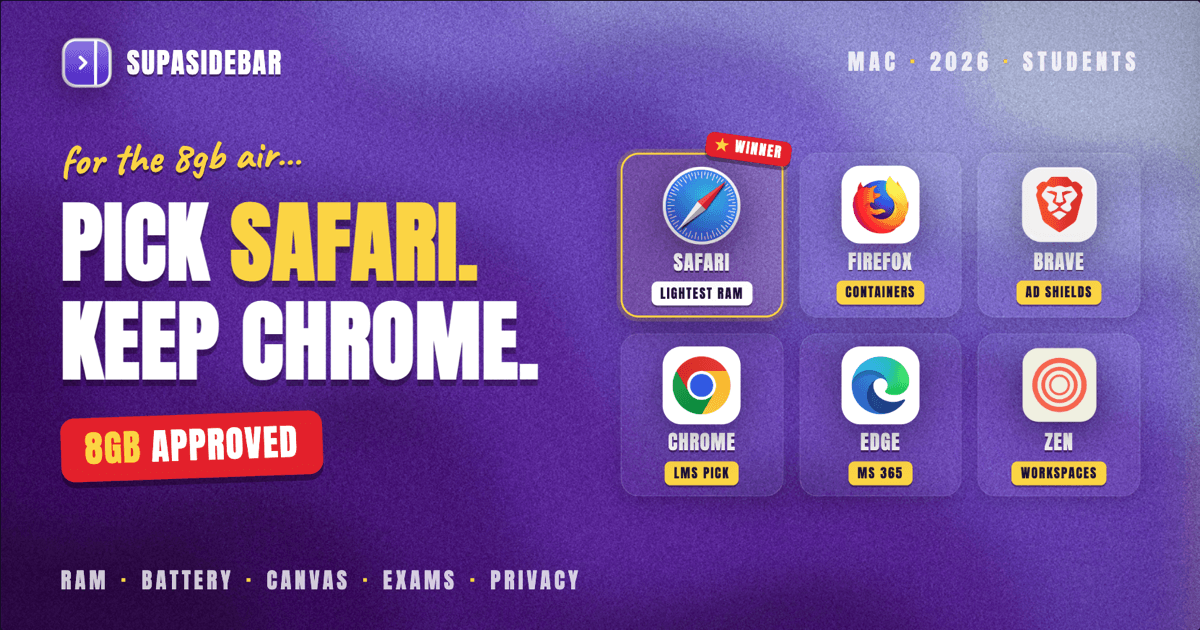
For most students on a Mac in 2026, Safari is the best default browser - it uses the least RAM, lasts the longest on battery, and that matters most on the 8GB MacBook Air most students actually own. Keep Chrome installed as a secondary browser for the one thing it is required for: school portals and proctored exams that officially support Chrome.
Firefox is the strong pick for privacy-minded students who want container tabs to separate accounts, and Brave is the second pick when most browsing is ad-heavy. The model-by-model logic, the LMS-compatibility rules, and the one setup that keeps every class organized across browsers are below.
Looking for something specific?
- Comparing every Mac browser, not just for students? -> Best Browser for Mac in 2026
- Want the lightest browser regardless of persona? -> Best Lightweight Browser for Mac in 2026
- Want the apps that go around the browser (notes, PDFs, focus)? -> Best Mac Apps for Students in 2026
- Want a step-by-step sidebar setup for class? -> Browser Sidebar Setup for Students on Mac
- A student picking a browser right now? -> You're in the right place. Keep reading.
By Kshetez Vinayak, founder of SupaSidebar. Last updated June 9, 2026.
What actually matters when a student picks a browser
A student's browser choice is decided by three things the average "best browser" article ignores: the MacBook they own, the battery they have to make last through a lecture day, and the school software that only officially supports certain browsers.
Most students are not on a maxed-out MacBook Pro. They are on a MacBook Air, very often an 8GB model bought to last four years. That single fact changes the answer. A browser that is fine on a 36GB Pro can push an 8GB Air into disk swap with 20 tabs open. The best browser for students on a Mac is the one that stays light on that machine, lasts the day on battery, and still opens the learning management system without a compatibility warning.
This post ranks the browsers on exactly those axes - RAM on low-spec Macs, real battery behavior, and online-class compatibility - then gives a per-situation pick. What it does NOT cover: the wider Mac app stack around the browser (notes, PDF readers, focus apps), which lives in Best Mac Apps for Students in 2026, or the step-by-step sidebar configuration for class, which lives in Browser Sidebar Setup for Students on Mac.
The 8GB MacBook is the real constraint
The detail that decides the student browser answer is RAM, because the student MacBook is usually an 8GB MacBook Air, and 8GB is exactly the configuration where browser choice stops being cosmetic.
Chrome's memory use scales with tab count fast. A single active Chrome tab uses roughly 80 to 200 MB depending on the page - a news article sits near the bottom, a JavaScript-heavy app like Google Sheets, Notion, or Figma pushes toward the top. At 50 tabs, Chrome's footprint reaches around 6.5 GB, which is most of an 8GB machine before macOS, Zoom, and a music app even load. When memory runs out, macOS swaps to the SSD, which is fast on Apple Silicon but still introduces stutter and burns write cycles over a four-year ownership.
The honest counterpoint: a typical student workload is not 50 tabs. A student opening 10 to 15 tabs for research, writing in Pages or Google Docs, and sitting in a Zoom lecture rarely exceeds about 5GB of RAM, which an 8GB Air handles. So the rule is not "Chrome is unusable." The rule is: on an 8GB Mac, the lighter browser leaves headroom for everything else, and Safari is the lightest of the mainstream options.
Safari uses less memory than Chromium browsers under typical loads because its process model is tighter, its tab suspension is more aggressive, and it does not host a separate extension runtime the way Chrome does. On a 16GB or 24GB Mac the gap stops mattering for a student-sized workload. On 8GB it is the difference between snappy and swapping.
Battery has to last a lecture day
A student browser has to survive back-to-back classes away from an outlet. Battery efficiency is a core selection axis, not a footnote, and on Apple Silicon Safari is the efficiency leader Apple actually publishes numbers for.
Apple's published web-browsing battery figures are all measured with Safari. The 13-inch M4 MacBook Air is rated up to 16 hours of wireless web browsing on its 53.8 Wh battery, and the M1 through M3 Airs land around 15 hours. Those numbers are deliberately gentle, measured at reduced brightness on a fixed set of sites, and they are Safari-only. Real days with Slack, 30 tabs, and a couple of video calls run lower for any browser. But the relative picture holds: Safari is tuned for the exact M-series chip and decodes video on the most efficient hardware path, which is the single biggest battery saver for the lecture-streaming and video-call workload students run constantly.
Chrome is closer than its reputation suggests but still behind on a battery that has to last all day. A 36-hour controlled test by Birchtree found Chrome used about 9% less battery than Safari on a MacBook Pro - a result that cuts against conventional wisdom, and worth knowing - but that was a Pro with a bigger battery and a fan. On a fanless Air with a smaller battery, the absolute hours at stake are smaller and Chrome's heavier background activity warms the chassis enough to trigger throttling sooner. For the broader battery ranking across every Mac browser, the Mac browser battery-life comparison goes deeper than this post does.
For a student, the practical takeaway: Safari for the longest lecture-day battery, Brave when most browsing is ad-heavy sites where its Shields cut bandwidth and battery by a claimed 30 to 50% versus Chrome, and Chrome reserved for the school software that requires it.
Online classes decide what you must keep installed
The constraint students cannot ignore: the learning management system and proctoring tools dictate at least one browser, no matter which is fastest.
Most universities run Canvas, Blackboard, Moodle, or D2L Brightspace. For Canvas specifically, Chrome and Firefox are the two browsers Instructure officially recommends and tests against, with the most consistent compatibility for quizzes, file uploads, and the rich-content editor. Safari works for everyday Canvas use, but the officially supported pair is Chrome and Firefox. Proctored-exam tools (Respondus LockDown Browser, ProctorU, Honorlock) are stricter still - many require a specific Chromium-based browser or their own locked-down build, and they will refuse to launch otherwise.
This is why the student answer is not "pick one browser." It is "pick a light, long-battery default for daily work, and keep the required browser installed for the portal and exams." Running Safari for research and Chrome for the LMS is the normal, correct setup - not a failure to commit. The friction it creates (your class tabs scattered across two browsers) is a real problem, and the section below addresses it.
A note on Chromebooks, since the question comes up: a Mac is not a Chromebook. School advice written for Chromebooks assumes Chrome is the only browser. On a Mac, Chrome is one option among several, and defaulting to it because the school's Chromebook guide said so leaves battery and RAM on the table.
Each browser for students, ranked
1. Safari - the default pick for most students
Safari is the right default for most students on a Mac in 2026. It uses the least RAM of the mainstream browsers, which matters most on the 8GB Air most students own; it gets Apple's published battery numbers because it is the most efficient on M-series chips; and it requires zero setup. Three student-specific strengths:
- Lightest on an 8GB machine. The tighter process model leaves headroom for Zoom, notes, and music alongside research tabs.
- Longest battery for lecture days. The most efficient video-decode path is exactly what the streaming-and-video-call student workload needs.
- Tab Groups for courses. Safari Tab Groups let a student keep one group per course, syncing across iPhone and iPad via iCloud at no cost.
Where Safari falls short for students is the same place it falls short for everyone: tab and bookmark management past 20 tabs, where titles shrink to favicons and the research pile becomes a graveyard. It is also not the officially supported browser for Canvas or most proctoring tools. The fix for both is below.
2. Firefox - the privacy and account-separation pick
Firefox is the strongest pick for privacy-minded students and for anyone juggling multiple logins. Its Multi-Account Containers let a student keep a personal Google account, a school Google account, and a research login fully isolated in the same window - genuinely useful when the university and personal Gmail accounts fight over which one a Google Doc opens in. Firefox is also one of the two browsers Canvas officially supports, so a Firefox-default student often does not need a second browser for the LMS at all.
The catch on an 8GB Mac is that Firefox still uses more RAM than Safari and lacks Safari's chip-specific tuning, so battery runs a little shorter. On a 16GB or higher Mac that gap is irrelevant. Pick Firefox when account separation or privacy posture matters more than squeezing the last hour out of an 8GB Air's battery.
3. Brave - the second pick on ad-heavy browsing
Brave is the right pick for students whose browsing is heavy on ad-laden sites - news, streaming, free study-resource sites loaded with trackers. Brave Shields block ads and trackers at the network layer by default, which translates into measurable bandwidth and battery savings on those sites; Brave's own tests claim 30 to 50% reductions versus Chrome. Because Brave runs on Chromium, it also opens most Chrome-only school portals that Safari struggles with, and Chrome Web Store extensions install directly.
The trade-off on an 8GB Mac is that Brave still carries Chromium's per-tab RAM overhead; the Shields battery win only shows up on genuinely ad-heavy sites, and on a gentle workload Safari still wins. Pick Brave when the browsing is ad-heavy and a Chromium engine is needed for a portal anyway.
4. Chrome - keep it, but not as the default
Chrome is the browser most students must keep installed and the one most should not run as their everyday default. The reason to keep it: it is the most universally supported browser for school portals, Canvas, Google Workspace edge cases, and proctored exams. The reason not to default to it: on an 8GB Mac it is the heaviest mainstream option, and the lecture-day battery cost is real.
If Chrome has to carry more of the load - because the school's tooling is Chrome-only - turn on Chrome's Memory Saver, which Google says can cut memory use by up to 40% by suspending inactive tabs, and Energy Saver to slow background activity on battery. Those features narrow the gap but do not erase it. The right mental model for a student: Chrome is the compliance browser, opened for the portal and the exam, not the browser that holds 30 research tabs all day.
5. Edge - Chrome's profile with better defaults
Microsoft Edge runs on Chromium with Sleeping Tabs and Efficiency Mode on by default, which trims memory and battery use versus stock Chrome. For a student whose university runs on Microsoft 365 - Outlook email, OneDrive, Teams - Edge is the natural Chromium pick because the Office integration is built in. On an 8GB Mac it is still a Chromium browser carrying more RAM and battery cost than Safari, so it lands in the same role as Chrome: a strong secondary for the Microsoft-centric school, not the lightest default.
6. Zen and other Arc-style browsers - the niche pick
Zen is the open-source, Firefox-based browser that brings Arc-style Workspaces, vertical tabs, and a compact UI to students who want a more organized browsing surface than Safari offers. It inherits Firefox's Gecko engine, so the RAM and battery picture mirrors Firefox: comfortable on 16GB-plus Macs, marginal on an 8GB Air. Pick Zen when the organized, sidebar-style UX matters more than the last bit of battery, and the Mac has the RAM headroom for it.
Worth noting for students eyeing Arc itself: Arc entered maintenance mode on May 27, 2025 and is no longer in active development after Atlassian acquired The Browser Company for $610 million, so it is a fading choice to build four years of coursework around. The Arc alternatives guide covers the replacements in depth.
Which browser for which student
The right pick shifts with the Mac and the school software. The practical matrix:
| Your situation | First pick | Keep installed for | Avoid as default |
|---|---|---|---|
| MacBook Air 8GB, general coursework | Safari | Chrome (LMS, exams) | Chrome, Edge |
| MacBook Air/Pro 16GB+, general coursework | Safari or Firefox | Chrome (exams) | nothing specifically |
| Privacy-focused, multiple accounts | Firefox | Chrome (exams) | Chrome |
| University runs on Microsoft 365 | Safari default + Edge | Edge (Office, Teams) | Chrome |
| Heavy ad-laden / streaming browsing | Brave | Chrome (exams) | Chrome |
| Wants an organized, Arc-style surface | Zen (16GB+) or Safari + a sidebar | Chrome (exams) | Chrome on 8GB |
The pattern across the matrix: Safari is the first pick at every RAM tier for general coursework, the second pick shifts with privacy needs and school tooling, and Chrome is almost always the keep-installed compliance browser rather than the daily default.
The setup that keeps every class organized across browsers
The unavoidable student reality is two browsers running at once: a light default for daily work and the required browser for the portal and exams. The cost is class tabs scattered across both, with no single place that shows the whole semester.
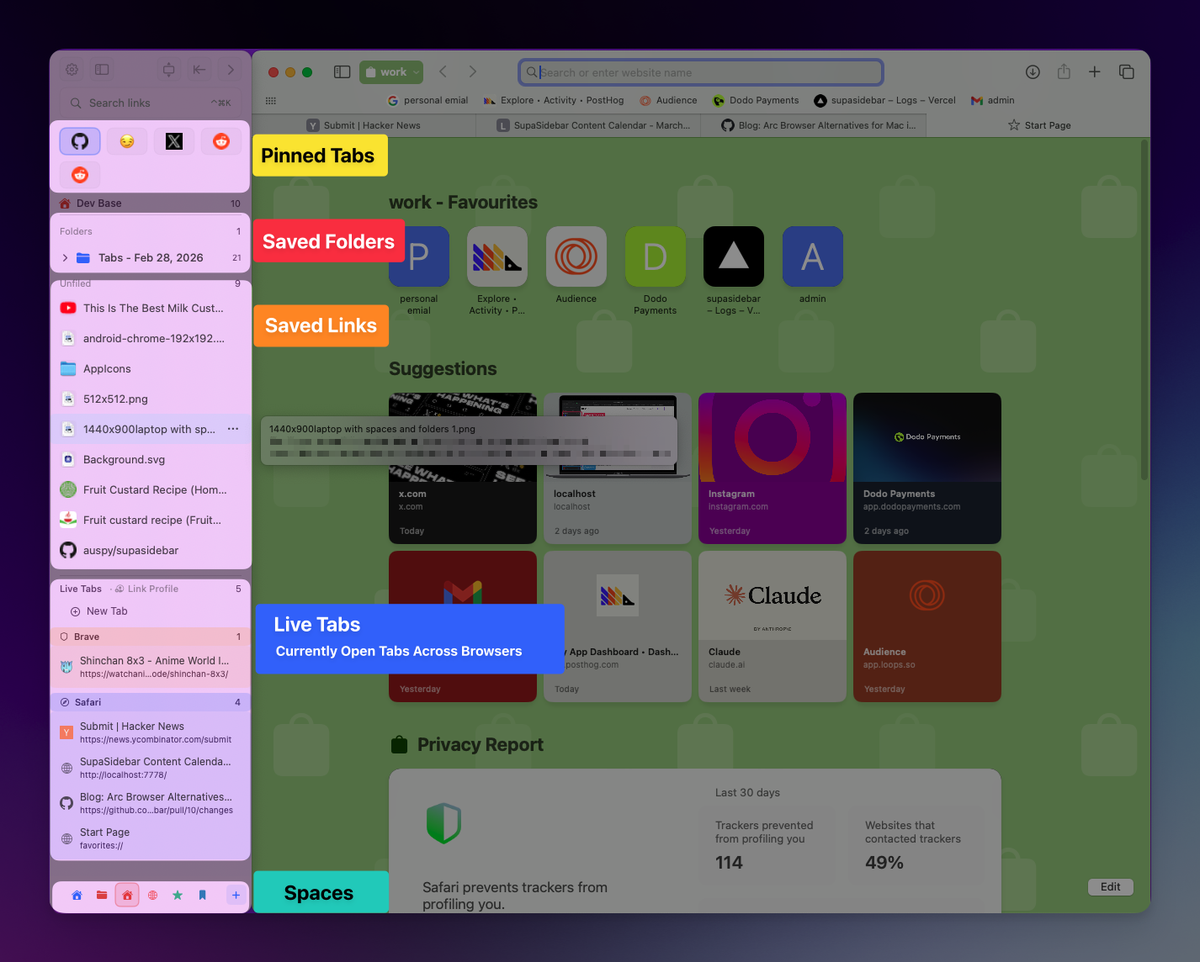
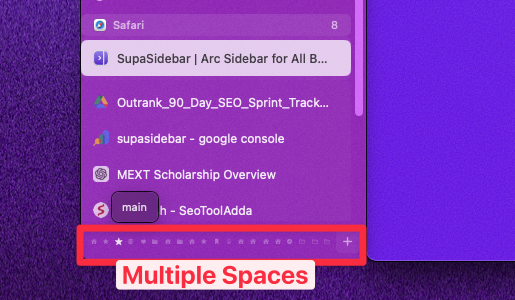
The cleanest fix is a sidebar layer that sits on top of every browser and shows tabs, bookmarks, and files from all of them in one place, organized by course. That is what SupaSidebar is built for. It runs as a native macOS app rather than a browser extension, so it does not add to any single browser's RAM footprint and does not change the battery profile of whichever browser a student picks. The sidebar floats at the screen edge and pulls live tabs from Safari, Chrome, Firefox, and the other 25-plus supported browsers into Spaces - one Space per course, or one for school and one for personal.
"Moved from Arc to Safari, only thing I missed was the sidebar. This is it." - SupaSidebar user, Reddit
"I've been wanting a way to manage my multiple browsers from a single source." - SupaSidebar user, email
For a student running Safari for battery and Chrome for the LMS, the SupaSidebar layer is what unifies them: a single Command Panel (⌘⌃K) searches every tab and bookmark across both browsers, so a reading open in Chrome for a proctored portal and a source open in Safari both surface from the same search. It keeps the lightest, longest-battery browser as the daily driver while solving the organization problem that two browsers create.
Conclusion: picking a student browser for your Mac in 2026
For most students on a Mac, Safari is the right default - it is the lightest on the 8GB MacBook Air most students own, it has Apple's longest published battery numbers, and it needs no setup. Chrome belongs on the machine too, but as the compliance browser for Canvas and proctored exams, not as the all-day default that holds 30 research tabs.
Segment recommendations:
- MacBook Air 8GB: Safari as the daily default, Chrome installed only for the LMS and exams. The Air has no RAM to give to a heavier everyday browser.
- 16GB or higher Mac: Safari or Firefox; the RAM headroom makes the choice about features (containers, account separation) rather than memory.
- Privacy-focused students: Firefox with Multi-Account Containers, which also doubles as a Canvas-supported browser so a second browser is often unnecessary.
- Microsoft 365 schools: Safari as the light default, Edge for the Office and Teams integration.
- Students drowning in tabs across two required browsers: keep the light default, and add a cross-browser sidebar so every course stays organized in one place.
For the broader Mac browser comparison beyond the student lens, see Best Browser for Mac in 2026. For the apps that go around the browser, see Best Mac Apps for Students in 2026. Try SupaSidebar (free tier) if a light default browser plus a cross-browser sidebar fits the way your semester is organized.
Why we recommend SupaSidebar
SupaSidebar is a macOS app that brings Arc's sidebar to every browser - one sidebar for tabs, bookmarks, files, and apps across 25+ browsers including Safari, Chrome, Firefox, Arc, Zen, Vivaldi, Brave, Helium, and Dia. It runs as a native Mac app, not a browser extension, so the browser a student picks for battery and RAM stays the browser the Mac runs - SupaSidebar just adds the organizing layer on top.
For students specifically, this matters because the constraints (an 8GB MacBook Air, a battery that has to last a lecture day, and a school portal that requires a particular browser) push toward Safari for daily work plus Chrome for the LMS - and that split scatters class tabs across two browsers. SupaSidebar closes that gap. Live Tabs pull open tabs from Safari and Chrome into one sidebar, Spaces let a student keep one workspace per course, and the Command Panel (⌘⌃K) gives Spotlight-style search across every tab, bookmark, and folder in both browsers at once. The free tier covers the core sidebar across every browser.
Download SupaSidebar from supasidebar.com - macOS 14+ (Sonoma and later), Intel and Apple Silicon.
Frequently Asked Questions
What is the best browser for students on a Mac in 2026?
Safari is the best default browser for most students on a Mac, because it uses the least RAM and lasts the longest on battery, which matters most on the 8GB MacBook Air most students own. Students should also keep Chrome installed for school portals and proctored exams that officially require it, but use it as a secondary browser rather than the everyday default.
Is Safari or Chrome better for college students?
For everyday coursework on a Mac, Safari is better - it is lighter on RAM and lasts longer on battery, especially on 8GB MacBooks. Chrome is better for compatibility with learning management systems like Canvas and proctored-exam tools, which is why most students keep both: Safari for daily work, Chrome for the portal and exams.
What browser do I need for online classes on a Mac?
It depends on the learning management system. For Canvas, Chrome and Firefox are the officially supported browsers, so keep at least one of them installed. Proctored-exam tools like Respondus LockDown Browser often require a specific Chromium-based browser or their own build, so check the course requirements before exam day.
Which browser uses the least RAM on a MacBook?
Safari uses the least RAM of the mainstream browsers on a Mac under typical student workloads, because its process model is tighter and it does not host a separate extension runtime the way Chrome does. This is the main reason Safari is the recommended default on an 8GB MacBook Air, where Chrome can reach around 6.5 GB of RAM at 50 tabs.
Is 8GB of RAM enough for a student MacBook in 2026?
For a typical student workload - 10 to 15 research tabs, Google Docs or Pages, and a Zoom lecture - 8GB is enough and rarely exceeds about 5GB of use. The way to stay comfortable on 8GB is to default to a light browser like Safari and avoid running 40-plus Chrome tabs, which can push the machine into disk swap.
What is the best browser for studying on a Mac if I want privacy?
Firefox is the strongest privacy pick for students, with Multi-Account Containers to isolate school and personal accounts and a non-Chromium engine. Brave is the alternative when most browsing is ad-heavy, since its Shields block ads and trackers at the network layer by default. Both are stronger on tracker-blocking than Safari, though Safari's Intelligent Tracking Prevention is solid for everyday use.
Should students use Arc browser on a Mac in 2026?
Arc is a risky choice to build four years of coursework around because it entered maintenance mode in May 2025 and is no longer actively developed after Atlassian acquired The Browser Company. Students who want Arc's organized, sidebar-style experience are better served by an actively maintained browser plus a sidebar app, or by an Arc alternative.
How do I keep my class tabs organized across two browsers?
The cleanest way is a sidebar app that sits on top of every browser and shows tabs and bookmarks from all of them in one place, grouped by course. SupaSidebar does this as a native Mac app, pulling live tabs from Safari and Chrome into Spaces and giving one search across both, so the light-default-plus-required-Chrome setup students need does not scatter their semester across two windows.
By Kshetez Vinayak, founder of SupaSidebar. Last updated June 9, 2026.