
By Kshetez Vinayak, founder of SupaSidebar. Last updated June 10, 2026.
Looking for something specific?
- Want to group tabs by project? → You're in the right place. Keep reading.
- Just want to save every open tab first? → How to save all open tabs
- Drowning in tab count specifically? → Too many tabs open on Mac
- Can't find a tab you know is open? → Find an open tab instantly on Mac
- Looking for a Workona-style workspace tool? → Workona alternatives for tab workspaces
TL;DR:
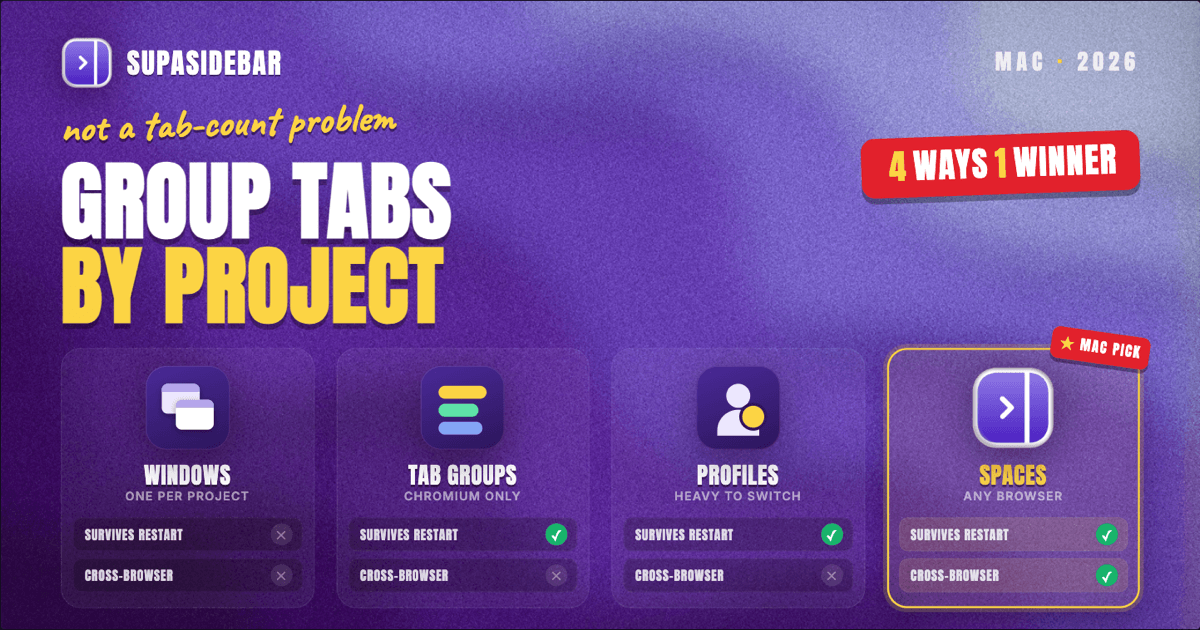
Tab chaos on a Mac is usually a project-organization problem, not a tab-count problem. The fix is to give every project its own container so tabs never mix: separate windows (free, fragile), Chrome tab groups (good inside one browser, lost across browsers), browser profiles (clean separation, heavy to switch), or a workspace layer that holds each project's tabs in a persistent group. SupaSidebar is the strongest answer when work spans more than one browser, because its Spaces keep one project's tabs grouped and switchable from a single sidebar across Safari, Chrome, Firefox, Arc, and others. Pick the method that matches how many browsers a project touches, then stick to one container per project.
Why "too many tabs" is the wrong diagnosis
Counting tabs treats the symptom. The real failure is that tabs from unrelated projects share the same window, so a research session, a client dashboard, and a half-read article all sit in one undifferentiated strip. The mental cost is context-switching, not memory: every glance at the tab bar forces a re-sort of what belongs to what.
Project-based browsing flips the model. Instead of one window holding everything, each project gets its own container, and only that project's tabs live inside it. Switching projects becomes switching containers, not hunting through a hundred favicons. A 2023 CHI Conference study on browsing clutter (N=400) found that people keep tabs open largely as external memory and as a hedge against losing their place, which is exactly the load that per-project containers remove (When Browsing Gets Cluttered, CHI 2023{target="_blank" rel="noopener noreferrer"}). An earlier Carnegie Mellon study presented at CHI 2021 found nearly a third of participants kept so many tabs open they qualified as "tab hoarders," kept open out of fear of never finding the page again (Overcoming Tab Overload, Carnegie Mellon University{target="_blank" rel="noopener noreferrer"}).
The methods below are ordered from lightest to most durable. The right one depends on a single question: how many browsers does a typical project touch?
Method 1: Separate windows per project
The zero-install option. Open one window per project, keep that project's tabs inside it, and use macOS window management to move between them.
How it holds up:
- Setup cost: none. Works in every browser on Mac today.
- Switching: Mission Control (swipe up with three or four fingers) or
Cmd+ backtick to cycle windows of the active app. - Where it breaks: windows are not labeled by project, so five windows look identical in Mission Control. Nothing persists a window as "the Q3 launch project" - close it and the grouping is gone. There is no cross-browser story; a window only holds tabs from the browser it belongs to.
Separate windows work for two or three short-lived projects. Past that, the unlabeled-window problem makes this the method people abandon first. Anyone whose project also lives in a second browser will hit the wall immediately, since one window cannot reach across browsers.
Method 2: Chrome tab groups (and the cross-browser ceiling)
Chrome, Edge, and Brave all support tab groups: colored, named clusters of tabs inside one window. This is a real upgrade over bare windows because the group carries a label and a color, so "Client A" and "Personal" stay visually distinct.
What tab groups do well:
- Naming and color: right-click a tab, choose "Add tab to new group", name it, pick a color. The group collapses and expands with a click.
- Saved groups: Chrome can save a group so it survives a restart and syncs across that browser's devices, per Google's tab groups documentation{target="_blank" rel="noopener noreferrer"}.
- Keyboard reach: combined with Chrome's own shortcuts, groups make a single-browser workflow tidy.
The ceiling is the browser boundary. Tab groups live and die inside Chromium. A project that also has a Safari tab for an Apple-only tool, or a Firefox tab for a container-isolated login, cannot be one group. For the deeper Chrome-only mechanics and the landscape of group-style extensions, the focused breakdown lives in Chrome tab groups alternatives for 2026; this post stays on the cross-browser, project-level question.
Tab groups are the right call when every project genuinely lives inside one Chromium browser and never leaves it. The moment a project spans browsers, groups stop being a project container and become a per-browser tidy-up.
Method 3: Browser profiles per context
Profiles give each context its own browser instance: separate cookies, separate logins, separate extensions, separate tab state. Chrome, Edge, and Firefox all support them. A "Work" profile and a "Personal" profile keep tabs, history, and signed-in accounts fully apart.
Strengths:
- Hard separation: work tabs and personal tabs never share a window, history, or session. This is the cleanest answer to "separate work tabs from personal".
- Account isolation: each profile can be signed into a different Google or Microsoft account, which solves the multi-account juggling that breaks single-profile setups.
- Persistence: a profile keeps its open tabs between launches.
Costs:
- Switching is heavy. Each profile is effectively a separate window or app instance. Moving between three profiles means managing three running contexts, not flicking between three labeled groups.
- Profiles are coarse. They map well to "work vs personal" but poorly to ten concurrent projects inside the same job. Nobody wants ten profiles.
- Still single-browser. A Chrome profile cannot hold a Safari tab.
Profiles are the right tool for a small number of durable contexts, especially when account isolation matters. For the multi-account angle specifically, the browser profiles guide for Mac goes deeper on setup. For everyday project switching at finer granularity, profiles are usually too heavy.
Method 4: A workspace layer over your browser
The methods above all share one limit: the project container is trapped inside a single browser. A workspace layer moves the container out of the browser and into a separate app that sits beside whatever browser is open. The project is defined once, in the layer, and holds its tabs regardless of which browser they came from.
This is the category SupaSidebar occupies. SupaSidebar is a native Mac app that adds a sidebar to any browser, and its Spaces feature is built for exactly this problem: one Space per project, holding that project's pinned tabs and folders, switchable from the sidebar without closing or reopening anything.
What a workspace layer adds that the earlier methods cannot:
- Cross-browser projects. A single Space can pin a Chrome dashboard, a Safari tool, and a Firefox login side by side, because the Space lives in SupaSidebar, not in any one browser. Live Tabs show what is open across 25+ browsers at once, so a project's tabs are visible in one place even when they are scattered across applications.
- Persistence by default. A Space keeps its tabs across restarts. Closing the browser does not erase the project grouping, because the grouping is stored in the sidebar.
- One-keystroke switching. The Command Panel (
⌘⌃K) jumps between Spaces, tabs, and apps from a single search box, which is faster than cycling unlabeled windows or running three profiles. - Project switching without account churn. Air Traffic Control can route a link to the right Space, browser, and even profile automatically, so opening a work link lands it in the work project rather than wherever the cursor happened to be.
Spaces are the category answer for project-based browsing specifically because the project is the unit, not the tab and not the browser. SupaSidebar has a free version, so the per-project setup can be tested before committing to it.
Comparison: four ways to group tabs by project on Mac
| Method | Setup cost | Project labeling | Persists across restart | Works across browsers | Best for |
|---|---|---|---|---|---|
| Separate windows | None | No (unlabeled) | No | No | 2-3 short projects |
| Chrome tab groups | Low | Yes (name + color) | Yes (saved groups) | No (Chromium only) | Single-browser projects |
| Browser profiles | Medium | Yes (per context) | Yes | No (one browser each) | Work vs personal, account isolation |
| SupaSidebar Spaces | Low | Yes (per Space) | Yes | Yes (25+ browsers) | Multi-browser, many concurrent projects |
The pattern is clear down the last two columns: only a workspace layer keeps a project intact across both restarts and browsers. Every browser-native method tops out at its own browser boundary.
How to actually set up project-based browsing
A method is only as good as the routine around it. The setup that holds for most people:
- Name projects, not topics. "Q3 launch" beats "marketing". A project has a start and an end; a topic never closes, so a topic container fills forever.
- One container per project, no exceptions. The discipline is that a tab belongs to exactly one project. If a tab is useful to two projects, it is usually a reference that belongs in a bookmark, not an open tab.
- Pin the three or four anchor tabs. Every project has a handful of tabs that are always open (the doc, the dashboard, the ticket queue). Pin those so they survive cleanup; treat everything else as disposable.
- Close the container when the project pauses. A workspace layer or saved tab group lets a project be reopened later without keeping it open now. This is the single biggest reduction in live tab count.
- Audit weekly. Once a week, retire finished projects. Stale project containers are quieter than stale tabs but they still accumulate.
For Mac specifically, two macOS tools extend any of these methods: Spotlight and Raycast both search open windows and can jump straight to a project window, and macOS Stage Manager can keep one project's windows staged together if the workflow is window-based rather than sidebar-based.
What different people should do
Single-browser, single-job users:
Chrome tab groups are enough. Name them by project, save the important ones, and skip everything heavier. The setup cost is a right-click.
Work-vs-personal separators:
browser profiles draw the cleanest line, especially when each side needs its own signed-in accounts. Two profiles, not ten.
Multi-browser or many-concurrent-project users:
a workspace layer is the only method that keeps a project intact when it spans browsers and survives restarts. SupaSidebar Spaces are built for this case.
The deciding question is never "how many tabs are open". It is "how many browsers does a project touch, and how many projects run at once". Answer that, and the method picks itself.
Conclusion: picking how to organize tabs by project in 2026
Tab chaos on Mac is a project-organization problem. The fix is one container per project, chosen to match how the project actually spreads. Separate windows handle two or three short projects but go unlabeled and fragile. Chrome tab groups label and persist well inside Chromium but cannot cross the browser line. Browser profiles separate work from personal cleanly at the cost of heavy switching and coarse granularity. A workspace layer is the only option that keeps a project grouped across both restarts and multiple browsers.
Single-browser users: Chrome tab groups. Work-and-personal separators: two browser profiles. Anyone whose projects span more than one browser or who runs many projects at once: SupaSidebar Spaces, because the project, not the tab or the browser, becomes the unit you switch between.
Set up one container per active project today, pin each project's anchor tabs, and retire finished projects weekly. Try SupaSidebar (free tier) if your projects already live across more than one browser.
Why we recommend SupaSidebar
SupaSidebar is a macOS app that brings Arc's sidebar to every browser - one sidebar for tabs, bookmarks, files, and apps across 25+ browsers including Safari, Chrome, Firefox, Arc, Zen, Vivaldi, Brave, Helium, and Dia. For project-based browsing it is the strongest answer because Spaces make the project the unit: each Space holds one project's tabs and folders, persists them across restarts, and switches from a single Command Panel keystroke, regardless of which browser those tabs came from. Browser-native grouping stops at the browser boundary; SupaSidebar Spaces do not. It runs on macOS 14+ and has a free version.
FAQ
How do I organize my browser tabs by project on Mac?
Give every project its own container so its tabs never mix with another project's. The options are separate windows (free but unlabeled), Chrome tab groups (named and persistent inside one browser), browser profiles (full separation for work vs personal), or a workspace layer like SupaSidebar Spaces that holds a project's tabs across multiple browsers. Pick based on how many browsers each project touches.
What is the best way to group tabs by project across different browsers?
A workspace layer is the only method that keeps a project's tabs grouped when they span more than one browser. SupaSidebar Spaces store the project in a sidebar app rather than inside a single browser, so one Space can hold a Chrome dashboard, a Safari tool, and a Firefox login together and switch to them from one place.
How do I separate work tabs from personal tabs on Mac?
Browser profiles draw the cleanest line: a Work profile and a Personal profile keep tabs, history, and signed-in accounts fully apart. For finer separation across many concurrent projects within work, a workspace layer with one Space per project is lighter to switch between than running several profiles.
Are Chrome tab groups enough to organize tabs by project?
Chrome tab groups are enough when every project lives inside Chrome (or another Chromium browser) and never leaves it. They name, color, save, and sync groups inside that browser. They cannot hold a project that also has Safari or Firefox tabs, because tab groups exist only within Chromium.
Do browser profiles slow down project switching?
Yes, somewhat. Each profile is effectively a separate browser instance, so moving between three profiles means managing three running contexts rather than flicking between three labeled groups. Profiles suit a small number of durable contexts; for fast switching across many projects, a workspace layer is lighter.
Will my project tabs survive a Mac restart?
It depends on the method. Separate windows do not persist a project grouping across a restart. Chrome saved tab groups, browser profiles, and SupaSidebar Spaces all do. A workspace layer is the most durable because the grouping is stored outside the browser entirely.
What is project-based browsing?
Project-based browsing is organizing tabs around projects instead of leaving everything in one window. Each project gets a dedicated container, and only that project's tabs live inside it, so switching projects means switching containers rather than hunting through a single crowded tab bar.
Written by Kshetez Vinayak, founder of SupaSidebar. Last updated June 10, 2026.