
By Kshetez Vinayak, founder of SupaSidebar. Last updated June 13, 2026.
TL;DR:
Chrome opens a fixed set of tabs on launch only when Settings -> On startup is set to "Open a specific page or set of pages" - one of exactly three startup modes Chrome offers. If Chrome is opening tabs nobody asked for, the cause is almost always one of four things: the "Continue where you left off" setting, a misbehaving extension, unwanted software, or macOS reopening windows at login. Both fixes are below, step by step. The catch with the native setting: each Chrome profile holds exactly one startup set, so people who need different tabs for different projects end up fighting it - the startup-sets section covers the way around that.
Looking for something specific?
- Want a fixed set of tabs every time Chrome launches? → You're in the right place. Keep reading.
- Saving all open tabs, in any browser? → How to Save All Open Tabs
- Chrome tab saving in depth? → How to Save Tabs in Chrome
- Tab groups? → How to Save Tab Groups in Chrome
- Recovering tabs that already closed? → Restore Closed Tabs in Every Browser
How to open specific tabs on startup in Chrome
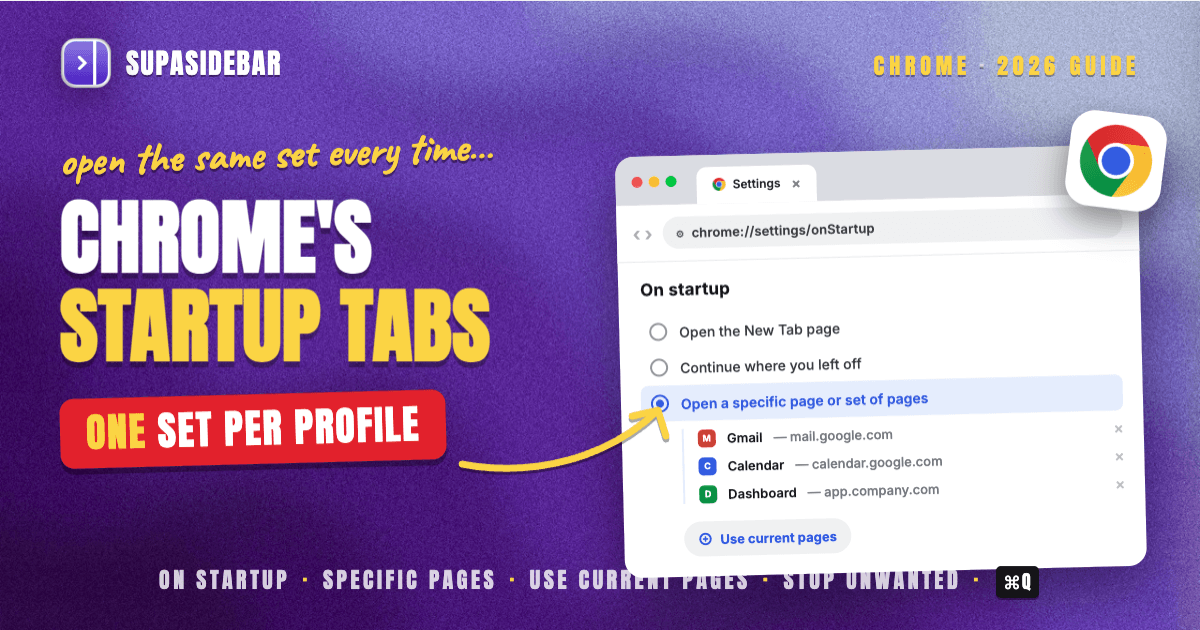
Chrome startup tabs are controlled by a single setting with three modes. Per Google's official startup-page documentation, Chrome can do exactly one of three things at launch: open the New Tab page, continue where you left off, or open a specific page or set of pages. The third mode is the only one that gives the same predictable set of tabs on every launch.
Setting it up takes under a minute:
- Open Chrome and go to
chrome://settings(or Chrome menu -> Settings). - Click On startup in the left sidebar.
- Select Open a specific page or set of pages.
- Click Add a new page and enter a URL, repeating for each tab the launch should open.
- Quit Chrome fully (⌘Q on Mac) and relaunch to confirm the set opens.
There's a faster path for an existing setup: open every tab the startup set should contain, then choose Use current pages instead of adding URLs one by one. Chrome copies the currently open tabs into the startup list in one click. That's the direct answer to "how to save startup tabs in Chrome" - arrange the window first, then save it as the startup set.
Editing later works the same way: back to On startup, where each saved page has a three-dot menu with Edit and Remove.
What each startup mode actually does
| Mode | What opens on launch | Best for |
|---|---|---|
| Open the New Tab page | One empty tab | Clean-start minimalists |
| Continue where you left off | Everything from the last session | People who never close Chrome on purpose |
| Open a specific page or set of pages | The exact saved list, every time | Fixed daily routines: email, calendar, dashboard |
One behavior worth knowing: "Continue where you left off" restores only the most recent session and depends on Chrome quitting cleanly. It's session restore, not a saved set - the restored tabs change every day because they're whatever was open last. A fixed startup set and session restore solve different problems, and Chrome makes you pick one.
How to stop Chrome from opening unwanted tabs on startup
The other half of the startup-tabs problem: Chrome opens tabs nobody asked for. Work down this list in order - it's sorted from most common cause to least.
- Check the On startup setting first. If it's set to "Continue where you left off", Chrome reopens the entire previous session - fifteen tabs at close means fifteen tabs at launch. Switch to "Open the New Tab page" for a clean start, or to a specific set of pages for a controlled one.
- Audit the startup pages list. Under "Open a specific page or set of pages", remove any URL that shouldn't be there. Extensions and installers sometimes add entries here.
- Run Chrome's Safety Check and review extensions. Go to
chrome://settings/safetyCheck. It flags risky or unpublished extensions. Then openchrome://extensionsand remove anything unused or unrecognized - rogue extensions are one of the most common causes of self-opening tabs. - Clean up unwanted software. Pop-ups and tabs that keep coming back after removal point to unwanted programs, covered in Google's malware-removal guide. On Mac, check for unfamiliar profiles under System Settings and unfamiliar apps in the Applications folder.
- Reset Chrome settings if the source won't show itself. Go to
chrome://settings/resetand choose "Restore settings to their original defaults." Per Google's reset documentation, this resets the startup pages, search engine, pinned tabs, extensions, and site data - while bookmarks, history, and saved passwords are kept. - On Mac: uncheck "Reopen windows when logging back in." This one operates above Chrome entirely. When restarting or logging out, macOS shows a checkbox that relaunches every app, windows included, on the next login - documented in Apple's resume guide. With it checked, Chrome reopens with its old windows even when Chrome's own startup setting says New Tab page. Also confirm Chrome isn't in System Settings -> General -> Login Items.
The diagnostic shortcut: tabs that are the same sites every time point to startup settings or macOS resume. Tabs that are random ad-looking pages point to extensions or unwanted software.
Where the native startup settings stop
The On startup setting is reliable for one routine. It starts breaking down the moment work has more than one shape:
One set per profile, no exceptions.
Chrome stores exactly one startup list per profile. There's no native way to keep a "client work" set and a "deep work" set and pick between them at launch. The closest native answer is separate Chrome profiles - each profile keeps its own bookmarks, extensions, and its own startup pages. That works, but profiles also split history, logins, and extensions, which is a heavy trade for what's really just wanting a different set of tabs.
Tab groups don't reliably ride along.
There are recurring user reports of saved tab groups failing to restore on startup even with "Continue where you left off" enabled. Anyone organizing their startup routine around tab groups should treat startup restore as best-effort, not guaranteed. The tab groups guide covers more dependable ways to persist groups.
Startup is the only trigger.
The set opens at launch and never again. Needing the same five tabs at 2pm means reopening them by hand or restarting Chrome. A startup set is a launch event, not a reusable workspace.
It's Chrome-only.
A startup routine that spans Safari for personal accounts and Chrome for work can't be expressed in either browser's settings. One Reddit user put the underlying pain plainly: "I use Safari for personal and Chrome for work. Switching manually is painful."
Startup sets on demand: the workspace approach
The pattern behind all four limits: Chrome treats startup tabs as a launch setting, but what most people actually want is a named set of tabs that opens when the work starts - which isn't always when the browser starts.
This is the gap SupaSidebar is built around. SupaSidebar is a Mac app that adds a persistent sidebar to any browser, and its Spaces work like startup sets that aren't tied to startup. Each Space holds a project's tabs and links - saved once with the Save All Browser Tabs shortcut (⌘⌃T) or built by hand - and stays saved permanently. Opening Monday's client set at 2pm on Thursday is one click: right-click the folder and open every link in a fresh browser window. No relaunch, no settings page.
Three differences from Chrome's native startup tabs matter in practice:
- Any number of sets. Chrome allows one startup list per profile. A Space per client, per project, or per class, with no profile-switching overhead.
- On demand, not on launch. A startup set fires once at launch. A Space opens whenever the work calls for it, and a whole folder of links opens together in a new window.
- Any browser. Spaces work across 33 Mac browsers including Safari, Chrome, Firefox, Edge, Arc, Brave, Vivaldi, Dia, and Helium. The "Safari for personal, Chrome for work" split stops being a problem because the sidebar is the same in both.
Chrome's On startup setting still earns its place for a single fixed routine - set it once, forget it. The workspace approach takes over when the routines multiply.
Conclusion: Picking what to use
For one fixed daily routine, Chrome's native setting is the answer: Settings -> On startup -> "Open a specific page or set of pages", with Use current pages as the one-click way to save the current window as the startup set. For unwanted startup tabs, the fix is almost always the startup setting itself, a bad extension caught by Safety Check, or macOS's "Reopen windows when logging back in" checkbox.
Segment by segment: single-routine Chrome users should use the native specific-pages mode and stop there. People whose unwanted tabs survive a settings check should run Safety Check, then the malware guide, then a settings reset - in that order, since the reset keeps bookmarks and passwords. Multi-project and multi-browser users have outgrown the launch-time model entirely; per-project tab sets that open on demand fit better than any startup setting, either via separate Chrome profiles or via a workspace tool like SupaSidebar.
Try SupaSidebar (free version available) for the on-demand route, or go deeper on Chrome's saving options in How to Save Tabs in Chrome.
Why we recommend SupaSidebar
SupaSidebar is a macOS app that brings Arc's sidebar to every browser - one sidebar for tabs, bookmarks, files, and apps across 33 browsers including Safari, Chrome, Firefox, Edge, Arc, Brave, Vivaldi, Dia, and Helium. For startup tabs specifically: Spaces hold unlimited named tab sets that open on demand in any browser, instead of one fixed list that only fires when Chrome launches. 3,000+ Mac users have tried SupaSidebar, and the free version covers the core sidebar, Spaces, and the Save All Browser Tabs shortcut.
FAQ
How do I save my current tabs as startup tabs in Chrome?
Open every tab the startup set should contain, go to Settings -> On startup, select "Open a specific page or set of pages", and click Use current pages. Chrome copies all currently open tabs into the startup list in one click. The set can be edited later from the same screen.
Why does Chrome open multiple tabs on startup?
The most common cause is the On startup setting: "Continue where you left off" reopens the entire previous session, and "Open a specific page or set of pages" opens every URL on its list. If the setting checks out, the usual culprits are a misbehaving extension, unwanted software, or - on Mac - the "Reopen windows when logging back in" checkbox at restart.
How do I stop Chrome from reopening tabs from my last session?
Go to Settings -> On startup and switch from "Continue where you left off" to "Open the New Tab page". On a Mac, also uncheck "Reopen windows when logging back in" in the restart and logout dialog, since macOS can relaunch Chrome with its old windows regardless of Chrome's own setting.
Do Chrome tab groups restore on startup?
Not reliably. There are recurring reports of saved tab groups failing to restore on startup even with "Continue where you left off" enabled. Treat tab-group restore as best-effort: keep important groups saved via Chrome's tab-group save feature, a bookmark folder, or a persistent sidebar that holds them independent of Chrome sessions.
Can Chrome open different startup tabs for different projects?
Not within one profile - Chrome stores exactly one startup list per profile. The native workaround is creating a separate Chrome profile per project, since each profile has its own startup pages. The lighter-weight alternative is a workspace tool: SupaSidebar's Spaces hold a tab set per project and open the whole set on demand in any browser, without splitting logins and extensions across profiles.
Why does Chrome still open old tabs after I changed the startup setting?
Something outside the On startup setting is reopening them. On a Mac, the usual cause is the "Reopen windows when logging back in" checkbox or Chrome sitting in Login Items. Failing that, run Safety Check at chrome://settings/safetyCheck to catch extension causes, and as a last resort reset Chrome at chrome://settings/reset - bookmarks, history, and passwords survive the reset.
By Kshetez Vinayak, founder of SupaSidebar.