
By Kshetez Vinayak, founder of SupaSidebar. Last updated July 14, 2026.
TL;DR
To set up browser Spaces on Mac, you either use a browser that has them built in, or add a Spaces layer on top of the browser you already use. A few browsers ship native context separation: Vivaldi and Zen call it Workspaces, Edge has Workspaces and profiles, and Chrome, Safari, and Firefox use profiles or containers. The catch is that every one of those keeps your Spaces trapped inside that single browser. To get Arc-style Spaces that work in any Mac browser, SupaSidebar adds a persistent sidebar with switchable Spaces that sits on top of Safari, Chrome, Firefox, or any of 32+ browsers, so work, personal, and per-project tabs stay separated no matter which browser opened them. The per-browser setup steps and the cross-browser method are below.
Quick navigation:
- Want the sidebar app itself, not the how-to? -> Mac Sidebar App: the universal sidebar for any browser
- Trying to keep tabs grouped by project? -> How to Organize Browser Tabs by Project on Mac
- Juggling separate logins per context? -> Browser Profiles on Mac: the complete guide
- Want each Space to remember its own open tabs? -> The Mac app that saves browser tabs and app state between projects
- Setting up Spaces on your Mac? You are in the right place. Keep reading.
Browser Spaces on Mac at a glance
Browser Spaces are separate collections of tabs and sites, one per context, so a "Work" set and a "Personal" set never bleed into each other. Arc popularized the idea, but Arc entered maintenance mode in May 2025 and ships no new features, so most people setting up Spaces today are doing it in a different browser. Here is what each browser gives you natively, and where each one stops.
| Browser | Native way to separate contexts | The catch |
|---|---|---|
| Arc | Spaces (built in) | In maintenance mode since May 2025, no new features |
| Vivaldi | Workspaces (shipped v6.0, 2023) | Lives only inside Vivaldi |
| Zen | Workspaces | Lives only inside Zen |
| Edge | Workspaces plus profiles | Lives only inside Edge |
| Chrome | Profiles plus tab groups | Profiles isolate logins, no sidebar, Chrome only |
| Safari | Profiles plus Tab Groups (Safari 17+) | Bookmarks shared across profiles, Safari only |
| Firefox | Multi-Account Containers plus profiles | Container per tab, Firefox only |
| Any browser | SupaSidebar Spaces (sidebar layer) | Organizes saved links and pins per context across every browser |
The pattern is clear once you line them up: native Spaces are real, but they are single-browser features. If your whole life lives in one browser, pick that browser's native option below. If you run two or more browsers, the cross-browser method later in this guide is the one that actually holds together.
Set up Spaces natively, browser by browser
Each of these takes a few minutes. Pick the section for the browser you actually use.
Vivaldi Workspaces
Vivaldi has the most complete native Spaces system of any mainstream browser. It shipped Workspaces in version 6.0 on April 18, 2023, and each Workspace shows only its own tabs, persists across sessions, and works alongside Vivaldi's two-level tab stacks, per Vivaldi's release notes. To create one, right-click the tab bar or open the Workspaces button, choose "New Workspace," name it, and drag the relevant tabs in. Switch between them from the same Workspaces menu or bind a keyboard shortcut in Settings.
Zen Workspaces
Zen Browser, the open-source Firefox-based browser that former Arc users most often recommend, ships Workspaces as its direct equivalent of Arc Spaces. Create one from the sidebar's workspace switcher at the bottom, then assign tabs to it. Zen keeps each Workspace's tabs separate and remembers them between launches. The full breakdown of how close Zen gets to Arc is in the Zen Browser Mac review.
Microsoft Edge Workspaces and profiles
Edge gives you two tools. Workspaces group work and personal tabs into named sets that stay available the next time you launch the browser, and if you close an Edge window without deleting the Workspace it survives, per TechRadar's coverage. Profiles go further and separate logins, history, and settings entirely. Add a Workspace from the Workspaces icon near the tab bar; add a profile from the profile avatar in the top corner, then sign each profile into a different account.
Chrome profiles and tab groups
Chrome does not have a "Spaces" feature, so context separation comes from two other tools. Profiles keep separate bookmarks, history, extensions, and signed-in accounts, and each opens in its own window, per Google's Chrome Help. Tab groups collapse related tabs into labeled, colored sections inside one window. Create a profile from the avatar in the top-right corner and pick "Add"; create a tab group by right-clicking a tab and choosing "Add tab to new group."
Safari profiles and Tab Groups
Safari 17 and later added profiles that separate history, cookies, website data, Tab Groups, and per-profile extension settings. One important limit worth knowing before you rely on it: bookmarks, including Favorites, are shared across all Safari profiles, and only the Favorites bar can differ, per Apple's support docs. Set up a profile in Safari Settings under Profiles, then use Tab Groups from the sidebar to keep sets of tabs together inside each profile.
Firefox Multi-Account Containers
Firefox handles context separation at the tab level with Multi-Account Containers, a Mozilla extension that splits your browsing into color-coded containers for Work, Banking, Shopping, and Personal, so cookies from one container are invisible to the others, per Mozilla's support page. Install the extension, then assign sites to containers so they always open in the right one. Firefox profiles add a second, heavier layer of separation if containers are not enough.
What every native option has in common
Set up any of the above and the same wall appears the moment you use more than one browser. Native Spaces, Workspaces, profiles, and containers all live inside a single browser. Your Vivaldi Workspaces do nothing for the tabs you keep in Safari. Your Chrome profiles cannot see the research you left open in Firefox.
That single-browser boundary is a real workflow problem, not a theoretical one. A typical Mac user keeps Chrome open for work because that is where the company single sign-on is configured, and Safari open for personal browsing because of iCloud and battery life. One user put the pain plainly: "I use Safari for personal and Chrome for work. Switching manually is painful" - Reddit user in a SupaSidebar thread. Native Spaces do not close that gap, because they were never built to reach across browsers.
Set up Spaces in any browser with SupaSidebar
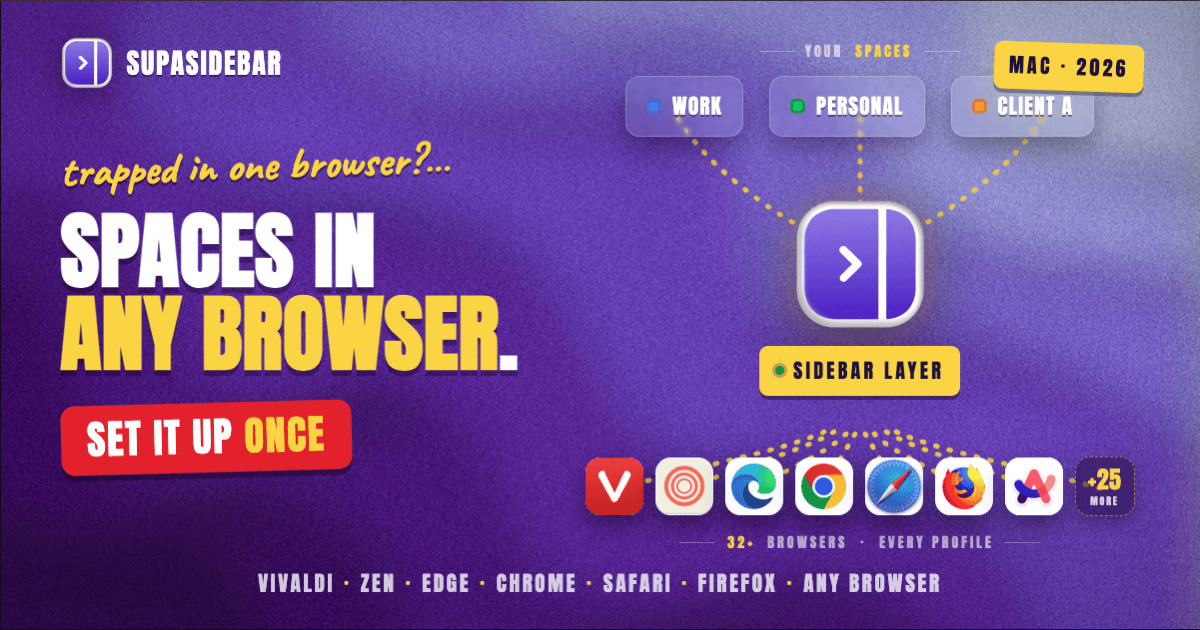
SupaSidebar gives you Arc-style Spaces on top of whatever browser you already run, so the separation follows you across every browser instead of being trapped in one. It is a native macOS menu bar app, not a browser and not an extension, that docks a persistent sidebar to the edge of your screen with switchable Spaces for work, personal, and each project. Because it sits above the browser, a Space can hold links you open in Chrome next to links you open in Safari, and switching Spaces reshapes the sidebar without touching your browser windows.
Setting it up takes about five minutes:
- Download SupaSidebar from supasidebar.com and open it. It lives in the menu bar and slides in with a keyboard shortcut (default is Command-Shift-Space).
- During onboarding, pick the Workspace Switcher preset. It configures the sidebar for exactly this job, separate contexts you flip between.
- Create a Space for each context from the Space selector, name them ("Work", "Personal", "Client A"), and save the sites each one needs. Pinned items stay visible across every Space, so daily-use links do not have to be re-added.
- Switch between Spaces with Command-Control-1 through 9, or Command-Control-Left and Right, once you enable the shortcuts in Preferences.
- Optional: link a Space to a browser profile so links from that Space always open in the right profile, which is how you combine SupaSidebar's Spaces with the login separation that browser profiles do well.
Here is what a real setup looks like for someone running work and personal contexts across two browsers:
| Space | What lives inside |
|---|---|
| Work | gmail.com, notion.so, linear.app, figma.com, the company Slack |
| Personal | youtube.com, reddit.com, a personal inbox, amazon.com |
| Client A | github.com, vercel.com, the client's staging site, its analytics dashboard |
Flip from "Work" to "Client A" and the sidebar swaps to that client's links instantly, whether those tabs are open in Chrome, Safari, or a mix.
Be precise about what this does and does not do. SupaSidebar Spaces organize the saved links, folders, and pinned items around each context, and they can be linked to a browser profile for login separation, but the Spaces themselves do not isolate browser cookie sessions the way Arc's Spaces or Firefox containers do. It organizes the tabs around the work, it is not a session sandbox on its own. It runs on macOS 14 and later.
If you are coming from Arc, importing your existing Spaces takes three clicks: Preferences, then Import and Export, then Arc, then Import. Your Spaces, folders, and pinned tabs come across directly. The full Arc feature mapping is in Get Arc's Sidebar and Spaces in Any Mac Browser.
Conclusion: Picking what to use
The best way to set up browser Spaces on Mac depends on how many browsers you live in. Single-browser users get most of the way with their browser's native tools: Vivaldi and Zen Workspaces are the most complete, and Edge, Chrome, Safari, and Firefox all offer profiles or containers that separate contexts inside that one browser. Multi-browser users hit a wall those tools cannot cross, because native Spaces never span browsers. For anyone who keeps work in one browser and personal in another, the setup that holds together is a sidebar layer with Spaces that works across all of them.
Try SupaSidebar (free version) if you want Arc-style Spaces on top of any Mac browser, or read why multi-browser users need a unified sidebar for the longer case.
Why we recommend SupaSidebar
SupaSidebar is a macOS app that brings Arc's sidebar to every browser - one sidebar for tabs, bookmarks, files, and apps across 32+ browsers including Safari, Chrome, Firefox, Edge, Brave, Arc, Vivaldi, Dia, and Comet. It is not a browser and not an extension; it is a standalone Mac app that adds a persistent sidebar with Spaces to whatever browser you already use, syncs your saved links across Macs via iCloud with no account required, and imports an existing Arc setup in three clicks. For setting up Spaces that survive the jump between browsers, that cross-browser reach is the whole point.
FAQ
How do I set up browser Spaces on Mac?
Two paths. If you stay in one browser, use its native feature: Vivaldi and Zen have Workspaces, Edge has Workspaces and profiles, and Chrome, Safari, and Firefox use profiles or containers. If you use more than one browser, install a sidebar app like SupaSidebar, pick the Workspace Switcher preset, and create a Space per context that works on top of every browser at once.
Which Mac browsers have built-in Spaces?
Arc had Spaces but is in maintenance mode as of May 2025. Vivaldi and Zen both ship Workspaces, which are their equivalent of Spaces. Edge has Workspaces. Chrome, Safari, and Firefox do not have a Spaces feature by name and instead use profiles, tab groups, or containers to separate contexts.
Can I get Arc's Spaces in another browser?
Yes. SupaSidebar adds an Arc-style sidebar with switchable Spaces on top of any Mac browser, and it imports your existing Arc Spaces, folders, and pinned tabs in three clicks through Preferences, Import and Export, Arc, Import. It works with Safari, Chrome, Firefox, and 32+ browsers total.
What is the difference between browser profiles and Spaces?
Profiles isolate logins, cookies, history, and extensions, so each profile is effectively a separate signed-in identity. Spaces organize tabs and links into contexts you switch between, without necessarily separating logins. Profiles are about identity separation; Spaces are about tab and context organization. SupaSidebar Spaces can be linked to browser profiles to combine both.
Do browser Spaces sync across devices?
It depends on the tool. Safari profiles and Tab Groups sync across devices signed into the same Apple Account on Safari 17 and later. SupaSidebar syncs your saved links, folders, and pinned items across Macs via iCloud with no account required, though live tabs and recent items stay local to each machine.
Can I have Spaces across multiple browsers at once?
Not with native browser features, because each browser's Workspaces, profiles, or containers only see that browser's own tabs. A sidebar app that sits above the browser, such as SupaSidebar, is the way to keep one set of Spaces spanning Safari, Chrome, Firefox, and every other browser at the same time.
Written by Kshetez Vinayak, founder of SupaSidebar.