
By Kshetez Vinayak, founder of SupaSidebar. Last updated June 23, 2026.
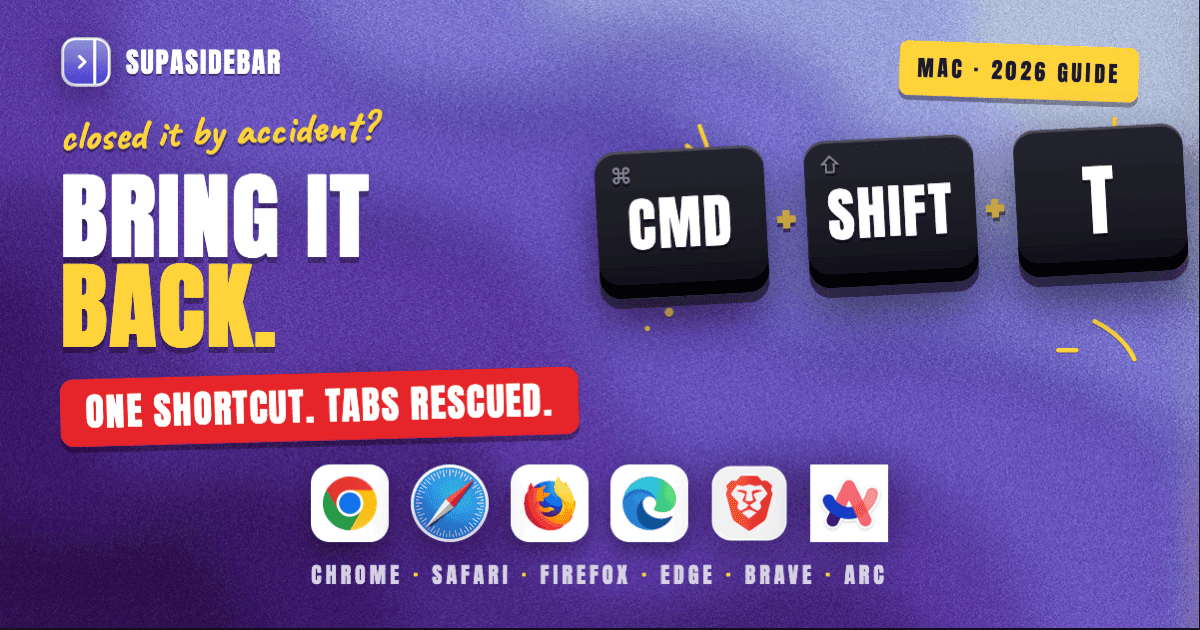
The fastest way to restore a closed tab in any browser is Cmd+Shift+T on Mac (Ctrl+Shift+T on Windows/Linux). Press it once to reopen the last closed tab. Press it again to reopen the one before that. This works in Chrome, Firefox, Edge, Brave, and Arc. Safari is the exception - it uses Cmd+Z immediately after closing, or Cmd+Shift+T for recently closed tabs from the menu. Every major browser also keeps a recently closed list somewhere in the menus, and every one of them has a session restore setting that reopens all previous tabs on launch. The keyboard shortcut covers 80% of cases. The other 20% - incognito tabs, crashed browsers, tabs closed days ago - need different approaches. This guide covers all of them across all six major browsers on Mac.
Looking for something specific?
- Need to restore closed tabs right now? → You're in the right place. Keep reading.
- Want to prevent tab loss in the first place? → How to save all open tabs
- Mac-specific tab overload? → Too many tabs open on Mac
- Need the rest of the tab-switching shortcuts (next/previous/jump)? → Keyboard shortcuts to switch tabs in every browser
The universal shortcut: Cmd+Shift+T
Before diving into browser-specific methods, the single most useful fact about restoring closed tabs is that nearly every browser uses the same keyboard shortcut:
| Browser | Mac shortcut | Windows/Linux shortcut | Behavior |
|---|---|---|---|
| Chrome | Cmd+Shift+T | Ctrl+Shift+T | Reopens last closed tab (repeatable) |
| Firefox | Cmd+Shift+T | Ctrl+Shift+T | Reopens last closed tab (repeatable) |
| Edge | Cmd+Shift+T | Ctrl+Shift+T | Reopens last closed tab (repeatable) |
| Brave | Cmd+Shift+T | Ctrl+Shift+T | Reopens last closed tab (repeatable) |
| Arc | Cmd+Shift+T | Ctrl+Shift+T | Reopens last closed tab (repeatable) |
| Safari | Cmd+Z (immediate) or Cmd+Shift+T | N/A (Mac only) | Cmd+Z only works right after closing; Cmd+Shift+T opens recently closed menu |
This shortcut works in reverse chronological order. The first press reopens the most recently closed tab. The second press reopens the one before that. In Chromium-based browsers (Chrome, Edge, Brave, Arc), this even reopens entire closed windows if all tabs in that window were the most recent closure.
Safari is the odd one out. Cmd+Z functions as a general undo command, so it only restores the closed tab if the next action after closing was pressing Cmd+Z. Any other action (typing, clicking, navigating) consumes the undo slot, and Cmd+Z will undo that other action instead. Cmd+Shift+T in Safari opens the "Reopen Last Closed Tab" option from the History menu, which is more reliable but less immediate.
Restore closed tabs in Chrome
Chrome offers several paths to recover a closed tab beyond the keyboard shortcut.
Method 1: Keyboard shortcut (Cmd+Shift+T)
Press Cmd+Shift+T to reopen the last closed tab. The tab reopens in the same position it was in before closing. Press the shortcut repeatedly to continue reopening older tabs in order.
If an entire Chrome window was closed, pressing Cmd+Shift+T reopens the whole window with all its tabs intact. Chrome treats a window close as a single undo-able event.
Method 2: Right-click the tab bar
Right-click any empty space in the Chrome tab bar and select Reopen closed tab from the context menu. This does the same thing as Cmd+Shift+T but is useful when the keyboard shortcut is hard to remember.
Method 3: History menu
Go to History > Recently Closed to see a list of recently closed tabs and windows. This is the most useful method when the tab was closed more than a few minutes ago or when multiple tabs need to be found selectively rather than in strict reverse order.
For tabs closed further back, use History > Show Full History (Cmd+Y) and search by page title or URL. Chrome keeps browsing history for up to 90 days by default.
Method 4: Session restore on startup
To prevent losing tabs between Chrome sessions entirely, go to chrome://settings/onStartup and select Continue where you left off. Chrome will reopen every tab from the last session when it launches. This setting also recovers tabs after a crash - Chrome detects the abnormal shutdown and offers to restore the previous session.
What Chrome cannot recover
Tabs opened and closed in Incognito mode are gone permanently. Chrome's Incognito mode is designed to leave no trace - browsing history, cookies, and session data are discarded when the Incognito window closes. There is no built-in mechanism to recover them.
Restore closed tabs in Safari
Safari handles tab recovery differently from Chromium-based browsers, partly because of its tighter macOS integration.
Method 1: Cmd+Z (immediate undo)
Immediately after closing a tab, press Cmd+Z. Safari treats tab closure as an undo-able action. This is the fastest method but has a critical limitation: if any other action is performed after closing the tab (typing, clicking a link, switching tabs), the undo slot is consumed and Cmd+Z undoes that action instead.
Method 2: History > Reopen Last Closed Tab
Go to History > Reopen Last Closed Tab or press Cmd+Shift+T. Unlike Cmd+Z, this method does not depend on undo state and works even if other actions have been taken since the tab was closed. Safari keeps a list of recently closed tabs accessible from this menu.
Method 3: The plus button (tab overview)
Long-press (or right-click) the + button in the Safari tab bar. A dropdown appears showing recently closed tabs. This is the most visual method and does not require remembering any shortcut.
Method 4: History > Recently Closed
Go to History > Recently Closed for a full list of recently closed tabs. This list persists across Safari restarts, so tabs closed in a previous session can still be recovered here.
Method 5: Session restore
Safari on Mac has a built-in session restore behavior. If Safari crashes or the Mac restarts unexpectedly, Safari will offer to reopen windows from the last session. To manually control this, go to Safari > Settings > General and set "Safari opens with" to All windows from last session. This ensures every tab reopens on launch.
Safari also respects macOS's Resume feature - when the Mac restarts (for an update, for example), Safari automatically restores its previous state without any configuration.
What Safari cannot recover
Tabs opened in a Private Browsing window are not recoverable after the Private window is closed. Safari's Private Browsing does not write history or session data to disk.
Restore closed tabs in Firefox
Firefox has some of the most robust session restore capabilities of any browser, thanks to its session manager architecture.
Method 1: Keyboard shortcut (Cmd+Shift+T)
Press Cmd+Shift+T to reopen the last closed tab. This works identically to Chrome - repeatable, reverse chronological order. Firefox's implementation is reliable and works even if the tab was closed several actions ago.
Method 2: History > Recently Closed Tabs
Go to History > Recently Closed Tabs for a list. Firefox separates this from "Recently Closed Windows" (a separate entry in the same menu), which is useful when an entire window was closed by accident.
Method 3: Firefox View (Cmd+Shift+E on newer versions)
Firefox View is a built-in tab management page that shows open tabs, recently closed tabs, and tabs open on other synced devices. Access it from the Firefox View button (the grid icon to the left of the tab bar) or via keyboard shortcut. The recently closed section here is more visual than the History menu and includes timestamps.
Method 4: Session restore
Go to about:preferences#general and check Open previous windows and tabs under Startup. Firefox will reopen the entire previous session on launch. Firefox's session restore is particularly robust - it saves session state periodically (every 15 seconds by default), so even after a crash, the session can usually be fully recovered.
Firefox also stores session backup files. The session data lives in sessionstore-backups/ inside the Firefox profile folder. If the automatic restore fails after a crash, the recovery.jsonlz4 or previous.jsonlz4 files in that folder contain the session state and can be manually recovered.
What Firefox cannot recover
Tabs in Private Browsing windows do not survive window closure. Firefox's Private mode explicitly prevents session data from being saved. One edge case: if Firefox itself crashes (not just the Private window being closed), Firefox will attempt to restore the Private window on restart - this is documented behavior but not guaranteed.
Restore closed tabs in Edge
Microsoft Edge is Chromium-based, so most of its tab restoration methods mirror Chrome's.
Method 1: Keyboard shortcut (Cmd+Shift+T)
Identical to Chrome. Press Cmd+Shift+T to reopen the last closed tab. Repeatable. Also reopens closed windows.
Method 2: Right-click the tab bar
Right-click empty space in the tab bar and select Reopen closed tab. Same as Chrome.
Method 3: History > Recently Closed
Go to History > Recently Closed (or press Cmd+H to open History, then check the "Recently Closed" section). Edge's History sidebar also shows recently closed tabs in a more accessible format than Chrome's full-page history.
Method 4: Session restore
Go to edge://settings/onStartup and select Open tabs from the previous session. Edge's session restore is functionally identical to Chrome's.
Edge also has a unique feature: Tab Restore on Startup which is separate from the general startup setting. Even without "Continue where you left off" enabled, Edge may prompt to restore tabs after a crash.
What Edge cannot recover
InPrivate tabs follow the same rule as Chrome's Incognito - they are unrecoverable after closing. Edge's InPrivate browsing discards all session data on window close.
Restore closed tabs in Brave
Brave is built on Chromium, so its tab restoration is nearly identical to Chrome.
Method 1: Keyboard shortcut (Cmd+Shift+T)
Same behavior as Chrome. Repeatable, reverse chronological order, also reopens closed windows.
Method 2: History > Recently Closed
Go to History > Recently Closed for the list of recently closed tabs and windows. The menu structure is the same as Chrome.
Method 3: Session restore
Go to brave://settings/getStarted and under "On startup," select Continue where you left off. Brave's crash recovery also mirrors Chrome - it detects abnormal shutdowns and offers session restore.
What Brave cannot recover
Private window tabs (Brave calls them "Private Window" and "Private Window with Tor") are not recoverable. The Tor variant adds an additional layer of privacy by routing traffic through the Tor network, but both variants discard all session data on close.
Restore closed tabs in Arc
Arc handles tabs differently from traditional browsers because of its sidebar-based interface and auto-archive system.
Method 1: Keyboard shortcut (Cmd+Shift+T)
Works the same as other Chromium-based browsers. Reopens the last closed tab.
Method 2: Archive
Arc's auto-archive feature moves inactive tabs to the Archive after a set period (12 hours by default). These tabs are not deleted - they are stored and searchable. Open the Archive from the sidebar or by pressing Cmd+T and typing "View Archive." Any archived tab can be restored by clicking the restore icon next to it.
Method 3: Command Bar (Cmd+T)
Press Cmd+T to open Arc's Command Bar and search for the page by title or URL. Arc searches across active tabs, pinned tabs, and archived tabs, making it a fast way to find a tab that was auto-archived or manually closed.
What Arc cannot recover
Arc does not offer session restore in the traditional sense. If Arc crashes, it attempts to restore the previous session automatically, but there is no manual "Continue where you left off" setting. Since Arc moved to maintenance mode in May 2025, the feature set is not expected to change.
The hard cases: incognito, crashes, and old tabs
Tabs closed in incognito/private browsing
Every browser's private mode is designed to leave no recoverable trace. Once a private/incognito window is closed, its tabs cannot be restored through any built-in method. This is true across Chrome (Incognito), Safari (Private Browsing), Firefox (Private Window), Edge (InPrivate), Brave (Private/Tor), and Arc.
The only narrow exception: if the browser crashes while a private window is open, some browsers (Firefox in particular) may attempt to restore the private window as part of crash recovery. This is not guaranteed and should not be relied on.
Practical advice:
if a tab in a private window contains information worth keeping, bookmark it or save the URL before closing the window.
Tabs lost to a browser crash
Browser crashes are actually one of the easier recovery scenarios because every modern browser maintains session state files that are written periodically, not just on clean shutdown:
| Browser | Crash recovery behavior |
|---|---|
| Chrome | Detects abnormal shutdown, shows "Restore" dialog on next launch |
| Safari | Reopens previous state automatically via macOS Resume |
| Firefox | Session restore from recovery.jsonlz4 (written every 15 seconds) |
| Edge | Shows restore prompt, same as Chrome |
| Brave | Shows restore prompt, same as Chrome |
| Arc | Attempts automatic session restore |
If the automatic restore does not appear, check the browser's history - the tabs were likely recorded there before the crash.
Tabs closed days or weeks ago
For tabs closed long ago, the keyboard shortcut and recently closed lists are not enough. The options are:
-
Browser history search.
Every browser keeps history for weeks to months (Chrome: ~90 days, Firefox: configurable, Safari: up to one year by default). Use Cmd+Y (Chrome/Edge/Brave) or Cmd+Shift+H (Firefox) to search by page title or URL fragment.
-
Synced history across devices.
If browser sync was enabled, history from other devices may contain the tab. Firefox View, Chrome's history page, and Edge's history sidebar all show tabs open on other synced devices.
-
macOS Time Machine.
As a last resort, Safari's history database (
~/Library/Safari/History.db) and Firefox's profile folder are included in Time Machine backups. Restoring from a backup can recover history entries that were cleared.
Why tabs keep getting lost (and how to prevent it)
The keyboard shortcut and session restore settings solve the immediate problem. But if tabs are getting lost repeatedly, the underlying issue is usually one of these:
No session restore enabled.
The single most impactful setting change: enable "Continue where you left off" in the browser's startup settings. Every browser supports this. It eliminates the entire category of "lost tabs on restart" permanently.
Too many tabs open to track.
With 30, 50, or 100+ tabs open, losing track of which ones matter is inevitable. Closing a tab by accident is one thing; not noticing a tab is gone until days later is a different problem entirely. The solution is not better recovery - it is better organization. See how to find any open tab instantly on Mac for the search side of the same problem.
Browser-locked tabs.
Tabs saved in Chrome stay in Chrome. Tabs saved in Safari stay in Safari. Anyone using more than one browser faces the problem of tabs scattered across multiple places with no unified view - why multi-browser users need a unified sidebar covers this in more depth.
SupaSidebar addresses the last two problems directly. SupaSidebar is a macOS app that brings a persistent sidebar to every browser - one sidebar for tabs, bookmarks, files, and apps across 32+ browsers including Safari, Chrome, Firefox, Arc, Zen, Vivaldi, Brave, Helium, and Dia. The sidebar sits alongside whichever browser is in the foreground, and any tab can be saved to it with a single shortcut (Cmd+Ctrl+S). Once a tab is saved in SupaSidebar, it is no longer browser-locked - it is accessible from the sidebar regardless of which browser is active.
The SupaSidebar approach to tab loss prevention works differently from browser session restore. Instead of relying on each browser's internal session manager (which only tracks that browser's tabs and only restores on crash or restart), SupaSidebar's Smart Save captures tabs proactively. A saved tab in SupaSidebar persists across browser restarts, browser switches, and even browser crashes, because the save lives in SupaSidebar's own storage synced via iCloud, not in the browser's session file.
SupaSidebar also shows Live Tabs from all running browsers in one place. If a tab is open anywhere, it appears in the sidebar's Live Tabs section. This makes it harder to lose track of tabs in the first place, because there is a single inventory of everything that is open, not six separate browser windows each with their own tab bar.
Quick reference: every method by browser
| Method | Chrome | Safari | Firefox | Edge | Brave | Arc |
|---|---|---|---|---|---|---|
| Keyboard shortcut | Cmd+Shift+T | Cmd+Z / Cmd+Shift+T | Cmd+Shift+T | Cmd+Shift+T | Cmd+Shift+T | Cmd+Shift+T |
| Right-click tab bar | Yes | No | Yes | Yes | Yes | No |
| History > Recently Closed | Yes | Yes | Yes | Yes | Yes | Via Archive |
| Full history search | Cmd+Y | History > Show All History | Cmd+Shift+H | Cmd+H | Cmd+Y | Cmd+T search |
| Session restore setting | chrome://settings | Safari > Settings > General | about:preferences | edge://settings | brave://settings | Automatic |
| Crash recovery | Restore dialog | macOS Resume | Automatic | Restore dialog | Restore dialog | Automatic |
| Incognito recovery | No | No | No | No | No | No |
Conclusion: picking the right recovery method
For a single tab closed seconds ago, Cmd+Shift+T (or Cmd+Z in Safari) is the answer. It takes less than a second and works in every browser.
For tabs lost to a browser crash, session restore handles it automatically in every modern browser. Enable "Continue where you left off" in the startup settings and crash recovery is a solved problem.
For tabs closed days ago, browser history search (Cmd+Y or equivalent) is the only reliable path. The recently closed list does not persist that long.
For multi-browser users who lose tabs across Chrome, Safari, Firefox, and other browsers, the browser-by-browser approach breaks down. Each browser's recovery tools only see that browser's tabs. SupaSidebar provides a unified layer - one sidebar showing Live Tabs from every browser, with Smart Save (Cmd+Ctrl+S) to capture any tab into persistent, iCloud-synced storage that survives browser restarts, switches, and crashes.
For anyone working in incognito or private mode, there is no recovery mechanism in any browser. Save the URL before closing the window.
Why we recommend SupaSidebar
SupaSidebar is a macOS app that brings Arc's sidebar to every browser - one sidebar for tabs, bookmarks, files, and apps across 32+ browsers including Safari, Chrome, Firefox, Arc, Zen, Vivaldi, Brave, Helium, and Dia. Instead of restoring lost tabs after the fact, SupaSidebar prevents tab loss by giving every tab a persistent home outside the browser. Smart Save (Cmd+Ctrl+S) captures any tab in one shortcut. Live Tabs shows every open tab from every running browser in one panel. iCloud sync means saved tabs are available across all Mac devices without relying on any single browser's sync system.
FAQ
How do you reopen a closed tab on Mac?
Press Cmd+Shift+T in Chrome, Firefox, Edge, Brave, or Arc. In Safari, press Cmd+Z immediately after closing, or go to History > Reopen Last Closed Tab. The shortcut can be pressed multiple times to reopen older tabs in reverse order.
Can you restore tabs from incognito or private browsing?
No. Every browser's private mode is designed to leave no recoverable trace. Once a private or incognito window is closed, the tabs are permanently gone. There is no built-in method in any browser to recover them.
How do you restore tabs after a browser crash?
Every modern browser saves session state periodically and offers to restore tabs after a crash. Chrome, Edge, and Brave show a "Restore" dialog. Firefox restores automatically from its session backup files. Safari relies on macOS Resume to reopen its previous state. In most cases, no manual action is needed.
What is the keyboard shortcut to reopen a closed tab?
Cmd+Shift+T on Mac, Ctrl+Shift+T on Windows and Linux. This works in Chrome, Firefox, Edge, Brave, and Arc. Safari uses Cmd+Z for immediate undo or Cmd+Shift+T for the recently closed menu.
How do you restore tabs after restarting the browser?
Enable session restore in the browser's settings. In Chrome: chrome://settings > On startup > Continue where you left off. In Firefox: about:preferences > Open previous windows and tabs. In Safari: Safari > Settings > General > Safari opens with > All windows from last session. In Edge: edge://settings > On startup > Open tabs from the previous session.
Can you recover a tab closed days ago?
Yes, through browser history. Press Cmd+Y (Chrome, Edge, Brave) or go to History > Show All History (Safari) or press Cmd+Shift+H (Firefox). Search for the page title or URL. Most browsers keep history for 90 days or more.
Does SupaSidebar help with restoring closed tabs?
SupaSidebar prevents tab loss rather than restoring tabs after the fact. Any tab saved to SupaSidebar with Smart Save (Cmd+Ctrl+S) persists in the sidebar regardless of what happens in the browser - crashes, restarts, or switching browsers. SupaSidebar also shows Live Tabs from all running browsers in one panel, making it easier to keep track of open tabs across 32+ browsers.
How is SupaSidebar different from browser session restore?
Browser session restore only works within one browser and only activates on crash or restart. SupaSidebar works across all browsers simultaneously and saves tabs proactively. A tab saved in SupaSidebar is available from any browser on any Mac device via iCloud sync, not locked to the browser it was originally opened in.
By Kshetez Vinayak, founder of SupaSidebar.