
By Kshetez Vinayak, founder of SupaSidebar. Last updated June 23, 2026.
TL;DR:
Every Mac browser has some form of in-browser tab search. Safari uses ⌘⇧\ for Tab Overview (per Apple's Safari keyboard shortcuts page), Chrome's tab-search panel opens from the chevron icon in the tab strip with ⌘⇧A as the de facto Mac shortcut (not on Google's official Mac shortcut list, but works in Chrome and other Chromium browsers), Firefox uses
%in the address bar to filter to open tabs, Vivaldi has Quick Commands at ⌘E, and Arc has its Command Bar at ⌘T. None of these can see tabs in another browser. The only way to search across browsers from one box is a Mac app that reads tabs via macOS Automation - SupaSidebar's Command Panel (⌘⌃K) searches tabs across 32+ browsers, including Safari, Chrome, Firefox, Arc, Brave, Vivaldi, and Dia, from a single fuzzy-search field. The native shortcuts, the third-party landscape, and the cross-browser approach are below.
Looking for something specific?
- Category overview - what is a Mac sidebar app? → Mac Sidebar App: The Universal Sidebar Category
- Vertical tabs in Safari specifically? → Safari Vertical Tabs
- Saving tabs across browsers (different problem, same workflow)? → How to Save All Open Tabs
- Want next/previous/jump-to-tab shortcuts instead of search? → Keyboard shortcuts to switch tabs in every browser
Why finding a tab on Mac is harder than it should be
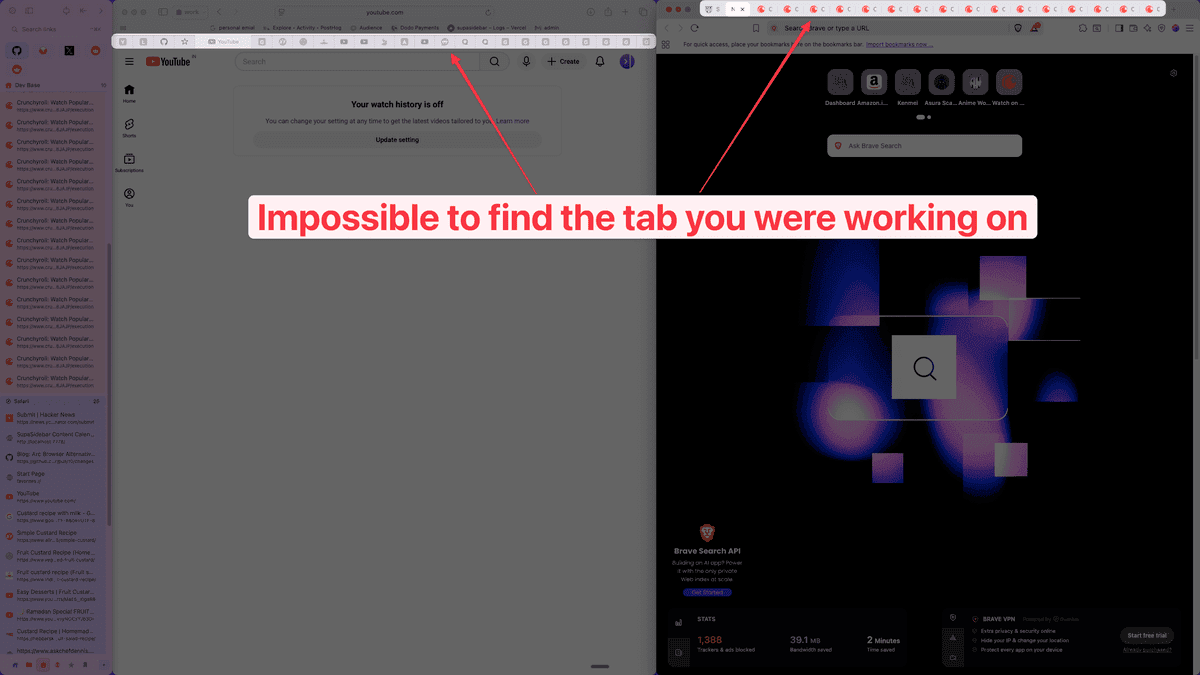
The reason this is a search query at all is that Mac users tend to keep more than one browser open at once. A common pattern: Safari for personal browsing and iCloud-synced reading, Chrome for work where SSO and Google Workspace live, Firefox or Arc for development or research. One Reddit user described it cleanly:
"I use different browser for different workflows like Safari for social media, Chrome for web development, and Firefox for research." - Reddit user, r/macapps
Each browser has a serviceable in-app tab search. The problem shows up the moment a tab is open in a different browser than the one currently in focus. Cmd+Tabbing through three apps, squinting at favicons, hitting Cmd+L and retyping the URL - that's the workflow Mac sells as "just use Spotlight." Spotlight does not index live browser tabs either, per Apple's Spotlight documentation, which covers files, apps, calendar, and a handful of web sources but not the open-tabs list of any browser.
Two separate problems hide under "find open tab on Mac":
- Find a tab inside the current browser. Solved by every browser's built-in shortcut. Covered below.
- Find a tab open in another browser without switching apps first. Not solved by any built-in tool on macOS. Covered in the cross-browser section.
Native shortcuts every Mac browser already supports
These work without installing anything. They all share one limit: each shortcut only sees tabs in its own browser.
Safari: Tab Overview (⌘⇧)
Safari's tab search lives inside Tab Overview, the visual grid of every open tab in the current window. Press ⌘⇧\ (Command + Shift + Backslash) to open it - this is the official "Show tab overview" shortcut per Apple's Safari keyboard shortcuts page. A search field in the top-right corner of the overview filters tabs by page title or URL. The search filters across all tabs in the active window plus iCloud Tabs from other Apple devices signed into the same Apple ID, per Apple's "Find tabs" documentation.
What it does not do: search Safari tabs in other windows on the same Mac (only the active window), and obviously cannot see Chrome or Firefox tabs.
Chrome and Chromium browsers: Tab Search panel (chevron icon, ⌘⇧A)
Chrome has a dedicated Tab Search panel that lists every open tab across every Chrome window, plus recently closed tabs from the current session, with a filter field at the top. The official way to open it on Mac is to click the chevron (down-arrow) icon in the top-right of the tab strip, per Google's Chrome tabs documentation. Mac users have widely adopted ⌘⇧A as a de facto keyboard shortcut for this panel - it works in Chrome and most Chromium-based browsers - but ⌘⇧A is not listed on Google's official Chrome keyboard shortcuts page for Mac, so treat it as a community-known shortcut rather than an Apple- or Google-documented one. The underlying Tab Search component is shared across Chromium browsers per the Chromium source code, which is why Brave, Vivaldi, Opera, Arc, and other Chromium browsers expose the same panel.
Within a single Chromium browser, the Tab Search panel is fast and fuzzy. The limit is the same as every native option: only that one browser's tabs.
Firefox: address bar % operator
Firefox uses a different model. Typing % before or after a search term in the address bar filters results to only currently open tabs, per Mozilla's Firefox address bar autocomplete documentation. The autocomplete dropdown narrows to matching open tabs across all Firefox windows in the active profile. Hitting Enter switches to that tab. There is also a dedicated Mozilla support page on searching open tabs in Firefox for users who want a more visual approach.
The % operator is keyboard-only, which is a strength for power users and a discoverability problem for everyone else. Most Firefox users do not know it exists.
Edge: vertical tab bar (chevron icon for Tab Search)
Edge is Chromium-based and inherits the Tab Search panel via the chevron icon in the tab strip. Microsoft's official Edge keyboard shortcuts page for Mac does not list a Mac shortcut for Tab Search specifically, though the ⌘⇧A shortcut from the shared Chromium UI works in practice. Edge also offers a vertical tab bar with a built-in search/filter input - a UI feature Chrome does not have natively. Both still only see Edge tabs.
Arc, Brave, Vivaldi, Dia (Chromium-based) and Zen (Firefox-based)
Arc, Brave, Vivaldi, and Dia are Chromium-based, so the Chromium Tab Search panel is available in each via the chevron icon in the tab strip, with ⌘⇧A working as the community-known Mac shortcut where the browser hasn't remapped it. Zen is different - it is a Firefox fork, not Chromium-based, so Zen inherits Firefox's % address-bar operator for tab search instead of the Chromium panel.
Arc has its Command Bar (⌘T) which fuzzy-searches across open tabs, pinned tabs, and bookmarks within Arc. Per The Browser Company's announcement on May 27, 2025, Arc has been in maintenance mode and will not get new tab-search features - which means ⌘T in Arc is essentially frozen at its 2025 capabilities. For users still on Arc, ⌘T is the best in-app search; for users who moved off Arc, this guide's cross-browser approach is the substitute.
Vivaldi has its own approach: Quick Commands at ⌘E on Mac (F2 on Windows/Linux) opens a command palette that searches open tabs, bookmarks, history, settings, and browser commands.
The pattern
Every browser solves tab search within its own walls. The native landscape is summarised below.
| Browser | Tab search access | Official source | Scope | Fuzzy match |
|---|---|---|---|---|
| Safari | ⌘⇧\ (Tab Overview) | Apple Safari shortcuts | Active window + iCloud Tabs | Limited (substring on title) |
| Chrome | Chevron icon in tab strip; ⌘⇧A is de facto Mac shortcut (not on Google's docs list) | Chrome tabs help / Chrome Mac shortcuts | All Chrome windows + recently closed | Yes |
| Firefox | % in address bar | Mozilla address bar autocomplete docs | All Firefox windows in profile | Yes |
| Edge | Chevron icon; ⌘⇧A works (not in Microsoft's Mac shortcut list) | Microsoft Edge Mac shortcuts | All Edge tabs | Yes |
| Brave | Chevron icon; ⌘⇧A typical | Chromium-shared UI | All Brave tabs | Yes |
| Arc | ⌘T (Command Bar) | Arc keyboard shortcuts | Arc tabs + bookmarks (frozen since 2025) | Yes |
| Zen | % in address bar (Firefox-based) | Inherited from Firefox - Mozilla docs; Zen is a Firefox fork | All Zen tabs | Yes |
| Vivaldi | ⌘E for Quick Commands | Vivaldi Quick Commands docs | All Vivaldi tabs + commands | Yes |
| Dia | Chevron icon; ⌘⇧A typical | Chromium-shared UI | All Dia tabs | Yes |
Single-browser users get most of what they need from this table. The remainder of this post is for the Mac users whose tab is somewhere across three apps.
Searching across browsers from one box
macOS does not have a system-wide "search every open browser tab" feature. The four practical paths exist outside macOS itself:
- A Mac sidebar app that reads tabs from every browser via macOS Automation
- A dedicated tab-finder app limited to a handful of browsers
- A keyboard launcher (Raycast, Alfred) with a tab plugin
- Manual browser-switching with the best in-app shortcut for each
The first three options have different tradeoffs around browser coverage, search depth, and what else the tool does beyond tab search.
SupaSidebar Command Panel (32+ browsers, ⌘⌃K)
SupaSidebar is a native macOS menu bar app that reads live tabs from 32+ browsers via macOS Automation (AppleScript) and Accessibility APIs. The Command Panel opens with ⌘⌃K (Command + Control + K) as a global shortcut - it works from any app, not just a browser. It does fuzzy search powered by Fuse.js across live tabs from every connected browser, saved links, recent items, and Spaces in one query.
The scope is wider than any other tool covered below. Supported browsers include Safari, Chrome, Firefox, Edge, Arc, Brave, Vivaldi, Dia, Comet, Orion, Wavebox, Helium, DuckDuckGo, and Norton Private Browser for full Live Tabs + AppleScript support, plus beta/dev/canary variants (Chrome Beta/Canary/Dev, Edge Canary, Brave Beta/Nightly, Vivaldi Snapshot, Firefox Developer Edition, Safari Technology Preview, others) with Open With + basic support - 32+ browsers in total.
One Reddit user described the value precisely:
"Seems like a really good product. The feature I'd use it most for is probably the fuzzy search of tab history." - Reddit user, r/macapps
What the Command Panel does that the native shortcuts cannot:
- Searches tabs across every connected browser simultaneously. Type "google doc" and results include Chrome's open Google Docs tab, Safari's, and Firefox's - in one list.
- Works from any app on Mac. ⌘⌃K does not require a browser to be in focus. From an IDE, from Slack, from a terminal - the same shortcut.
- Searches saved bookmarks, recent pages, and Spaces alongside live tabs. One query covers everything SupaSidebar manages.
- Persistent panel. The panel can be dragged anywhere on screen and remembers its position across launches.
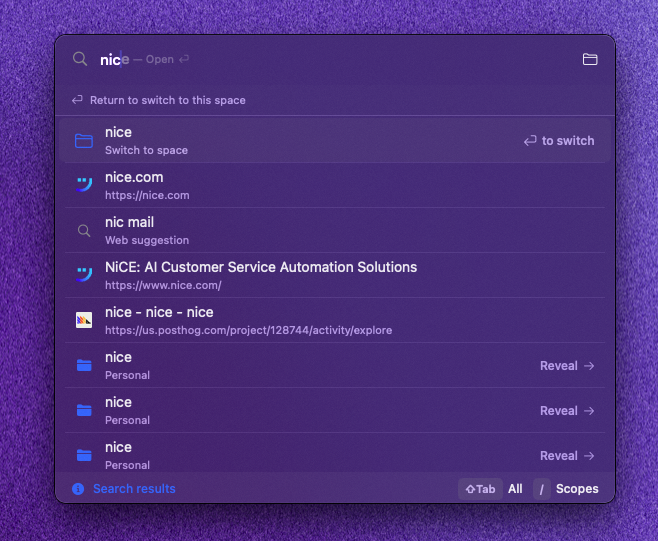
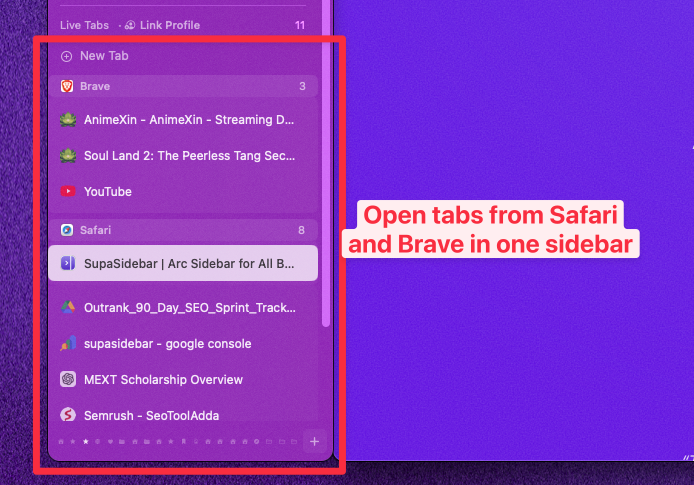
The sidebar itself complements the Command Panel for users who prefer browsing over searching. Live Tabs mode shows every open tab from every connected browser as a persistent list grouped by browser - useful when the tab is recognisable by sight but not by exact title.
Tab Finder (7 browsers, Setapp)
Tab Finder aggregates open tabs from Safari, Chrome, Brave, Edge, Opera, Vivaldi, and Yandex (plus several of their beta/preview variants, per Setapp's listing) into a single searchable list. It is purpose-built for cross-browser tab search and nothing else.
Strengths: simple, fast, single-purpose. Weakness: no Firefox support, and Arc, Zen, and Dia users do not have their tabs covered either. Distribution is via Setapp subscription, which makes sense for users already paying for Setapp and is friction for everyone else.
TabTab (free version + one-time Pro)
TabTab takes a broader approach. It searches across every app and window on Mac, not just browser tabs - the Cmd+Tab app switcher with deep search bolted on. Tabs are part of the result set, alongside Slack threads, Notion pages open in apps, Finder windows, and so on.
This is a useful tool for users who think in terms of "the thing that was open" regardless of whether it was a browser tab or a native app window. The tradeoff: it is not optimised for tab-heavy workflows. Results from a browser with 50 open tabs get diluted by every other open window on the system. Browser coverage extends to Safari, Chrome, Firefox, Arc, Brave, Edge, Comet, and Helium - eight browsers (eleven counting beta/dev variants), more than Tab Finder, fewer than the cross-browser sidebar approach.
Tabby (Mac App Store, free download)
Tabby is a Mac App Store tab manager (free download, one-time Pro upgrade) covering Safari, Chrome, and Firefox. Visual-first: it shows tabs as thumbnails grouped by window, with search as a secondary mode. Three-browser limit excludes everything Chromium-flavored beyond Chrome - Brave, Edge, Arc, and Vivaldi users will not see their tabs in Tabby.
Raycast / Alfred with a tab plugin
Raycast and Alfred are keyboard launchers, not tab finders, but each has community tab-search plugins that read browser tabs via the same macOS Automation APIs SupaSidebar uses. Raycast's Browser Extension covers Chrome-based browsers and Arc; Alfred's tab search workflows cover Chrome, Safari, and Firefox depending on which workflow is installed.
The tradeoff is setup complexity and coverage. Each plugin lists its supported browsers and requires permissions configured per browser. For users already living in Raycast or Alfred, adding a tab-search plugin is the lowest-friction path. For users who do not already use a launcher, installing one just for tab search is overkill compared to a purpose-built sidebar.
Quick comparison: Mac tab search tools
| Feature | Safari Built-in | Chrome Built-in | Tab Finder | TabTab | Tabby | Raycast/Alfred | SupaSidebar |
|---|---|---|---|---|---|---|---|
| Cross-browser search | No | No | Yes (7) | Yes (8) | Yes (3) | Varies by plugin | Yes (32+) |
| Global keyboard shortcut | No (Safari focus required) | No (Chrome focus required) | Yes | Yes | Yes | Yes | Yes (⌘⌃K) |
| Fuzzy search | Limited | Yes | Yes | Yes | Yes | Yes | Yes (Fuse.js) |
| Searches saved links/bookmarks too | No | No | No | Limited | No | Plugin-dependent | Yes |
| Free option | Yes (built-in) | Yes (built-in) | No (Setapp) | Limited free version | Yes | Free (Raycast) / Paid (Alfred Powerpack) | Yes (free tier) |
| Also manages tabs/bookmarks | No | No | No | Window mgmt | Basic grouping | Launcher | Full sidebar + Spaces |
How to set up cross-browser tab search with SupaSidebar
For users who decide the cross-browser approach fits, here is the install path. Total time: under five minutes.
-
Download SupaSidebar
from supasidebar.com. Standard Mac DMG, drag to Applications.
-
Grant Accessibility permission.
First launch prompts for Accessibility in System Settings > Privacy & Security > Accessibility. This is what lets the Command Panel float over other apps and respond to the global shortcut.
-
Grant Automation permission per browser.
For each browser to be searched, macOS shows an Automation permission prompt on first scan: System Settings > Privacy & Security > Automation > SupaSidebar > Safari (or Chrome, Firefox, Arc, etc.). Accept each one. Per Apple's Automation security model, this is granular - permission for one app does not grant it for others.
-
Pick Live Tabs during onboarding.
Onboarding offers two modes for the bottom sidebar section: Recent (browser history) or Live Tabs (real-time view of currently open browser tabs). Live Tabs is the relevant one for cross-browser tab search.
-
Open the Command Panel with ⌘⌃K.
From anywhere on Mac, the panel appears centered (or wherever it was last dragged). Start typing - results from every connected browser appear instantly. Arrow keys to navigate, Enter to switch to the tab.
No browser extension per browser. No per-browser settings panel. One Mac app, one shortcut, every browser.
When a cross-browser tool isn't needed
Not every Mac user has this problem. The brief is honest about that.
Single-browser users get everything they need from the native shortcut for that browser. A Safari-only user hitting ⌘⇧\ a hundred times a day is not missing anything. A Chrome-only user with ⌘⇧A is fine. Adding a third-party tool to solve a problem that does not exist in the workflow is friction.
The cross-browser tool earns its place the moment "find this tab" becomes "wait, which browser was that opened in." If that happens once a week, the native tools are enough. If it happens twice a day, the cost of the tab hunt - 30+ seconds each time, multiplied across a work week - is real.
Conclusion: Picking what to use
Single-browser Mac users should stick with the native option for that browser: ⌘⇧\ in Safari (Apple-documented), % in Firefox's address bar (Mozilla-documented), ⌘T in Arc's Command Bar (Arc-documented), ⌘E in Vivaldi's Quick Commands, and Chrome's Tab Search panel via the chevron icon (with ⌘⇧A as the community Mac shortcut). No third-party tool changes the in-browser experience meaningfully. Cross-browser users running two or more browsers actively face the genuine gap, and the practical options narrow to four: Tab Finder (7 browsers, Setapp-only), TabTab (8 browsers, window-manager hybrid), Tabby (3 browsers, free download, visual-first), or a Mac sidebar app like SupaSidebar (32+ browsers, ⌘⌃K, also covers saved links and Spaces). Power users already living in a keyboard launcher can add a Raycast or Alfred tab plugin instead of a dedicated tab tool.
The pick depends on browser coverage and what else the tool needs to do. Tab Finder is the simplest single-purpose option for users on Safari, Chrome, Brave, Edge, Opera, Vivaldi, or Yandex. TabTab fits users whose mental model is "any open window, browser or not." A Mac sidebar app fits users who want tab search plus persistent visibility plus bookmark and Space management in the same surface. For users on Firefox, Arc, Dia, or any combination that goes past the three-to-eight-browser limit of the smaller tools, the sidebar-app path is the only one that covers everything.
Try SupaSidebar (free tier) if cross-browser tab search plus a unified sidebar fits the Mac workflow. For users still deciding between sidebar apps, the Mac Sidebar App category overview compares the landscape.
Why we recommend SupaSidebar
SupaSidebar is a macOS app that brings Arc's sidebar to every browser - one sidebar for tabs, bookmarks, files, and apps across 32+ browsers including Safari, Chrome, Firefox, Arc, Vivaldi, Brave, Helium, and Dia. For tab search specifically, the Command Panel (⌘⌃K) is a global keyboard shortcut that fuzzy-searches live tabs from every connected browser in one query, alongside saved links and Spaces.
Real users describe the workflow shift the same way:
"Common browser history across browsers - finally." - Reddit user, r/macapps
"I've been wanting a way to manage my multiple browsers from a single source." - Reddit user, r/macapps
Free tier available with 3 Spaces, ⌘⌃K Command Panel, and Live Tabs across all 32+ supported browsers. Runs natively on macOS 14+. Available at supasidebar.com.
Frequently Asked Questions
Can I search tabs across Safari and Chrome at the same time on Mac?
Not with built-in browser features. Safari has Tab Overview at ⌘⇧\ per Apple's Safari shortcuts page, and Chrome has a Tab Search panel reachable from the chevron icon in the tab strip (with ⌘⇧A as the de facto Mac shortcut), but neither can see the other's tabs. Cross-browser search requires a Mac app that reads tabs via macOS Automation. SupaSidebar covers 32+ browsers via ⌘⌃K; Tab Finder covers 7 browsers (Safari, Chrome, Brave, Edge, Opera, Vivaldi, Yandex - no Firefox) via Setapp; Tabby covers 3 (Safari, Chrome, Firefox). SupaSidebar's free tier includes the Command Panel.
What's the keyboard shortcut to search open tabs on Mac?
It depends on the browser. Safari uses ⌘⇧\ for Tab Overview (official, per Apple's docs). Firefox uses % in the address bar (official, per Mozilla's docs). Arc uses ⌘T for its Command Bar (official, per Arc's docs). Vivaldi uses ⌘E for Quick Commands. Chrome and other Chromium-based browsers (Brave, Edge, Vivaldi, Dia) expose Tab Search via the chevron icon in the tab strip; ⌘⇧A works as a community shortcut on Mac but is not on Google's official Chrome Mac shortcut list. Zen, being a Firefox fork, uses Firefox's % operator. None of these work across browsers. For cross-browser search, SupaSidebar uses ⌘⌃K as a global shortcut that works from any app and searches tabs across all 32+ supported browsers.
Is there a free way to search all browser tabs on Mac?
Browser built-in shortcuts are free but only search within their own browser. For free cross-browser search, SupaSidebar offers a free tier that includes the Command Panel (searches across all browsers), Live Tabs (see all open tabs in a sidebar), and support for all 32+ browsers. Tabby is a free download on the Mac App Store (with a one-time Pro upgrade) but limited to 3 browsers. Tab Finder requires a Setapp subscription. TabTab has a limited free version with a one-time Pro purchase.
How does SupaSidebar read tabs from all my browsers without a browser extension?
SupaSidebar uses macOS Automation (AppleScript) plus Accessibility APIs to read tab titles and URLs from running browsers. One Mac app covers all 32+ supported browsers - Safari, Chrome, Firefox, Edge, Arc, Brave, Vivaldi, Dia, Comet, Orion, Wavebox, Helium, DuckDuckGo, Norton Private Browser, and their beta/dev/canary variants - without requiring a separate extension per browser. Automation permission is granted once per browser in System Settings > Privacy & Security > Automation.
Does Spotlight search open browser tabs on Mac?
No. Spotlight indexes files, apps, contacts, calendar events, mail, and a handful of web sources, per Apple's Spotlight documentation, but does not have a live index of open browser tabs in any browser. The macOS-native answer to "find any open tab" stops at the browser the tab is in.
Why doesn't macOS have a system-wide tab search?
Because browser tabs are owned by each browser's process, not the operating system. macOS exposes tab data only via Automation (AppleScript), which requires user permission per app per browser. Apple has not built a system-level tab index, likely because each browser would have to opt in via a standardised API that does not currently exist. Third-party Mac apps fill this gap by querying each browser individually via Automation.
Does Arc's Command Bar still work after Arc went into maintenance mode?
Yes. Arc's ⌘T Command Bar continues to work for searching Arc's own tabs, bookmarks, and Spaces. Per The Browser Company's May 27, 2025 announcement, Arc is in maintenance mode and will not get new features - but existing features keep working. For users who want Arc's command-bar workflow to extend to Safari, Chrome, and other browsers, a cross-browser tool like SupaSidebar's Command Panel is the closest substitute available in 2026.
Does searching tabs across browsers slow down my Mac?
SupaSidebar polls browsers at 0.5-second intervals when the sidebar is visible and 5-second intervals when hidden, with minimal CPU impact. Fuse.js fuzzy matching runs locally with no network requests. Tab Finder, TabTab, and Tabby also run locally. Raycast and Alfred plugins use the same macOS Automation APIs, so their overhead is similar.