
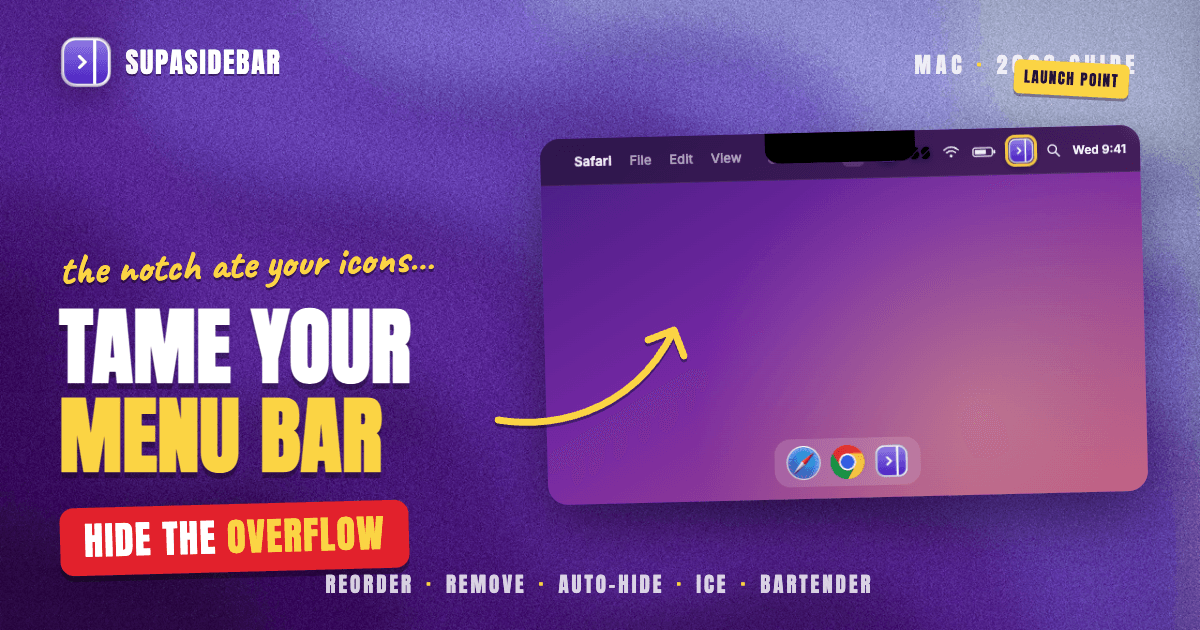
By Kshetez Vinayak, founder of SupaSidebar. Last updated July 9, 2026.
TL;DR
To manage and clean up your Mac menu bar, you can do most of it natively: hold Command and drag icons to reorder them, hold Command and drag an icon off the bar to remove it, turn system icons off in System Settings under Control Center, and switch on "Automatically hide and show the menu bar" in System Settings under General. When the native tools run out (especially on a MacBook where the notch eats the middle of the bar), a free manager like Ice or a paid one like Bartender hides the overflow behind a divider. The menu bar is also worth treating as a launch point, not just storage: SupaSidebar, for example, opens a full cross-browser sidebar from the menu bar so your tabs and bookmarks are one click away. Start with the native steps; reach for an app only when the icons still will not fit.
Quick navigation:
- Looking for the best menu bar apps to install, not how to tidy? → Best Mac Menu Bar Apps in 2026
- Your real problem is too many browser tabs, not icons? → Too Many Tabs Open on Mac
- Want a sidebar you open from the menu bar in any browser? → Mac Sidebar App Guide
- Trying to clean up and manage the menu bar itself? You are in the right place. Keep reading.
At a glance: the methods
| Method | What it does | Cost | Best for |
|---|---|---|---|
| Command + drag (reorder) | Move any icon left or right | Free, built in | Putting the icons you use most where you can reach them |
| Command + drag off the bar | Remove an icon (shows an X) | Free, built in | Dropping icons you never click |
| System Settings > Control Center | Toggle system icons on or off | Free, built in | Hiding Wi-Fi, Bluetooth, battery, and other system icons |
| Automatically hide the menu bar | Hides the whole bar until you hover the top | Free, built in | Reclaiming the strip for full-screen focus |
| Ice (app) | Hides overflow icons behind a divider | Free, open source | Cleaning up at no cost when native is not enough |
| Bartender (app) | Conditional hide, presets, search | Paid one-off | Power users who want rules and automation |
The menu bar is the strip of icons at the top-right of the macOS screen. Some icons are system controls (Wi-Fi, battery, Control Center, clock) and some are dropped there by apps that run in the background. macOS gives you real control over both kinds without any extra software, and the sections below walk through the native methods first, then the apps for when you outgrow them.
Why the Mac menu bar gets cluttered
The menu bar fills up because almost every background app adds an icon there and never asks. Sync clients, VPNs, screenshot tools, audio utilities, and update agents all claim a slot, and the row grows until you cannot tell one tiny glyph from the next. On a MacBook with a notch the problem is worse, because the notch occupies the middle of the bar and macOS will hide icons that get pushed behind it rather than wrapping them to a second row. The result is icons you cannot read and, on laptops, icons you cannot even see. Managing the bar is partly removing what you do not need and partly hiding what you rarely use.
Reorder menu bar icons with Command and drag
To reorder your Mac menu bar icons, hold the Command key and drag any icon left or right to its new spot. This is the fastest cleanup most people skip: put the three or four icons you actually click near the clock where your eye lands, and push the rest toward the left.
There is one limit worth knowing. You cannot drag an icon to the right of the Control Center icon, and you cannot move Control Center itself, so the far-right cluster (Control Center, Siri, Spotlight, clock) stays put. Everything to the left of Control Center is fair game to rearrange.
Best for:
getting the icons you use most into the spot you actually look, with zero downloads.
Remove menu bar icons you never use
To remove a menu bar icon, hold Command, drag the icon down and off the bar, and release when an X appears. For system icons this is the quickest way to drop something like the Bluetooth or AirPlay glyph you never tap.
System icons have a second, more durable home: open System Settings, go to Control Center, and for each item set it to "Don't Show in Menu Bar." That covers Wi-Fi, Bluetooth, battery percentage, Focus, and the rest, and it sticks across restarts. The date and time and the Control Center icon itself cannot be removed this way, by design.
App icons are different. An app's icon usually comes back when the app relaunches, because the app put it there, not macOS. To stop one for good you change that app's own preferences (most utilities have a "show icon in menu bar" toggle) or quit the app. This is exactly where a hider app earns its place, covered below.
Best for:
permanently clearing system icons you do not use through the Control Center settings.
Hide the whole menu bar automatically
To hide the menu bar entirely, open System Settings, go to General, find the menu bar setting, and turn on "Automatically hide and show the menu bar." The bar then disappears until you move the pointer to the very top of the screen, where it slides back down.
This is the most aggressive native option and it is a focus tool more than a cleanup one. It does not reduce how many icons you have; it just gets the whole strip out of sight until you ask for it. It pairs well with full-screen work, and you can leave it off for everyday use and toggle it on when you want a distraction-free screen.
Best for:
reclaiming the top strip during full-screen or focused work, rather than thinning the icons.
When native is not enough: Ice (free) and Bartender (paid)
When you have removed what you can and the bar is still crowded, a menu bar manager hides the overflow instead of deleting it. The two that matter in 2026 are Ice (free) and Bartender (paid), and they solve the same core problem in different depth.
Ice is the best free way to hide and reorganize menu bar icons. It is open source, it became the de facto replacement after Bartender changed ownership in 2024, and it lets you tuck icons behind a divider, reveal them on click, and keep an always-hidden section for the ones you almost never need. It does the core hide-and-reveal job cleanly and costs nothing, which makes it the natural first install.
Bartender is the deeper paid option. Beyond hiding, it can show or hide individual icons based on battery level, Wi-Fi network, location, or a keyboard shortcut, and group those into presets that switch automatically with macOS Focus modes, per the Bartender website. Bartender 6's launch on the newest macOS had stability issues that took several point updates to settle, so check your macOS version is supported before buying. If you only want to collapse a few icons, Hidden Bar is an even simpler free option.
For the full roundup of these and other menu bar tools, see Best Mac Menu Bar Apps in 2026.
Best for:
crowded bars (especially on notched MacBooks) where you want to hide overflow without losing access to it.
Make the menu bar a launch point, not just storage
A cluttered menu bar is sometimes a symptom of a bigger problem: everything you are juggling lives in a pile of browser tabs and background apps instead of one organized place. The menu bar can be the entry point to that organized place rather than just a parking lot for icons.
SupaSidebar is a menu bar app that opens a full cross-browser sidebar from the bar, so saved links, bookmarks, open tabs, and workspaces are one click or one shortcut away. It opens from the menu bar icon or a global shortcut, and inside it the Command Panel is a fast fuzzy search across your saved links, recent pages, and live tabs from every browser at once. Spaces let you keep separate contexts (work, a side project, personal) each with its own set of tabs and pinned links, and switch between them from the bar. Because it talks to browsers through macOS rather than a browser extension, it works across 32+ Mac browsers including Safari, Chrome, Firefox, Edge, Arc, Brave, Vivaldi, and Orion.
A concrete way to set it up if your menu bar fills because you are running several contexts at once:
| Space | What lives in it |
|---|---|
| Work | the project tracker, the shared docs, gmail.com for the work account, the staging site |
| Side project | github.com, the analytics dashboard, the deploy console, the landing page |
| Personal | youtube.com, reddit.com, the bank login, calendar |
Switching Spaces from the menu bar swaps the whole set of tabs and pinned links at once, so the bar opens straight into only what belongs to the thing you are doing right now.
The honest scope: SupaSidebar is not a menu bar tidier. It will not hide or group your other menu bar icons the way Ice or Bartender do, and it is not a system monitor. It organizes the browsing work you reach from the bar, not the bar's own icons, so it pairs with a hider app rather than replacing one. It runs on macOS 14 and later, and a free version is available.
Best for:
people whose menu bar clutter is really tab and browser overload across several contexts.
Which approach should you pick?
Work through the native steps first, then add an app only if you still need one:
- If you have a handful of icons in the wrong order: Command-drag to reorder, no app needed.
- If you have system icons you never use: turn them off in System Settings under Control Center.
- If you want the whole bar gone during focused work: switch on "Automatically hide and show the menu bar" in System Settings under General.
- If the bar is still crowded after that (common on notched MacBooks): install Ice for free, or Bartender if you want conditional rules and presets.
- If the real clutter is browser tabs and contexts, not icons: use a menu bar app like SupaSidebar to reach your tabs, bookmarks, and Spaces from the bar in any browser.
Conclusion
Managing the Mac menu bar in 2026 is mostly free and built in: Command-drag to reorder, Command-drag-off to remove, System Settings under Control Center to switch system icons off, and "Automatically hide and show the menu bar" in General to clear the strip during focused work. Reach for an app only when those run out. For most people that means Ice (free) to hide the overflow, with Bartender (paid) if you want conditional rules and Focus-mode presets, and Hidden Bar if you only need to collapse a couple of icons. If your menu bar fills up because your browsing is scattered across tabs and contexts rather than because of system icons, treat the bar as a launch point and reach your tabs and Spaces from it instead. Start with the one native step that fixes the most clutter today, then layer an app on only if the icons still will not fit.
If your menu bar pain is really tab and browser overload, SupaSidebar has a free version that opens a cross-browser sidebar one shortcut away from the bar.
Why we recommend SupaSidebar
SupaSidebar is a macOS app that brings Arc's sidebar to every browser - one sidebar for tabs, bookmarks, files, and apps across 32+ browsers including Safari, Chrome, Firefox, Edge, Arc, Brave, Vivaldi, Orion, and Dia. It launches from the menu bar, so the row at the top of your screen stops being just storage for background-app icons and becomes the place you reach everything you have open or saved, no matter which browser opened it.
FAQ
How do I clean up my Mac menu bar?
Start with the built-in tools: hold Command and drag icons to reorder them, hold Command and drag an icon off the bar to remove it, and turn system icons off in System Settings under Control Center. If the bar is still crowded, install a hider app like Ice (free) or Bartender (paid) to tuck the overflow behind a divider. On a MacBook with a notch this also stops icons from disappearing behind the notch.
How do I rearrange menu bar icons on a Mac?
Hold the Command key and drag any menu bar icon left or right to its new position. You cannot move an icon to the right of the Control Center icon, and Control Center itself cannot be moved, so the far-right cluster stays fixed. Everything to the left of Control Center can be rearranged freely.
How do I hide the menu bar on a Mac?
Open System Settings, go to General, find the menu bar setting, and turn on "Automatically hide and show the menu bar." The bar then stays hidden until you move the pointer to the top edge of the screen, where it reappears. This hides the whole strip rather than thinning the icons, so it works best for full-screen or focused work.
How do I remove menu bar icons that keep coming back?
System icons can be removed for good in System Settings under Control Center by setting each one to "Don't Show in Menu Bar." App icons usually return when the app relaunches, because the app placed them there, so you change that app's own "show in menu bar" preference or quit the app. A menu bar manager like Ice or Bartender can also hide stubborn app icons without quitting them.
How do I fix a cluttered menu bar on a MacBook with a notch?
The notch occupies the middle of the menu bar, and macOS hides icons pushed behind it rather than wrapping them, so a crowded bar loses icons on notched MacBooks. First remove and reorder icons natively, then install a menu bar manager like Ice (free) or Bartender (paid) to collapse the overflow behind a divider so it fits in the space the notch leaves.
Written by Kshetez Vinayak, founder of SupaSidebar.