
By Kshetez Vinayak, founder of SupaSidebar. Last updated July 9, 2026.
TL;DR
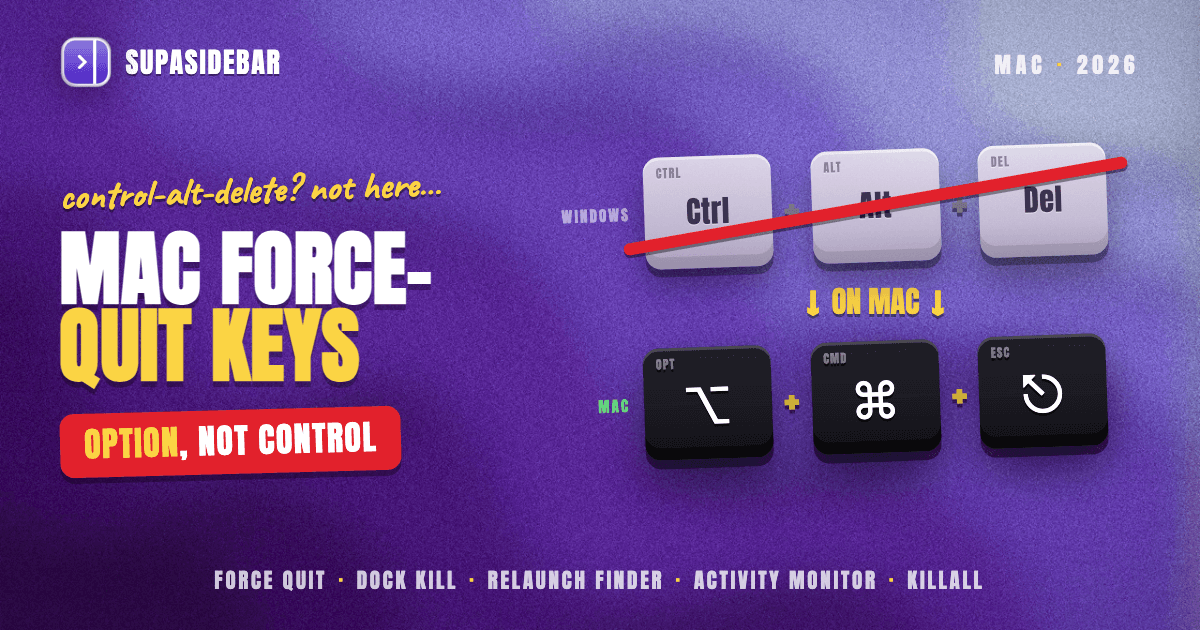
The Mac task manager shortcut is Option-Command-Esc (⌥⌘⎋), which opens the Force Quit Applications window from anywhere, the same job Ctrl-Alt-Delete does on Windows. Select the frozen app, click Force Quit, and it closes immediately. For a single stuck app you can skip the window entirely: hold Option and right-click the app's Dock icon, then choose Force Quit. There is no Ctrl-Alt-Delete on Mac, and Force Quit closes apps without saving, so it is for genuinely frozen apps, not routine closing. The fastest paths, and the reason a browser is usually the app you keep killing, are below.
Quick navigation:
- Want the full Mac task manager rundown (Activity Monitor included)? → Task Manager on Mac: The Complete Guide
- A browser is eating your RAM? → How to Reduce Chrome Memory Usage from Tabs on Mac
- Drowning in open tabs across windows? → Too Many Tabs Open on Mac
- Just want the force-quit shortcut? You are in the right place. Keep reading.
At a glance: the fastest ways to force quit on Mac
| Method | Shortcut / action | Best for |
|---|---|---|
| Force Quit window | Option-Command-Esc (⌥⌘⎋) | The Mac "Ctrl-Alt-Delete", picking from a list |
| Dock force quit | Option + right-click Dock icon → Force Quit | Killing one specific stuck app fast |
| Apple menu | Apple menu → Force Quit | When the keyboard is awkward |
| Activity Monitor | Select process → Stop (X) → Force Quit | Background processes that have no window |
| Terminal | killall AppName or kill <PID> | Power users, scripts, an app with no visible window |
The Mac task manager shortcut is Option-Command-Esc
Option-Command-Esc (⌥⌘⎋) is the single shortcut Windows switchers are looking for when they search for a Mac task manager. Pressing it from anywhere opens the Force Quit Applications window, a plain list of every running app with a Force Quit button. Apps that have stopped responding are flagged, often in red, as "Application not responding," so the frozen one is easy to spot (How to force an app to quit on Mac).
This is the closest thing macOS has to Ctrl-Alt-Delete's "End Task." Select the stuck app, click Force Quit, confirm, and it closes. The whole sequence takes about three seconds once the shortcut is muscle memory.
One detail worth keeping straight: the shortcut uses Option (⌥), not Control. Switchers sometimes try Control-Alt-Delete out of habit and nothing happens, because that combination is not mapped on macOS at all.
There is no Ctrl-Alt-Delete on Mac
Ctrl-Alt-Delete is a Windows convention with no direct macOS equivalent. On Windows it opens a security screen that leads to Task Manager, lock, sign-out, and switch-user. macOS spreads those jobs across different places: Option-Command-Esc for force-quitting, the Apple menu for lock and log-out, and System Settings for user switching.
So the honest answer to "what is Ctrl-Alt-Delete on Mac" is: there isn't one shortcut, but the one you almost certainly want, the force-quit-a-frozen-app function, is Option-Command-Esc. The rest of what that Windows screen offers lives elsewhere in the menu bar.
Force quit one specific app without the window
When only one app is frozen and the list is overkill, two methods kill it directly without opening the Force Quit window.
The Dock method is the fastest. Hold Option and right-click (or Control-click) the frozen app's icon in the Dock. The normal "Quit" item in the menu changes to "Force Quit." Click it, and that one app is gone. No window, no list, no extra clicks.
The Apple menu method works when reaching for the keyboard is awkward. Click the Apple logo in the top-left corner of the screen and choose Force Quit, which opens the same window the shortcut does. Apple documents the Dock, the Apple menu, and the keyboard shortcut as the three standard routes (How to force an app to quit on Mac).
A frozen app closed this way loses any unsaved work, the same as the keyboard shortcut. Force quitting is closing without saving, by design, so it is the move for an app that is genuinely stuck, not a routine way to quit.
Force quit the Finder (a special case)
The Finder is always running, so it does not have a normal Quit command. If the desktop or Finder windows freeze, the Force Quit window handles it differently: select Finder in the list and the Force Quit button becomes "Relaunch." Relaunching restarts the Finder without restarting the Mac, which clears most desktop and Finder hangs in a couple of seconds.
This is the Mac equivalent of restarting explorer.exe on Windows, and it is the fix for a frozen menu bar, an unresponsive desktop, or Finder windows that will not redraw.
Faster ways for power users: the Terminal
For anyone comfortable in the Terminal, two commands kill apps without touching the Dock or the Force Quit window. killall Safari ends every process matching that app name. kill <PID> ends one specific process by its ID, which you can read from Activity Monitor or from top. These are the same force-quit action under the hood, useful in scripts or when an app is so stuck it has no clickable window left.
Activity Monitor covers the graphical version of this, plus the deeper question of what is actually slowing the Mac down, in the complete Mac task manager guide. The short version: select the process, click the Stop (X) button, and choose Quit first or Force Quit if it will not respond. Apple advises trying Quit before Force Quit, because force quitting a process with open files can lose unsaved data and force quitting a process other apps depend on can destabilize them (Quit a process in Activity Monitor on Mac).
The app you keep force-quitting is probably your browser
Most people who learn the force-quit shortcut end up using it on the same app over and over: their browser. A browser carrying 40 or 50 open tabs spawns a helper process per tab, so it climbs to the top of the memory list and drags the whole Mac down until the beachball appears and the shortcut comes out again.
The catch is that force quitting the browser only "fixes" it for a minute. Reopen it, every tab reloads, and the memory climbs right back. Killing the process never addresses why it got heavy, which is the sheer number of live tabs crammed into one window. The real fix is upstream: do not carry that many live tabs in a single browser window in the first place. (For the browser-specific memory steps, see reducing Chrome memory usage from tabs; for the wider problem, too many tabs open on Mac.)
There is a quieter cost too: the time lost just finding the right tab. With dozens open across two or three browsers, locating one means cycling through windows or squinting at favicon-width tabs, then giving up and opening a duplicate, which adds yet another process. No force-quit shortcut touches that, because it is an organization problem, not a runaway-process problem.
SupaSidebar: stop the browser from becoming the thing you force-quit
SupaSidebar is a macOS menu bar app that puts a persistent sidebar on the edge of the screen so live browser tabs, saved links, and files are one shortcut away across every browser, instead of all stacked inside one heavy window. It is not a process manager and it does not replace Activity Monitor; it removes the reason the browser becomes the app you keep killing.
The mechanism is the Live Tabs section and the Command Panel. Live Tabs lists open tabs grouped by browser, and clicking one activates the existing tab rather than opening a duplicate, so the same page never gets loaded twice. The Command Panel (Command-Control-K) is a single search box spanning saved links, recent pages, and live tabs from every running browser, so finding the right tab is one keystroke instead of an alt-tab hunt that ends in a duplicate. Spaces then keep each context in its own set, so a single window never has to hold everything at once.
A concrete setup for someone who lives in the browser:
| Example Space | Links inside |
|---|---|
| Work | gmail.com, calendar.google.com, linear.app, the team docs |
| Side project | github.com, vercel.com, the analytics dashboard, the launch checklist |
Switching from Work to Side project swaps which tabs and links the sidebar surfaces, so the active browser window stays light rather than carrying both contexts and climbing back up the memory list.
To be precise about scope: SupaSidebar organizes the tabs and links around the work, it does not measure CPU, memory, or energy and it does not end processes. It runs on macOS 14 and later and works across every major Mac browser (32+ browsers in total counting channel variants). When a background process is pinning the CPU, Activity Monitor is still the tool. When the browser keeps becoming the heaviest app because everything lives in one window, the sidebar is what keeps it from getting there.
Which force-quit method should you use?
- One app frozen, beachball spinning: Option + right-click its Dock icon → Force Quit. Fastest single-app kill.
- Not sure which app is stuck, or several are: Option-Command-Esc, pick it from the list, Force Quit.
- The desktop or menu bar is frozen: Option-Command-Esc → select Finder → Relaunch.
- A background process with no window is the problem: Activity Monitor → select it → Stop (X) → Quit, then Force Quit only if needed.
- Scripting it or no clickable window left:
killall AppNamein the Terminal.
Conclusion: the Mac force-quit shortcut, settled
The Mac task manager shortcut is Option-Command-Esc, which opens Force Quit, the macOS answer to Ctrl-Alt-Delete's End Task. For a single stuck app, Option + right-click the Dock icon is faster still; for a frozen desktop, Force Quit and Relaunch the Finder; for background processes, Activity Monitor; for power users, killall in the Terminal. Force quitting always closes without saving, so it is for genuinely frozen apps, not everyday quitting.
If the app you keep force-quitting is your browser, the shortcut is treating a symptom. The cause is too many live tabs in one window, and that is an organization fix, not a kill-the-process fix. Single-browser users can lean on the browser's own memory tools; multi-browser, tab-heavy users get more from a sidebar that keeps tabs findable and contexts separated across every browser. For the full set of Mac task-manager tools, including Activity Monitor in depth, read the complete guide.
FAQ
What is the Mac task manager shortcut?
The Mac task manager shortcut is Option-Command-Esc (⌥⌘⎋). It opens the Force Quit Applications window from anywhere, which lists every running app and lets you force-quit a frozen one. It is the closest macOS equivalent to Ctrl-Alt-Delete's End Task on Windows.
What is Ctrl-Alt-Delete on a Mac?
There is no single Ctrl-Alt-Delete on Mac. The force-quit function most people want is Option-Command-Esc. Locking and logging out live in the Apple menu, and switching users lives in System Settings, rather than on one combined screen.
How do I force quit an app on Mac with the keyboard?
Press Option-Command-Esc to open the Force Quit window, use the arrow keys or mouse to select the frozen app, and press Return or click Force Quit. The app closes immediately without saving. For one specific app, holding Option and right-clicking its Dock icon turns Quit into Force Quit.
Why is there no Ctrl-Alt-Delete on Mac?
Ctrl-Alt-Delete is a Windows convention, so macOS never mapped it. The combination does nothing on a Mac. Apple split its functions across the Apple menu, System Settings, and the Option-Command-Esc force-quit shortcut instead of one security screen.
Does force quitting on Mac lose unsaved work?
Yes. Force quitting closes an app immediately without saving, so any unsaved work in that app is lost. Use a normal Quit (Command-Q) when possible, and reserve Force Quit for apps that have genuinely stopped responding.
How do I force quit the Finder on Mac?
Press Option-Command-Esc, select Finder in the list, and the Force Quit button becomes Relaunch. Relaunching restarts the Finder without restarting the Mac, which fixes a frozen desktop, menu bar, or unresponsive Finder windows in a couple of seconds.
By Kshetez Vinayak, founder of SupaSidebar.