
By Kshetez Vinayak, founder of SupaSidebar. Last updated June 30, 2026.
TL;DR
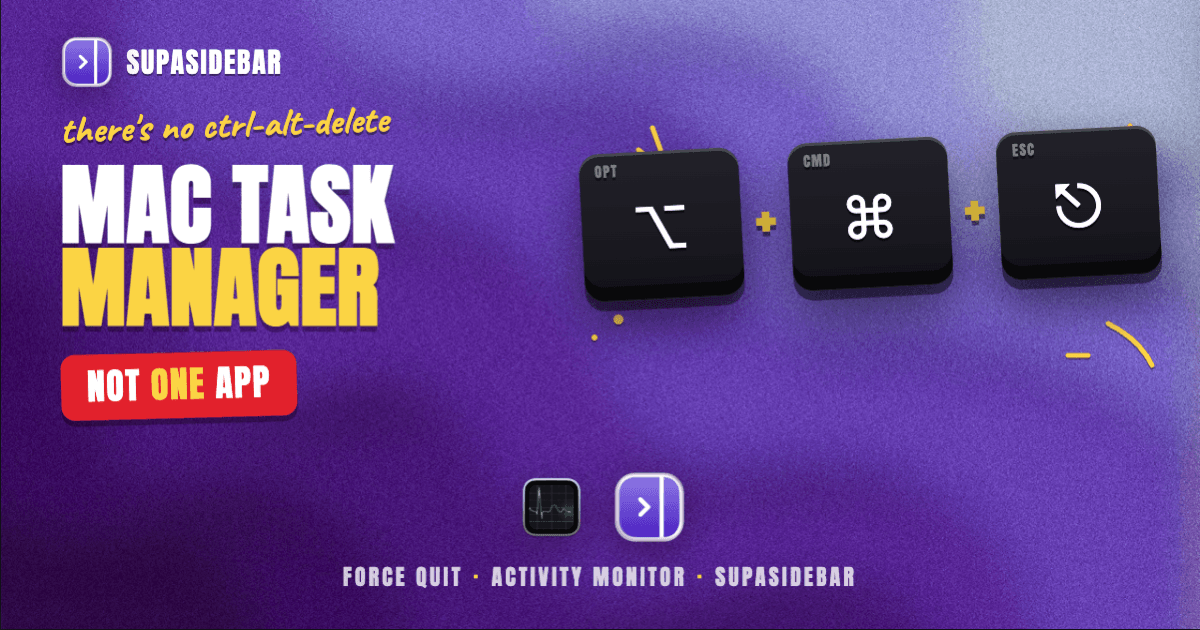
There is no single app called "Task Manager" on Mac. The Mac equivalent is split across two built-in tools: the Force Quit window (Option-Command-Esc) for killing a frozen app fast, and Activity Monitor (in Applications > Utilities) for seeing CPU, memory, energy, disk, and network usage per process. Force Quit is the Mac answer to Ctrl-Alt-Delete's "End Task"; Activity Monitor is the answer to the Windows Task Manager's Performance and Processes tabs. The walkthroughs for both are below, plus the one process that is almost always the real culprit: a browser carrying too many tabs.
Quick navigation:
- A browser is eating your RAM? → How to Reduce Chrome Memory Usage from Tabs on Mac
- Drowning in open tabs across windows? → Too Many Tabs Open on Mac
- Want a sidebar to manage tabs across every browser? → The Mac Sidebar App Guide
- Looking for the Mac Task Manager? You are in the right place. Keep reading.
At a glance: the Mac equivalents of Task Manager
| Windows Task Manager job | Mac tool | How to open | What it does |
|---|---|---|---|
| End a frozen task | Force Quit window | Option-Command-Esc | Lists running apps, force-quits the selected one |
| Processes + CPU/RAM detail | Activity Monitor | Applications > Utilities, or Spotlight "Activity Monitor" | Per-process CPU, Memory, Energy, Disk, Network |
| Performance graphs | Activity Monitor tabs | Inside Activity Monitor | Live CPU, memory pressure, and energy graphs |
| Startup apps | System Settings > Login Items | System Settings | Manage what launches at login |
| Kill one specific process | Activity Monitor > Quit Process | Select a row, click the (X) | Quit or Force Quit a single process |
Why there is no "Task Manager" on Mac
Task Manager is a Windows name. macOS never shipped an app with that label, which is why Windows switchers search for it and come up empty. The functions exist; they are just spread across two tools and one keyboard shortcut.
The mental split is simple. When an app is frozen and the goal is to kill it right now, the Force Quit window is the fast path. When the goal is to understand what is slowing the Mac down, which process is burning CPU, which one is eating memory, what is draining the battery, Activity Monitor is the detailed view. Windows folds both into one window with tabs; macOS keeps them separate.
There is no Ctrl-Alt-Delete on Mac either. The closest single shortcut is Option-Command-Esc, which opens Force Quit directly. That is the muscle-memory replacement most switchers are actually looking for.
How to open the Force Quit window on Mac
The Force Quit window is the quickest way to close an app that has stopped responding. There are three ways to reach it.
The keyboard shortcut is the fastest: press Option-Command-Esc (⌥⌘⎋) from anywhere. The Force Quit Applications window appears with a list of every running app. Apps that have stopped responding are marked, often in red, as "Application not responding."
The menu path works when the keyboard is awkward: click the Apple menu in the top-left corner, then choose Force Quit. Apple documents both of these as the standard ways to force an app to quit (How to force an app to quit on Mac).
The Dock works for a single stuck app: hold Option and right-click the app's icon in the Dock, and the "Quit" item changes to "Force Quit."
Once the Force Quit window is open, select the frozen app and click Force Quit. Force quitting closes the app immediately without saving, so unsaved work in that app is lost. Use it when the app is genuinely stuck, not as a routine way to close things.
How to open Activity Monitor on Mac (the real Task Manager equivalent)
Activity Monitor is the Mac tool that most closely matches the Windows Task Manager's Processes and Performance tabs. It shows every running process and how much of the Mac's resources each one is using.
There are two reliable ways to open it. Open Spotlight with Command-Space, type "Activity Monitor," and press Return. Or open Finder, go to Applications, then Utilities, and double-click Activity Monitor. It is worth keeping in the Dock if you open it often, by right-clicking its Dock icon and choosing Options > Keep in Dock.
Activity Monitor has five tabs across the top, each answering a different question:
- CPU shows which processes are using the processor right now, sorted by % CPU. A runaway process pinning the CPU shows up here first.
- Memory shows RAM usage per process and the overall Memory Pressure graph at the bottom. Green pressure is healthy; yellow or red means the Mac is short on memory.
- Energy shows energy impact per app, the tab to check when the battery is draining fast on a laptop.
- Disk shows data read from and written to storage by each process.
- Network shows data sent and received per process.
To see the worst offenders, click a column header (for example "% CPU" or "Memory") to sort the list so the heaviest process sits at the top.
How to kill a process in Activity Monitor
When a specific process is misbehaving and the Force Quit window is not enough, Activity Monitor can end it directly. Select the process in the list, then click the Stop button, the octagon with an (X), in the toolbar. macOS offers two choices: Quit, which asks the process to close normally, and Force Quit, which ends it immediately.
Apple's guidance is to try Quit first and reserve Force Quit for when a process will not respond (Quit a process in Activity Monitor on Mac). Force quitting a process that has files open can lose unsaved data, and force quitting a process other apps depend on can cause those apps problems. So Quit is the safe default; Force Quit is the hammer.
A note for switchers: do not force-quit processes whose names are unfamiliar. Many low-level macOS processes are supposed to be running, and ending one can destabilize the system until the next restart. Sort by resource usage, identify the app you recognize that is the heaviest, and act on that.
The process that is usually the real problem: your browser
Open Activity Monitor on a typical Mac and sort the Memory tab. More often than not, the heaviest single block is a browser, and underneath it a stack of per-tab helper processes. Each open tab is its own chunk of memory, so a browser carrying 40 or 50 tabs can outweigh every other app combined. That is why the Mac feels slow long before any app actually freezes, and it is the most common reason people go hunting for a task manager in the first place.
Force-quitting the browser "fixes" it for about a minute, then every tab reopens and the memory climbs right back. The deeper fix is not killing the browser, it is not carrying that many live tabs in one window to begin with. (For the browser-specific memory steps, see the guide on reducing Chrome memory usage from tabs, and for the wider tab-overload problem, too many tabs open on Mac.)
There is a second, quieter version of the same problem: the time lost finding things. When dozens of tabs are open across two or three browsers, locating the right one means alt-tabbing through windows or squinting at favicon-width tabs, then giving up and opening a duplicate. No task manager addresses that, because it is not a runaway-process problem; it is an organization problem.
SupaSidebar: get to any tab without hunting through windows
SupaSidebar is a macOS menu bar app that puts a persistent sidebar on the edge of the screen so saved links, files, and live browser tabs are one click or one shortcut away, across every browser rather than buried inside one. It does not replace Activity Monitor and it is not a process manager; it addresses the organization half of the slowdown that the browser causes.
The connection to the task-manager search is the Command Panel (Command-Control-K). It is a single search box that spans saved links, recent pages, and live tabs from all running browsers at once, so finding the right tab takes a keystroke instead of an alt-tab marathon. The sidebar's Live Tabs section lists open tabs grouped by browser, and clicking one activates the existing tab instead of opening a duplicate. For the heavier days, Spaces keep each context, say work and personal, in its own set so a single window is never carrying everything.
A concrete setup for someone who lives in the browser:
| Example Space | Links inside |
|---|---|
| Work | gmail.com, calendar.google.com, the project tracker, the team docs |
| Personal | youtube.com, reddit.com, the bank login, a couple of shopping tabs |
Switching from Work to Personal swaps which tabs and links the sidebar shows, so the active browser window stays light instead of holding both contexts at once.
To be precise about scope: SupaSidebar organizes the tabs and links around the work, it does not measure CPU, memory, or energy, and it does not end processes. It runs on macOS 14 and later, and it works across every major Mac browser (32+ browsers in total counting channel variants). When the actual task is finding which process is hogging the CPU, Activity Monitor is still the tool. When the task is locating the right tab among dozens, the sidebar is the one that helps.
Force Quit vs Activity Monitor: which to use when
The two tools overlap but solve different problems, and knowing which to reach for saves time.
Reach for Force Quit (Option-Command-Esc) when one app is visibly frozen, the spinning beachball will not go away, and the only goal is to close it. It is faster than opening Activity Monitor and it shows exactly the apps a person would recognize.
Reach for Activity Monitor when the Mac is slow but nothing is obviously broken, when the fans are spinning, when the battery is draining, or when the goal is to find out which process is responsible before deciding what to do. It shows the detail Force Quit hides, including background processes that never appear in the Force Quit list.
A practical rule: Force Quit answers "kill this," Activity Monitor answers "what is going on."
Which Mac task-manager approach should you use?
- If an app is frozen right now: press Option-Command-Esc, select it, Force Quit. Done in three seconds.
- If the Mac is slow and you want the cause: open Activity Monitor, sort the CPU and Memory tabs, find the heaviest process you recognize.
- If the heaviest process is a browser: the fix is fewer live tabs, not repeated force-quits. See the tab-memory guides linked above.
- If you keep losing tabs across browsers: that is an organization problem, not a process problem. A cross-browser sidebar like SupaSidebar handles it; Activity Monitor cannot.
- If you want to stop apps launching at startup: that lives in System Settings > General > Login Items, not in either task-manager tool.
Conclusion: the Mac Task Manager, settled
The Mac has no app named Task Manager, but it has every function under different names: Force Quit (Option-Command-Esc) for ending a stuck app, and Activity Monitor for the per-process CPU, memory, energy, disk, and network detail that the Windows Task Manager's tabs provide. Use Force Quit when something is frozen, and Activity Monitor when something is slow and the cause is unclear.
Windows switchers: map Ctrl-Alt-Delete's End Task to Option-Command-Esc, and map the Task Manager window to Activity Monitor in Applications > Utilities. Laptop users watching battery: live in the Energy tab. Anyone whose Mac feels slow without any single app freezing: it is almost always the browser and its tab pile, which is a workflow fix, not a force-quit fix.
If the recurring problem is finding and managing tabs rather than killing processes, try SupaSidebar (free tier) for a cross-browser sidebar that keeps tabs one keystroke away.
Written by Kshetez Vinayak, founder of SupaSidebar.
FAQ
How do I open Task Manager on a Mac?
Mac has no app called Task Manager. The two equivalents are the Force Quit window, opened with Option-Command-Esc, for closing a frozen app, and Activity Monitor, found in Applications > Utilities or via Spotlight, for viewing CPU, memory, energy, disk, and network usage per process.
What is the Mac equivalent of Ctrl-Alt-Delete?
The closest equivalent is Option-Command-Esc, which opens the Force Quit Applications window directly. It lists running apps and lets you force-quit one that has stopped responding, the same job as "End Task" on the Ctrl-Alt-Delete menu in Windows.
How do I force quit an app on Mac?
Press Option-Command-Esc to open the Force Quit window, select the unresponsive app, and click Force Quit. You can also choose Force Quit from the Apple menu, or hold Option and right-click the app's icon in the Dock. Force quitting closes the app without saving, so unsaved work is lost.
How do I see what is using memory or CPU on my Mac?
Open Activity Monitor from Applications > Utilities or via Spotlight, then click the CPU or Memory tab. Click a column header such as % CPU or Memory to sort, so the heaviest process moves to the top. The Memory Pressure graph at the bottom of the Memory tab shows whether the Mac is short on RAM.
Why is my Mac slow even though no app is frozen?
The usual cause is a browser carrying too many open tabs. Each tab uses its own block of memory, so a browser with dozens of tabs can outweigh every other app in Activity Monitor's Memory tab. Force-quitting the browser only helps until the tabs reload; the lasting fix is keeping fewer live tabs open.
Is it safe to force quit a process in Activity Monitor?
Quit is safe; Force Quit carries risk. Apple advises trying Quit first and using Force Quit only when a process will not respond, because force quitting a process with open files can lose data and force quitting one that other apps rely on can cause those apps problems. Avoid ending unfamiliar low-level macOS processes.
Can I add Task Manager to the Mac menu bar?
There is no Task Manager to add, but Activity Monitor can show live CPU or memory in the Dock (View > Dock Icon), and you can keep it in the Dock for quick access. For keeping browser tabs and links one click away from the menu bar across every browser, a sidebar app such as SupaSidebar serves that role.