
By Kshetez Vinayak, founder of SupaSidebar. Last updated June 26, 2026.
TL;DR:
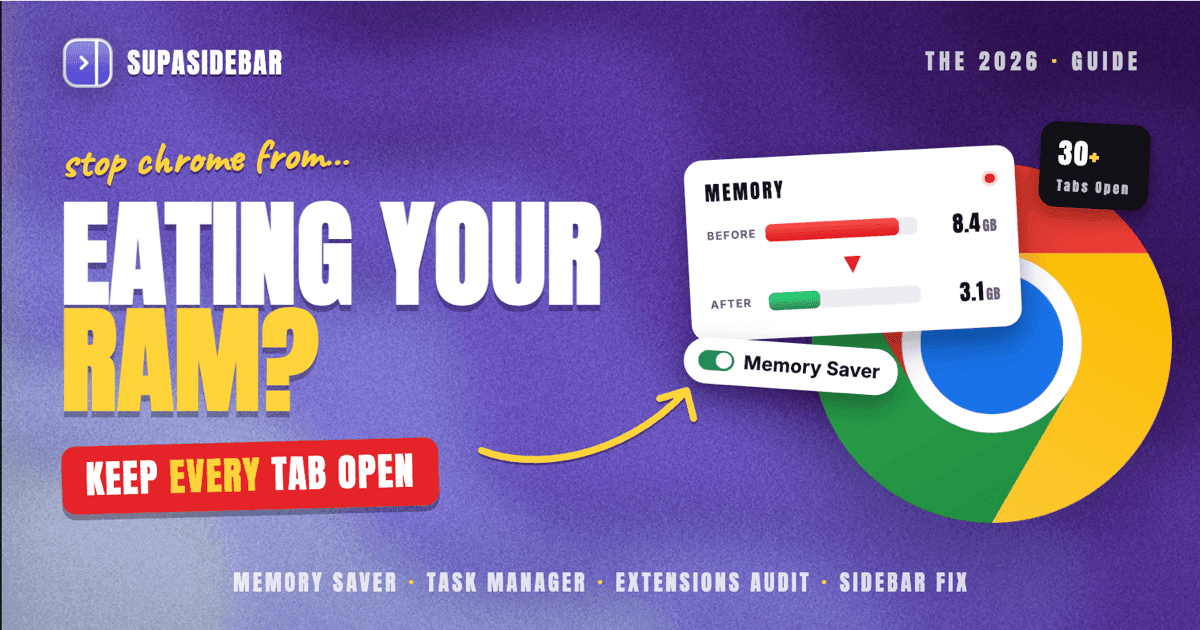
Chrome eats RAM because every tab is its own process, and a typical web app (Gmail, Docs, Slack) uses 200-500 MB on its own per Chrome's internal benchmarks reported by NinjaOne. The fastest fix without losing tabs: turn on Memory Saver at Maximum (Settings, Performance, Memory Saver), open Chrome's built-in Task Manager with Shift+Esc to find the heaviest tabs and extensions, then move your "I might need this later" pile out of the tab bar entirely. Memory Saver became ML-driven in Chrome 140 (September 2025) and the overall memory footprint dropped 15-20% in Chrome 138 - but the only durable fix for tab hoarders is to stop using tabs as a to-do list. SupaSidebar is the macOS layer that lets you do that across Chrome, Safari, Firefox, and 32+ browsers without closing anything.
Where this fits:
- Have so many tabs you can't see the titles? Read Too Many Tabs Open on Mac for the cross-browser tab-overload fix.
- Want a real tab manager extension, not a memory hack? Best Tab Manager Extensions for Chrome 2026 covers the extension landscape.
- Want to save the tabs you have, then close them? Best Tab Saver Extension 2026 is the saver-extension comparison.
Why Chrome uses so much memory
Chrome is a memory monster by design, not by bug. Each tab runs in its own renderer process so a crash on one site cannot bring down the rest. That isolation is the same reason Chrome feels stable and the same reason it inhales RAM.
The rough numbers from public benchmarks: a static blog post uses around 50-80 MB of RAM, a regular web page with images and scripts climbs to 100-200 MB, and a heavy web app like Gmail, Notion, or Slack often holds 200-500 MB per tab. Multiply that by 30 tabs and Chrome is asking for 6-15 GB before any other app on the machine opens.
Then there are extensions. Every Chrome extension runs background scripts whether it is on screen or not, and each one carries 20-100 MB of overhead. Ten extensions can quietly hold 500 MB before the first tab loads.
The misconception worth correcting: Chrome's RAM usage is not a leak. It is a deliberate trade between speed, stability, and memory. You can pull on three levers to shift that trade in your favor without giving up tabs.
Step 1: Find what is actually heavy with Chrome Task Manager
Before changing settings, see the raw data. Chrome ships its own Task Manager that shows memory and CPU per tab, extension, and background process.
On Mac:
open Chrome, then Window menu, then Task Manager. The keyboard shortcut is Search key + Esc on ChromeOS and Shift + Esc on Windows; on macOS there is no default shortcut, so use the Window menu or set one in System Settings.
Sort the Memory column descending. Three patterns usually show up:
- One or two web apps are 80% of the cost. A single Notion workspace or a left-open Figma file can hold 1-2 GB on its own.
- An extension you forgot you installed is in the top 10. Old screen recorders, "AI assistants", and password managers from 2022 are common.
- The renderer for ad-heavy sites is huge. A news site with autoplay video can hold 500 MB even when the tab is not focused.
Close the top three offenders, measure the difference, and you usually claw back 2-4 GB in under a minute. This is the single highest-leverage step in the whole guide.
Chrome's official Task Manager documentation covers the column descriptions if the rows look unfamiliar.
Step 2: Turn on Memory Saver (the right way)
Memory Saver is the feature most "Chrome is slow" guides skip past. It deactivates tabs you have not used recently so the renderer process is suspended; the tab stays in the tab bar, the title and favicon stay visible, and clicking it reloads on demand.
To enable:
Chrome menu, Settings, Performance, Memory Saver. Toggle on. Pick an aggressiveness level:
- Moderate - the default. Deactivates tabs after long inactivity. Lowest disruption, smallest savings.
- Balanced - deactivates faster. Reasonable default for 20-50 tabs.
- Maximum - aggressive. Best for 50+ tabs and the only setting that actually moves the needle for tab hoarders.
Chrome 140 (September 2025) shipped ML-based Memory Saver. Instead of using a fixed timer it predicts which tabs you are about to revisit and which can be discarded, per the Chrome Performance settings docs. This is a real improvement, but it only matters if Memory Saver is actually on - the default for upgraded installs is sometimes off.
The catch:
Memory Saver discards background tabs but does not reduce RAM for tabs you are actively cycling between. If you keep 10 tabs in active rotation, those 10 still hold their full 200-500 MB each. Memory Saver helps tab hoarders, not tab cyclers.
You can also pin tabs that should never be discarded (right-click the tab, Always keep this site active). Pin Gmail, Slack, anything you need real-time notifications from.
Step 3: Cut your extensions in half
Open chrome://extensions and look at the list. For each one, ask whether it has been used in the last 30 days.
If no, remove it. If yes but only on specific sites, change "Site access" to On click instead of On all sites. That stops the extension's background script from running on every page load.
The biggest savings come from removing the kind of extension you installed for one task and forgot about: AI summarizers, screen recorders, color pickers, "save to X" buttons for services you no longer use. Per the NinjaOne breakdown of Chrome memory management, an average user keeps 8-12 extensions installed but actively uses 2-3.
A practical heuristic: keep your password manager, your ad blocker, and one or two work tools. Everything else gets the cull.
Step 4: Stop using tabs as a to-do list
This is the step the rest of the internet does not want to tell you, because it cannot be fixed with a Chrome setting. Most "Chrome is slow" problems are tab-hoarding problems wearing a memory mask.
The pattern is familiar: open a link to read later, leave it in a tab, repeat for three weeks, end up with 47 tabs across two windows. Memory Saver helps with the inactive ones, but the cognitive cost - shrunk titles you can no longer read, time spent hunting for the right one - is the actual problem. The RAM usage is just the symptom. Tab overload has its own ADHD-flavored pattern worth reading if this loop feels familiar.
There are four legitimate fixes:
- Bookmarks - the OG, free, built into every browser. Works if you actually go back and read what you bookmarked.
- A read-later app - Readwise Reader, Matter, Instapaper. Removes the link from the tab bar and into a queue.
- A tab manager extension - OneTab, Toby, Tab Stash. Saves the URLs and closes the tabs in one click.
- A sidebar app - moves the tabs out of the tab bar entirely and into a persistent panel beside the browser.
Each of these reduces the active tab count, which is what actually drops the memory number. Memory Saver makes inactive tabs cheaper; the four fixes above turn would-be tabs into something else.
Comparison: tools that reduce Chrome memory without closing tabs
| Tool | Cost | What it does | Where the memory savings come from | Cross-browser |
|---|---|---|---|---|
| Memory Saver (built-in) | Free | Suspends inactive tabs | Background renderer processes freed | Chrome only |
| OneTab | Free | Converts all tabs to a list | Tabs literally close, list persists | Chrome, Firefox |
| The Marvellous Suspender | Free | Manually suspends tabs | Renderer freed on demand | Chrome |
| Toby | Free / Pro | Saves tabs into visual workspaces | Tabs close, restorable from sidebar | Chrome only |
| Tab Stash | Free | Saves tab groups into bookmark folders | Tabs close, restorable from bookmarks | Firefox only |
| SupaSidebar | Free / Pro | Moves tabs to a Mac sidebar across all browsers | Tabs visible in sidebar, not held in browser | 32+ browsers (Mac) |
Note on The Great Suspender:
if older guides recommend The Great Suspender, ignore them. The original extension was delisted from the Chrome Web Store in February 2021 for malware that executed arbitrary remote code. Use The Marvellous Suspender (the malware-free community fork) or Auto Tab Discard instead.
A cross-browser angle: most users have this problem in more than one browser
The hidden detail in tab hoarding: a typical Mac user is not just running Chrome. They keep Chrome open for work (because SSO is configured there), Safari open for personal browsing (because of iCloud), maybe Firefox or Brave for a side workflow. The 6 GB Chrome is using does not exist in a vacuum. Safari and Firefox are holding another 3-5 GB. The tabs are scattered across three browsers and none of them know about the others.
This is the gap that single-browser tab managers cannot close. OneTab in Chrome does not see your Safari tabs. Tab Stash in Firefox does not see Chrome. Memory Saver only saves Chrome's memory.
SupaSidebar is built for this exact pattern: a Mac sidebar app that shows live tabs from every open browser in one panel, plus a saved-items section for the read-later pile, plus Spaces for keeping work and personal contexts separate. The tabs are not held in Chrome - they live in the sidebar, searchable across Chrome, Safari, Firefox, Arc, Brave, Edge, Vivaldi, Zen, Helium, Dia and every other major Mac browser.
What that actually does for memory: you can close 20 of the 30 Chrome tabs you "might need", keep them visible in the sidebar, and reopen any one in a click. Chrome's RAM usage drops by the renderer cost of those 20 tabs - typically 2-5 GB. The tab does not feel lost because you can still see it; the browser does not have to hold it because it is not loaded.
This is not a Chrome extension. SupaSidebar is a native macOS app that works alongside Chrome (and every other major Mac browser) without modifying them. The free tier includes 3 Spaces and iCloud sync, which covers most single-user setups.
Other things that help (the smaller levers)
After the four steps above, these are worth doing but will save MB not GB:
- Disable preloading. Chrome preloads pages it thinks you will open next. Go to
chrome://settings/performance, turn offPreload pages. Small but real savings. - Use Chrome profiles for hard separation. A separate profile means a separate browser process tree. Sometimes useful for work/personal, but each profile carries its own base RAM overhead.
- Turn off hardware acceleration if your GPU is the bottleneck. Counterintuitively this can reduce RAM on some Intel Macs, though it lengthens page-load CPU time.
- Update Chrome. The Chrome 138 release in June 2025 reduced overall memory consumption 15-20%. Skipping versions means missing the improvements.
- Restart Chrome once a week. Long-running browser processes accumulate fragmentation. A weekly restart claws back 5-10% on most machines.
None of these are silver bullets. They are the small wins after you have done the four main steps.
Conclusion: Picking the right fix for your tab habit
The right fix depends on how you actually use Chrome:
If you cycle between 5-15 active tabs:
Memory Saver is enough. Turn it on at Balanced or Maximum, pin your real-time tabs (Gmail, Slack), and your memory will sit at a reasonable level without any other change.
If you have 30-50 tabs and most are "might need this later":
a tab manager extension is the next step. OneTab is the simplest free option; Toby is the prettier Pro option. Both close the tabs and keep a restorable list.
If you have 50+ tabs OR you keep 2-3 browsers open at once:
a Mac sidebar app is the only durable fix. The tab count is no longer a "use the right extension" problem - it is a workflow problem that needs to live above the browser. SupaSidebar is built for this exact case; it works across Chrome plus every other major Mac browser and the free tier covers most users.
If Chrome itself feels broken even at low tab counts:
check the Task Manager first. One runaway extension or one ad-heavy site is usually the cause, not Chrome itself.
Why SupaSidebar
SupaSidebar is a macOS app that brings Arc's sidebar to every browser - one sidebar for tabs, bookmarks, files, and apps across 32+ browsers including Safari, Chrome, Firefox, Arc, Zen, Vivaldi, Brave, Helium, and Dia. The point for memory: tabs you would normally leave open in Chrome can live in the sidebar instead, searchable and one click from any browser, while Chrome's process tree only holds the tabs you are actually using right now. The app is native, on-device, and the free tier includes 3 Spaces and iCloud sync with no account required.
Frequently Asked Questions
Why does Chrome use so much memory even with one tab open?
Chrome's base process tree (the main browser process, GPU process, network service, and one renderer) typically holds 300-500 MB even with a single tab. That overhead exists for stability and sandboxing, and it does not go away by closing tabs. Extensions add another 20-100 MB each on top of the base.
Does Chrome Memory Saver actually work?
Yes, but only on inactive tabs. Memory Saver suspends the renderer process for tabs you have not used recently, freeing 100-500 MB per discarded tab. It does nothing for tabs you are actively cycling through. Chrome 140 (September 2025) added ML-based prediction so it discards smarter, per the Chrome Performance docs.
How many tabs is too many in Chrome?
There is no fixed number - it depends on what the tabs are doing. A useful threshold: if Chrome Task Manager shows total memory above 50% of your installed RAM, you are at the edge. On 16 GB Macs that is around 8 GB across all Chrome processes, which usually translates to 25-40 typical tabs or 10-15 heavy web app tabs.
Should I uninstall Chrome and switch to Safari to save memory?
Safari uses less RAM on Mac (often 30-50% less than Chrome for the same tab count) because it shares more memory between tabs at the cost of slightly slower per-tab isolation. But switching is rarely the right answer if your work apps are Chrome-only. The full breakdown is in Safari vs Chrome on Mac in 2026. The cross-browser pattern (Chrome for work, Safari for personal) is more common - which is why a sidebar app that spans both is more useful than picking a single browser.
Is there a Chrome extension that closes inactive tabs automatically?
Auto Tab Discard does this; The Marvellous Suspender (the malware-free fork of The Great Suspender) does this. Do not install The Great Suspender itself - it was delisted from the Chrome Web Store in February 2021 for shipping malware that ran arbitrary remote code.
What is the difference between closing tabs and discarding tabs?
Closing a tab removes it entirely - the tab is gone from the tab bar and the URL is in History only. Discarding (what Memory Saver does) keeps the tab in the tab bar with its title and favicon, but suspends the renderer process. Click the discarded tab and Chrome reloads the page. The visible difference: the tab is still there, the memory cost is not.
Can SupaSidebar actually replace a tab manager extension?
For most users yes, because the SupaSidebar sidebar covers the same job (somewhere to put tabs that are not actively in use) but works across every browser, not just Chrome. The tradeoff: SupaSidebar is macOS-only and is a separate app rather than an extension. If your workflow is Chrome-only on Windows, a Chrome extension like OneTab or Toby is the right tool.
By Kshetez Vinayak, founder of SupaSidebar. Try SupaSidebar (free tier).