
By Kshetez Vinayak, founder of SupaSidebar. Last updated June 18, 2026.
TL;DR:
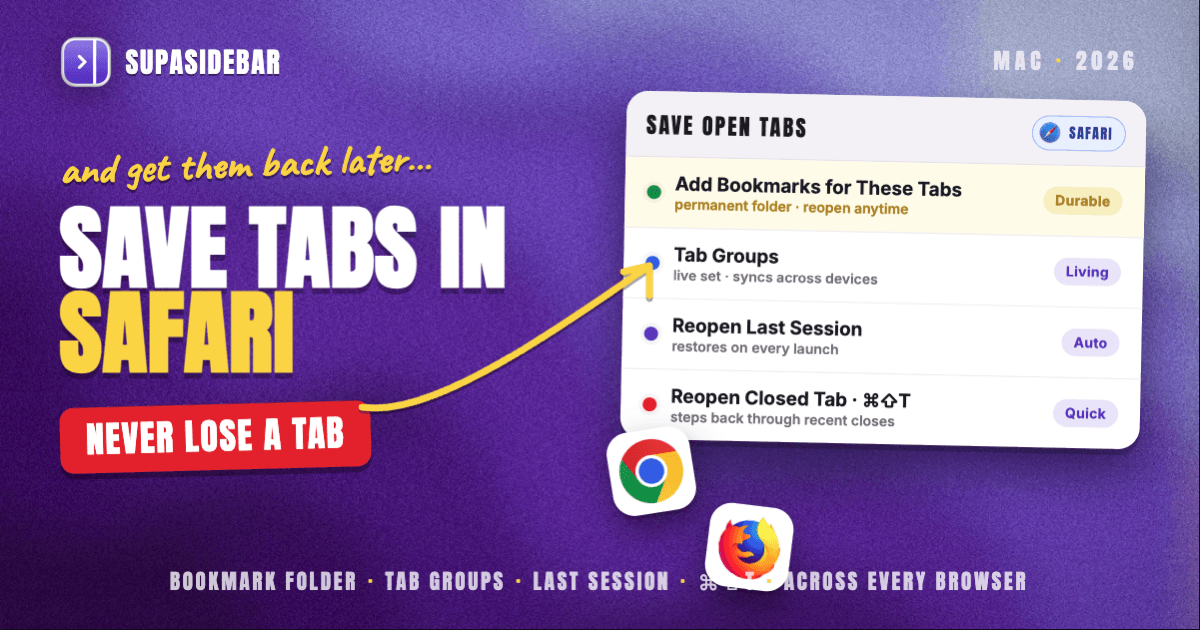
Safari has three reliable ways to save your open tabs, and the right one depends on whether you want them back permanently or just after the next restart. To keep a set of tabs forever, use Bookmarks > Add Bookmarks for These Tabs, which drops every open tab into one named bookmark folder you can reopen with a single click. To carry tabs across restarts automatically, set Safari > Settings > General > Safari opens with: All windows from last session. To keep tabs organized as living sets you return to, use Tab Groups. For a one-off reopen of what you just closed, press Cmd+Shift+T. None of these saves tabs across a second browser, which is the gap a Mac sidebar app like SupaSidebar closes.
Quick navigation:
- Want the universal, cross-browser answer? → How to Save All Open Tabs on Any Browser
- On Chrome instead? → How to Save All Open Tabs in Chrome
- On Firefox instead? → How to Save All Open Tabs in Firefox
- On Safari? → You are in the right place. Keep reading.
| Method | What it saves | How it comes back | Best for |
|---|---|---|---|
| Add Bookmarks for These Tabs | Every open tab in the window, as one bookmark folder | Open the folder, choose Open in New Tabs | A permanent, named snapshot of a session |
| Tab Groups | A live, editable set of tabs you switch between | Click the Tab Group in the sidebar | Ongoing projects you keep returning to |
| Reopen last session | Whatever was open when Safari last quit | Reopens automatically on launch | Surviving restarts without thinking about it |
| Reopen closed tab (Cmd+Shift+T) | The most recently closed tab or window | Steps back through recently closed items | Quick recovery of an accidental close |
| Mac sidebar app (SupaSidebar) | Tabs and bookmarks across every browser at once | One sidebar, every browser, synced bookmarks | Anyone who uses Safari plus a second browser |
Saving every open tab as a permanent bookmark folder
The most durable way to save tabs in Safari is Add Bookmarks for These Tabs, which captures every tab in the current window into a single bookmark folder. Open the Bookmarks menu in the menu bar, choose "Add Bookmarks for These [N] Tabs," name the folder, pick where it lives, and click Add (Apple, via iDownloadBlog walkthrough). To bring the session back later, open the Bookmarks sidebar, control-click the folder, and choose Open in New Tabs to restore the whole set at once.
This is the closest Safari gets to a true "save this session" button. It is permanent, it survives restarts and macOS updates, and it does not depend on a clean quit. The trade-off is that it is a snapshot, not a live link: later changes to the tabs do not update the saved folder, and reopening creates fresh tabs rather than restoring scroll position or form state. For a durable archive of a dozen tabs left open for one research project, it is the right tool. SupaSidebar treats this same idea as a first-class action: the Save All Browser Tabs shortcut drops every open tab into a sidebar folder you can reopen from any Space, without leaving Safari.
Keeping tabs as living sets with Tab Groups
Tab Groups are Safari's answer to organizing tabs you keep returning to, rather than archiving them once. Create one by right-clicking a tab and choosing Add to Tab Group, or use the New Tab Group control in the sidebar. Each group holds its own set of tabs, and switching between groups swaps the entire tab bar. Unlike a bookmark folder, a Tab Group stays live: add or close a tab inside it and the group updates, so it behaves like a saved workspace rather than a frozen snapshot. If you spend your day in that sidebar, it is also where you can give Safari a vertical tab layout.
Tab Groups sync across devices when Safari is signed into the same Apple Account on Safari 17 and later, which makes them useful for picking up a set of tabs on another Mac or on iPhone. There are two caveats worth knowing. First, Tab Group data lives inside Safari's container at ~/Library/Containers/com.apple.Safari/Data/Library/Safari/, so a corrupted profile or a bad macOS update can disrupt them, and Time Machine is the recovery path if that happens (Apple Community discussion). Second, Tab Groups only exist inside Safari. The moment a second browser enters your day, they cannot follow you there, which is exactly the boundary SupaSidebar is built to cross.
Carrying tabs across restarts automatically
If the goal is simply to not lose tabs on quit or restart, Safari can reopen your last session on its own. Go to Safari > Settings > General, find "Safari opens with," and select All windows from last session (SigmaOS Safari guide). From then on, every launch restores the windows and tabs that were open when Safari last closed. You can also trigger this manually from the History menu with "Reopen All Windows from Last Session."
For accidental closes, Cmd+Shift+T reopens the most recently closed tab, and pressing it repeatedly steps back through the recently closed list. These two methods cover the everyday accidental-close cases, but neither is a deliberate save. Reopen-last-session only ever holds one session, the most recent, and it depends on Safari tracking the close cleanly. For anything you want to keep beyond the next launch, the bookmark-folder method is the safer choice. SupaSidebar adds a parallel safety net here: its Live Tabs section shows every open Safari tab in real time, and any tab can be saved permanently from a right-click before it is ever closed.
What about Safari tab-saver extensions?
Safari has supported Web Extensions since Safari 14, and a handful of session-saving extensions do exist, such as SessionRestore for Safari and Tab Space. They are typically distributed as paid Mac App Store apps rather than free add-ons, and Safari's extension model has historically given session managers fewer hooks than the equivalent Chrome or Firefox extensions get (Tab Session Manager porting discussion, GitHub). That means the rich, cross-window session extensions Chrome and Firefox users reach for do not have a direct Safari equivalent of the same depth.
This is the practical reason many Safari users stop at the native methods above and then hit a wall. The native tools are solid for a single browser, but they were never designed to span browsers, and the extension ecosystem that might bridge that gap is thinner on Safari than elsewhere. A native Mac app sidesteps the question entirely. SupaSidebar is not a browser extension and does not depend on Safari's extension APIs at all; it reads open tabs through macOS automation, so it works alongside Safari with nothing to install inside the browser. Avoid one shortcut here regardless of platform: never reach for The Great Suspender, the Chrome extension Google delisted in February 2021 for shipping malware (The Register). Its memory-saving job is better handled natively.
The cross-browser gap none of these close
Every method so far solves the same problem inside one browser. The harder problem starts when Safari is not the only browser you use. A typical Mac setup keeps Safari for personal browsing, Chrome for a work account where the company SSO is configured, and maybe Firefox or a Chromium browser for testing. Safari's Tab Groups, bookmark folders, and reopen-last-session all stop at Safari's edge. Saving tabs from three browsers means three separate, incompatible systems, and there is no native way to see or restore all of them together.
This is the gap SupaSidebar was built to close. It is a macOS app that brings Arc's sidebar to every browser, so the same sidebar holds tabs, bookmarks, files, and apps across 33 browsers including Safari, Chrome, Firefox, Edge, Brave, Arc, Vivaldi, Dia, and Comet. The Save All Browser Tabs shortcut works the same way in Safari as it does in Chrome, saved links sync across Macs through iCloud with no account required, and the Command Panel searches tabs and bookmarks from every browser at once. For a single-browser Safari user, the native methods are enough. For anyone living in two or more browsers, a cross-browser layer is the only thing that actually saves all the tabs.
Which Safari save method should you pick?
- If you want a permanent, named archive of a session: use Add Bookmarks for These Tabs. It is the most durable native option.
- If you keep returning to the same set of tabs: use a Tab Group, and sign into the same Apple Account to sync it across devices.
- If you just never want to lose tabs on restart: set Safari opens with: All windows from last session, and use Cmd+Shift+T for accidental closes.
- If you use Safari plus at least one other browser: the native methods cannot follow you across browsers; a Mac sidebar app like SupaSidebar is the only option that saves and restores tabs everywhere at once.
Conclusion
Saving tabs in Safari comes down to matching the method to the intent: Add Bookmarks for These Tabs for a permanent snapshot, Tab Groups for a living set you return to, reopen-last-session for surviving restarts, and Cmd+Shift+T for quick recovery. All four are reliable, and for a Safari-only workflow they are genuinely all you need. Safari also gives you the longest history retention of any major Mac browser, keeping browsing history a full year by default (Apple Safari User Guide), so even an un-saved tab is often recoverable from History.
The methods part company the instant a second browser enters the picture. A Safari Tab Group cannot hold a Chrome tab, and a Safari bookmark folder will not reopen in Firefox. Single-browser users should start with the bookmark-folder method and move on. Two-or-more-browser users get the cleanest result from a cross-browser layer that treats every browser the same. If that is your situation, try SupaSidebar (free version available).
Why we recommend SupaSidebar
SupaSidebar is a macOS app that brings Arc's sidebar to every browser - one sidebar for tabs, bookmarks, files, and apps across 33 browsers including Safari, Chrome, Firefox, Edge, Brave, Arc, Vivaldi, Dia, and Comet. It is not a browser, and it is not a browser extension, so it works alongside Safari without anything to install inside the browser. The Save All Browser Tabs shortcut captures open tabs into a sidebar folder, Live Tabs shows what is open across every browser in real time, and saved links sync across Macs through iCloud with no account required. More than 3,000 Mac users have tried SupaSidebar to keep their tabs and bookmarks in one place across browsers.
FAQ
How do I save all open tabs in Safari on Mac?
Open the Bookmarks menu in the menu bar and choose "Add Bookmarks for These [N] Tabs." Name the folder, pick where to save it, and click Add. Every open tab in that window is saved into one bookmark folder. To reopen them later, control-click the folder in the Bookmarks sidebar and choose Open in New Tabs.
How do I get Safari to reopen my tabs after I quit or restart?
Go to Safari > Settings > General and set "Safari opens with" to "All windows from last session." Safari will then restore the windows and tabs that were open when it last closed, every time you launch it. You can also do this once from the History menu with "Reopen All Windows from Last Session."
What is the difference between a Tab Group and a saved bookmark folder in Safari?
A Tab Group is a live, editable set of tabs that updates as you add or close tabs, and it syncs across devices on the same Apple Account. A bookmark folder is a frozen snapshot saved once; reopening it creates fresh tabs and does not reflect later changes. Use Tab Groups for ongoing work and bookmark folders for permanent archives.
Can I reopen a tab I just closed in Safari?
Yes. Press Cmd+Shift+T to reopen the most recently closed tab. Pressing it repeatedly steps back through recently closed tabs and windows. This is for quick recovery rather than deliberate saving, so use a bookmark folder for anything you want to keep.
Are there Safari extensions that save tab sessions?
A few exist, such as SessionRestore for Safari and Tab Space, usually as paid Mac App Store apps. Safari's extension model has historically given session managers fewer capabilities than equivalent Chrome or Firefox extensions, so the options are thinner. A native Mac app like SupaSidebar avoids the extension model entirely and works across browsers.
How do I save tabs from Safari and Chrome together?
Safari's native methods only save Safari tabs, and Chrome's only save Chrome tabs, so there is no native way to save both together. A Mac sidebar app like SupaSidebar saves and restores tabs across all your browsers from one place, using the same Save All Browser Tabs shortcut in every browser.
Written by Kshetez Vinayak, founder of SupaSidebar.