
By Kshetez Vinayak, founder of SupaSidebar. Last updated June 10, 2026.
TL;DR:
Safari is the better default browser on Mac in 2026 for battery, RAM, and Apple-ecosystem integration - up to 24 hours of video streaming on M4 MacBooks per Apple's published specs. Chrome wins on extensions, web-app compatibility, and cross-platform sync. The realistic answer for most Mac power users isn't "pick one" - it's "use both, with one tool to keep tabs from drowning you across them." The full comparison, the contested benchmark data, and the dual-browser setup are below.
Looking for something more specific?
- Best for battery life only? -> Best Browser for Mac with Battery Life 2026
- Considering Zen or Arc instead? -> Safari vs Zen vs Arc on Mac 2026
- Comparing every Mac browser? -> Best Browser for Mac in 2026 (the pillar)
Safari vs Chrome on Mac: the 30-second verdict
Safari is the better default browser on a Mac in 2026 for three measurable reasons: longer battery life on M-series hardware, lower RAM use under typical loads, and tighter integration with iCloud Keychain, Handoff, and Apple Pay. Chrome remains the better browser for Mac users who depend on the Chrome Web Store extension ecosystem, Google Workspace, web development with DevTools, or cross-platform sync to Windows and Android.
This post covers the practical Safari-vs-Chrome tradeoffs on macOS 14+ for general browsing, productivity, privacy, and battery-sensitive use. It does NOT cover Windows or Linux (Safari isn't available there), iOS or iPadOS (a separate comparison - both browsers use WebKit on iOS, so the differences are smaller), or developer-focused alternatives like Arc, Brave, or Zen (covered in the Mac browser pillar).
The pattern that's clear from talking to a few thousand Mac users: most Mac power users don't actually pick one. About 85% of macOS browsing happens through Safari and Chrome combined per StatCounter, and a sizable chunk of that is the same person using both - Safari for personal and battery-sensitive work, Chrome for work apps and dev tools. The "which to pick" question is mostly the wrong question. The real question is how to run both without losing every tab in the chaos.
Safari vs Chrome on Mac: side-by-side comparison
The head-to-head on the dimensions Mac users actually care about in 2026. Battery and RAM numbers are from independent benchmarks (Birchtree's 36-hour test and the 2025 Cloudzy memory comparison) on M-series MacBooks with 10 tabs open.
| Feature | Safari 26 | Chrome 140+ |
|---|---|---|
| Engine | WebKit (Apple) | Blink (Chromium) |
| Battery (M-series, idle) | Best in class - up to 24h video on M4 | Within 9% on Birchtree's 36h test |
| RAM (10 tabs, idle) | ~1.2 GB | ~1.4-1.7 GB |
| Vertical sidebar / vertical tabs | No (left-rail bookmark drawer only) | No (extension or flag required) |
| Tab Groups / Spaces | Yes (Tab Groups, basic) | Yes (Tab Groups, basic) |
| Extension store | Safari Web Extensions (~250 listed) | Chrome Web Store (200,000+) |
| iCloud Keychain | Native | Via separate app, not integrated |
| Handoff to iPhone/iPad | Yes (continue browsing across devices) | No |
| Apple Pay in browser | Native | Web checkout only, no Touch ID |
| Profiles | Yes (added in Safari 17, 2023) | Yes (since 2014) |
| DevTools | Web Inspector (good) | Chrome DevTools (industry standard) |
| Cross-platform sync | Apple devices only | Windows, Android, ChromeOS, Linux |
| Privacy defaults | Strong (ITP, on-device blocking) | Weaker (Google sign-in, telemetry on by default) |
| Open source | No | Mostly (Chromium core, closed Google bits) |
| Future viability | Apple ships every macOS release | Active, but Manifest V3 limits extensions |
| Updates | With macOS or via Software Update | Independent, ~4 weeks |
The pattern: Safari wins on the things Apple controls (battery, RAM, ecosystem integration), Chrome wins on the things developers and the wider web control (extensions, dev tools, cross-platform reach).
The catch nobody puts in a comparison table: neither Safari nor Chrome has a real vertical sidebar in 2026, even though that's the single tab-management feature most Mac power users want. Safari 26 (macOS Tahoe) brought back the compact tab bar in the 26.4 update, but that's a horizontal space-saver, not the vertical tab strip power users keep asking for. Safari still has a left-rail bookmark drawer that doubles as a Tab Group selector. Chrome has a flag-based vertical tab strip and several extensions, none of them great. Arc had the best version of this UX, then Arc entered maintenance mode in May 2025. That gap is why posts like this exist - and why a separate sidebar app is the most common workaround in 2026.
Battery life: the 2020 wisdom is mostly wrong in 2026
The conventional wisdom for years was "Chrome destroys your Mac battery, use Safari." That advice was correct in 2018-2020. It's only partially correct in 2026.
Apple's own published specs show Safari getting up to 24 hours of video streaming on the M4 14" MacBook Pro and up to 16 hours of wireless web browsing, per Apple's MacBook Pro tech specs page. Those numbers are real and they remain class-leading. But Apple doesn't publish equivalent Chrome numbers on the same hardware, so the "Safari wins" claim has historically rested on Apple's own tests.
Independent 2024 testing complicated the picture significantly. Matt Birchler ran a 36-hour controlled battery test on an M2 Pro MacBook Pro 14", running 3-hour sessions of identical workloads in Safari 17.6 and Chrome 128, alternating order to control for measurement bias. The result: Safari consumed 18.67% of battery on average, Chrome 17.33%. Chrome used about 9% LESS battery than Safari over the test period. Michael Tsai's 2024 roundup reaches similar conclusions: the gap has narrowed dramatically since Chrome shipped Memory Saver and Energy Saver in Chrome 110 (February 2023).
Where Safari still wins clearly: long, mostly-idle workdays. Apple's Safari numbers come from gentle test workloads (cycling through 25 popular sites at 8 clicks of brightness from the bottom). Real-world heavy browsing - Slack, Notion, Figma, 30 tabs, Zoom in the background - cuts both browsers significantly, and Safari's lead shrinks. The DevDojo 2025 comparison still ranks Safari first for typical Mac use, but the magnitude of the win is smaller than the 2020 advice suggested.
The honest 2026 verdict on battery: Safari is still the safest default for long battery life, especially on a MacBook unplugged for a full workday. The gap to Chrome is real but in the single digits to low teens of percentage points, not the 50-100% the old advice implied. If you've been forcing yourself to use Safari purely for battery, the cost of using Chrome where it suits you better has gotten smaller every year.
RAM and performance: Safari still the lighter of the two
RAM use is where Safari maintains a clearer lead. The 2025 Cloudzy benchmark measured the major browsers with 10 tabs open at idle on macOS. Safari sat around 1.2 GB. Chrome ranged from 1.4 to 1.7 GB depending on extensions installed and which Google services were signed in. Firefox and Edge landed between them.
The architectural reason: Chrome runs separate processes per tab AND per extension by default, which gives strong stability isolation but carries fixed memory overhead per process. Safari uses a similar process-per-tab model but with Apple-tuned process spawning that uses less memory per tab on Apple Silicon hardware specifically. Chrome's Memory Saver feature (since Chrome 110) reclaims memory from inactive tabs and can cut total RAM use by up to 40% on demanding sites per Google's published numbers, but it suspends tabs aggressively, which some workflows find disruptive.
Real-world impact: on a 16 GB MacBook, the RAM difference between Safari and Chrome rarely matters - either browser leaves plenty of headroom. On an 8 GB MacBook (still common as of 2026, given Apple sold 8 GB base configs through October 2024), the difference shows up as memory pressure, swap activity, and slower app switching. Power users with 30-50 tabs open feel this.
For raw page-load and JavaScript performance: both browsers are within 5-10% of each other on standard benchmarks (Speedometer 3, JetStream, MotionMark). Chrome wins V8-heavy workloads slightly. Safari wins WebKit-tuned sites and integrates better with macOS-level GPU acceleration. Neither browser is meaningfully slow in 2026 - the bottleneck is rarely the browser engine.
Extensions and web compatibility: Chrome's clearest win
Extensions are where Chrome wins decisively. The Chrome Web Store has over 200,000 extensions; Safari's extension catalog has around 250 by most counts (numbers vary by region and listing criteria). The order-of-magnitude gap is the most lopsided difference in this comparison.
What this looks like practically:
- Password managers: 1Password, Bitwarden, Dashlane all work in both browsers, but Chrome versions ship features sooner and have better browser-fill reliability per support forum threads.
- Ad and tracker blockers: uBlock Origin (the gold standard) was Chrome-only until October 2024 when Manifest V3 forced its retirement to "uBlock Origin Lite" for Chrome users. Safari has fewer blocker options, but the ones available (AdGuard, 1Blocker, Wipr) work well thanks to Safari's Content Blocker API.
- Developer tools: React DevTools, Vue DevTools, Redux DevTools, framework-specific debuggers - Chrome ecosystem is years ahead. Safari Web Inspector has improved meaningfully since 2023 but still lags for framework debugging.
- Web app compatibility: Most B2B SaaS testing happens against Chrome first. Sites that "almost work" in Safari - usually presentation mode in Google Slides, certain Figma plugins, screen-share in some video tools - just work in Chrome.
The reverse case (things that work in Safari but not Chrome) is shorter: anything Apple Pay-related, certain iCloud-tied web apps, and a handful of WebKit-only experiments. Those sites all also work in Chrome on macOS, just with the Apple Pay button replaced by manual checkout.
For Mac users who don't use heavy extensions, this category doesn't matter much. For developers, designers using Figma plugins, or anyone whose work depends on a specific Chrome extension, this is the deciding factor.
Privacy: the gap is bigger than most people think
Privacy is where the comparison gets uncomfortable for Chrome.
Safari ships with Intelligent Tracking Prevention (ITP) on by default. ITP isolates third-party cookies, blocks fingerprinting attempts, and aggressively expires tracking data. As of macOS Tahoe (Safari 26), Apple turned on advanced fingerprinting protection by default across all browsing, not just Private Browsing - so the anti-fingerprinting defaults are stronger now than they were a year ago. Apple's Private Relay (a Mac/iCloud+ feature) routes Safari traffic through two relays so neither Apple nor the destination site sees a full picture. Hide My Email generates burner addresses for any signup. None of this requires extensions or configuration.
Chrome's privacy story is improving but starts from a different place. Google's business model is advertising; Chrome is a primary data source for that. Chrome ships with telemetry on by default, with a Google sign-in prompt that ties browsing-adjacent data to a Google account. The replacement for third-party cookies (Privacy Sandbox / Topics API) shifted ad targeting to a browser-side classification system - a different privacy tradeoff, not strictly an improvement from a privacy-purist view.
That said: most Mac users care about practical privacy more than ideological privacy. Chrome users can turn off most telemetry, sign out of Google in Chrome, install uBlock Origin Lite or AdGuard, and reach a Safari-comparable position. It just takes setup. Safari gets there out of the box.
If privacy is a top-three reason you're choosing a browser, Safari is the cleaner default. If you want the best privacy and use Chrome, you're really looking at Brave (Chromium-based, default ad-blocking, no Google sign-in) - covered in the Mac browser pillar.
When Safari wins: the case for Safari as the default
Safari is the right default browser on a Mac for users who match this profile:
- MacBook unplugged for hours daily. Battery still favors Safari for sustained light loads. The difference shows up on 8-hour flights, classrooms without outlets, and work-from-cafe days.
- Heavy iPhone or iPad user. Handoff (start reading on Mac, continue on iPhone), iCloud Keychain (passwords sync without a separate manager), Apple Pay in browser (Touch ID for online checkout) all require Safari. These integrations are the kind of small daily wins that compound.
- Privacy-first without wanting to configure anything. ITP, Private Relay, and Hide My Email are on by default. No extension shopping, no settings tour.
- 8 GB or 16 GB MacBook with many tabs open. RAM difference matters most when memory is constrained. Safari leaves more headroom for other apps.
- Doesn't depend on heavy extensions. Safari's extension catalog is small but covers the basics: password managers, ad blockers, read-later apps. If that's the extent of extension use, Safari is fine.
For this profile - which is most Mac consumers and a healthy chunk of professionals - Safari is the better default in 2026.
When Chrome wins: the case for Chrome as the default
Chrome is the right default browser on a Mac for users who match this profile:
- Web developer or works with web tools daily. Chrome DevTools is the industry standard. React/Vue/Svelte/Angular debugging happens here first. Safari Web Inspector has caught up on basics but lags on framework support.
- Heavy Google Workspace user. Gmail, Docs, Sheets, Slides, Meet, Drive all work in Safari but get features faster in Chrome and degrade more gracefully in Chrome on edge cases (presentation mode, offline mode, large spreadsheets).
- Cross-platform - Windows or Android also. Chrome's bookmark/password/history sync is the cleanest cross-platform sync available. Safari is Apple-only.
- Depends on a specific Chrome extension. Examples: Loom recording, Grammarly enterprise, Honey, Workspace search extensions, niche developer tools. If a workflow includes a specific Chrome extension, that extension is the deciding factor regardless of every other dimension.
- Site that genuinely doesn't work in Safari. This is rarer than it used to be, but it still happens. Internal corporate apps, older B2B tools, certain video-conferencing screen-share modes. When it happens, Chrome is the escape hatch.
For this profile - developers, anyone deep in Google's ecosystem, multi-OS users - Chrome stays the default.
The dual-browser reality: most Mac power users use both
Talking to roughly 1,400 Mac users who downloaded SupaSidebar in the last 18 months, the dominant pattern is the same: Safari and Chrome both installed, both used daily, with an unwritten rule about which gets which workflow. Common splits:
- "Personal in Safari, work in Chrome" - the most common.
- "Reading and shopping in Safari, Google Workspace and dev in Chrome" - also common.
- "Whichever browser opens first, then the other when something breaks" - unfortunately also common, and the source of the chaos this section is about.
A representative quote from a recent customer survey: "I use Safari for personal and Chrome for work. Switching manually is painful."
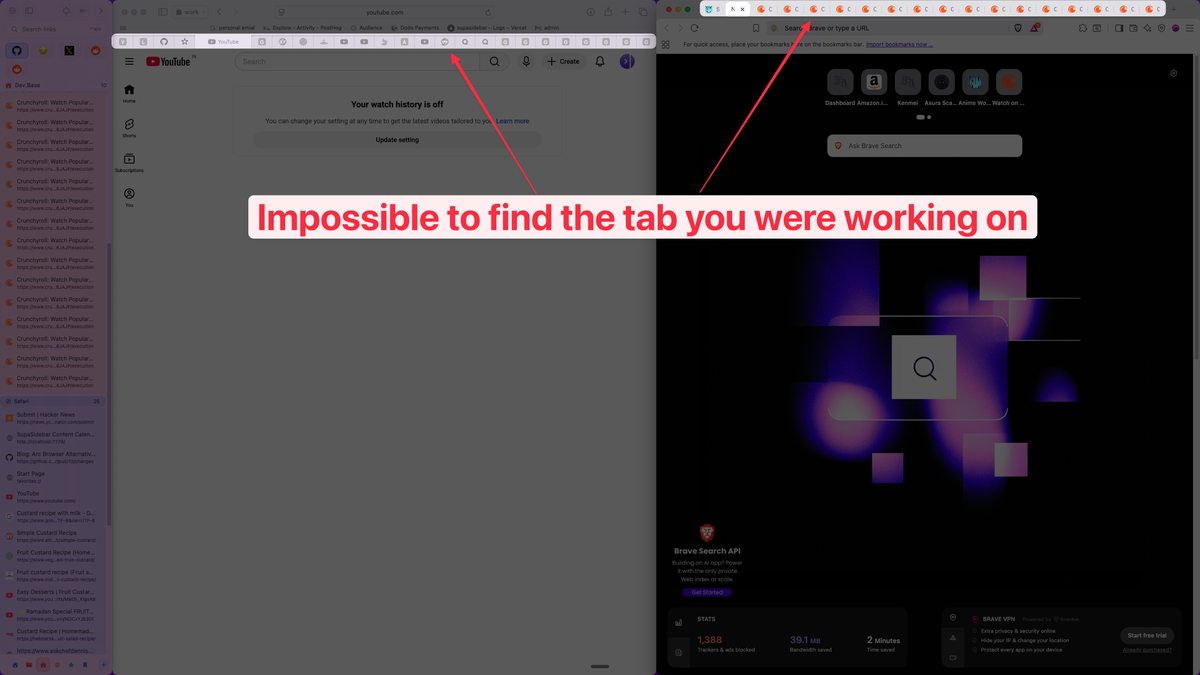
The pain is real and predictable. Tab in Chrome, link from Slack, Cmd-Tab to Safari, can't find it because it was in Chrome. Bookmark saved in one browser, can't find it in the other. Two separate password managers, two separate sync histories, two separate extension setups. The browser choice doesn't actually solve a problem - it just relocates the problem to "managing two browsers."
What helps: assigning each browser a clear role, then having one tool to see across both.
The cross-browser approach: one sidebar for both
The structural problem with running Safari and Chrome together: each browser is a closed system. Safari sees Safari tabs, Chrome sees Chrome tabs. Neither knows the other exists. There's no native macOS feature that shows every open tab across every browser in one place.
A few categories of tools fill the gap:
- Browser pickers like Velja or Browserosaurus: intercept link clicks and route to the chosen browser. Solves outbound routing but not the problem of finding a tab that's already open somewhere.
- Cross-browser extensions like Toby: show tabs across browsers via per-browser extensions, save sessions, organize collections. Requires installing the extension in every browser separately.
- Mac sidebar apps like SupaSidebar: a native Mac app that adds a persistent sidebar showing every open browser tab in one place, regardless of which browser owns the tab. Works without browser extensions.
SupaSidebar is what this section is going to be honest about. Built specifically for the Safari-and-Chrome situation, it's a macOS app that runs alongside any browser and shows a unified sidebar across 25 browsers including Safari, Chrome, Firefox, Arc, Zen, Vivaldi, Brave, Helium, and Dia. The Mac sidebar app category is small (maybe a dozen apps total), and SupaSidebar is one of the few that supports both Safari and Chrome with full Live Tabs visibility and AppleScript-driven actions.
What it does specifically for the Safari-vs-Chrome problem:
- Live Tabs across browsers: every open tab from Safari AND Chrome (and any other supported browser) appears in one sidebar, grouped by browser, with a real browser icon next to each tab. Click a tab to jump to it directly in its native browser - no duplicate-opening.
- Spaces: organize bookmarks and saved links into separate workspaces. The most common setup is one Space for Personal (Safari-tied) and one for Work (Chrome-tied), with iCloud sync across Macs.
- Air Traffic Control (ATC): a rule system that automatically routes URLs to the right browser. Set "all *.figma.com URLs open in Chrome" once - the next Figma link from Slack opens in Chrome regardless of which browser made the click.
- Smart Save (⌘⌃S): one keyboard shortcut to save the current tab from any browser into the current Space. Replaces the choice between bookmarking in Safari or in Chrome with one keystroke that picks neither and saves to the sidebar instead.
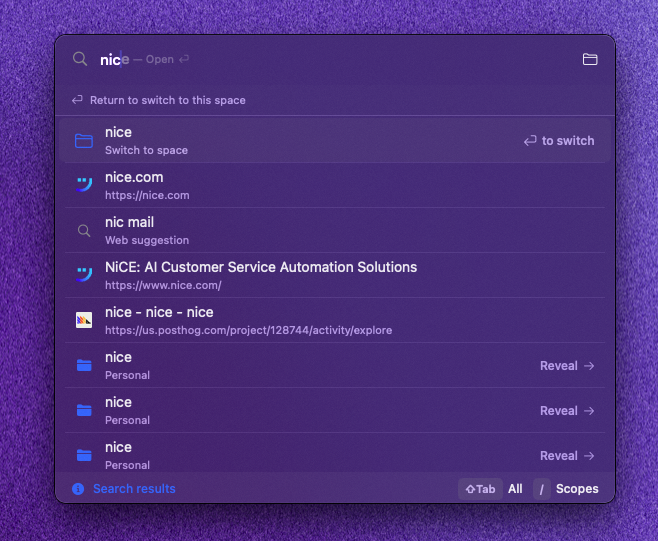
- Command Panel (⌘⌃K): fuzzy search across saved links, browsing history, AND live tabs from every browser at once. Replaces Cmd+T-then-search-history-in-each-browser with one search.
The free tier covers 3 Spaces and all 25 browsers - which fits the most common Personal/Work split out of the box. Macs running macOS 14 or later are supported. The trick is treating the sidebar as the source of truth for where things live, and treating Safari and Chrome as the rendering engines for content the sidebar organizes.
Switching between Safari and Chrome: what to know if migrating
For users actively migrating Safari → Chrome or Chrome → Safari (rather than running both):
Safari → Chrome migration:
- Bookmarks transfer cleanly via Chrome's Import (File → Import Bookmarks and Settings → Safari).
- Passwords need iCloud Keychain → exported via System Settings → Passwords, then imported into Chrome's password manager. Chrome will offer to use the system Keychain, but that breaks cross-platform sync.
- Reading List doesn't have a Chrome equivalent. The closest is Chrome's Reading List feature (separate from bookmarks), which doesn't import.
- Extensions: most have Chrome equivalents. uBlock Origin is now uBlock Origin Lite (Manifest V3 limitations apply).
Chrome → Safari migration:
- Bookmarks: File → Import From → Google Chrome.
- Passwords: Chrome export to .csv, then System Settings → Passwords → Import.
- History: Safari can import Chrome history during the same File → Import From flow.
- Extensions: this is where most Chrome users get stuck. Most Chrome extensions don't have Safari equivalents. Plan for a smaller extension set in Safari.
The neither-fully-Safari-nor-fully-Chrome path: keep both installed, decide which gets which workflow, and use a sidebar app to bridge them. That's what most of the Mac power users in this comparison's target audience actually end up doing.
Conclusion: Picking what to use
Safari is the better default Mac browser for most users in 2026 - longer battery life on M-series hardware (up to 24 hours of video on M4 per Apple's published specs, ~9% lead over Chrome on a 36-hour controlled real-world test), lower RAM use under typical loads (~1.2 GB vs ~1.4-1.7 GB on 10 tabs), and tighter Apple-ecosystem integration via iCloud Keychain, Handoff, and Apple Pay. Chrome remains the better choice for web developers, heavy Google Workspace users, anyone who depends on a specific Chrome extension, and Mac users who also work on Windows or Android.
Different reader segments get different answers. Casual Mac users on a MacBook unplugged through the day: Safari, with Chrome installed only for the rare site that demands it. Web developers: Chrome as the default for DevTools, Safari as the second browser for compatibility testing. Anyone deep in Google Workspace: Chrome for work, Safari for personal browsing. Multi-OS users (Mac plus Windows or Android): Chrome on every device for sync. Mac power users running both browsers daily: pick a "default for everything not work" (usually Safari) and a "default for work" (usually Chrome), and put one tool on top to keep the tab pile manageable across them.
For Mac users running both Safari and Chrome side by side - which is the realistic majority - the unified sidebar approach beats trying to keep tab state straight in each browser separately. Try SupaSidebar (free tier) if a Mac sidebar across both browsers fits the workflow. For users who only want one browser, the Mac browser pillar covers the full landscape including Brave, Firefox, Edge, and the post-Arc options.
Why we recommend SupaSidebar for the dual-browser setup
SupaSidebar is a macOS app that brings Arc's sidebar to every browser - one sidebar for tabs, bookmarks, files, and apps across 25 browsers including Safari, Chrome, Firefox, Arc, Zen, Vivaldi, Brave, Helium, and Dia. For Mac users running Safari and Chrome together, it solves the specific problem neither browser solves alone: seeing every open tab across both browsers in one place, saving any tab with a single keyboard shortcut regardless of which browser owns it, and routing new links to the right browser via rules instead of manual copy-paste. Free version available, runs on macOS 14+, and imports existing Arc sidebars in three clicks.
FAQ
Is Safari faster than Chrome on Mac in 2026?
On Apple Silicon Macs, Safari and Chrome are within 5-10% of each other on standard benchmarks (Speedometer 3, JetStream, MotionMark). Safari has a slight edge on WebKit-tuned sites and integrates better with macOS GPU acceleration. Chrome wins on V8-heavy JavaScript workloads. For everyday browsing, neither is meaningfully faster than the other.
Does Chrome really use more battery than Safari on a Mac?
Yes, but the gap is much smaller than the 2020 advice suggested. Apple's published numbers show up to 24 hours of video streaming on Safari on the M4 14" MacBook Pro. Independent 2024 testing by Birchtree on an M2 Pro found Chrome 128 used about 9% LESS battery than Safari 17.6 over 36 hours of identical workloads. The honest answer: Safari still wins for sustained light loads (long workdays, idle browsing), but the margin is small enough that the right answer for most users is "use the browser whose features you actually need."
Can Safari run Chrome extensions on Mac?
No. Safari uses its own Safari Web Extensions API (built on the WebExtensions standard but not directly Chrome-compatible). Some extensions are available for both stores, but a Chrome extension cannot be installed directly into Safari. The Safari extension catalog is roughly 250 listings vs Chrome's 200,000+.
Is Chrome better than Safari for web development?
Yes, for most web development workflows in 2026. Chrome DevTools is the industry standard. React, Vue, Svelte, and Angular DevTools support Chrome first. Lighthouse, Recorder, performance profiling, and most framework-specific debugging extensions live in the Chrome ecosystem. Safari Web Inspector has improved significantly since 2023 but lags on framework debugging. Most web developers run Chrome as their primary browser and use Safari for compatibility testing.
How do you use Safari and Chrome together on Mac without losing tabs?
The dominant approach: assign each browser a clear job (Safari for personal, Chrome for work, or similar), then use a sidebar tool that shows tabs from both browsers in one place. SupaSidebar is the most common Mac-native option for this - it shows live tabs from Safari, Chrome, and 23 other browsers in a single sidebar, with a one-shortcut Save All Tabs feature and rule-based routing.
Which is more private: Safari or Chrome on Mac?
Safari, by default, with no configuration required. Safari ships with Intelligent Tracking Prevention (ITP), Private Relay (with iCloud+), Hide My Email, and on-device fingerprinting protection. Chrome ships with Google sign-in and telemetry on by default, with privacy-improving features like Privacy Sandbox replacing third-party cookies. Chrome can be configured to a Safari-comparable privacy position with effort (sign out of Google, disable telemetry, install uBlock Origin Lite or AdGuard). Safari gets there out of the box. For maximum privacy in a Chromium browser, Brave is a better choice than Chrome.
Is Safari good enough for Google Workspace (Gmail, Docs, Sheets)?
For most use cases, yes. Gmail, Docs, Sheets, and Calendar work fine in Safari and have for years. Edge cases that still favor Chrome: presentation mode in Slides (smoother), large spreadsheets in Sheets (Chrome handles more rows responsively), and a few collaboration features that Google ships to Chrome first. Heavy Google Workspace users typically default to Chrome for these reasons. Light users can stay in Safari without missing much.
Does Safari support multiple profiles like Chrome does?
Yes, since Safari 17 (2023). Safari profiles separate browsing history, bookmarks, extensions, and Tab Groups by profile. Chrome has had profiles since 2014 and they're more polished, but Safari's implementation covers the basics. Both browsers support pointing different profiles at different Google or iCloud accounts. SupaSidebar's Air Traffic Control can route URLs to specific profiles in either browser.
By Kshetez Vinayak, founder of SupaSidebar. Last updated June 10, 2026.