
By Kshetez Vinayak, founder of SupaSidebar. Last updated October 7, 2026.
TL;DR
TL;DR:
Search your browser history in SupaSidebar through Command Panel → Recent, including eligible imports from the last 30 days. SupaSidebar searches the imported history index locally on your Mac, separate from the iCloud saved-link library. Preferences → Privacy & Browsers lets you choose history sources, pause recording, or clear stored activity. The controls table and screenshot walkthrough below show which setting to use for each job.
Quick navigation:
What else to read
- Want shortcuts beyond history search? → Command Panel features.
- Want to keep useful pages across browsers? → Saved bookmarks across browsers.
- Need one place for work spread across browsers? → The unified sidebar workflow.
- Here to find a visited page or control stored history? You're in the right place. Keep reading.
At a glance
| Control | Scope | Stops new collection? | Deletes stored records? | Best for |
|---|---|---|---|---|
| History off | One browser | Imports | No | Excluding a history source |
| Private Mode | One browser | Recents and imports | No | Pausing one browser |
| Incognito Mode | All browsers | Recents, imports, search history, ranking | No | A private session |
| Clear imported history | One browser | No | Imported visits | Removing imported records |
| Clear history & unsaved Recents | One browser | No | Imports and unsaved Recents | A broader cleanup |
Before searching, check your browser
You remember the page, but not the browser. SupaSidebar's Recent search gives you a place to look before retracing every tab.
You'll learn:
how to find a visited page, keep imported history on your Mac, and choose what SupaSidebar records or clears.
Before you start:
SupaSidebar needs access to a supported browser's history files to import older visits. Open Preferences → Privacy & Browsers and check its History setting and status. The screenshots use installed SupaSidebar 1.3.2.
Imports support 12 browser types: Chrome, Brave, Edge, Vivaldi, Arc, Firefox, Zen, Atlas, Comet, Helium, Firefox Developer Edition, and Orion. Safari and DuckDuckGo history imports aren't available in this version. A dash marks an unsupported feature. Recent activity recorded while SupaSidebar was running is a separate source, so a Safari page can still appear in Recent.
One user described shared history across browsers as a feature they had been waiting for. The practical benefit is being able to look for the page before remembering which browser held it.
Search your browser history in SupaSidebar
Use the Command Panel's Recent scope to find a visited page by its title or website name. The default shortcut is ⌘⌃K.
- Open the Command Panel with ⌘⌃K (Command + Control + K), the default shortcut.
- Choose Recent.
- Type a page title or website name.
- Select the result and press Return to open it.
Try a website you remember, such as docs.supasidebar.com. The Recent Links documentation explains how recorded visits and eligible history imports appear together, including visits imported from times when SupaSidebar was closed.
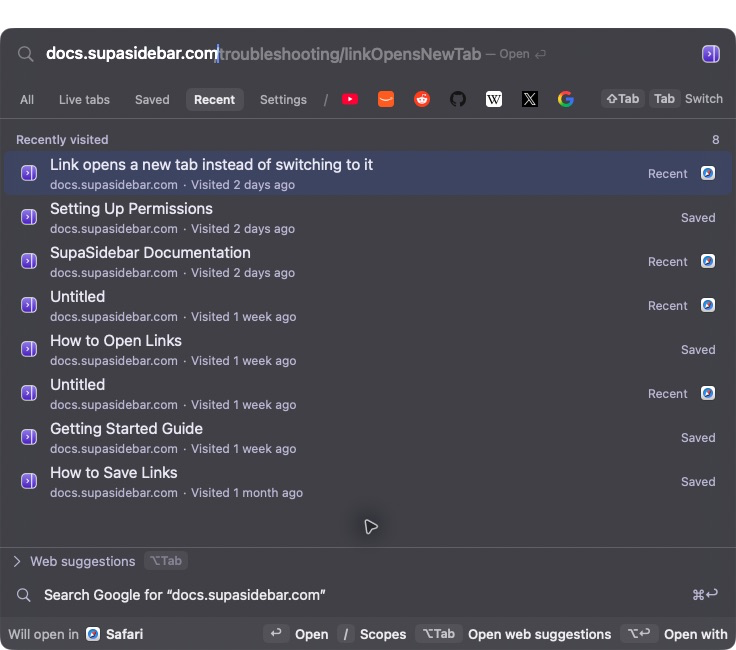
A website name is enough to start looking for a page in Recent.
Your imported history stays on your Mac
SupaSidebar keeps imported browser history in a local search index. That index isn't added to your iCloud saved-link library.
Saving a result as a link puts it in the saved-link library, which has its own iCloud behavior. SupaSidebar also has separate usage analytics controls; the privacy policy explains those controls. The local-history promise applies to the imported index.
Choose which browsers contribute history
SupaSidebar gives each browser separate Live Tabs, Recents, and History controls in Preferences → Privacy & Browsers. History controls imports; Recents controls new activity recorded while SupaSidebar runs.
To stop imports from one browser, uncheck its History box. Existing records remain searchable until you clear them. Turning collection off and deleting stored activity are separate actions.
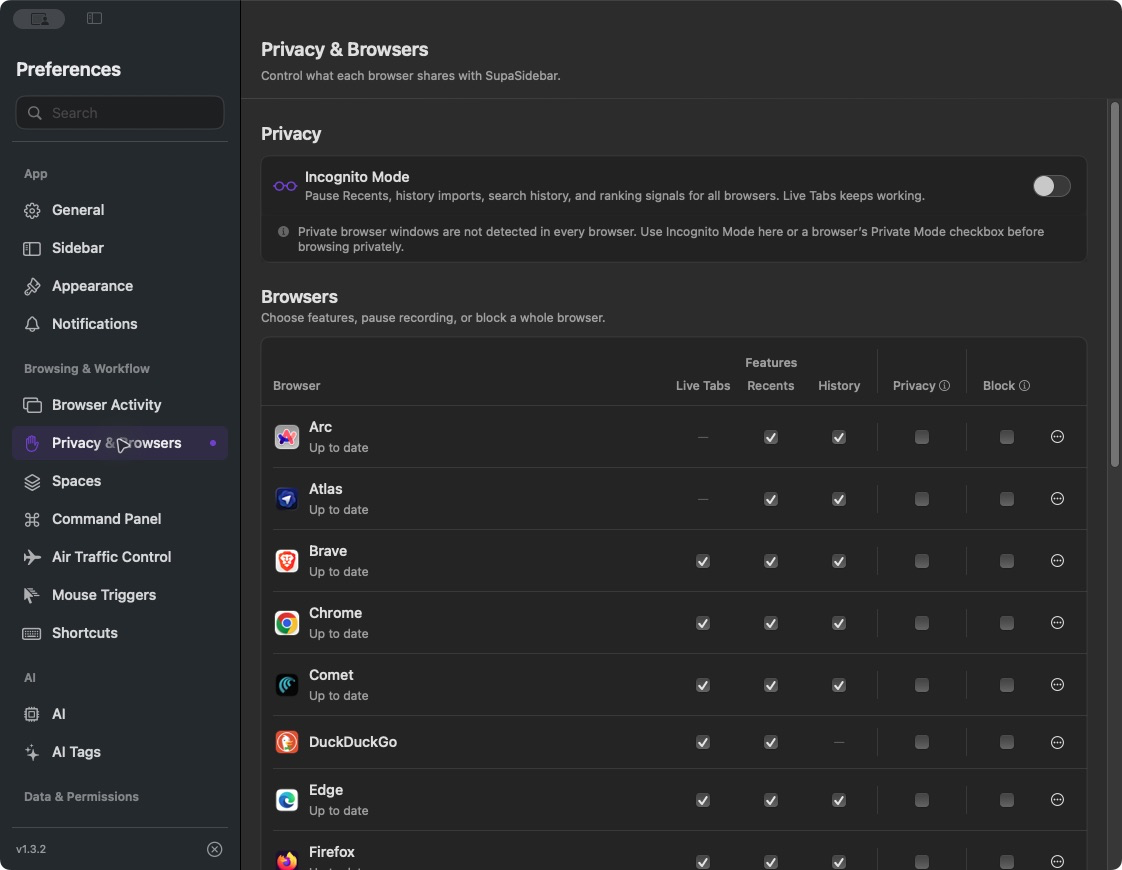
The installed app’s Privacy & Browsers settings.
Pause recording before a private session
SupaSidebar's Incognito Mode pauses new Recents, history imports, search history, and ranking signals across browsers. Live Tabs keep working. Enable it at the top of Privacy & Browsers before the session.
For one browser, use its Privacy checkbox instead. That enables Private Mode, pausing its Recents and imports. Previously stored activity remains in both cases.
Private browser windows aren't detected in every browser.
Use SupaSidebar's own pause control before browsing privately. These controls govern SupaSidebar's record and do not change the browser's privacy settings. See the Incognito Mode guide.
Clear history without deleting saved links
SupaSidebar's browser ••• menu offers two clearing choices. Both preserve saved links and the browser's own history, as the Privacy & Browsers guide explains.
- Open Preferences → Privacy & Browsers.
- Open ••• beside the browser.
- Choose Clear imported history… for imported visits, or Clear history & unsaved Recents… to include unsaved Recent pages.
- Read the confirmation before clearing.
A new visit can appear again. A page visited in another browser may also remain. For all-browser cleanup, expand Stored Activity and use Clear Recents….
Missing a page? Check the import status
Check the browser's status before rebuilding. A source that needs access cannot supply its history just because the History checkbox is checked.
In Stored Activity, Refresh requests another import check. Reset & rebuild history rebuilds eligible imports from the last 30 days, preserving clearing choices and exclusions for private periods.
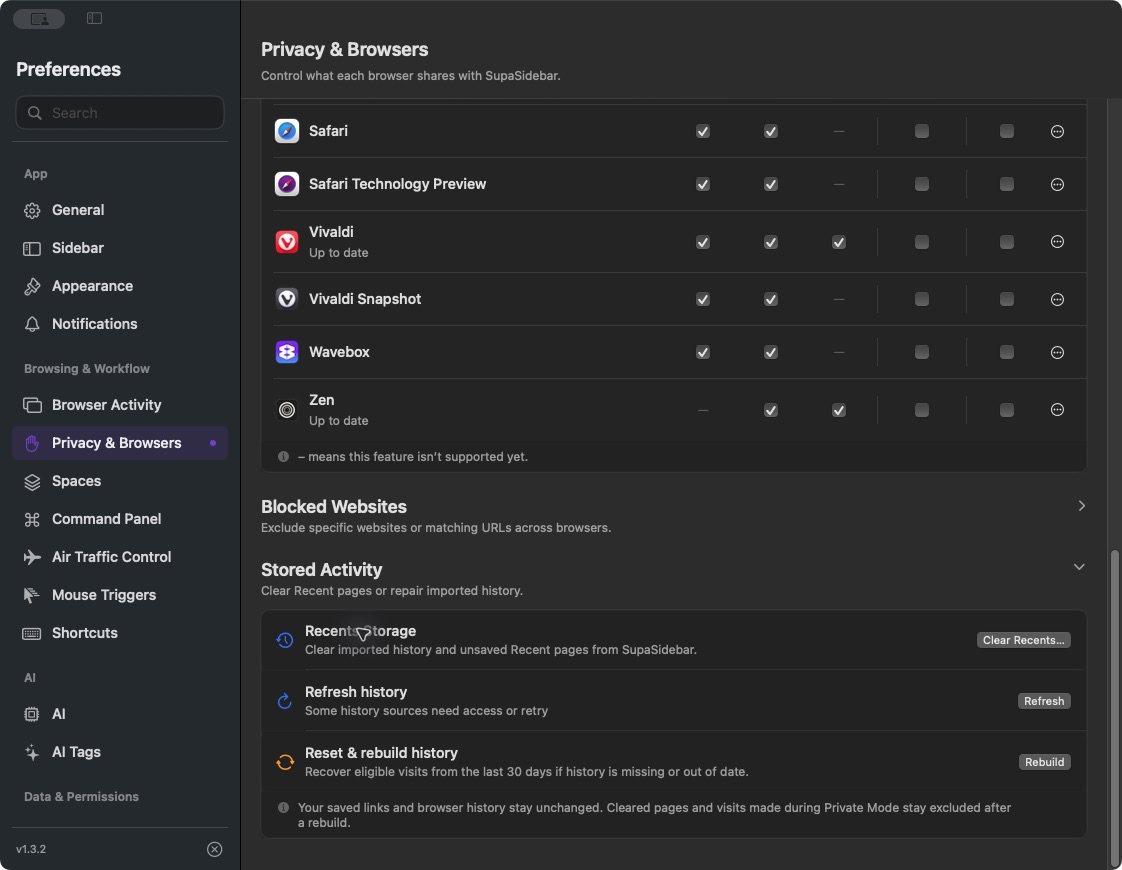
Stored Activity expanded in the installed app. The status message shows that some history sources need access or retry.
Conclusion
SupaSidebar's Recent search is a practical place to start when you remember a page but cannot find the tab. It combines recorded activity with eligible browser-history imports from the last 30 days, and the imported index stays on your Mac.
If you move between supported browsers, enable History only for the browsers you want included and search by title or site. If you use Safari or DuckDuckGo, keep the distinction clear: recorded Recents can help, but older history from those browsers cannot be imported in this version.
For a private session, pause recording before you begin with Incognito Mode or a browser's Privacy checkbox. For a cleanup, choose a clear action and check whether you want imported history alone or unsaved Recents removed too. If a page is missing, read the source status before reaching for Rebuild; access problems and unsupported browsers need a different response.
Start with one page you remember visiting. Search for its website, check the result's title and visit time, then review Privacy & Browsers so the settings match what you want SupaSidebar to retain.
Frequently Asked Questions
Can SupaSidebar find pages visited while it was closed?
Yes. Supported history imports can recover eligible visits from the last 30 days, including visits made while SupaSidebar wasn't running.
Does imported history sync through iCloud?
No. SupaSidebar stores imported history in a local index on the Mac, separate from the iCloud saved-link library.
Does turning History off delete existing records?
No. Turning History off stops new imports and keeps existing records. Use the browser's three-dot menu to clear stored imported history.
Does clearing history in SupaSidebar delete browser history?
No. SupaSidebar's clearing controls keep the browser's own history and saved links intact.
Does a private browser window automatically pause SupaSidebar?
Not reliably across every browser. Enable SupaSidebar's Incognito Mode or that browser's Private Mode before browsing privately.
Kshetez Vinayak, founder of SupaSidebar.