
By Kshetez Vinayak, founder of SupaSidebar. Last updated November 17, 2026.
TL;DR
Firefox bookmarks that stop working or go missing on a Mac can usually be brought back, because the common causes all leave a copy somewhere. The bookmarks are hidden, sitting in a different Firefox profile, or stuck inside a damaged places.sqlite, the single file in your profile where Firefox stores every bookmark along with your browsing history. Work through the 8 fixes below in order, cheapest and safest first, because Firefox also keeps up to 15 automatic bookmark backups you can restore before you ever touch that file. Once the bookmarks are back, keeping a copy of the links that matter outside the Firefox profile, which is what SupaSidebar does, means the next broken profile costs you nothing.
Quick navigation
- Only the bookmarks toolbar is missing or empty? → Firefox Bookmarks Toolbar Guide
- Want a backup file, or to move bookmarks to another computer? → How to Export and Import Firefox Bookmarks
- Bookmarks fine in Firefox but missing in Chrome or Safari? → Cross-Browser Bookmark Sync on Mac
- Done with browser bookmarks altogether? → Best Bookmark Manager for Mac and Chrome (2026)
- Bookmarks broken, missing or refusing to save? You are in the right place. Keep reading.
At a glance
| What you see | Most likely cause | Fix to try | Risk to your data |
|---|---|---|---|
| Only Firefox's default starter bookmarks | Firefox opened a different profile | Fix 3 | None |
| Toolbar gone, Bookmarks menu still full | Toolbar switched off | Fix 2 | None |
| One bookmark or folder missing | Moved to another folder, or sitting in an import folder | Fix 1 | None |
| "The bookmarks and history system will not be functional" | places.sqlite in use or damaged | Fix 4, then fix 8 | History lost if rebuilt |
| New bookmarks vanish after every restart | places.sqlite write-protected or damaged | Fix 8 | History lost if rebuilt |
| Firefox will not add or change bookmarks | A bookmark extension, or database trouble | Fix 6, then fix 5 | None |
| Everything gone inside the right profile | Deletion or database damage | Fix 7 | Overwrites anything newer than the backup |
Why are Firefox bookmarks not working on a Mac?
Firefox bookmarks not working on a Mac usually traces back to the profile, not to the bookmarks themselves. A Firefox profile is the set of files where Firefox keeps your bookmarks, passwords and preferences, stored separately from the app itself. Every bookmark lives in one database file inside it, places.sqlite, which also holds your browsing history, while site icons sit next to it in favicons.sqlite (Mozilla Support).
That design explains why bookmarks seem to vanish. Firefox can start with a different profile, which shows only the default bookmarks. The bookmarks can exist but sit hidden behind a switched-off toolbar or view. Or places.sqlite itself can be locked by another program, write-protected, or damaged after an unexpected shutdown, which is when bookmarks stop saving or Firefox throws an error at launch.
Firefox guards against that last case on its own. It writes automatic bookmark backups, keeps up to 15 of them in a bookmarkbackups folder inside the same profile, and refills a rebuilt places.sqlite from the newest one.
That leads to the least obvious fact in this whole topic. Deleting places.sqlite sounds like the riskiest fix on the list, yet for bookmarks it usually is not, because Firefox restores them from that backup. The real casualty is browsing history, since Firefox keeps only one copy of the history file and makes no automatic backups of it.
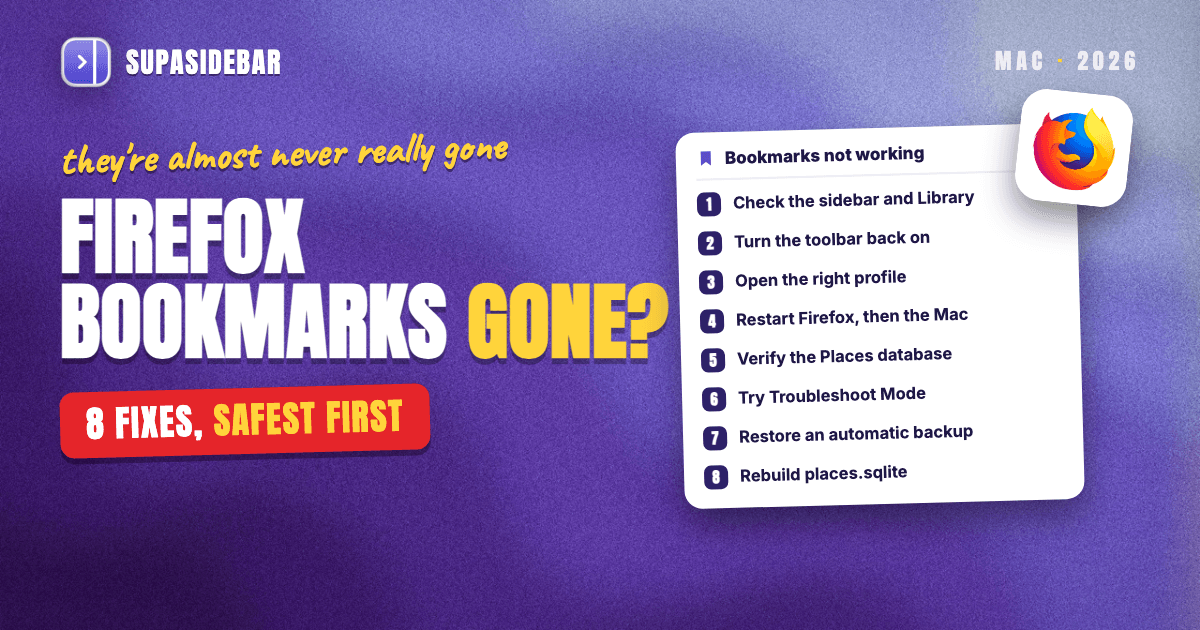
8 fixes for Firefox bookmarks not working, in order
The order runs from zero-risk checks to the one fix that deletes your history. Stop at the first one that brings your bookmarks back. Every step below comes from Mozilla's own support pages for current Firefox on macOS.
1. Look in the bookmarks sidebar and Library before assuming anything is gone
Press ⌘B to open the bookmarks sidebar, or ⌘⇧O to open the Library window that lists every bookmark and folder, per Firefox's keyboard shortcuts reference. The Bookmarks menu in the macOS menu bar shows the same full tree.
Mozilla's recovery guide notes that a bookmark which looks missing "may have been moved into another folder rather than deleted" (Mozilla Support). Press ⌘F inside the Library and type part of the bookmark's name before trying anything else.
Bookmarks imported from another browser hide in a specially named folder such as From Google Chrome, which Firefox places at the end of the Bookmarks Toolbar and at the bottom of the Bookmarks menu. How imports and exports work in Firefox is covered step by step in the Firefox export and import guide.
2. Switch the Bookmarks Toolbar back on if only the bar disappeared
If the Bookmarks menu still lists everything and only the strip under the address bar is gone, the toolbar was switched off, not emptied. On a Mac, click View in the menu bar, choose Toolbars, then Bookmarks Toolbar, or press ⌘⇧B.
Toolbar display modes, a toolbar that shows up empty, and toolbar customization each have their own walkthrough in the Firefox Bookmarks Toolbar guide, so they are not repeated here.
3. Check whether Firefox opened a different profile
If Firefox shows only its default starter bookmarks, it has most likely started with a different profile rather than lost yours. Type about:profiles in the address bar and press Return. The page lists every profile on the Mac, marks the current one with "This is the profile in use and it cannot be deleted", and lets you launch any other profile in a new window to check its bookmarks (Mozilla Support).
This happens more than it should because Firefox has used a dedicated profile for every installation since Firefox 67, including Nightly, Beta, Developer Edition and ESR (Mozilla Support). Install a second copy, or run Firefox straight from the downloaded .dmg file instead of the Applications folder, and Firefox can open a fresh, empty profile. Mozilla's advice is to move Firefox into Applications and never run it from the disk image.
If another profile holds your bookmarks, switch to that profile instead of restoring an older backup, and do not delete any profile until the right one is confirmed. How profiles work across Mac browsers is explained in the browser profiles guide. If the bookmarks are missing on this Mac but still show on your phone or another computer, sign in to the same Mozilla account with bookmarks turned on in Sync.
Missing bookmarks right after an update is the pattern Mozilla's recovery guide sends to this profile check first. One user on Mozilla Connect described losing bookmarks, the toolbar and a customized homepage after updating to Firefox 136.0.4 in March 2025, the second time that year, having gone two to three weeks without bookmarks the first time (Mozilla Connect). The post calls bookmarks "extremely important in my day to day life".
4. Restart Firefox, then restart the Mac
If Firefox greets you with "The bookmarks and history system will not be functional because one of Firefox's files is in use by another application", places.sqlite is locked. Mozilla names two common causes, another program holding the file and damage from an unexpected shutdown such as a power failure, and says restarting the computer and then Firefox is the fix most of the time (Mozilla Support).
Quit Firefox from the Firefox menu rather than closing its window, since a Mac app keeps running after its last window closes. The error text also says some security software can cause the problem, so pause any scanner working through the profile folder while you test.
5. Run Verify Integrity on the Places database
Firefox runs routine maintenance on its bookmarks and history database, which Mozilla calls the Places database, and the Verify Integrity button runs those same tasks on demand (Mozilla Support).
Type about:support in the address bar, or open Help in the menu bar and choose More Troubleshooting Information. Scroll to the Places Database section near the bottom and click Verify Integrity. Restart Firefox afterwards and test the bookmarks again before moving on.
6. Test in Troubleshoot Mode to rule out an extension
When Firefox refuses to add or change bookmarks, Mozilla's first question is whether a bookmark-related extension is installed, for example one that syncs bookmarks (Mozilla Support). Troubleshoot Mode, called Safe Mode in older versions, is the quickest way to find out.
Open the Firefox menu, choose Help and Report, select Troubleshoot Mode, then click Restart, or hold the Option key while launching Firefox (Mozilla Support). In the window that appears, click Open. The other button, Refresh Firefox, makes permanent changes.
Troubleshoot Mode turns off every add-on, hardware acceleration and some customizations for that session only. If bookmarks behave in Troubleshoot Mode, an extension or theme is the cause. Disable bookmark-related extensions first, then re-enable the rest one at a time.
7. Restore bookmarks from one of Firefox's automatic backups
Firefox saves up to 15 automatic bookmark backups in the profile's bookmarkbackups folder, and restoring one brings back bookmarks that disappeared from an otherwise working profile (Mozilla Support).
- Click the Firefox menu button, choose Bookmarks, then Manage bookmarks at the bottom to open the Library.
- Click the Import and Backup button in the Library toolbar and choose Restore.
- Pick a dated backup from the list, or use Choose File… for a manual backup you made earlier.
- Confirm, and Firefox replaces your bookmarks with the backup's contents.
Pick the date carefully. A restore replaces every current bookmark, so Mozilla's guidance is a backup newer than the last time you know your bookmarks were present but older than the moment they disappeared. The difference between these JSON backups and a portable HTML export is explained in the export and import guide.
8. Unlock or rebuild the places.sqlite file
Use this fix when bookmarks you add disappear after every restart, or when the "will not be functional" error survives a reboot. Start with the gentle half.
Unlock the file.
A write-protected places.sqlite lets Firefox read your bookmarks but never save changes, which is exactly why new bookmarks vanish on restart (Mozilla Support).
- Open Help in the menu bar, choose More Troubleshooting Information, and click Show in Finder next to Profile Folder.
- Quit Firefox from the Firefox menu.
- Select
places.sqlite, choose File, then Get Info. - Clear the Locked checkbox.
Rebuild the database.
If unlocking does not help, have Firefox build a fresh one. These steps follow Mozilla's current instructions for the "will not be functional" error.
- Make a manual bookmark backup first if Firefox still opens (optional but cheap).
- Open the profile folder as above, then quit Firefox and wait until it has fully closed.
- Rename
places.sqliteandfavicons.sqliteby adding.oldto each name, so the originals stay as a fallback. - Delete
places.sqlite-wal,places.sqlite-shm,favicons.sqlite-walandfavicons.sqlite-shmif they exist. Older profiles may have aplaces.sqlite-journalfile instead. - Reopen Firefox.
Firefox creates new database files and automatically restores your bookmarks from the most recent file in bookmarkbackups (Mozilla Support). The cost is browsing history, which also powers address-bar suggestions, because, in Mozilla's words, "there are no automatic backups for browsing history as there are for bookmarks" (Mozilla Support).
When none of the 8 fixes work
Refresh Firefox is the last in-browser option. It creates a new profile and carries over bookmarks, browsing and download history, passwords, cookies, autofill data and the personal dictionary, while removing extensions, themes, website permissions, modified preferences and toolbar customizations (Mozilla Support).
Start it from Help, then More Troubleshooting Information, then the Refresh Firefox button. Firefox moves the old profile to a folder named Old Firefox Data on the desktop, so keep that folder until everything is confirmed back.
Mozilla is also direct about when recovery is impossible. Bookmarks cannot come back if they were deleted before any backup existed, if the only profile holding them was permanently deleted, if they never synced to another device, or if every available backup was made after they disappeared (Mozilla Support).
Why every fix points at the same profile folder
Look back at the 8 fixes and nearly every one of them points at the same folder. The bookmarks, the 15 automatic backups, and the database Firefox rebuilds from those backups all live inside one Firefox profile. When that profile is replaced, damaged or deleted, the safety net goes with it, and fix 7 has nothing left to restore.
Firefox Sync does not close that gap. Mozilla's own restore guide warns that Sync "does not provide a true backup service, nor is it intended to be used as one", because it mirrors every change as it happens (Mozilla Support). An HTML export kept outside the profile is the manual answer, as long as someone remembers to make a fresh one.
So the real question after the fix is where the links that matter should live, if not inside the one folder that keeps breaking.
Keep your saved links outside the Firefox profile with SupaSidebar
SupaSidebar is a Mac sidebar app that keeps your saved links outside every browser profile, so a damaged places.sqlite or a lost Firefox profile no longer takes them with it. It imports Firefox bookmarks straight from places.sqlite, then holds them in the app, synced across your Macs over iCloud and backed up on a schedule you choose.
The import reads Firefox directly, with no HTML export step. A profile picker lets you choose which Firefox profiles to bring in, each chosen profile becomes its own Space, and the import includes Mobile Bookmarks and reads a consistent snapshot even while Firefox is running (SupaSidebar docs). Run it while Firefox is healthy, because the importer can only read bookmarks that are already on the Mac.
SupaSidebar's automatic backups then save copies of your Spaces, folders, saved links, tags and notes to a folder you pick, daily, weekly, monthly or every three months, keeping 10 copies by default and up to 100 (SupaSidebar docs). Exporting back out to a standard bookmarks HTML file is built in, so the links can always return to Firefox or any other browser.
Users describe the same benefit in their own words. Alberth M., who used Raindrop and Pinboard before, wrote, "The single big annoyance that SupaSideBar solves for me is sharing browser bookmarks between different browsers on my Mac." Another user emailed after Arc's sync wiped their Spaces and tabs to say the copy in SupaSidebar was what spared them a total loss.
Here is what that looks like for someone who uses Firefox for research and personal browsing and Chrome for work.
| Space | Links inside |
|---|---|
| Research | scholar.google.com, arxiv.org, developer.mozilla.org, a Zotero web library, two papers in progress |
| Work | the team's Notion, github.com, figma.com, the staging URL, calendar.google.com |
| Personal | the bank login, a recipe site, the gym booking page, youtube.com |
Switching Spaces swaps the whole visible set in one click, and the Command Panel on ⌘⌃K searches every Space at once. Each link opens in whichever browser you choose, so the Research Space still works on a day Firefox will not start.
Honest scope. SupaSidebar is a Mac app, not a browser and not a browser extension, and it needs macOS 14 or later. It does not repair Firefox's database, so the 8 fixes above are still how you get Firefox itself working again. iCloud sync is not a backup on its own, which is why the scheduled backups exist, and SupaSidebar has to be open for a backup to save. Search covers link titles, URLs and folder names, not the text inside pages. More than 3,000 Mac users have tried SupaSidebar so far.
Best for
Firefox users whose bookmarks hold work they cannot afford to rebuild, and anyone who also opens Chrome or Safari on the same Mac.
Conclusion
Firefox bookmarks that stop working on a Mac can be recovered whenever a copy still exists in another profile, in Sync or in one of Firefox's 15 automatic backups, which is why the fixing order matters more than any single trick. Work the 8 fixes in order and stop at the first one that brings them back.
If Firefox shows only default bookmarks, check profiles before restoring any backup. If bookmarks refuse to save or the "will not be functional" error appears, restarting, Verify Integrity and a rebuilt places.sqlite are the path, and the rebuild costs history, not bookmarks. If everything disappeared inside the right profile, restore the newest backup from before the loss. If Firefox is one browser among several on the Mac, the fixes bring the bookmarks back but leave them in the same fragile place they were lost from.
Once they are back, export an HTML copy to somewhere outside the profile, or try SupaSidebar (free version available) and import them straight from places.sqlite, so the next broken profile is an inconvenience instead of a loss.
Why we recommend SupaSidebar
SupaSidebar is a macOS app that brings Arc's sidebar to every browser - one sidebar for tabs, bookmarks, files, and apps across 32+ browsers including Safari, Chrome, Firefox, Edge, Arc, Brave, Vivaldi, Dia, and Orion. For Firefox users specifically, it imports bookmarks directly from places.sqlite with a profile picker, keeps them synced across your Macs over iCloud and backed up on a schedule, and opens them in Firefox, Safari or Chrome from the same sidebar. It is not a browser and not an extension, so nothing in it depends on a Firefox profile staying healthy.
FAQ
Why are my Firefox bookmarks not working?
Firefox bookmarks usually stop working on a Mac for one of three reasons. Firefox opened a different profile, the view that shows the bookmarks is hidden, or the places.sqlite database that stores every bookmark is locked, write-protected or damaged. Check about:profiles and the Library (Command-Shift-O) first, then restart the Mac, run Verify Integrity in about:support, and restore an automatic backup only if the bookmarks are truly gone.
Where did my bookmarks go in Firefox?
In most cases they are still on the Mac, in another Firefox profile or in a folder you did not expect. Type about:profiles in the address bar to see every profile and open the others in a new window. Imported bookmarks sit in a folder named after the source browser, such as From Google Chrome. If the bookmarks are truly gone from the right profile, Firefox keeps up to 15 automatic backups you can restore from the Library's Import and Backup menu.
Why is my bookmarks bar not showing in Firefox?
The Bookmarks Toolbar has been switched off, which does not delete anything. On a Mac, choose View, then Toolbars, then Bookmarks Toolbar from the menu bar, or press Command-Shift-B. If the bar appears but is empty, the bookmarks are probably stored in a different folder, and the Library (Command-Shift-O) will show where.
Why do my Firefox bookmarks disappear after a restart?
Bookmarks that save but vanish after every restart usually mean places.sqlite is write-protected or damaged. Quit Firefox, open the profile folder from about:support, select places.sqlite, choose File then Get Info, and clear the Locked checkbox. If that does not help, rename places.sqlite and favicons.sqlite so Firefox rebuilds them from the newest bookmark backup, at the cost of browsing history.
What does "The bookmarks and history system will not be functional" mean?
Firefox shows this error when it cannot access places.sqlite, the database that holds bookmarks and history, or favicons.sqlite, which holds site icons. Mozilla names another program using the file and damage from an unexpected shutdown as the common causes. Restarting the Mac and then Firefox fixes it most of the time. If it does not, renaming both files makes Firefox create fresh ones and restore bookmarks from its latest backup.
Will deleting places.sqlite delete my Firefox bookmarks?
Not if a bookmark backup exists, and Firefox creates those automatically. When Firefox starts without places.sqlite, it creates a new one and restores bookmarks from the most recent file in the bookmarkbackups folder. Browsing history is lost, because Firefox keeps no automatic backup of history. Renaming the file instead of deleting it keeps a fallback copy.
Does Refresh Firefox delete bookmarks?
No. Refresh Firefox keeps bookmarks, browsing and download history, passwords, cookies, autofill data and the personal dictionary. It removes extensions, themes, website permissions, modified preferences and toolbar customizations, and it saves the old profile to an Old Firefox Data folder on the desktop.
By Kshetez Vinayak, founder of SupaSidebar. Last updated November 17, 2026.