
By Kshetez Vinayak, founder of SupaSidebar. Last updated November 18, 2026.
TL;DR
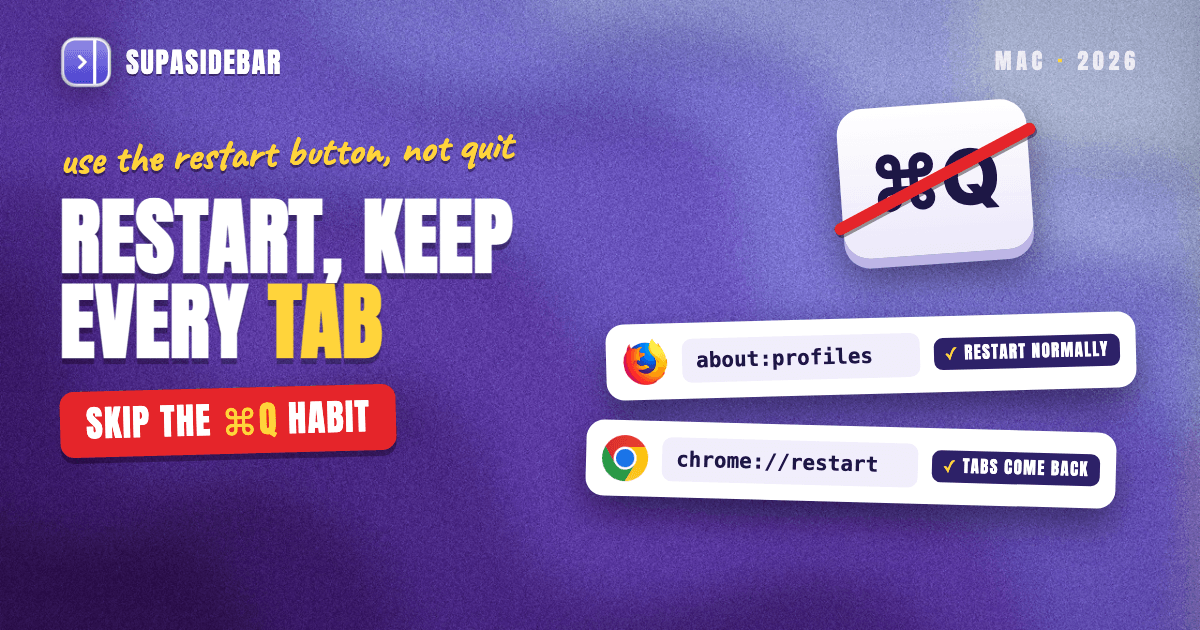
The safest way to restart Firefox or Chrome on a Mac without losing tabs is the browser's own restart command, not ⌘Q followed by a manual relaunch. A restart command is a quit plus an automatic relaunch, and both browsers mark it in their source code as a one-time "restore the session" event, so Firefox's Restart to update Firefox and Restart normally… buttons, and Chrome's Relaunch and chrome://restart, bring every regular window back even when the startup setting is off. A plain quit brings tabs back only when one switch is on, Open previous windows and tabs in Firefox or Continue where you left off in Chrome, and only if the browser was actually quit rather than closed window by window. Private and Incognito windows never come back. The routes, a Mac trap Mozilla has tracked since 2012, and what to do when tabs vanish anyway are below.
Quick navigation
- Browser crashed or quit on its own? → How to Restore Tabs After a Browser Crash
- Chrome reopens yesterday's tabs every morning, or never does? → Chrome Keeps Reopening Your Last Session on Mac?
- Closed one tab by accident? → How to Restore Closed Tabs in Every Browser
- Firefox showing a sessionrestore address instead of your tabs? → What internal://local/sessionrestore?url= Means on Firefox
- About to restart Firefox or Chrome on purpose? You are in the right place. Keep reading.
Which restart keeps your tabs, at a glance
| Restart route | Browser | Tabs come back? | The catch | Best for |
|---|---|---|---|---|
| About Firefox > Restart to update Firefox | Firefox | Yes, one-time restore | Appears only after an update downloads | Applying a Firefox update |
| about:profiles > Restart normally… | Firefox | Yes, one-time restore | Multi-profile setups can land in another profile | Restarting Firefox any time |
| Help and Report > Troubleshoot Mode… > Restart | Firefox | Yes, per Mozilla | Add-ons stay off until the next normal quit | Testing whether an add-on is the problem |
| chrome://restart | Chrome | Yes, one-time restore | No confirmation, and an admin policy can block it | Restarting Chrome any time |
| About Google Chrome > Relaunch | Chrome | Yes, per Google | Appears only when an update is waiting | Applying a Chrome update |
| ⌘Q, then reopen by hand | Both | Only if the startup setting is on | Closing windows first can empty the session | Daily quits and full Mac restarts |
Why a restart command beats quitting and reopening
A browser restart is a quit followed by an automatic relaunch, and the difference that matters is who triggers the relaunch. When ⌘Q quits Firefox or Chrome and the browser is reopened by hand, the browser reads its startup setting to decide what to show. When the browser restarts itself, it flags the next launch as a restore before it quits.
Chrome's code says so in plain words. The routine behind both Relaunch and chrome://restart saves every window's session state, then sets a flag that Chromium's own application lifetime code comments as "Set the flag to restore state after the restart." Google's update help page describes the visible result, saying Chrome saves its open tabs and windows and reopens them when it restarts.
Firefox works the same way. Its session store sets a one-time resume flag whenever the application restarts, unless Firefox is set to always use private browsing. Mozilla's session restore article, updated in October 2026, confirms that tabs and windows should come back on their own after an update restart and after a restart into Troubleshoot Mode.
The practical rule follows from that. Use a restart command whenever one exists, and treat a manual quit as a bet on the startup setting.
How to restart Firefox without losing tabs
To restart Firefox without losing tabs, use one of Firefox's own restart buttons, because each one restores the current session once even if Firefox is set to open its home page at startup. Three buttons exist, and they suit different moments.
- When an update is waiting. Open the Firefox menu in the menu bar, choose About Firefox, and click Restart to update Firefox once the download finishes. Mozilla's update guide, last updated October 1, 2026, notes that updates are only applied after a restart, so this button does both jobs at once.
- Any other time. Type about:profiles in the address bar, press Return, and click Restart normally… in the Restart box at the top of the page. The label comes straight from Firefox's own about:profiles strings, which also define a Restart with Add-ons Disabled… button beside it. On a Mac with more than one Firefox profile, check which profile the page marks as the Default Profile first, since a Mozilla bug report describes this button starting the wrong one.
- When an add-on might be the problem. Click the menu button, then Help and Report, then Troubleshoot Mode…, and confirm with Restart. Mozilla's Troubleshoot Mode guide says to leave that mode by choosing Firefox > Quit Firefox and opening Firefox normally.
Make a plain quit safe too
A plain quit restores tabs only when Firefox is told to. Mozilla's steps are to open Firefox > Settings, select the Home and startup page, and choose Open previous windows and tabs below Startup. On older Firefox versions the same Startup section sits at the top of the General page.
Two history settings can quietly cancel that switch. Mozilla's article says History must be set to Remember history, or to Customize history with Always use Private Browsing mode unticked, and that Clear history when Firefox closes must not include Browsing & download history.
The Mac habit that loses Firefox sessions
Mozilla's troubleshooting advice is to close Firefox with Firefox > Quit Firefox, because closing windows one at a time means only the last closed window's tabs are restored. On a Mac this goes further. Mozilla bug 750084, opened in April 2012 and still open after its last update in March 2025, describes clicking the red close button before a Mac restart and getting no tabs back at all. Quitting with ⌘Q while the windows are still open avoids it.
How to restart Chrome without losing tabs on a Mac
To restart Chrome without losing tabs on a Mac, type chrome://restart into the address bar, because Chrome closes every window and reopens them with their tabs whatever the On startup setting says. Two other routes cover updates and everyday quits.
- Any time. Type chrome://restart and press Return. Chromium's address handler sends it straight to the same restart routine an update relaunch uses. There is no confirmation dialog, although pages that warn before closing still get to warn, and on a managed work Mac an administrator's URL blocklist can switch the address off.
- When an update is waiting. Open the Chrome menu (⋮), choose Help, then About Google Chrome, and click Relaunch. Google's update page notes that Incognito windows will not reopen after the restart.
- For everyday quits. In Chrome's Settings, choose On startup and select Continue where you left off, which Google's startup help page describes as reopening the pages you were looking at when you quit. ⌘Q quits Chrome, according to Google's Chrome keyboard shortcuts list, while closing the last window on a Mac leaves Chrome running with nothing to restore. The full startup story, including the macOS layer above Chrome, is in Chrome Keeps Reopening Your Last Session on Mac?.
Restarting the whole Mac
A Mac restart is not one of the browsers' own restart commands, so the safe assumption is that each browser treats it like an ordinary quit. Plan on tabs coming back only if each browser's startup setting is on and each browser was quit with its windows still open.
The safe order is short. Quit Firefox and Chrome with ⌘Q, leave their windows alone, then restart the Mac. Whether macOS relaunches the browsers at all depends on the "Reopen windows when logging back in" checkbox in the restart dialog, which the Chrome startup post above covers in detail.
When the tabs do not come back
Firefox keeps a fallback in its History menu. Click the menu button, open History, and choose Restore Previous Session, or open Recently Closed Windows to bring back one window at a time, and ⌘⇧T reopens the last closed tab, all per Mozilla's session restore article. If Firefox shows a "Restore Session" page or a sessionrestore address instead, this guide to internal://local/sessionrestore walks through the recovery order.
Chrome's fallback is ⌘⇧T, which Google's shortcut list describes as reopening closed tabs in the order they were closed, plus History > Recently closed, which lists whole windows. A browser that crashed rather than restarted is a different problem with its own session files, covered in how to restore tabs after a browser crash, and single tabs closed by mistake are covered in how to restore closed tabs in every browser.
What no restart command protects
Every route above restores one browser's most recent session, once. That covers the common case and still leaves real gaps.
Firefox private windows and Chrome Incognito windows never return, by design. The restore remembers only the last session, so a session that was already thinned out by closing windows comes back thinned out. The red-button habit in bug 750084 has been an open report for more than fourteen years. And a Mac running Firefox for research and Chrome for work has two separate restore systems, so a full Mac restart asks both to get it right at the same moment.
Session-manager extensions close part of that gap inside one browser, as the Tab Session Manager guide shows, but an extension lives inside the browser it protects, and a Firefox add-on cannot see what is open in Chrome. The missing piece is a copy of the open tabs that lives outside both browsers, where no restart, update or crash can reach it.
Keep a copy of every open tab with SupaSidebar
SupaSidebar keeps a copy of a browser's open tabs outside the browser, so a restart that goes wrong costs nothing. Its Save All Browser Tabs command saves every open tab in the frontmost browser into a dated folder in the sidebar, and that folder is untouched by any update, crash or forced restart of Firefox or Chrome.
The mechanics are deliberately simple. Give Save All Browser Tabs a key combination in SupaSidebar's Preferences > Shortcuts, then press it once with Firefox in front and once with Chrome in front. Each press creates a folder named "Tabs - [date]" in the current Space with a link for every tab, as described in the SupaSidebar docs on saving links. After the restart, right-clicking the folder and choosing Open All reopens every link, and Open All With picks the browser.
Live Tabs is the second half. SupaSidebar's Live Tabs section lists the open tabs of every Live Tabs browser in one place, Firefox and Chrome included, so one glance after a restart shows whether both browsers came back. Live Tabs is a view rather than a backup, which is why the saved folder matters.
The example below is for someone who keeps work in Chrome and research in Firefox.
| Space | Saved by Save All Browser Tabs before the restart |
|---|---|
| Work | a "Tabs - [date]" folder from Chrome with mail.google.com, linear.app, figma.com and the staging URL |
| Research | a "Tabs - [date]" folder from Firefox with arxiv.org, scholar.google.com, en.wikipedia.org and a dozen open papers |
Switching between the two Spaces brings up each browser's saved set on its own, so getting work back after a bad restart is one Open All rather than a hunt through History. One user who moved between several browsers after leaving Arc described SupaSidebar as the thing that kept them from losing the context they had captured. A paying customer's review on r/macapps describes the fit in one line. "It is built for exactly this use case: people who use multiple browsers and need a way to consolidate browser context without paying a constant productivity tax every time they switch."
Honest scope matters here. SupaSidebar saves each tab's title and URL, not its scroll position, form text, sign-in state or back history. It saves only what was captured before the restart, one browser per press, and it does not restart either browser for you. Saved links sync to other Macs through iCloud, Live Tabs reads only the Mac it runs on, and the app needs macOS 14 or later.
Best for
anyone who restarts Firefox and Chrome on the same Mac and wants one copy of both browsers' tabs that no restart can reach.
What Mac users should do before a restart
The safest restart for either browser is its own restart command. In Firefox that means Restart to update Firefox when an update is ready and about:profiles > Restart normally… the rest of the time. In Chrome it means Relaunch or chrome://restart. Both set a one-time restore flag before quitting, so regular windows come back even with the startup setting off.
Firefox-only users should also turn on Open previous windows and tabs and quit with ⌘Q instead of the red button, since Mozilla's own bug tracker shows the red-button habit losing whole sessions on Macs. Chrome-only users get the same safety for everyday quits from Continue where you left off. Anyone restarting the whole Mac should quit both browsers with their windows open first, then restart. Anyone who relies on a private or Incognito window should accept that no restart route brings it back.
People who run Firefox and Chrome side by side have two restore systems that each see half the work. For them, a saved copy outside both browsers is the only thing a restart cannot touch. Try SupaSidebar (free version available) and press Save All Browser Tabs in each browser before the next update.
Why we recommend SupaSidebar
SupaSidebar is a macOS app that brings Arc's sidebar to every browser - one sidebar for tabs, bookmarks, files, and apps across 32+ browsers including Safari, Chrome, Firefox, Edge, Arc, Brave, Vivaldi, Dia and Comet. 3,000+ Mac users have tried SupaSidebar. For restarts specifically, it changes what a lost session costs. Firefox and Chrome each restore their own last session once, while a folder saved in SupaSidebar stays put through every update, crash and Mac restart. More on the app is in the Mac sidebar app guide.
FAQ
How do I restart Firefox without losing my tabs?
Use one of Firefox's own restart buttons. Restart to update Firefox appears in About Firefox when an update has downloaded, and Restart normally… on the about:profiles page works at any time. Both restore the current session once, even when Firefox is set to open its home page at startup. Private windows are the exception and never come back.
How do I restart Chrome without losing tabs on a Mac?
Type chrome://restart into the address bar and press Return, or click Relaunch under Help > About Google Chrome when an update is waiting. Both close every window and reopen them with their tabs, whatever the On startup setting says. Incognito windows do not reopen, and closing Chrome's last window on a Mac does not quit Chrome, so nothing is restored that way.
Does Firefox restore tabs after an update?
Yes, in normal use. Mozilla's session restore article says tabs and windows should come back on their own after an update restart, and Firefox's session store sets a one-time restore flag for every application restart. If they do not come back, Firefox's History menu has Restore Previous Session and Recently Closed Windows.
Why did Firefox lose my tabs after I restarted my Mac?
The most common cause on a Mac is closing Firefox's windows with the red button before restarting. Mozilla bug 750084, open since April 2012, documents that this leaves no tabs to restore, and Mozilla's own advice is that closing windows one at a time restores only the last window closed. Quitting Firefox with ⌘Q while its windows are still open, with Open previous windows and tabs turned on, avoids it.
What is the Firefox equivalent of chrome://restart?
The closest equivalent is the Restart normally… button on the about:profiles page. Type about:profiles in the address bar, press Return, and click the button in the Restart box. Firefox quits and relaunches with the current session restored, and on Macs with several Firefox profiles it is worth checking which profile is marked as the default first.
Do private or Incognito windows come back after a restart?
No. Mozilla lists private windows as never restored by design, and Google's update help page says Incognito windows will not reopen when Chrome restarts. Anything worth keeping from a private window has to be bookmarked or saved before the restart.
How do I back up my open tabs before restarting a browser?
Both Firefox and Chrome can bookmark every tab in a window into one folder, and the full per-browser steps are in the guides to saving tabs in Firefox and Chrome. For a copy that sits outside both browsers, SupaSidebar's Save All Browser Tabs command saves the frontmost browser's tabs into a dated folder in the sidebar, which no browser restart can touch.
By Kshetez Vinayak, founder of SupaSidebar. Last updated November 18, 2026.