
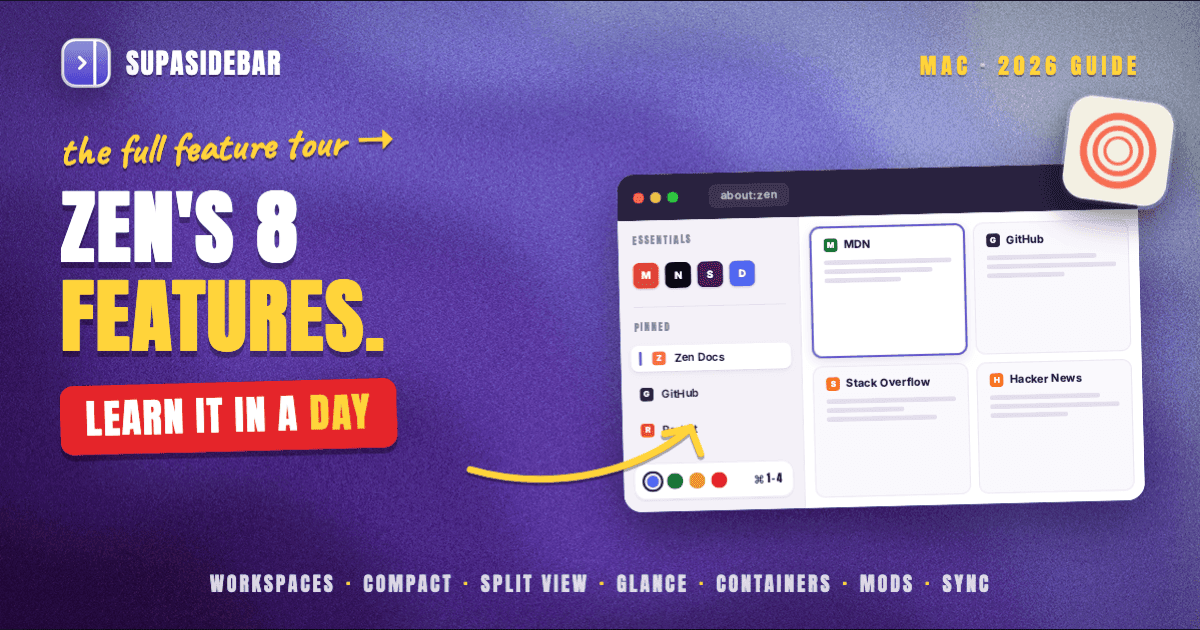
By Kshetez Vinayak, founder of SupaSidebar. Last updated 2026-07-06.
Quick navigation:
- Want the overall verdict on Zen? → Zen Browser Mac Review 2026
- Want the side-by-side spec sheet? → SupaSidebar vs Zen Browser
- Comparing Zen to Safari? → Zen Browser vs Safari on Mac
- Comparing Zen to Brave? → Zen Browser vs Brave
- Looking at Safari vs Zen vs Arc together? → Safari vs Zen vs Arc
- Already on Zen and want to learn it deeper? Keep reading.
TL;DR:
Zen Browser ships eight headline features on macOS in 2026 - Workspaces, Compact Mode, Split View (up to 4 tabs in a grid), Glance (Alt+click floating link preview), Container Tabs, Mods, Pinned Tabs, and Firefox Sync. Each one has a default keyboard shortcut, a settings panel under
about:preferences#zen, and a Mod ecosystem at zen-browser.app/mods that extends it. The latest stable is 1.21.5b on Firefox 152.0.4 (July 2, 2026), which added a built-in Boosts feature (color tint, fonts, element zap, force dark mode) to the stable channel in 1.20b. This guide is the practical how-to walkthrough for each feature, not a review - it covers the exact configuration steps, default shortcuts, and the edge cases the official docs at docs.zen-browser.app leave to figure out. For Mac users running Zen alongside Safari or Chrome, the same Workspaces mental model extends across every browser via SupaSidebar, a macOS sidebar app that mirrors Zen's vertical-sidebar UX onto Safari, Chrome, and every other major Mac browser.
What this guide covers (and what it does not)
This guide is the deep feature reference for Zen Browser on macOS as of stable release 1.21.5b on Firefox 152.0.4, released July 2, 2026. It assumes Zen is installed and the reader wants to use each feature properly, not decide whether to switch.
The guide does NOT cover: whether Zen is the right browser for the reader (see the Zen Browser Mac Review for that), how Zen compares to Safari or Brave on benchmarks (see Zen Browser vs Safari and Zen Browser vs Brave), or how to migrate from Arc (see the Arc Alternative Guide). It focuses on the eight core features that define the Zen experience, plus the Boosts feature that reached stable in 1.20b, and the configuration each one needs.
Feature 1: Workspaces - the core organizing primitive
Workspaces are Zen's answer to Arc Spaces. Each Workspace is an isolated set of tabs, pinned tabs, and (optionally) a Container Tab binding. The sidebar shows only the current Workspace's tabs, and switching Workspaces swaps the entire sidebar contents.
Create a Workspace.
Click the small Workspace icon at the bottom of the sidebar, then the + button. A modal opens for the new Workspace's name, color or emoji identifier, and background gradient. The keyboard shortcut to create a new Workspace is Cmd+Shift+E.
Switch Workspaces.
The default shortcuts are Cmd+1 through Cmd+8 for the first eight Workspaces in order. The Workspace switcher at the bottom-left also accepts mouse clicks. Switching is instant, with no tab reload.
Reorder Workspaces.
Long-press the Workspace switcher to expand it into a reorder grid. Drag-and-drop sets the new order, which then determines the Cmd+N numeric shortcuts.
Bind a Container to a Workspace.
This is the most useful Workspaces feature for users with multiple Google or Microsoft accounts. Open about:preferences#zen -> Workspaces -> select the Workspace -> Container dropdown. Once bound, every new tab opened inside that Workspace inherits the Container's cookie jar. A "Work" Workspace bound to a Work Container keeps the work Google sign-in fully isolated from a "Personal" Workspace bound to a Personal Container.
Pin tabs inside a Workspace.
Right-click any tab and pick "Pin Tab," or use Cmd+Alt+P on a focused tab. Pinned tabs survive Workspace switching only when the pin is per-Workspace (the default) - global pins live above the Workspace switcher and show in every Workspace.
Per-Workspace shortcuts that are not configurable through the GUI
include the rename shortcut and the auto-archive timeout. To change those, edit about:config and search for zen.workspaces to find the boolean and integer settings the team has not yet exposed.
Edge case:
Workspaces do not yet support per-Workspace default search engines (Arc Spaces did). All Workspaces share the global default search engine set in about:preferences#search. This is a known gap and tracked at the Zen GitHub issues.
Feature 2: Compact Mode - the sidebar collapse
Compact Mode is the second headline feature. Triggered with Cmd+Alt+C on Mac, the sidebar collapses to a thin strip with favicons only, and the URL bar collapses into the top edge. The result is a near-fullscreen reading view that still keeps the tab strip visible as icons.
Toggle Compact Mode.
Default shortcut is Cmd+Alt+C. Toggling back is the same shortcut. The mode applies to the active window only; opening a new window starts in normal mode unless the Workspace was saved with Compact Mode active.
Configure auto-collapse.
Open about:preferences#zen -> Looks -> Compact Mode. Three settings are exposed: "Hide sidebar on click outside" (sidebar collapses when the cursor enters the content area), "Hide toolbar on focus loss" (URL bar collapses when the window is inactive), and "Show on hover" (sidebar slides out when the cursor touches the screen edge). The combination of all three matches Arc's auto-collapsing behavior most closely.
Persistence across restarts.
Compact Mode is per-window state and does not survive a browser restart by default. To make it persistent, install the "Compact Mode Persistent" Mod from zen-browser.app/mods. The Mod stores the Compact Mode flag in the Zen profile preferences.
Customize the compact width.
The collapsed sidebar defaults to 48 pixels wide. To change it, install the "Custom Compact Width" Mod or edit userChrome.css directly with a --zen-compact-sidebar-width CSS variable override. Most users do not need to change this.
Compact Mode vs Firefox Compact Density.
These are different features. Firefox Compact Density shrinks the toolbar height but leaves the sidebar full-width. Zen Compact Mode collapses both the sidebar and the toolbar into thin strips and is a Zen-specific addition on top of Firefox.
Feature 3: Split View - up to 4 tabs in a grid
Split View opens up to four tabs tiled inside one Zen window. Per the official Split View documentation and confirmed in the DeepWiki implementation notes, Zen supports 2 to 4 tabs in a dynamic grid using a binary-tree layout, and a wide-screen Mac can drive a true 4-tab grid that matches Arc Split View's ceiling. Chrome's built-in split is 2-pane only; Zen's 4-pane grid is currently unique among mainstream Mac browsers.
Enter Split View.
Select two or more tabs in the sidebar (left-click while holding Cmd to multi-select, or left-click two tabs while holding Shift to select every tab between them), then right-click the selection and choose "Open in Split View." The default keyboard shortcut to toggle Split View on the focused tab is Cmd+Alt+V.
Pick the layout.
Zen exposes three default layouts via keyboard shortcuts: horizontal stack, vertical columns, and a grid. The grid mode is what handles 4 tabs (2x2). With 2 tabs selected the choice is horizontal or vertical; with 3 tabs Zen tiles into an L-shape; with 4 tabs the grid is the only sensible choice and Zen picks it automatically.
Swap the panes.
Click the small swap icon in the divider between any two adjacent panes, or use the keyboard shortcut Cmd+Alt+Shift+V. The active tab moves to the other position without reloading.
Resize the dividers.
Drag any horizontal or vertical divider between panes. The split ratios are per-window state and do not persist across restarts unless the Workspace was saved with Split View active.
Exit Split View.
Click the X on any pane's tab indicator to remove that pane (the remaining panes re-tile automatically), or use Cmd+Alt+V again to collapse the split entirely. Closing one pane from a 2-pane split returns the other to fullscreen inside the window.
Edge case for users moving from Arc:
Arc Split View handled up to 4 panes, and so does Zen. The behavior matches well enough that research-while-writing workflows that lived in Arc's 4-pane Split transfer cleanly. The minor friction is the selection model - Arc let users drag a tab onto an existing tab to split, while Zen requires the multi-select-then-right-click flow described above. The Enhance Split View discussion on GitHub tracks the drag-to-split request.
Feature 4: Glance - Alt+click floating link preview
Glance is Zen's link-preview overlay, equivalent to Arc's Little Arc and the feature behind the Mozilla Connect Glance request thread that has 700+ upvotes from Firefox users asking Mozilla to ship the same. Per the Zen Glance user manual, it lets users preview any website on top of the current tab without fully switching to it.
Trigger Glance.
Hold Alt and click any link. A floating preview window opens centered on the current tab with the linked page loaded. Browse, scroll, click links inside the preview - all of it stays in the floating overlay.
Expand to a real tab.
If the previewed page is worth keeping, click the expand icon in the Glance toolbar or press Cmd+Enter. The preview converts to a real tab in the current Workspace, with browsing history preserved.
Dismiss Glance.
Click outside the floating window, press Escape, or click the X in the Glance toolbar. The preview closes without leaving a tab behind, returning focus to the original tab.
Configure Glance triggers.
Open about:preferences#zen -> Look and feel -> Glance. Three settings: enable Glance globally, open Glance for context-menu actions (right-click "Open in new tab" routes through Glance instead), and open Glance for search results. Disabling the global toggle removes Alt+click triggering everywhere.
Customize the trigger key.
The default Alt modifier can be changed via about:config - search for zen.glance.trigger-key and set to Shift, Cmd, or Ctrl. The setting takes effect immediately, no restart needed.
Known limitation.
The community discussion at zen-browser/desktop #10773 tracks rough edges - the floating preview is fixed-size in 1.19.x (no drag-to-resize yet), and embedded videos sometimes fail to autoplay inside Glance because of how the floating frame inherits permissions. The Zen team has acknowledged both and shipped partial fixes in the Twilight channel.
Feature 5: Container Tabs - identity isolation
Container Tabs are inherited from Firefox's Multi-Account Containers, but Zen exposes them more prominently in the UI than vanilla Firefox does. Each Container has its own cookie jar, so a "Work" Container keeps work Google sign-in fully separate from a "Personal" Container's Google sign-in inside the same browser, same Workspace if desired.
Create a new Container.
Open about:preferences#containers (or the Settings cog -> Containers tab). Click "Add new container," set a name and a color. The Container becomes available immediately in the new-tab Container dropdown.
Open a new tab in a specific Container.
Long-press the new-tab button (+) at the top of the sidebar. A dropdown appears with every Container. Picking a Container opens the new tab inside it. The keyboard shortcut to open a Container picker is Cmd+Alt+Shift+T on Mac.
Bind a Workspace to a default Container.
Workspaces and Containers compose. Open about:preferences#zen -> Workspaces -> the Workspace -> Default Container. Every new tab in that Workspace defaults to the bound Container. Tabs opened via long-press of + can still override per-tab.
Reopen an existing tab inside a different Container.
Right-click the tab in the sidebar -> "Reopen in Container" -> pick the target Container. The tab closes and a new tab opens at the same URL inside the new Container, with no shared session state.
Color and icon customization.
Containers default to one of eight color and icon combinations. To customize further, install the "Multi-Account Containers" Firefox addon from addons.mozilla.org. The addon adds an expanded customization panel and import/export of Container configs.
Edge case: Container Tabs do not isolate at the local-storage level for all sites.
Some sites that use BroadcastChannel or localStorage for cross-tab sync may leak data across Containers in narrow cases. This is a Firefox base behavior, not a Zen bug, and is documented at the Mozilla support site.
Feature 6: Mods - the customization layer
Mods are Zen's most distinctive feature versus vanilla Firefox. The Mods catalog at zen-browser.app/mods is a curated set of CSS and JavaScript customizations that change the UI's look and behavior. Examples: "Float tabs to the bottom of the sidebar," "Smaller URL bar," "Workspace-aware new tab page," "Nebula theme system," "Vertical tab groups."
Install a Mod.
Browse zen-browser.app/mods, pick a Mod, click "Install in Zen." The browser prompts for confirmation. Once installed, the Mod is enabled by default. Mods install instantly without restarting the browser.
Manage installed Mods.
Open about:preferences#zen -> Mods. The page lists every installed Mod with toggle switches, "Settings" buttons for Mods that expose configuration, and an "Uninstall" option. Disabling a Mod is reversible; uninstalling removes the CSS and JS files from the profile.
Mods that need additional setup.
A few Mods (Nebula, Sine, custom theme systems) require a one-time helper script that adjusts userChrome.css. The Mod page lists the setup steps. For most Mods (the visual themes, layout adjustments, sidebar tweaks), no extra setup is needed.
Write a Mod.
The Mod template lives at docs.zen-browser.app under the Mods section. A Mod is a folder with a chrome.css file (the styling), optional script.js (the behavior), and a theme.json metadata file. Authors publish Mods by submitting a pull request to the Zen-Mods repository on GitHub.
Mods break occasionally on Firefox base updates.
Because Mods inject CSS and JS into the Firefox UI chrome, a Firefox base version bump can change the underlying selectors a Mod targets. Authors typically push fixes within days. For the first 24 to 72 hours after a major Firefox update, expect some Mods to look slightly off until updated.
Performance impact.
A typical Mod adds 1-5 KB of CSS and runs only at UI render time, not on page load. Installing 20+ Mods does not measurably slow Zen on a modern Mac. The exception is Mods that ship heavy JS that runs on every tab change - those are flagged in the Mod's description.
Feature 7: Pinned Tabs and Essentials
Zen distinguishes between two kinds of persistent tabs: regular Pinned Tabs (which live inside a Workspace and survive browser restarts) and Essentials (which live above the Workspace switcher and show in every Workspace).
Pin a regular tab.
Right-click a tab in the sidebar -> "Pin Tab." The tab moves to the top of the sidebar in the current Workspace. Pinned tabs survive a browser restart but disappear from the sidebar when the user switches to a different Workspace, then reappear on switching back. The keyboard shortcut to pin or unpin the active tab is Cmd+Alt+P.
Promote a tab to Essentials.
Right-click a pinned tab -> "Move to Essentials." The tab moves above the Workspace switcher and becomes visible in every Workspace. Essentials are typically used for Gmail, Calendar, Notion, Slack, or other tabs the user wants permanently available regardless of which Workspace is active.
Reorder pinned tabs.
Drag-and-drop within the sidebar. The order persists per Workspace for regular pinned tabs and globally for Essentials.
Reload behavior.
Pinned tabs reload when first opened after a browser restart, not on Workspace switching. This is a deliberate Firefox behavior that saves memory; an Essential tab with a heavy web app (Gmail, Notion) is not held in memory until clicked. To override, install the "Always Keep Pinned Tabs Alive" Mod.
Maximum count.
No hard limit on pinned tabs, but the sidebar starts scrolling around 30+ tabs depending on screen height. Essentials similarly accept any count but the visual density gets dense past 8.
Feature 8: Firefox Sync setup
Zen uses standard Firefox Sync, the same end-to-end encrypted sync layer Firefox itself uses. A free Mozilla account is required; the account is the same one used for Firefox if the user already has one.
Set up sync.
Open Settings -> Sync -> "Sign in to Sync." Enter a Mozilla email or create an account, then verify via email. Once signed in, Sync starts immediately.
What syncs.
Open tabs (per device), bookmarks, browsing history, saved passwords, addons (including the addon enabled state and settings), preferences, and Zen-specific data (Workspaces, pinned tabs, Essentials, Mods, themes). The sync is bidirectional and end-to-end encrypted, with Mozilla holding no decryption key.
What does NOT sync.
Cookies and active session state do not sync (this is intentional - cookies are session-level and syncing them would break the security model). Container Tab assignments sync, but the Containers themselves are per-device and must be recreated manually on each device. Mods sync the enabled list but the Mod files themselves are downloaded from the Mod catalog on first use on a new device.
Sync conflicts.
If two devices change the same bookmark or Workspace simultaneously, Firefox Sync uses last-write-wins resolution. There is no version history. For users who want history-aware sync, the Floccus addon adds a Git-backed sync layer on top of Firefox Sync.
Sync across operating systems.
Zen on macOS syncs cleanly with Zen on Linux and Windows. The Workspace gradient backgrounds render identically across operating systems. Container Tab UI may look slightly different on Linux because of GTK theming, but the underlying isolation behavior is the same.
Edge case: sync with vanilla Firefox.
Zen Sync can technically pair with a vanilla Firefox install on the same Mozilla account, but Zen-specific data (Workspaces, Mods) will not show up in Firefox. Firefox-side bookmarks and history show up in Zen normally. This is useful for users who keep Firefox on a work machine and Zen on a personal machine but want unified bookmarks.
Boosts (stable since 1.20b): built-in per-site customization
Boosts is the closest Zen feature to Arc's Boosts and shipped to the stable channel in 1.20b (May 24, 2026), per the Zen release notes at zen-browser.app. It is in current stable 1.21.5b, which also added a dark-mode Boosts editor and a "New Boost" urlbar shortcut - no pre-release build required.
What Boosts does.
Four built-in customization actions, applied per-site, with no userChrome.css or addon required:
- Color tint. Apply a hue overlay to any website. Useful for visually labeling work vs personal accounts that share a UI (e.g., two Notion workspaces with identical colors).
- Custom fonts. Override a site's font stack with a system or web font. Targets Gmail, Notion, GitHub - any site where the default typography costs reading speed.
- Element zap. Click an element on a page and Zen hides it permanently for that domain. Functional equivalent of installing a one-off uBlock cosmetic filter, exposed in the UI.
- Force dark mode. Apply Zen's dark theme to sites that ship light-only. Smarter than the browser-level "Force dark" flag because Boosts caches the per-site preference and avoids breaking sites with custom dark themes already.
How to enable Boosts.
Right-click any page -> Boosts -> pick the action. Boosts persist per-domain and sync across devices via Firefox Sync if signed in. The full settings panel lives at about:preferences#zen-boosts and lets users view, edit, or delete every active Boost.
Why this matters for Arc refugees.
Arc Boosts was the single feature most often named in r/ArcBrowser threads listing what users missed after the Arc shutdown. Zen's stable channel had no equivalent until 1.20b; now that Boosts is stable, the old workaround (installing the Stylus addon and writing per-site CSS by hand) is no longer necessary.
Known edge cases.
The community discussion at Issue #5408 tracks Force-dark-mode cases where Boosts overrides background colors on sites that have no default background set. Otherwise Boosts is stable and no longer requires a pre-release build.
AI features status in Zen Browser
As of July 2026, Zen does not ship a built-in AI assistant. There is no native chat sidebar, no Skills system, no Memory feature comparable to what Dia or Comet ship. The Zen team has discussed AI features in the GitHub roadmap, but nothing has shipped to stable.
Users who want AI inside Zen typically install one of:
- Sider for a ChatGPT-style sidebar that opens alongside the main content area
- Monica for a multi-model assistant supporting GPT-4o, Claude 3.5 Sonnet, and Gemini
- Page Assist for connecting to a local Ollama instance and running open-source LLMs without sending data off-device
None of these are integrated the way Dia's native chat is. For users for whom AI in the browser is a hard requirement, Zen is not the right choice today. For users who treat AI as a separate workflow (a chat app, a CLI tool, Cursor or Continue in their editor), Zen plus the user's existing AI workflow works fine.
Zen Browser keyboard shortcuts: complete Mac reference
The default shortcuts for Zen on macOS, current as of release 1.19.x. Every shortcut is configurable via about:preferences#zen-shortcuts or by installing the "Custom Keybindings" Mod.
| Action | Default shortcut (Mac) |
|---|---|
| Toggle Compact Mode | Cmd+Alt+C |
| Toggle Split View on focused tab | Cmd+Alt+V |
| Swap Split View panes | Cmd+Alt+Shift+V |
| Open link in Glance preview | Alt+click on link |
| Expand Glance preview to a tab | Cmd+Enter (with Glance open) |
| Dismiss Glance preview | Escape |
| New Workspace | Cmd+Shift+E |
| Switch to Workspace 1-8 | Cmd+1 through Cmd+8 |
| Pin or unpin active tab | Cmd+Alt+P |
| Open new tab in Container picker | Cmd+Alt+Shift+T |
| New tab in current Container | Cmd+T |
| Reopen closed tab | Cmd+Shift+T |
| Close active tab | Cmd+W |
| Cycle to next tab | Ctrl+Tab |
| Cycle to previous tab | Ctrl+Shift+Tab |
| Toggle sidebar visibility | Cmd+Alt+S |
| Open URL bar | Cmd+L |
| Find in page | Cmd+F |
| Reload page | Cmd+R |
| Hard reload (no cache) | Cmd+Shift+R |
| Open Settings | Cmd+, |
| Toggle Developer Tools | Cmd+Alt+I |
Customize a shortcut.
Open about:preferences#zen-shortcuts. The page lists every action with its current binding and an "Edit" button. Click Edit, press the new key combination, and Save. Conflicts with system shortcuts (Cmd+Tab, Cmd+Space, screen recording shortcuts) are flagged and rejected.
Vimium-style keyboard navigation.
For users who want full keyboard control without a mouse, install the Vimium-FF addon. It adds modal keyboard navigation, link hints, and tab cycling. Works in Zen identically to vanilla Firefox.
Performance: Speedometer 3.0 scores and RAM expectations
There are two performance questions worth separating: web-app responsiveness (Speedometer 3.0) and memory footprint (RAM at N tabs). Different sources answer each, and the numbers tell different stories.
Speedometer 3.0 on M3 Pro (Jitbit benchmark).
Per Jitbit's Zen vs Chrome vs Brave vs Firefox vs Safari benchmark, run on a MacBook M3 Pro using Speedometer 3.0:
| Browser | Version tested | Speedometer 3.0 score |
|---|---|---|
| Chrome | 132.0.6834.160 | 37.7 |
| Brave | 1.74.51 | 37.6 |
| Safari | 18.2 | 37.6 |
| Firefox | 134.0.2 | 34.8 |
| Zen Browser | 1.7.3b | 31.6 |
Chrome, Brave, and Safari land within a fraction of a point of each other. Firefox trails by ~3 points. Zen at the time of that benchmark trailed Firefox by another ~3 points, partly because Zen 1.7.3b was several major releases behind the current 1.21.5b. The Jitbit author also publicly corrected a process-counting nuance worth knowing: Speedometer can be sensitive to which extensions are enabled, and 1Password's extension alone dropped scores by ~10 points across every browser tested. Score comparisons are only meaningful with a clean extension set.
RAM at 10 tabs (Cloudzy comparison, separate methodology).
Per Cloudzy's browser memory comparison, which counts total resident memory across all browser processes with 10 tabs open: Safari ~1.2 GB, Chrome and Brave ~1.4-1.6 GB, Firefox and Zen ~1.5-2.0 GB. Cloudzy used a different Mac model (not Jitbit's M3 Pro) and a different methodology, so the two benchmarks do not stack directly - they answer different questions.
RAM optimization in Zen.
Zen ships several settings under about:preferences#zen -> Performance that reduce memory pressure:
- Tab unloading after N minutes (default 30 minutes). Idle tabs get unloaded and reload on click. Reduces memory by 30-50% in workflows with many always-open tabs.
- Limit number of processes (default 8). Reducing to 4 cuts memory by ~25% but increases the blast radius if a single tab crashes.
- Disable hardware acceleration for media (default off). Toggling on reduces RAM at the cost of higher CPU during video playback.
A reddit user (r/zen_browser, q-022) put the trade-off plainly: "I was using zen before but i abandon it due to high ram usage. But i miss its vertical tab very much." This is the real cost on 8 GB Macs with 30+ active tabs - the vertical-tab UX is excellent but the underlying Firefox/Gecko base costs RAM. Tab unloading is the first setting to enable for users on smaller Macs.
For a deeper performance comparison versus Safari, Chrome, and Brave, see the Zen Browser Mac Review which covers the full benchmark context.
The cross-browser problem Zen does not solve
Zen handles Zen tabs. Like Safari handles Safari tabs and Chrome handles Chrome tabs. The structural limitation is that no browser, on any platform, manages tabs from other browsers.
A typical Mac power user keeps Chrome open for Google Workspace (where the company SSO is configured), Safari for iCloud-backed tabs and Apple ecosystem links, and a third browser like Zen for general browsing or development. After installing Zen, the structural problem stays: tabs accumulate inside Zen separately from the tabs in Chrome and Safari, and finding a specific tab requires remembering which browser it was opened in.
This is the gap SupaSidebar fills. SupaSidebar is a macOS app that brings Arc's sidebar to every browser - one sidebar for tabs, bookmarks, files, and apps across 32+ browsers including Safari, Chrome, Firefox, Arc, Vivaldi, Brave, Helium, and Dia. Saved links, pinned items, and Spaces live in the sidebar next to Live Tabs from the other browsers you run alongside Zen, all searchable from a single Command Panel (Cmd+Ctrl+K). The mental model from Zen's Workspaces transfers directly to SupaSidebar's Spaces, which work across every browser rather than inside one.
SupaSidebar does not replace Zen. It sits on top. A user picks Zen for its in-browser UX, then runs SupaSidebar to unify Zen's tabs with whatever else is open. The two layers do different jobs.
The honest framing: if everything happens inside Zen and there is no Safari or Chrome in the workflow, SupaSidebar is unnecessary. If Zen is one of two or more browsers in daily use, SupaSidebar closes the gap Zen alone does not address.
Conclusion: Picking what to use in Zen Browser
Zen on Mac in 2026 ships eight core features that justify the install: Workspaces (the organizing primitive), Compact Mode (the screen-real-estate win), Split View (up to 4 tabs in a grid matching Arc's ceiling), Glance (Alt+click floating link preview equivalent to Arc's Little Arc), Container Tabs (the identity-isolation system), Mods (the customization layer), Pinned Tabs and Essentials (the always-available tabs), and Firefox Sync (the cross-device persistence). Each one has a default shortcut, a settings panel, and a Mod or addon ecosystem extending it. Boosts, stable since 1.20b (color tint, fonts, element zap, force dark mode), closes the last remaining Arc parity gap.
Different reader segments get different starting recommendations. First-time Zen users coming from Chrome or Safari: enable Workspaces, set up 2-3 named Workspaces (Work, Personal, Project), bind each to a Container, learn Glance (Alt+click any link) within the first day, and use Compact Mode (Cmd+Alt+C) to learn the sidebar collapse pattern. Skip Mods for the first week. Arc refugees on Mac: Workspaces map to Arc Spaces, Compact Mode maps to Arc's auto-collapsing sidebar (configure the three auto-collapse settings under Looks), Split View handles up to 4 tabs in a grid matching Arc's ceiling, Glance replaces Little Arc cleanly, and Boosts (stable since 1.20b) closes the last remaining Arc gap. Power users on 16 GB or 32 GB Macs: install 5-10 Mods, customize keyboard shortcuts under about:preferences#zen-shortcuts, use Boosts for per-site tweaks, and use Firefox Sync to keep desktop and laptop in lock-step. Multi-browser users running Zen alongside Safari or Chrome: configure Zen as the daily driver, then add a macOS sidebar layer to unify tabs from every browser.
The next action depends on the workflow. For single-browser Zen users, the official docs at docs.zen-browser.app cover advanced configuration past this guide. For multi-browser workflows where tabs end up scattered across Zen plus Safari plus Chrome, Try SupaSidebar (free tier) - it sits on top of Zen and every other browser to unify the tab pile into one sidebar.
Why we recommend SupaSidebar for multi-browser Zen users
SupaSidebar is a macOS app that brings Arc's sidebar to every browser - one sidebar for tabs, bookmarks, files, and apps across 32+ browsers including Safari, Chrome, Firefox, Arc, Vivaldi, Brave, Helium, and Dia. It requires macOS 14 or later (Sonoma and later), with Intel and Apple Silicon both supported.
The honest framing: SupaSidebar does not replace Zen Browser. Zen handles the in-browser UX - the vertical sidebar inside Zen, the Workspaces, the Compact Mode, the Container Tabs. SupaSidebar handles the cross-browser layer - the persistent Mac-level sidebar that shows Live Tabs from Safari, Chrome, and your other browsers together, the Command Panel that searches across open tabs in every supported browser, and Spaces that work across browsers the way Zen Workspaces work inside one.
For users who picked Zen as a main browser but still keep Safari for iCloud workflows and Chrome for Google SSO, SupaSidebar closes the tab-pile gap Zen cannot close because Zen is itself a single browser. For users running only Zen, SupaSidebar is not needed.
Try SupaSidebar (free tier) - 3 Spaces and full cross-browser unification, no credit card required.
Frequently Asked Questions
How do I create a Workspace in Zen Browser?
Click the Workspace icon at the bottom of the sidebar, then the + button. Set a name, pick a color or emoji identifier, and optionally bind a Container Tab. The keyboard shortcut to create a new Workspace is Cmd+Shift+E on Mac. Workspaces are then accessible via Cmd+1 through Cmd+8.
What is the Compact Mode shortcut in Zen Browser?
On Mac, the default Compact Mode toggle is Cmd+Alt+C. The same shortcut toggles back out of Compact Mode. To configure auto-collapse behavior (on cursor exit, on focus loss, on hover), open about:preferences#zen -> Looks -> Compact Mode.
How does Split View work in Zen Browser?
Select 2 to 4 tabs in the sidebar (Cmd-click to multi-select, or Shift-click to select a range), then right-click and choose "Open in Split View" or press Cmd+Alt+V. Zen tiles the selected tabs into a horizontal, vertical, or grid layout - with 4 tabs the layout is a 2x2 grid matching Arc Split View's ceiling. Resize dividers by dragging; swap panes with Cmd+Alt+Shift+V. Per the official docs, the 4-tab grid is unique to Zen among mainstream Mac browsers in 2026.
What is Glance in Zen Browser?
Glance is Zen's floating link-preview overlay, equivalent to Arc's Little Arc. Hold Alt and click any link to open a centered floating window with the linked page loaded, without leaving the current tab. Click outside or press Escape to dismiss; press Cmd+Enter to expand the preview into a real tab. Configure triggers and the modifier key at about:preferences#zen -> Look and feel -> Glance. Full reference at docs.zen-browser.app/user-manual/glance.
Does Zen Browser have a Boosts feature like Arc?
Yes. Boosts shipped to the stable channel in 1.20b and is in current stable 1.21.5b - a built-in feature with four actions: color tint, custom fonts, element zap, and force dark mode, applied per-domain and synced via Firefox Sync. Per the Zen release notes, no pre-release build or Stylus addon is required anymore; Zen Mods remain available for deeper CSS/JS customization.
What are Container Tabs in Zen?
Container Tabs are isolated cookie jars inherited from Firefox's Multi-Account Containers. A "Work" Container keeps work Google sign-in separate from a "Personal" Container's Google sign-in in the same browser, same Workspace. Open about:preferences#containers to create or edit Containers, then long-press the new-tab + button to open a tab in a specific Container.
How do I install a Zen Mod?
Browse zen-browser.app/mods, pick a Mod, and click "Install in Zen." The browser prompts for confirmation, then installs the Mod instantly without restart. Manage installed Mods at about:preferences#zen -> Mods, where each Mod has a toggle, a Settings button (if configurable), and an Uninstall option.
Does Zen Browser have AI features?
No native AI assistant ships in Zen as of July 2026. The Zen team has discussed AI in the GitHub roadmap but nothing has shipped to stable. Users who want AI inside Zen install Firefox addons like Sider (ChatGPT-style sidebar), Monica (multi-model assistant), or Page Assist (local Ollama integration).
What is the Zen Browser engine?
Zen uses the Gecko engine, the same rendering engine Firefox uses. It does not ship a custom engine. Site compatibility, JavaScript performance, and security patches match Firefox directly. Zen's differentiation is the UI layer (Workspaces, Compact Mode, Split View, Mods), not the engine underneath.
How much RAM does Zen Browser use on Mac?
Per Cloudzy's browser memory comparison, Zen on Mac uses 1.5 GB to 2.0 GB of resident memory with 10 tabs open. Safari uses around 1.2 GB on the same workload; Chrome and Brave land between 1.4 GB and 1.6 GB. Web-app responsiveness is a separate question: per Jitbit's Speedometer 3.0 benchmark on M3 Pro, Chrome 132 scored 37.7, Brave 1.74 scored 37.6, Safari 18.2 scored 37.6, Firefox 134 scored 34.8, and Zen 1.7.3b scored 31.6. Note that Zen 1.7.3b was several releases behind current 1.21.5b, and Speedometer scores can swing by ~10 points based on which extensions are enabled. Enable tab unloading under about:preferences#zen -> Performance to reduce RAM by 30-50% in workflows with many always-open tabs.
Can I sync Zen Browser across devices?
Yes, via Firefox Sync. Sign in at Settings -> Sync with a free Mozilla account. Workspaces, pinned tabs, Essentials, Mods (the enabled list), bookmarks, history, passwords, and preferences sync end-to-end encrypted. Container Tab assignments sync but the Containers themselves must be recreated on each device. Cookies and active sessions do not sync (intentional, for security).
Does Zen Browser work with Safari and Chrome tabs?
No. Zen manages only Zen tabs. For users running Zen alongside Safari and Chrome, tabs end up in three separate piles. A Mac sidebar app like SupaSidebar bridges this gap: it sits alongside every browser and gives you one persistent sidebar for saved links, pinned items, and Spaces across 32+ browsers, plus Live Tabs from the Chromium and Safari browsers you run next to Zen - all searchable from one Command Panel.
By Kshetez Vinayak, founder of SupaSidebar. Last updated 2026-07-06.