
By Kshetez Vinayak, founder of SupaSidebar. Last updated 2026-10-26.
TL;DR
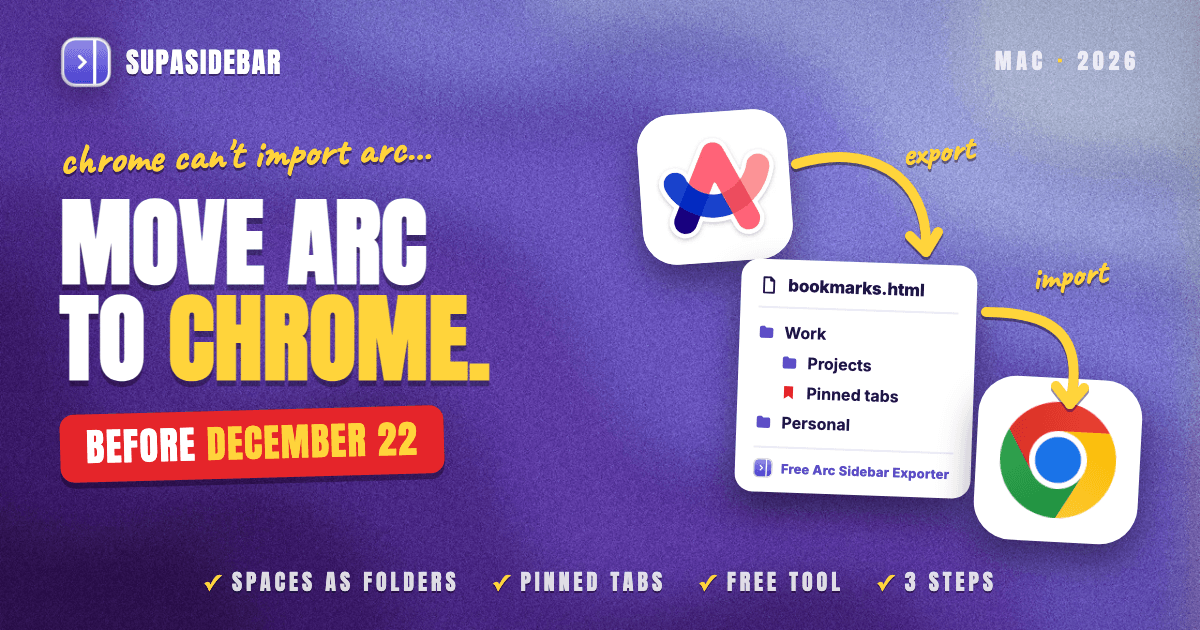
Arc to Chrome is not a one-click import, because Chrome on a Mac only imports from Safari, Firefox or a bookmarks HTML file, and Arc is none of those. The route that works today has three steps. Copy Arc's sidebar file, convert it into a bookmarks file with SupaSidebar's free Arc Sidebar Exporter, and import that file into Chrome, where each Arc Space arrives as a bookmark folder. Chrome has no Spaces, so the rebuild uses Chrome profiles, tab groups and the vertical tabs Google shipped in April 2026, or SupaSidebar keeps Arc's sidebar attached to Chrome as it was. Arc stops working on December 22, 2026, so copy the sidebar file this week.
Quick navigation
- Moving to Dia, Safari or Zen instead of Chrome? → How to Migrate from Arc, Step by Step
- Wondering if Chrome's vertical tabs can replace Arc's sidebar? → Chrome Vertical Tabs vs Arc Sidebar (2026)
- Only need your Arc bookmarks out as a file? → Arc Sidebar Exporter
- Not sure Chrome is the right Arc replacement? → The complete Arc alternatives guide
- Moving your Arc setup into Chrome? You are in the right place. Keep reading.
Four ways to move Arc to Chrome, compared
| Route | Works today | What lands in Chrome | Arc Spaces kept? | Best for |
|---|---|---|---|---|
| Arc Sidebar Exporter + Chrome bookmarks import | Yes | Spaces as bookmark folders, pinned tabs as bookmarks | As folders | Everyone, as the first move |
| Arc's own Export Data | Yes | A Markdown list of links, added by hand | No | A backup that includes Favorites |
| An Arc-style Chrome extension | Yes | Arc bookmarks, or Spaces as tab groups | Inside Chrome only | Chrome-only users who want a sidebar in Chrome |
| SupaSidebar Arc import | Yes, beside Chrome | Arc's sidebar, attached to the Chrome window | Yes, in every browser | Keeping Arc's Spaces in Chrome and a second browser |
Why Chrome can't import Arc
Chrome's import tool looks for other browsers by name, and on macOS the list is short. Chromium's importer code detects Safari and Firefox on a Mac, plus a bookmarks HTML file option, and nothing else. Arc is built on Chromium, but Chrome does not read another Chromium browser's data. Some migration guides say to pick Arc in Chrome's import dialog. On a Mac that option does not exist.
The bigger problem is where Arc keeps its sidebar. Spaces, pinned tabs and folders live in one file, StorableSidebar.json, in Arc's Application Support folder, not in the Chromium bookmarks store a normal import reads. On a test Mac running Arc 1.166.0, Arc's browser profile had no bookmarks file at all, while the sidebar file held the whole setup. The guide to exporting Arc's sidebar file covers what is inside it.
Arc's new export option does not bridge the gap either. Per Arc's help article on exporting data, Export Data saves a file named Arc Data Export.md with a section for each Space, and Arc calls it "a list of links rather than a bookmarks file." Chrome cannot import a Markdown file.
Step 1. Save Arc's sidebar file before December 22
Arc stops working on macOS on December 22, 2026, and every Arc account is deactivated that day, per 9to5Mac's report on Arc's sunset date. Nobody has said whether the local sidebar file stays readable after that, so a copy made now settles it.
- In Finder, press ⇧⌘G and paste
~/Library/Application Support/Arc/StorableSidebar.json. - Copy the file to Documents or an external drive.
- In Arc, choose Arc → Settings → Advanced → Export Data and save
Arc Data Export.mdas a second backup.
The Markdown export earns its place because it lists Arc's Favorites, the icon row at the top of the sidebar, which the conversion in Step 2 leaves out. Keep Arc installed until the move is finished.
Step 2. Convert the sidebar file into Chrome bookmarks
SupaSidebar's free Arc Sidebar Exporter turns StorableSidebar.json into a standard bookmarks HTML file that Chrome can import. The file is read inside the browser tab and never uploaded, and the tool asks for an email address before the download.
- Each Arc Space becomes a top-level bookmark folder named after the Space.
- Folders inside a Space stay nested, in Arc's order.
- Pinned tabs become bookmarks inside their folders.
- Unpinned tabs go into an "Unpinned tabs" folder within each Space.
- Split views are flattened into separate links.
Step 3. Import the bookmarks file into Chrome
Chrome takes the file through its standard import, described in Google's Chrome Help page on importing bookmarks.
- In Chrome, click the three-dot More menu, then Bookmarks and lists → Import bookmarks and settings.
- In the list of sources, pick Bookmarks HTML File.
- Click Choose File, select the file from Step 2, and confirm.
If Chrome has no bookmarks yet, the Arc folders land straight on the bookmarks bar. If it already has some, Chrome files the import in a separate folder, so an existing bookmarks bar stays as it was.
To turn a Space back into working tabs, right-click its folder, open all of its links, and pin the ones that were pinned in Arc. Chrome's pinned tabs show only the site's icon, per Chrome's help page on tabs, and each one sits in a single window's tab strip, so a tab group is often the closer fit. Chrome syncs tab groups and keeps a closed group on the bookmarks bar or in its menu.
Step 4. Reinstall extensions and check logins
Arc runs Chrome Web Store extensions, so every Arc extension has a Chrome version, but nothing copies them across. Open arc://extensions in Arc, note the list, and reinstall each one in Chrome.
Arc's documented exports cover Spaces, tabs and Easels, not saved passwords. If Arc's logins are not already in a password manager Chrome can use, move them before December 22. Google Password Manager accepts a CSV file, per Google's guide to importing passwords.
What Chrome has in place of Arc's sidebar
Chrome in 2026 covers more of Arc than it did a year ago, but each piece lives somewhere different.
| Arc feature | Closest thing in Chrome | How close |
|---|---|---|
| Vertical sidebar | Vertical tabs, since April 2026 | Shows open tabs only, not saved links |
| Spaces | Chrome profiles | Close, but each profile opens its own windows |
| Pinned tabs | Pinned tabs or a tab group | Pinned tabs are icon-only, per window |
| Folders | Bookmark folders or tab groups | Close |
| Favorites | Bookmarks bar | Close |
| Boosts and Easels | Nothing | Lost, and Arc can't export Boosts |
Google added vertical tabs on April 7, 2026, per Google's announcement. Right-clicking a tab and choosing Show Tabs Vertically moves the tab strip into a column on the left. It is the nearest thing to Arc's look, but it lists the tabs open right now, so Arc's saved links have nowhere to live in it.
Profiles are the honest stand-in for Spaces. Chrome's help page on profiles says each profile keeps its own bookmarks, history and passwords, which matches how most people used a Work Space and a Personal Space. The cost is that every profile is a separate Chrome window. "I ended up back on Chrome using multiple browser profiles," one Arc user wrote in a May 2026 r/ArcBrowser thread about missing Spaces most of all.
Can a Chrome extension make Chrome like Arc?
Partly, and only inside Chrome. Side Bar for Arc Users adds a vertical panel that links bookmark folders to tab groups as Spaces and can import StorableSidebar.json, per its Chrome Web Store listing, which showed about 2,000 users on October 26, 2026. Arc Import is narrower and turns the same file into Chrome bookmarks, processed locally per its listing. Both suit someone who will only ever use Chrome, and neither reaches Safari or any other browser.
The part a Chrome import can't fix
Every step above moves Arc's links into Chrome, and Chrome then spreads them across the bookmarks bar, tab groups and separate profile windows. Arc had one sidebar that held all of it and switched Spaces with a swipe. Plenty of Arc users also never ran a single browser, keeping Safari for battery life next to Chrome for work sign-in, and a Chrome profile does not exist in Safari at all.
Keep Arc's sidebar attached to Chrome with SupaSidebar
SupaSidebar imports Arc's StorableSidebar.json with its Spaces, folders and pinned tabs, then shows them in a native Mac sidebar that attaches to the Chrome window. Arc's structure stays in one place instead of being split across bookmarks, tab groups and profiles, and the same Spaces keep working if Safari or another browser stays in use.
The import runs from Preferences → Import & Export → Arc. Pick Arc's data file from the list or a saved copy through Choose File…, click Preview, and check the Spaces to bring across, as the import guide in SupaSidebar's docs shows.
With Smart Attach on, the SupaSidebar sidebar docks beside the active Chrome window and keeps Chrome from sliding underneath it, and an option locks it to Chrome alone. Live Tabs lists the tabs open in Chrome inside the same sidebar, and clicking one switches to the existing tab instead of opening a duplicate.
Each Space can also be linked to a Chrome profile, so a Work Space opens its links in Chrome's Work profile, per the docs on linking Spaces to browser profiles. Here is a typical setup for someone moving from Arc to Chrome with a work profile and a personal one.
| SupaSidebar Space | Links inside |
|---|---|
| Work (linked to Chrome · Work) | mail.google.com, calendar.google.com, docs.google.com, linear.app |
| Personal (linked to Chrome · Personal) | youtube.com, reddit.com/r/ArcBrowser, amazon.com, letterboxd.com |
| Side project | github.com, vercel.com, figma.com |
Switching Spaces swaps the whole sidebar with one shortcut, and each link opens in the right Chrome profile without hunting for its window. One former Arc user described the setup that stuck as "Chrome + Claude Extension + SupaSidebar" in a June 2026 r/diabrowser thread.
SupaSidebar is a sidebar app, not a browser, so it does not move passwords or history into Chrome, and its Spaces organize links rather than isolating browser sessions the way Arc's did. It runs on macOS 14 and later.
Which Arc to Chrome route should you pick?
- If December 22 feels close, run the Arc Sidebar Exporter and Chrome's bookmarks import today. It takes minutes.
- If Chrome will be your only browser, turn on vertical tabs and rebuild each Space as a profile or a tab group.
- If you want the sidebar inside Chrome itself, try an extension such as Side Bar for Arc Users, which works within Chrome only.
- If you want Arc's Spaces intact and may keep Safari too, import Arc into SupaSidebar and let it attach to Chrome.
- If Chrome isn't settled yet, note that Dia imports Arc directly, as the step-by-step Arc migration guide covers.
What Arc users moving to Chrome should do
The verdict for Arc to Chrome is to convert, import, then rebuild. Chrome cannot import Arc directly on a Mac, so the Arc Sidebar Exporter plus Chrome's bookmarks import is the only route that lands Arc's Spaces, folders and pinned tabs in Chrome today, as bookmark folders.
Chrome-only users get the most from that import plus vertical tabs and one profile per former Space. Users with a few small Spaces can rebuild them as tab groups in one sitting. Heavy Favorites users should rebuild that icon row on Chrome's bookmarks bar from the Markdown export, since the bookmarks conversion skips it. Anyone who wants Arc's sidebar back as it was, or who keeps Safari next to Chrome, should import Arc into SupaSidebar, which attaches the same Spaces to Chrome and to every other browser on the Mac.
Whatever the route, copy StorableSidebar.json and run Arc's Export Data this week. To keep Arc's sidebar beside Chrome, try SupaSidebar (free version available).
Why we recommend SupaSidebar
SupaSidebar is a macOS app that brings Arc's sidebar to every browser - one sidebar for tabs, bookmarks, files, and apps across 32+ browsers including Safari, Chrome, Firefox, Edge, Brave, Vivaldi, Dia, Helium and Orion. For Arc users moving to Chrome, it imports Arc's sidebar file directly, attaches it to the Chrome window, and opens each Space's links in the matching Chrome profile.
FAQ
Can Chrome import from Arc?
No, not on a Mac. Chrome's import tool on macOS reads Safari, Firefox and bookmarks HTML files, and Arc is not on the list. Convert Arc's StorableSidebar.json into a bookmarks HTML file first, then import that file into Chrome.
How do I export Arc bookmarks to Chrome?
Convert ~/Library/Application Support/Arc/StorableSidebar.json with SupaSidebar's free Arc Sidebar Exporter. Then in Chrome open More → Bookmarks and lists → Import bookmarks and settings, pick Bookmarks HTML File and choose the file. Each Arc Space arrives as a bookmark folder.
Will my Arc Spaces work in Chrome?
Not as Spaces, because Chrome has none. A bookmarks import brings each Space in as a folder, which can be rebuilt as a Chrome profile or a tab group. SupaSidebar keeps Arc's Spaces as Spaces, in a sidebar attached to Chrome.
Can Chrome open Arc's Export Data file?
Not as an import. Arc's Export Data saves Arc Data Export.md, a Markdown file listing each Space's Favorites, pinned tabs and folders as links, so the links are opened or bookmarked by hand.
Do my Arc extensions work in Chrome?
Yes. Arc uses Chrome Web Store extensions, so each one has a Chrome version, but none transfer on their own and each has to be reinstalled in Chrome.
How do I make Chrome look like Arc?
Right-click a tab and choose Show Tabs Vertically, then use one Chrome profile per former Arc Space. For saved links in a sidebar, an extension such as Side Bar for Arc Users works inside Chrome, and SupaSidebar adds an Arc-style sidebar beside Chrome and other browsers.
What happens to my Arc data after December 22, 2026?
Arc stops working on macOS and Windows on December 22, 2026, and accounts are deactivated, with account data deleted within 30 days. Whether the local StorableSidebar.json stays readable afterwards is not documented, so copy it before the deadline.
By Kshetez Vinayak, founder of SupaSidebar. Last updated 2026-10-26.