
By Kshetez Vinayak, founder of SupaSidebar. Last updated 2026-06-04.
Quick navigation:
- Still deciding whether to leave Arc? → Switching from Arc Browser
- Comparing every option? → Arc Browser Alternative Guide
- Wondering if Arc is dead or just slow? → Is Arc Browser Dead?
- Want a Dia head-to-head? → Arc Browser vs Dia Browser
- Want the literal clicks for each migration target? → You're in the right place.
TL;DR: the per-target click counts for an Arc migration in 2026
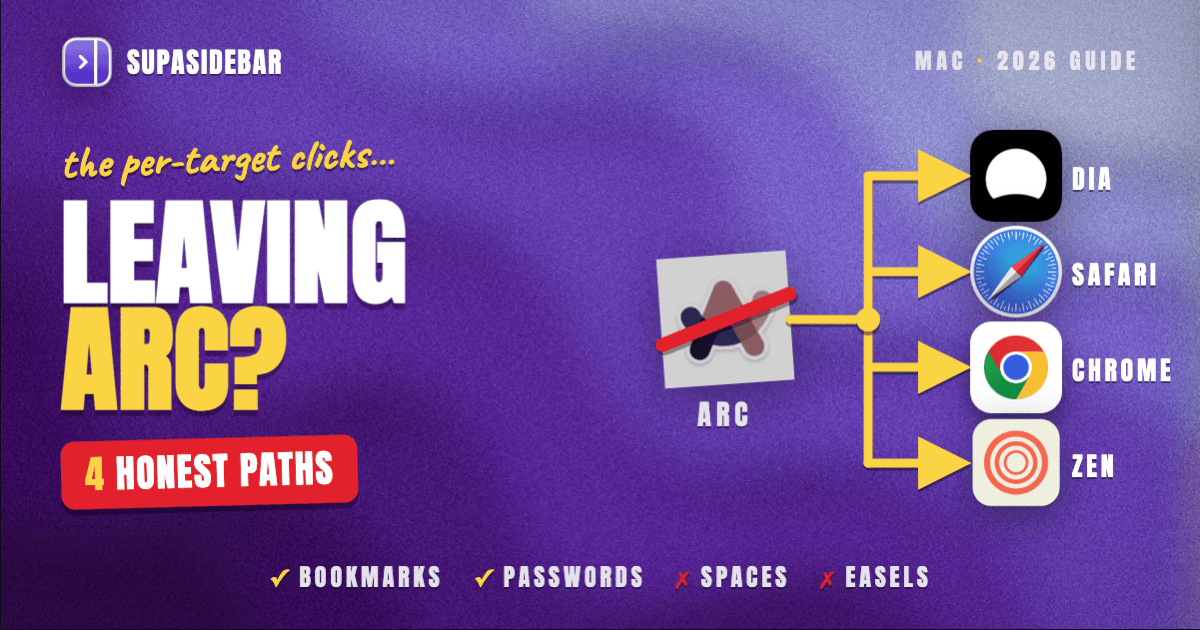
The destination decides the difficulty. Arc to Dia transfers bookmarks and passwords through Dia's built-in importer but loses Spaces, pinned tabs, and Easels. Arc to Safari is an HTML bookmark export plus manual Tab Group recreation. Arc to Chrome is one click plus Chrome sync. Arc to Zen pulls bookmarks through Zen's built-in importer and a community tool (arc2zen) maps Arc Spaces to Zen Workspaces. The only target that preserves Arc's full sidebar (Spaces, folders, pinned tabs) is SupaSidebar's 3-click Arc import, which layers Arc's sidebar onto whichever target browser ends up the daily driver.
This post assumes the destination decision is already made. If still weighing whether to leave Arc at all, start at Switching from Arc Browser, which owns the "should you switch and what you'll miss" question.
What actually transfers (by target)
| Migration target | Built-in importer | Bookmarks | Passwords | History | Pinned tabs | Spaces / Workspaces | Boosts / Easels |
|---|---|---|---|---|---|---|---|
| Dia | Yes (Settings → Import) | Yes | Yes | Yes | No (manual re-pin) | No (Dia uses profiles, not Spaces) | No |
| Safari | No (HTML import only) | Yes (via HTML file) | Via iCloud Keychain (if Chrome-style profile) | No | No | Tab Groups: manual rebuild | No |
| Chrome | Yes (first-run import) | Yes | Yes | Yes | Tab Groups: manual rebuild | No (Chrome has profiles + Tab Groups) | No |
| Zen | Yes (Settings → Import) + arc2zen community tool | Yes | Yes | Yes | Yes (with arc2zen) | Workspaces (with arc2zen) | No |
| SupaSidebar (sidebar layer, not a browser) | Yes (Preferences → Import and Export → Arc) | Yes | n/a (browser owns passwords) | n/a | Yes | Yes (Arc Spaces → SupaSidebar Spaces) | No |
Sources for the importer behavior per browser: Dia's built-in import, Zen's Arc importer, the arc2zen open-source tool for Spaces, and SupaSidebar's Arc Alternative Guide for the 3-click direct import. Verified May 2026.
The shared Step 0: export Arc bookmarks once
Every target other than Chrome's first-run flow needs an HTML bookmark file out of Arc. Do this once and reuse the file across targets.
- Open Arc.
- Click the three-dot menu → Bookmarks → Export Bookmarks.
- Save the HTML file somewhere obvious (Desktop is fine).
That HTML file is the lowest common denominator. Safari imports it. Chrome imports it. Firefox-based browsers (including Zen) import it. Dia's built-in importer pulls directly from Arc without needing this file, but having it as a backup matters because Arc is in maintenance mode and a future Arc update could break in-app exports without warning.
For the deeper data layer (StorableSidebar.json, which holds Spaces, pinned tab structures, and folder hierarchies), see the Export Arc Browser Sidebar guide. That post owns the StorableSidebar.json deep-dive.
Path A: Arc to Dia
Dia is The Browser Company's official Arc successor, now an Atlassian subsidiary after the $610 million acquisition closed October 21, 2025. Dia ships a built-in importer that reads Arc directly. For the broader "is Dia the right move from Arc" question, see Arc Browser vs Dia Browser.
Steps
- Download Dia from diabrowser.com. Requires macOS 14+ on Apple Silicon (M1 through M4). No Intel Mac support.
- Open Dia. On first launch, the onboarding flow offers to import from another browser.
- If onboarding was already dismissed: Dia menu → Settings → Import → select Arc.
- Dia pulls bookmarks, passwords, and history. It does NOT pull Spaces, pinned tabs, Easels, or Boosts. Verified against Dia's current public capabilities.
- Recreate Spaces manually as Dia profiles or pinned tab groups: right-click the Spaces section → New Space → name, icon, color. Then right-click any tab → Pin to Space.
- Reinstall Chrome extensions. Dia is Chromium-based, so Chrome Web Store extensions work, but they do not transfer with the import.
What gets lost going Arc to Dia
- Spaces. Dia uses profiles instead. Different mental model. Pinned tabs are not per-Space.
- Cmd+T command bar. Dia replaced it with an AI chat interface in the URL bar.
- Boosts (per-site CSS injection) and Easels (whiteboards). No equivalent.
- Per-Space pinned tabs. Dia has pinned tabs in a 3x3 grid, but not the per-Space organization Arc had.
A user on r/diabrowser describing the import experience: "Trying out Dia and did the migrate thing from ARC but as I [hit issues]..." (r/ArcBrowser). The migration is bookmark-level. The sidebar-level workflow does not transfer.
Path B: Arc to Safari
Safari has no Arc importer. The path is HTML import plus Tab Groups rebuilt by hand. For the Mac-ecosystem case for choosing Safari, see Switching from Arc Browser.
Steps
- Complete the shared Step 0 (export Arc bookmarks to HTML).
- Open Safari → File → Import From → Bookmarks HTML File → select the Arc export.
- Bookmarks land in a folder named "Imported [date]" in Safari's bookmarks sidebar.
- Reorganize that folder into Safari's flat bookmarks structure. Safari has no folder-of-folders concept that maps to Arc's nested Spaces.
- Recreate Spaces as Safari Tab Groups: Safari → File → New Tab Group. Manually open the URLs that lived in each Arc Space and assign them.
- iCloud Keychain handles passwords if already enabled on the Mac. Otherwise, export passwords from Arc separately (Arc Settings → Profile → Passwords → Export) and import via Safari's password manager.
What gets lost going Arc to Safari
- Sidebar UI. Safari's sidebar is bookmark-only, no tab management like Arc's.
- Command bar. Cmd+T opens a new tab, not a fuzzy search panel.
- Spaces structure. Tab Groups are flat lists, not Arc-style Spaces with pinned tabs.
- Little Arc. Safari has nothing equivalent (popup windows for quick lookups).
- History. Cannot import.
This is the lossiest target by default. The bookmark transfer works; the workflow does not.
Path C: Arc to Chrome
Chrome's first-run import handles this case better than any other. Both Arc and Chrome are Chromium-based, so the underlying data formats line up.
Steps
- Download Chrome from google.com/chrome. Available on Intel and Apple Silicon Macs.
- On first launch, Chrome prompts to import from another browser. Select Arc.
- Chrome imports bookmarks, passwords, history, and most settings. Already-imported? Use Chrome menu → Bookmarks → Import Bookmarks and Settings → Arc.
- Sign in to Chrome with a Google account. Chrome sync handles cross-device propagation.
- Recreate Arc Spaces as Chrome Tab Groups plus profiles. Profiles handle the "work vs personal" axis that Arc Spaces handled. Tab Groups handle the "this set of tabs belongs together" axis.
- Reinstall extensions. Chrome Web Store extensions do not transfer; sign-in to a Chrome account with extension sync turned on if previously used.
What gets lost going Arc to Chrome
- Vertical sidebar. Chrome has a Side Panel and a vertical-tabs flag, but neither feels like Arc's sidebar.
- Cmd+T command bar. Chrome's Cmd+T is the standard new-tab shortcut.
- Spaces. Tab Groups + profiles approximate this, but the mental model is different.
- Auto-archiving of inactive tabs. Chrome's Memory Saver suspends tabs but does not auto-archive.
Chrome users tend to add the Vimium keyboard-navigation extension and a tab-suspender like Auto Tab Discard to close some of the gaps. Do NOT install The Great Suspender - that extension was delisted by Google in February 2021 for containing malware that ran arbitrary remote code. The Marvellous Suspender is the malware-free fork.
Path D: Arc to Zen
Zen Browser is a Firefox-based, open-source browser that ships a built-in Arc importer plus a community ecosystem of conversion tools. This is the closest UI 1-for-1 target. For the head-to-head, see Zen Browser vs Vivaldi.
Steps
- Download Zen from zen-browser.app. Available on macOS, Windows, and Linux.
- On first launch, Zen's setup flow includes Import data from another browser. Select Arc if listed; if not, select Chrome (Arc is Chromium-based, so the Chrome importer reads Arc's profile directory).
- For deeper Spaces-to-Workspaces conversion, use the community tool arc2zen. It converts Arc Spaces to Zen Workspaces with space icons mapped to workspace icons, space colors mapped to workspace themes, and Arc pinned tabs mapped to Zen pinned tabs with folder structure preserved.
- Alternative path: copy the Arc Chromium profile to a Chrome profile, then let Zen detect and import from Chrome (clouedoc's GitHub gist documents this approach).
- Install extensions from addons.mozilla.org. Zen is Firefox-based, so it uses Firefox extensions, not Chrome ones. This is the biggest behavior gap from Arc.
What gets lost going Arc to Zen
- Chrome extensions. Zen is Firefox-based. Chrome extensions do not work; Firefox equivalents must be found.
- iCloud sync. Zen does not integrate with iCloud Keychain or Handoff.
- Some Arc-specific UI flourishes. Zen's Workspaces are close but not identical to Arc Spaces.
- Easels and Boosts. No browser other than Arc has these.
Zen is the closest open-source spiritual successor to Arc. The path is the heaviest in terms of community tools, but the result preserves the most of Arc's visual workflow.
Path E: keep using a normal browser and add Arc's sidebar back on top
The four migration paths above all share one limitation: they ask the user to pick a single new browser and accept what the target loses. For users who used Arc primarily for the sidebar workflow (Spaces, pinned tabs, folders, command bar), a different path is possible. Stay on Safari, Chrome, Firefox, Zen, or Dia as the rendering engine, and layer SupaSidebar on top to bring Arc's sidebar back across all of them.
Steps
- Pick a base browser using one of Paths A through D above. Migrate bookmarks once into whatever target was chosen.
- Download SupaSidebar from supasidebar.com/download. It is a Mac app, not a browser. macOS 14+.
- Open SupaSidebar → Preferences → Import and Export → Arc → Import. Three clicks. Arc Spaces, pinned tabs, folders, and links transfer in seconds. No StorableSidebar.json hunting.
- SupaSidebar's sidebar now layers on whichever browser is active. Cmd+Shift+Space toggles visibility. Cmd+Ctrl+K opens the Command Panel (the Arc Cmd+T equivalent).
This path is the most useful for users whose Arc loss is the sidebar workflow rather than the rendering engine. A user on r/macapps described the resulting setup: "This is exactly what I needed, been looking for something like this since I switched from Arc" (q-019).
Another user, after trying Dia first and finding the tab management lacking, wrote: "I switched from Arc to Dia and I'm not quite satisfied with how it handles tab management. Then I came across your app on the Arc subreddit." - Jörg Heckel, customer email. The pattern matters because it shows the order most Arc refugees end up taking: try the official successor first, hit the workflow gap, then look for a tool that fills the gap without forcing another browser switch.
Common gotchas across all targets
A few issues hit users on every migration path. None are blockers, but each costs an hour if not anticipated.
Pinned tabs almost never transfer.
Built-in importers move bookmarks but rarely move pinned tabs - they are a different data type internally. Plan to re-pin manually in the target browser, or use SupaSidebar's Arc import which preserves pinned tabs as part of the Space structure.
Extensions never transfer between Chromium and Firefox.
Arc to Chrome, Brave, Vivaldi, or Edge keeps Chrome extensions. Arc to Zen or Firefox loses them and needs Firefox-store equivalents.
Passwords are the trap.
Most browsers will import the bookmark file but require a separate password export. Arc's password export is at Settings → Profile → Passwords → Export. Save the CSV, import it into the target browser's password manager, then delete the CSV (it is plaintext).
Arc keeps running until manually removed.
Importing into a new browser does not delete Arc. Arc is still on the Mac. Open Arc once after the migration and confirm the Spaces look intact before deleting Arc entirely. Maintenance mode means Arc still launches and works for read-access to old data; the Browser Company letter confirms this.
Maintenance mode means no fixes are coming.
Arc's export, sync, and account features still work as of May 2026, but no new fixes are coming. If an Arc bug blocks the export, the Arc-to-HTML-via-print-page workaround documented in export-arc-browser-sidebar is the fallback.
Conclusion: Picking the migration path that fits
The migration target depends on what was actually used in Arc. For users who picked Arc for its AI integration, Dia is the official successor and the import is straightforward, but Spaces and the command bar do not transfer. For users in the Apple ecosystem who want battery life and iCloud, Safari is the target but the migration is the lossiest. For users who need extensions and cross-device sync, Chrome is the smoothest import. For users who want the closest Arc-like UI on an open-source base, Zen plus the arc2zen community tool is the closest 1-for-1.
The fifth path - staying on a normal browser and adding SupaSidebar - is the right one for users who used Arc primarily for the sidebar workflow rather than the rendering engine. It is the only path that preserves Arc Spaces, pinned tabs, and folder structure in full via a 3-click direct import.
Whichever target gets picked, do the export-to-HTML step once and reuse the file. Confirm Arc still runs after the migration (it should). Then delete Arc once the new setup feels stable. Maintenance mode does not mean Arc breaks tomorrow, but staying on a maintenance-mode browser as the daily driver runs out of road eventually.
Try SupaSidebar (free tier) if the sidebar workflow is the part of Arc worth saving. For the broader "what to use after Arc" decision, see Arc Browser Alternative Guide.
Why we recommend SupaSidebar
SupaSidebar is a macOS app that brings Arc's sidebar to every browser - one sidebar for tabs, bookmarks, files, and apps across 25+ browsers including Safari, Chrome, Firefox, Arc, Zen, Vivaldi, Brave, Helium, and Dia. For Arc refugees specifically, SupaSidebar is the only migration target that preserves Arc Spaces, pinned tabs, and folder structure intact, through a 3-click direct import (Preferences → Import and Export → Arc → Import). It runs as a native Mac app on macOS 14+. There is a free tier with 3 Spaces.
Frequently Asked Questions
How do I import from Arc to Dia?
Open Dia → Settings → Import → select Arc. Dia pulls bookmarks, passwords, and history. It does not pull Arc Spaces, pinned tabs, Easels, or Boosts. The first-launch onboarding flow offers the same import.
Does Dia import Arc Spaces?
No. Dia uses profiles instead of Spaces. Spaces must be recreated manually as Dia profiles or pinned tab groups. As of May 2026, no Arc data import preserves Spaces in Dia.
How do I migrate from Arc to Safari?
Export bookmarks from Arc (three-dot menu → Bookmarks → Export Bookmarks). In Safari, File → Import From → Bookmarks HTML File → select the Arc export. Bookmarks land in an "Imported [date]" folder. Tab Groups must be rebuilt manually.
Can I import Arc bookmarks into Chrome?
Yes. Chrome's first-run flow includes Arc as an import source. If Chrome is already set up, use Chrome menu → Bookmarks → Import Bookmarks and Settings → Arc. Bookmarks, passwords, and history transfer.
How do I migrate from Arc to Zen Browser?
Zen's built-in importer includes Arc (Settings → Import → Arc, or select Chrome since Arc is Chromium-based). For deeper Spaces-to-Workspaces conversion, use the community tool arc2zen which maps Arc Spaces to Zen Workspaces with icons, colors, and pinned tab folder structure preserved.
What's the easiest Arc migration target?
Chrome. Both Arc and Chrome are Chromium-based, so the first-run importer transfers bookmarks, passwords, and history in one click. Chrome's Tab Groups and profiles partially replace Arc Spaces. The trade-off is no vertical sidebar.
What's the closest 1-for-1 Arc replacement for migration?
Zen Browser (open-source, Firefox-based) for the visual UI, plus the arc2zen community tool for Spaces-to-Workspaces conversion. For the sidebar workflow specifically, SupaSidebar is the only tool with a direct Arc Spaces import that preserves the full structure.
Will I lose my Arc Easels and Boosts in any migration?
Yes. Easels (whiteboards) and Boosts (per-site CSS injection) have no equivalent in any other browser. Boosts ran inside Arc's browser engine, which is why they could modify any site with zero performance cost. Extension-based alternatives like Stylus get partway there but are not equivalent.
Does Arc still work after migrating?
Yes. Importing into another browser does not delete Arc. Arc is in maintenance mode since May 27, 2025 under Atlassian ownership, but it still launches and runs. Keep Arc installed until the new setup feels stable.
By Kshetez Vinayak, founder of SupaSidebar.