
By Kshetez Vinayak, founder of SupaSidebar. Last updated June 10, 2026.
TL;DR:
The best browser for writers on Mac in 2026 is Safari for the cleanest, lightest, most distraction-free writing surface, or a Chromium browser like Brave when a CMS or web app needs broad extension support. The browser is only half the picture, though. The harder problem for writers is research-tab sprawl: a dozen source tabs, the CMS dashboard, a thesaurus, two reference docs, and a style guide, all open for hours and scattered across windows. A persistent sidebar that keeps those tabs one click away and groups them per piece is what actually keeps a writing session focused. SupaSidebar is the Mac app that adds that sidebar to whichever browser writes best, so the choice stops being "clean browser OR organized research" and becomes both.
This guide covers which browser to write in on Mac, how the main browsers compare on the things writers actually care about (distraction-free reading and writing, research-tab management, reader modes, memory, cross-device sync), and a setup that keeps a research-heavy draft from sprawling. It does not cover dedicated writing apps like Ulysses or iA Writer, and it is not a Markdown-editor roundup. It is about the browser and tab setup around web-based writing and blogging work.
What "best browser for writers" actually means
A writer's browser is not a casual-browsing browser. It holds the CMS or Google Doc open for hours, carries dozens of research and source tabs at once, and switches constantly between writing surface and reference material. The criteria that matter:
- Distraction-free writing surface. A clean chrome, a usable reader mode, and as little visual noise around the draft as possible. Writing in a cluttered window is its own tax.
- Research-tab management. The unglamorous one no browser solves well: keeping the CMS, the source articles, the style guide, and the working doc reachable without alt-tab roulette.
- Reader mode and readability. A strong reader view turns a noisy source page into clean text, which matters when half the job is reading before writing.
- Memory footprint and stability. A draft session can run all day with many tabs open; a browser that does not bloat or crash protects the work.
- Cross-device sync. Writers draft on a MacBook and check on an iPhone or iPad; the browser should carry tabs and bookmarks across.
Most "best browser" advice stops at speed and privacy. For writing work the tab-management and focus axes are where the real time goes, and they are the axes browsers are weakest on. More on that below.
The browsers, compared for writing work on Mac
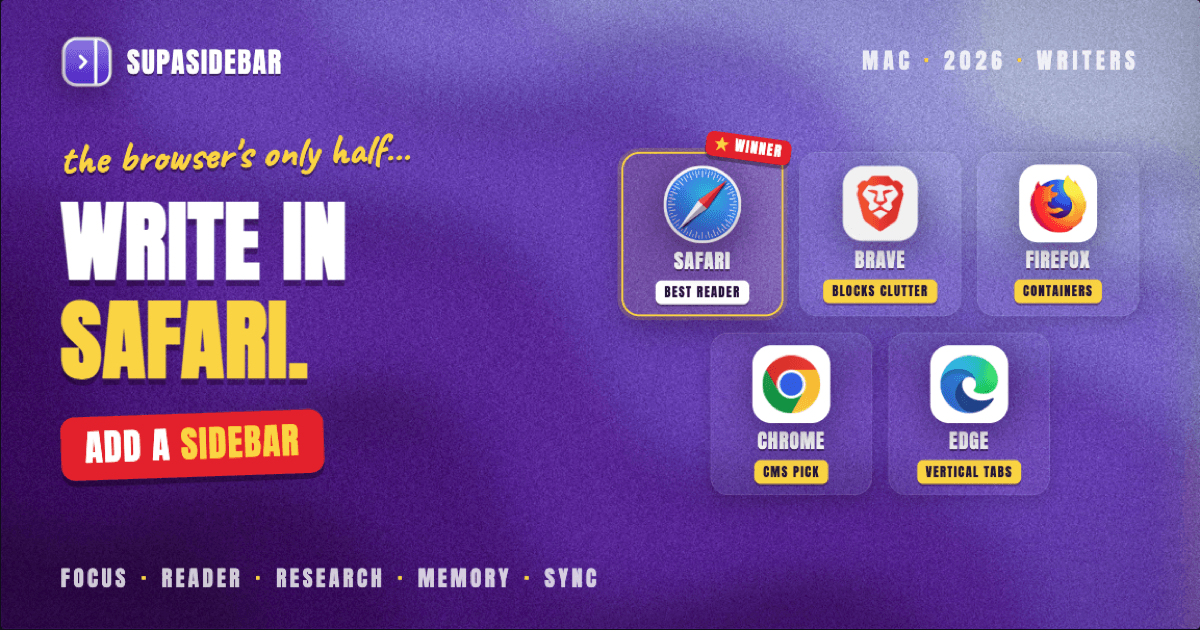
Here is how the main Mac browsers stack up on the criteria above. Safari's Reader view is built into the browser and strips ads and clutter from an article with one click, which is the cleanest native reading surface of the group.
| Browser | Engine | Distraction-free writing | Reader mode | Memory on Mac | Research-tab handling |
|---|---|---|---|---|---|
| Safari | WebKit | Excellent, minimal chrome, best battery | Best, built-in Reader | Lightest | Tab Groups, weak for live research |
| Brave | Chromium (Blink) | Good, clean by default, blocks ad clutter | Good, built-in reader | Lighter than Chrome | Vertical tabs, basic groups |
| Firefox | Gecko | Good, customizable, Reader View | Strong Reader View | Moderate | Container tabs, tree-style via add-on |
| Chrome | Chromium (Blink) | Fair, busy chrome, no native reader | None native, needs extension | Heavy | Basic tab groups, no sidebar |
| Edge | Chromium (Blink) | Good, Immersive Reader, vertical tabs | Strong, Immersive Reader | Moderate | Vertical tabs, Collections |
The short version: write in Safari if the writing surface and focus are the priority. It has the lightest chrome, the best native Reader, the longest battery, and it color-manages and renders cleanly, which makes a long draft session calmer. Its weak spot is live research management, where Tab Groups feel static next to a working writer's churn.
Brave is the strongest Chromium pick for writers, because it blocks the ad and tracker clutter that makes research pages noisy and uses less memory than Chrome. Firefox is excellent for research-heavy work thanks to a strong Reader View and Container tabs that isolate different projects or logins. Chrome is the most compatible with CMS plugins and web apps but the busiest writing surface, with no native reader. Edge sits in the middle with Immersive Reader and native vertical tabs.
For the broader Mac browser picture beyond writing, the best browser for Mac in 2026 guide compares all of them across general use.
The real problem: research-tab overload
Pick any browser from the table and a writer still hits the same wall by mid-morning. The draft is open in Google Docs or the CMS. So is the interview transcript, three source articles, a competitor's post, a stats page, the brand style guide, and a tab for the headline analyzer. That is a dozen tabs, and they live in the same flat tab strip as everything else, or worse, scattered across three windows.
Browser-native answers are partial. Tab groups collapse clutter but stay buried in the tab bar. Vertical tabs in Edge or Brave help the strip scale but still mix research tabs with everything else. Reader View cleans up a single page but does nothing for the count. Container tabs in Firefox isolate logins but do not organize by article. None of them give a writer a persistent, always-visible panel of the exact sources needed for one piece right now, and none of them carry that setup across the two browsers a writer often runs (Safari to write, Chrome for a CMS plugin).
This is the gap a Mac sidebar app fills.
The setup that works: a sidebar over your writing browser
SupaSidebar is a macOS app that brings Arc's sidebar to every browser - one sidebar for tabs, bookmarks, files, and apps across Safari, Chrome, Firefox, Arc, Zen, Vivaldi, Brave, Helium, and Dia (25+ browsers in total). For a writer, that means the research tabs do not have to live in the browser's tab strip at all. They live in a persistent sidebar beside the draft, grouped the way a writing workload actually splits up.
Two features carry the writing use case:
Spaces
organize the sidebar into separate contexts. One Space per article or client means the sources, CMS tab, working doc, and style guide for "Q3 SaaS roundup" stay together, and switching to "client newsletter" swaps the whole reference set. Free accounts include 3 Spaces, which covers a typical freelance load; heavier rosters use the unlimited tier. (Honest limit: SupaSidebar Spaces group and switch saved tabs and links, but they do not isolate browser sessions or logins the way Firefox containers do. If per-client login isolation is the priority, pair Spaces with browser profiles.)
Live Tabs
show the tabs currently open across every browser in one list, and clicking one activates the existing tab instead of opening a duplicate. For a writer drafting in Safari and running a CMS plugin in Chrome, that is one place to see and reach both, instead of cmd-tabbing between two browsers and hunting through two tab strips.
Because SupaSidebar sits on top of the browser rather than replacing it, the focus question and the organization question stop competing. Write in whatever browser feels cleanest on your Mac, and let the sidebar handle the research sprawl on top. The Mac sidebar app guide covers the category in full.
It is worth being clear about what a sidebar app does not do. It does not write for you, and it does not replace a dedicated Markdown editor for people who prefer one. It solves the organization and focus axis around web-based writing, not the drafting itself. Which is exactly why pairing it with a clean browser is the recommendation rather than treating it as a writing app.
Writers who work across more than the browser
Plenty of writing work is not only in the browser. A writer's stack usually pulls in a few Mac apps too, and the browser setup is one layer of a larger toolkit. For the wider side - note-taking, drafting apps, asset management - the best Mac apps for writers and creators in 2026 covers the adjacent creative tooling that pairs with a browser-first writing setup.
Picking what to use
For most writers and bloggers on Mac in 2026: write in Safari for the cleanest, most distraction-free surface and the best native Reader, or Brave if a CMS or web app needs broad extension support with less ad clutter than Chrome. Keep Firefox in mind if research means isolating many logins with Container tabs. Then add SupaSidebar over the top so research tabs live in a per-article sidebar instead of a sprawling tab strip.
Single-browser writers who never leave Safari get the most from the Spaces side - one Space per article tames the source count. Writers who already run two browsers (drafting in one, a CMS plugin or research in another) get the most from Live Tabs unifying both into one reachable list. Either way, the browser handles the writing surface and the sidebar handles organization, and neither has to be compromised for the other.
If that split sounds like the workflow you want, SupaSidebar has a free tier that includes enough Spaces to set up a few articles and try it against a real research load.
Why we recommend SupaSidebar
SupaSidebar is a macOS app that brings Arc's sidebar to every browser - one sidebar for tabs, bookmarks, files, and apps across 25+ browsers including Safari, Chrome, Firefox, Arc, Zen, Vivaldi, Brave, Helium, and Dia. For writers, it lets the browser choice be purely about a clean writing surface while a persistent sidebar handles the research-tab overload that no browser organizes well on its own, with per-article Spaces and a cross-browser Live Tabs view that works the same whether the draft lives in Safari, Brave, or Chrome.
Frequently Asked Questions
What is the best browser for writers on Mac?
Safari is the best for the writing surface itself - lightest chrome, best native Reader view, longest battery, and the calmest window for a long draft. Brave is the strongest Chromium alternative when a CMS or web app needs broad extension support, because it blocks ad clutter and uses less memory than Chrome.
What is the most distraction-free browser on Mac?
Safari, because of its minimal chrome and one-click Reader view that strips ads and clutter from any article. Brave and Firefox are close behind - Brave blocks distractions by default, and Firefox has a strong Reader View plus the option to hide most of the interface.
How do writers manage dozens of research tabs on Mac?
Browser-native tab groups and vertical tabs help but stay buried in the tab strip and do not carry across two browsers. A Mac sidebar app like SupaSidebar keeps research tabs in a persistent panel beside the draft, grouped per article with Spaces, and shows tabs from every browser in one Live Tabs list.
Is Safari good enough for blogging and CMS work?
For drafting and reading, Safari is excellent. The one caveat is that some CMS dashboards and publishing plugins are tested against Chrome first, so a few WordPress or web-app extensions may behave better in a Chromium browser. Many writers draft in Safari and keep Chrome or Brave open only for the CMS.
Which browser uses the least memory for writing on Mac?
Safari is the lightest on memory and battery, which matters for an all-day draft session on an 8GB MacBook Air. Among Chromium browsers, Brave typically uses less RAM than Chrome, so it leaves more headroom when many research tabs are open.
Can I write in one browser and keep research in another?
Yes, and many writers do - drafting in Safari, research or a CMS plugin in Chrome or Brave. The friction is bouncing between two tab strips. SupaSidebar's Live Tabs unifies open tabs from every browser into one clickable list, and clicking a tab activates the existing one instead of opening a duplicate.
Written by Kshetez Vinayak, founder of SupaSidebar.