
By Kshetez Vinayak, founder of SupaSidebar. Last updated 2026-06-03.
Quick navigation:
- Writing or content work? → Best Mac Apps for Writers and Content Creators 2026
- Student stack? → Best Mac Apps for Students 2026
- Deep-work setup? → Mac Workspace Setup for Deep Work 2026
- Need work and personal browsers separated? → Browser Profiles on Mac 2026
- Remote worker or digital nomad? You are in the right place. Keep reading.
TL;DR
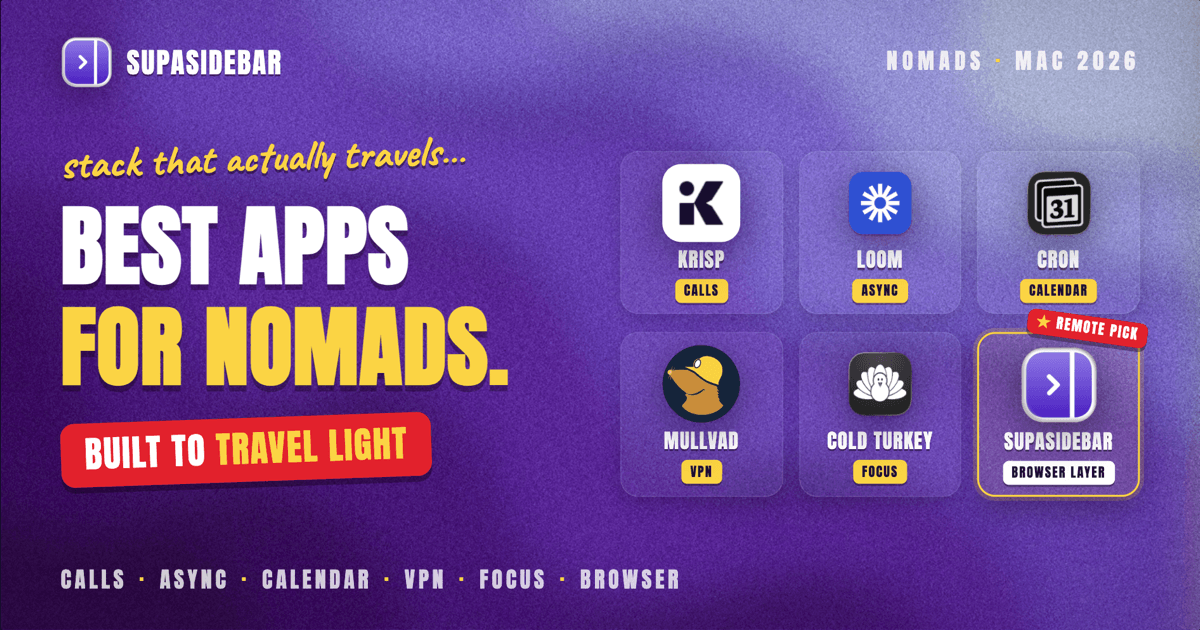
The Mac stack that actually carries a remote or nomadic workflow in 2026 looks like this: Krisp for call audio (it strips other people's voices, dogs, and cafe noise in real time), SupaSidebar for the three-browser problem (work G-Suite, personal account, side project), Loom or CleanShot X for async messages, Mullvad VPN for cafe and Airbnb wifi, and Cron or Spark for time-zone-aware calendaring. Krisp's two-way noise cancellation removes background noise from both sides of the call (Krisp product page), which is the single biggest quality jump for coworking-space and cafe calls. SupaSidebar unifies tabs across every major Mac browser - Safari, Chrome, Firefox, Edge, Arc, Brave, Vivaldi, Comet, and Dia, 33 counting channel variants - which solves the multi-browser problem most remote workers eventually create for themselves.
This piece is a category-by-category walkthrough of the stack. It is opinionated, names winners per category, and skips the apps every productivity blog recycles when they do not actually carry remote-work weight.
Scope:
Mac apps for remote employees, hybrid workers, freelancers, and digital nomads working from cafes, coworking spaces, Airbnbs, and home offices. Not covered: enterprise IT mandates (Okta, ZScaler), industry-specific tools (Figma, Linear, dbt), and apps that have no Mac client.
The remote-work axis: you do not have an office to leave
The thing every list of "best Mac apps for productivity" misses about remote work is that the problem set is different. A traditional office job has an office, a fixed workstation, IT-managed wifi, a desk phone, and a clear end-of-day cue (everyone is leaving the building). Remote work has none of that.
The actual remote-work problems are: call quality on a noisy network, async communication that does not require everyone to be online at once, separating work browsing from personal browsing (because there is no work laptop in the next room), staying safe on cafe and hotel wifi, keeping track of teammates in three time zones, and creating an artificial end-of-day cue when the desk is the kitchen table.
The stack below is sequenced by that problem set, not by app category.
Video calls and call audio
This is the category that pays for itself faster than any other. Bad call audio gets people taken less seriously, period. Quiet rooms are a luxury remote workers do not always have - cafes, coworking spaces, kids, dogs, construction next door.
Krisp
Krisp's two-way noise suppression removes background noise from both sides of a call in real time - the user's side AND the other participant's side - via a virtual microphone and speaker driver. The technical pitch is that it runs the noise model on-device using ML, so audio never leaves the Mac. The practical pitch is that a cafe with a 70 dB ambient floor sounds like a quiet office on the call. It also strips other meeting participants' background noise from incoming audio, which is the underrated half of the feature.
Best for: anyone taking calls from cafes, coworking spaces, or any environment they do not control acoustically.
Around
Around is a video call app built for remote work specifically. The floating circular video tiles take ~50 MB of RAM each compared to Zoom or Google Meet which run on Electron and consume 1-2 GB. It also auto-frames the speaker so a head moving around a room stays centered, which matters for kitchen-table calls. The downside: Around is an additional app to install, and meeting links cannot be sent to non-Around users without onboarding them first.
Best for: remote teams that have standardized on Around for their internal calls. Not a fit if external meetings dominate the schedule.
Zoom and Google Meet
The two defaults. Zoom is heavier (1.5-2 GB RAM with 4 participants), Google Meet runs in the browser (lighter on RAM, heavier on tabs). For Google Meet specifically, opening it in a dedicated browser profile or using a tool like Coherence X to wrap it as a standalone app prevents the meeting from competing with research tabs in the main browser.
Best for: external client calls where the participants are not all on Around or another niche tool.
The skip list
Apps to skip in 2026: BlueJeans (acquired and discontinued), GoToMeeting (legacy, no Mac-native feel), Skype (Microsoft is consolidating Teams over Skype). Do not invest workflow in any of these.
The three-browser problem
Every remote worker eventually has three browsers open: Chrome for the work account (because the company SSO is configured there), Safari for personal browsing (because it is the macOS default and battery-friendly), and a third for side projects or research (Arc, Zen, Brave, or Firefox depending on taste). Tabs spread across all three, and finding "that one Notion page from yesterday" becomes a 90-second hunt across windows.
The category that addresses this is sidebar-and-tab managers, and the choice depends on whether the workflow is browser-extension-shaped or Mac-app-shaped.
SupaSidebar (one sidebar across every browser)
SupaSidebar is the cross-browser workspace layer for remote workers: one sidebar that unifies the work, personal, and side-project browsers into a single searchable place. It runs natively on macOS and spans every major Mac browser - Safari, Chrome, Firefox, Edge, Arc, Brave, Vivaldi, Comet, and Dia, 33 counting channel variants. The sidebar shows Live Tabs from every running browser at once, which is the specific feature that solves the three-browser problem - tabs from Chrome work, Safari personal, and Arc side project all appear in one list. Command Panel (⌘⌃K) searches across them. Spaces keep work and personal tabs visually separated. Smart Attach docks the sidebar next to the active browser window, so it does not float in the way during a video call.
The Arc import path is 3 clicks (Preferences > Import and Export > Arc > Import), which matters because nomads moving Arc bookmarks over do not want to fight a complicated migration on hotel wifi. iCloud sync is built in, no account required, so a Mac in a cafe stays in sync with the home-office Mac without sending data through a third-party account.
A real user on Reddit described the appeal directly: "This looks great! I've been wanting a way to manage my multiple browsers from a single source." That is the three-browser problem stated in one sentence. A free version is available, and 3,000+ Mac users have tried SupaSidebar.
Best for: remote workers who keep two or more browsers open and want one place to search and switch.
Workona
Workona is a Chrome extension that organizes tabs into "Workspaces" inside Chrome. It works inside Chrome, which is its strength (Chrome-native, fast workspace switching) and its limitation (it does nothing for Safari or Firefox tabs). For remote workers who genuinely only use Chrome, it is excellent. For anyone with the three-browser problem, it does not solve it.
Best for: Chrome-only remote workers managing 30+ tabs across project workspaces.
Toby
Toby is a tab manager that lives in a Chrome new-tab override and a separate web app. Tabs get saved into collections, which is useful for research-heavy projects but does not address live tab switching across browsers. Pricing is per-user, which adds up for solo nomads.
Best for: research-heavy projects where collections of tabs need to be saved and shared with teammates.
Async messaging and recording
Remote work runs on async messaging. Async lets a Pacific-time employee leave a 4-minute video at 5 PM that the European team picks up at 9 AM, without forcing a meeting. The apps in this category turn 30-minute meetings into 4-minute videos.
Loom
Loom is the category-defining async video tool. Screen + face recording, instant share link, transcript generated automatically, viewer analytics (who watched, when, how far). The pivotal feature for remote workers is the transcript - it converts the video into searchable text, so the same content lives in Slack threads, docs, and email threads without needing to re-watch.
Best for: explaining bugs, sharing screen-based walkthroughs, recording handoffs across time zones.
CleanShot X
CleanShot X overlaps with Loom on screen recording but adds annotated screenshots, scrolling capture, and clipboard integration. It is the better pick when the message is a static "look at this thing on screen" rather than a "walk through this thing" explanation. Pricing it as a Loom alternative misses the point - it is a screenshot tool first and a recorder second.
Best for: bug reports, design feedback, quick "this is what the screen shows" notes.
Notion or a shared doc tool
Async writing is the other half. Notion, Google Docs, Coda - pick one based on what the team already uses. The mistake is using a personal note-taking tool (Bear, Apple Notes) for work async; teammates cannot view or comment, which defeats the point. The async-doc tool should support comments, mentions, and live cursors at minimum.
Best for: project specs, weekly updates, decision documents that need to survive a 12-hour async loop.
Time-zone and calendaring
Anyone working across more than two time zones learns quickly that the default macOS calendar is built for single-time-zone life. The category exists because "10 AM" is a different absolute time in San Francisco, Lisbon, and Bali, and remote teams need tools that handle the conversion automatically.
Cron
Cron is a keyboard-driven calendar built for remote work. The defining feature is multi-time-zone display - up to three time zones shown side-by-side on the calendar view, so scheduling a call across PT/CET/IST takes one glance instead of three browser tabs. It also has the cleanest natural-language event creation on Mac (type "lunch with sara tuesday 1pm" and it parses correctly).
Best for: remote workers managing calendars across two or more time zones daily.
Spark Mail
Spark handles the email side. Smart Inbox sorts mail into categories (pinned, newsletters, notifications), and Send Later is built in for the case where a 9 PM Mexico City reply should not land in a Berlin coworker's inbox until 9 AM Berlin time. Spark's send-later is more reliable than the Gmail equivalent because it works on top of any IMAP account.
Best for: email-heavy remote workers, especially across time zones.
World Clock Pro / TimeBuddy
The lightweight option. A menu-bar app showing the current time in 5-10 cities, with a slider to find overlap windows. Pairs well with Cron for scheduling and is the cheap fallback for teams that have not standardized on a calendar tool.
Best for: nomads tracking when teammates and clients are awake without opening a calendar app.
Security on cafe and Airbnb wifi
This is the unsexy half of digital-nomad life. Public wifi is a real attack surface, and remote workers carrying client data are obvious targets. The category covers VPNs and DNS-level protections.
Mullvad VPN
Mullvad is the privacy-credible VPN. No-logs policy independently audited, account creation requires no email (a randomly generated account number is the only identifier), payment accepted in cash or Monero. The Mac client is small, native-feeling, and has WireGuard support out of the box. ~$5/month flat.
Best for: nomads working from cafes, hotels, and Airbnbs where the network operator is unknown.
ProtonVPN
The free-tier alternative. ProtonVPN has a credible free tier (3 server locations, unlimited bandwidth, no ads) backed by the same team that runs ProtonMail. Slower than Mullvad on the free tier, but the price is right for occasional nomading or as a backup VPN.
Best for: occasional VPN users, or anyone already in the Proton ecosystem.
Little Snitch
Little Snitch is the outbound-connection monitor. Most VPN guides skip it because it is not a VPN, but the category overlap is real - Little Snitch shows every outbound connection every app makes, and lets the user allow or deny per-domain. The 6-month report on r/macapps (Nov 2025, 1,098 upvotes) describes catching Adobe Creative Cloud trying to reach 22 domains in the first 20 minutes, with telemetry analytics from menu bar apps the user did not expect (Reddit thread, r/macapps).
Best for: nomads carrying sensitive client data who want to know exactly what is leaving the Mac.
The skip list
Apps to skip: free VPNs that are not ProtonVPN (most monetize via selling user data), VPN extensions that only route browser traffic (they leak everything else), Hola VPN (acts as a peer-to-peer node, routing other users' traffic through the same Mac).
Focus and end-of-day cues
The remote-work focus problem is different from the office focus problem. In an office, distractions are external (interruptions, meetings). At home, distractions are internal (Twitter, Reddit, YouTube, Slack itself). Worse, there is no end-of-day signal because the desk is right there at 9 PM.
Cold Turkey Blocker
Cold Turkey Blocker is the strongest site and app blocker on Mac because it cannot be killed mid-session - even quitting the app or restarting the Mac will not break the block. That hardness is the feature. A blocker that can be turned off in two clicks gets turned off in two clicks. Cold Turkey's enforced sessions force the focus block to actually run for the full duration.
Best for: remote workers who lose 2+ hours a day to Twitter or Reddit and need an enforced block, not a polite one.
Focus (macOS)
The Mac-native option. macOS Focus Modes (Work, Personal, Reading) silence notifications and limit which apps and contacts can break through. Less hardcore than Cold Turkey, but it integrates with iPhone and iPad, so a Work focus on the Mac also silences Slack on the phone.
Best for: workers who need notification triage more than site blocking.
Bartender or Hidden Bar
Menu bar management. Remote workers tend to accumulate 12-20 menu bar apps (clocks, VPN, Krisp, Loom, Cron, Magnet, password managers, focus apps, screen recorders). Bartender hides everything behind a single icon and surfaces them on demand. It is the smallest quality-of-life upgrade per dollar in this stack.
Best for: anyone whose menu bar has run out of space.
Time tracking and admin
Freelance and contract nomads need time tracking for invoicing. Full-time remote employees may not, but the category overlaps with focus tracking, so it is worth covering.
Toggl Track
Toggl Track is the cleanest cross-platform time tracker. Native Mac app with menu-bar timer, project and client tagging, weekly reports, and a Pomodoro timer built in. The free tier is generous (unlimited tracking, unlimited projects), and the paid tier adds billable rates for invoicing.
Best for: freelancers, contractors, and anyone billing by the hour.
Bonsai or Wave
Invoicing and contracts. Bonsai is the freelancer-focused option (contracts, proposals, invoices, expense tracking, tax estimates), Wave is the free-forever invoicing option (no Mac app, web-only). Bonsai is worth the price for nomads dealing with US/EU/UK tax complexity; Wave is fine for simple invoicing.
Best for: freelance nomads who need invoicing and basic contract templates.
Conclusion: Picking what to use
The remote-work Mac stack in 2026 splits into six categories and the strongest single pick per category is: Krisp for call audio, Loom for async video, Cron for time-zone calendaring, Mullvad for VPN, SupaSidebar for the three-browser problem, and Cold Turkey Blocker for enforced focus. The stack costs roughly $30-50 per month combined, which is less than a single coworking-space day pass in most cities.
Single-browser remote workers (Chrome only, all day) get most of the way with Workona and skip the sidebar category. Multi-browser remote workers benefit most from a unified sidebar - the productivity tax of context-switching across Chrome, Safari, and a third browser eats more time than any other single problem in this stack. Hybrid workers in an office two days a week can skip the VPN, but full-time nomads on cafe wifi should not. Freelance nomads add Toggl and Bonsai for billing; salaried remote employees skip both.
Try SupaSidebar (free tier) if the three-browser problem is part of the daily friction. For Chrome-only setups or single-browser workflows, the rest of this stack works without it.
Why we recommend SupaSidebar
SupaSidebar is a macOS app that brings Arc's sidebar to every browser - one sidebar for tabs, bookmarks, files, and apps across 33 browsers including Safari, Chrome, Firefox, Edge, Arc, Brave, Vivaldi, Comet, and Dia. For remote workers and digital nomads who keep work and personal browsing in separate browsers, SupaSidebar surfaces every open tab in one place via Live Tabs, search across them with Command Panel (⌘⌃K), and uses Spaces to keep contexts separated. iCloud sync (no account required) keeps a home-office Mac and a travel Mac in step. macOS 14+ required.
Frequently Asked Questions
What is the best Mac app for remote workers in 2026?
There is no single best app - remote work needs a stack across categories. The strongest single picks are Krisp for call audio (two-way noise cancellation), Loom for async video messages, Cron for time-zone-aware calendaring, Mullvad VPN for cafe and hotel wifi, SupaSidebar for managing tabs across Chrome/Safari/Firefox/Arc, and Cold Turkey Blocker for enforced focus. Most remote workers end up with 6-8 apps from this list rather than one big do-everything tool.
Do digital nomads really need a VPN on a Mac?
Yes, when working from cafes, coworking spaces, hotels, or Airbnbs. Public wifi networks are shared and can be set up to capture unencrypted traffic. A VPN encrypts all traffic from the Mac before it leaves the network. Mullvad and ProtonVPN are the two privacy-credible options - Mullvad for a flat-rate paid plan with strong no-logs policy, ProtonVPN for a free tier with reasonable speeds.
How do remote workers handle multiple browsers on a Mac?
The common pattern is Chrome for the work account (SSO configured there), Safari for personal browsing (macOS default, best battery life), and a third browser for side projects or research. Without a unifying tool, finding a specific tab becomes a window-by-window hunt. SupaSidebar is built for this case - it shows Live Tabs from 33 browsers in one sidebar and searches across all of them with Command Panel. Alternatives: Workona (Chrome-only), Toby (Chrome-focused), or browser profiles (work and personal accounts inside the same Chrome).
Which Mac app is best for noise cancellation on video calls?
Krisp is the strongest option because its two-way noise suppression removes background noise from both the user's side and incoming audio in real time, running the model on-device. The Mac app installs as a virtual microphone and speaker, so it works with Zoom, Google Meet, Microsoft Teams, Slack Huddles, and any other call app without configuration. For Mac users who only need basic noise reduction, the macOS Voice Isolation feature (introduced in macOS Sonoma) covers the basics for free on Apple Silicon.
What is the best calendar app for remote workers across time zones?
Cron is the best option because it shows up to three time zones side-by-side on the calendar view, has keyboard-driven event creation, and parses natural-language input ("lunch with sara tuesday 1pm") accurately. For email-heavy workflows, Spark Mail pairs well because it has a built-in Send Later that respects the recipient's time zone. Fantastical is the heavier alternative with more polish but a higher learning curve.
Are there free Mac apps that work well for remote work?
Yes, but the free stack is narrower. The macOS Focus Modes cover the focus category, FaceTime and Google Meet (browser) handle calls, Apple Mail and Apple Calendar handle async, ProtonVPN free tier covers basic VPN needs, and macOS Voice Isolation covers basic call audio. The categories where free tools fall noticeably short are: async video (Loom's free tier limits videos to 5 minutes), enforced focus blocking (Cold Turkey's free tier is limited), and cross-browser tab management (no free competitor matches SupaSidebar's free tier, which includes 3 Spaces).
Is hybrid work different from full-time remote on Mac app needs?
Yes, in three ways. Hybrid workers can skip the VPN on office days (the office wifi is presumably trusted). They have less need for time-zone calendaring if teammates are mostly co-located. And they benefit more from menu-bar tools that reset state cleanly between office and home (e.g., a Focus Mode that auto-switches based on location). Otherwise, the stack overlaps significantly with full-time remote.
By Kshetez Vinayak, founder of SupaSidebar. Last updated 2026-06-03.