
By Kshetez Vinayak, founder of SupaSidebar. Last updated July 21, 2026.
Quick navigation:
- Just want one browser, work and personal split? → Use Chrome profiles or Safari 17+ profiles. Keep reading.
- You already use multiple browsers and want one place to see everything? → Why multi-browser users need a unified sidebar
- Picking the browser itself, not the profile setup? → Best browser for Mac in 2026
TL;DR
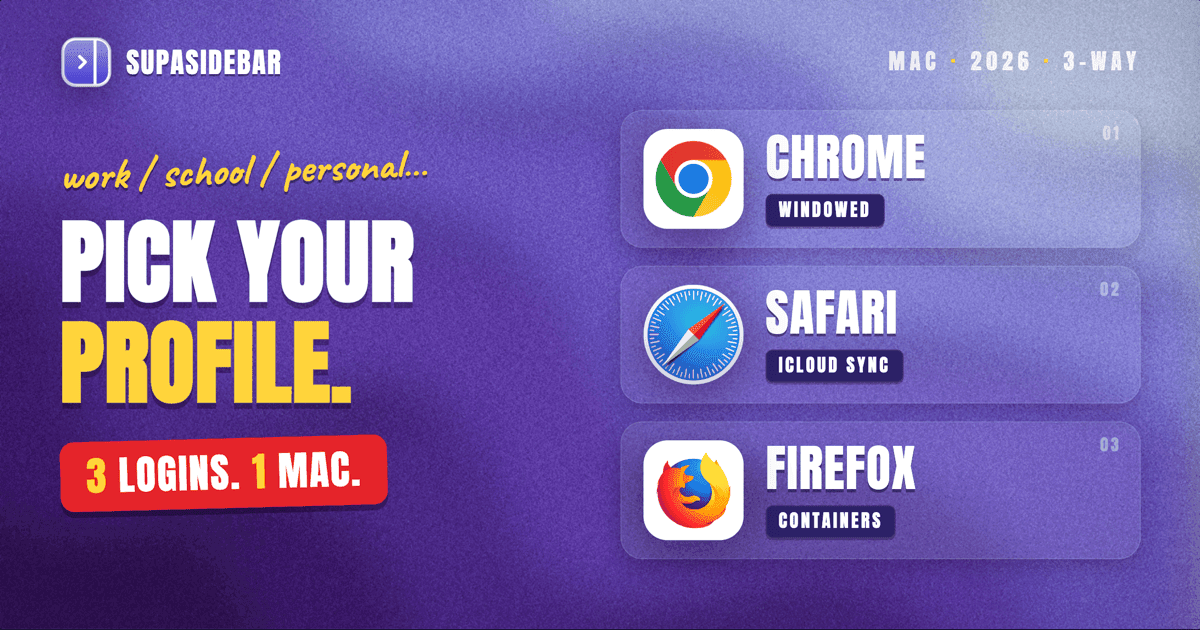
Browser profiles on Mac give you separate cookies, history, extensions, and bookmarks per role - work, school, personal - inside one browser. Chrome and Firefox have had profiles for years. Safari added them in macOS 14 Sonoma (September 2023), per Apple's official Safari profiles guide. Arc replaced profiles with Spaces, which are the same idea with better UI. The honest answer in 2026: profiles solve the auth problem (work Google logged in here, personal Google logged in there). They do not solve the context problem (where is the doc that was open in the work profile two days ago?). For the auth problem, Safari 17+ profiles or Chrome profiles are enough. For the context problem, the answer is a sidebar that spans every profile and every browser, which is what SupaSidebar does on Mac.
What a browser profile actually is (and what it isn't)
A profile is a completely separate user environment inside one browser. Each profile has its own cookies, login sessions, history, extensions, bookmarks, autofill data, and (depending on the browser) saved passwords. Switching profiles is like logging in as a different person, except the OS account stays the same and both profiles can run side by side.
A profile is not the same as a private/incognito window. Private windows discard everything when closed and reset to a blank state every time. Profiles persist. Open the work profile tomorrow and your work Gmail is still logged in, your Linear tab is still pinned, your work extensions are still installed. That persistence is the whole point.
A profile is also not the same as a separate macOS account. macOS accounts give you OS-level isolation (different desktop, different files, different login). Profiles only isolate browser state. If a website fingerprints you via your IP address, font list, or screen resolution, profiles do not hide that. They are an auth-and-state boundary, not a tracking boundary.
The four real reasons people set up profiles
- Auth separation. Two Google accounts, two work emails, a school account and a personal account - and you are tired of using a Chrome incognito window to log into the second one. A profile lets both stay logged in simultaneously.
- Extension sandboxing. Work tools (Loom, Notion clipper, Linear extension) live in the work profile. Personal tools (uBlock Origin, dark-mode extensions, weird hobby tools) live in the personal profile. Neither bleeds into the other.
- Context split. Different bookmarks, different homepage, different pinned tabs. Open the school profile and your Canvas, Zotero, and lecture-notes Notion all load. Open the personal profile and your Reddit, YouTube, and Hacker News load.
- Privacy hygiene. Cookies and tracking data stay scoped to the profile that generated them. The work profile does not know what you bought on Amazon last weekend. The personal profile does not know which client you were just researching.
The first three are the common cases. The fourth is real but smaller than people think (because IP-based tracking and fingerprinting work across profiles anyway).
The browser-by-browser landscape on Mac in 2026
Chrome profiles
Chrome has had profiles since 2010, and on Mac in 2026 they are the most polished implementation. The setup is three clicks: click your profile avatar in the top-right corner, click Add, sign in with a different Google account (or skip sign-in). Each profile opens in its own window with its own dock icon (with a small badge showing the profile color), per Google's official Chrome profiles documentation.
What you get per profile: separate bookmarks, history, passwords, autofill, extensions, themes, and Google account sign-in. Each profile syncs to its associated Google account independently. You can switch profiles by clicking the avatar and picking another, or by Cmd+Tabbing to the other profile's window (because each profile has a distinct window).
What it costs: extensions are not shared. If you use 1Password in three profiles, that is three installs to manage. Profile data lives on this Mac only - if you sign into Chrome on a different Mac, the profile structure does not transfer automatically (you sign into each Google account separately). And the dock icon situation is real: with three or four profiles open, you have three or four Chrome icons in Cmd+Tab, which can be either a feature or a clutter problem depending on your taste.
The honest assessment: Chrome profiles are the gold standard for auth separation. If you only need one browser and you want clean work/personal split, this is the simplest path.
Safari profiles (macOS 14 Sonoma and later)
Safari added profiles in macOS 14 Sonoma in September 2023, and the implementation has matured through Sonoma, Sequoia, and Tahoe updates. Setup lives in Safari, Settings, Profiles. Each profile has its own history, cookies, extensions enabled state, Tab Groups, and favorites. Apple documents this at the Use profiles in Safari on Mac support page.
What you get: a Safari profile shows up as a separate window with a distinct accent color in the title bar. Tab Groups are per-profile. Extensions can be enabled per profile (the extension is installed once at the Safari level, but you choose which profiles see it). And critically: Safari profiles sync via iCloud across your Macs, iPhone, and iPad. This is the single biggest functional difference from Chrome and Firefox - Apple's sync silo carries the profile across devices.
What it costs: Safari extensions are still a much smaller ecosystem than Chrome's. If your work depends on a Chrome extension that has no Safari equivalent, profiles do not solve that. Profiles are also a relatively recent feature, so older Safari muscle memory (Tab Groups for everything) gets a little muddied - is this thing scoped to the profile or the Tab Group? Apple's docs help, but the conceptual stack is one layer deeper than Chrome's.
The honest assessment: if you live in the Apple ecosystem and want auth separation that follows you to your iPhone, Safari profiles are uniquely good. If you need extension parity with Chrome's catalog, Safari profiles do not change that constraint.
Firefox profiles and Multi-Account Containers
Firefox has had a profile manager since the late 90s, but the implementation is famously rough. You open profiles via about:profiles in the address bar and Firefox launches each profile as a separate instance, with its own dock icon and its own crash window if one of them dies. It works, but it does not feel like a first-class feature.
The Firefox community largely solved the work/personal split a different way: Multi-Account Containers, an official Mozilla extension that puts containers (color-coded tabs with isolated cookies and login state) inside one Firefox window. You can have a Work container and a Personal container in the same window, click a new tab and pick which container it opens in, and your work Google stays logged in in the Work container while your personal Google stays logged in in the Personal container. No second window, no second dock icon.
A new layer arrived in late 2025: Firefox shipped dedicated workspaces that keep bookmarks, logins, extensions, and themes isolated per workspace, bringing the kind of profile UX that Arc users were used to. Firefox is still polishing this and the exact behavior continues to ship through 2026 updates, so verify against Mozilla's current documentation before depending on a specific detail.
What you get with Multi-Account Containers: cookie isolation per container, color-coded tabs, the ability to pin a website to always open in a specific container. What it costs: extensions and bookmarks are still global (containers do not split those), so if you wanted extension sandboxing too, you need real Firefox profiles instead.
The honest assessment: Multi-Account Containers is the right tool for auth separation in Firefox. Profiles are the right tool if you also need extension and bookmark separation. Most Firefox users only need containers.
Arc Spaces (and the May 2025 sunset)
Arc never had a separate "profile" concept the way Chrome and Safari do. It had Spaces - a single Arc window where you flipped between named contexts, each with its own pinned tabs, theme color, sidebar layout, and (optionally) its own Google account. Spaces was the cleanest UX for work/personal separation any browser shipped, and it was a major reason Arc users became evangelists.
The Browser Company put Arc into maintenance mode on May 27, 2025 and shifted development to Dia. Arc still runs as of May 2026, but no new features are coming, and the team has been transparent about the shift. Spaces still works in Arc today, but they are a frozen-in-time feature on a frozen-in-time browser. For new Arc setups in 2026, see the Arc Browser Alternative Guide and Is Arc Browser Dead? for the full status picture.
The honest assessment: if you are an existing Arc user, Spaces remains the best profile-equivalent UX you can get inside one browser. If you are not already on Arc, do not adopt it in 2026 just for Spaces - you are adopting a maintenance-mode browser. The pattern Arc invented (named contexts with their own auth and tabs) is what other browsers and Mac sidebar apps are now copying.
Profiles vs separate browsers vs containers: the decision matrix
| Approach | Auth separation | Extension separation | Bookmark separation | Cross-device sync | Mac dock clutter | Best for |
|---|---|---|---|---|---|---|
| Chrome profiles | Strong | Yes | Yes | Per Google account | One icon per open profile | Single-browser users who want clean role split |
| Safari 17+ profiles | Strong | Yes (per-profile toggle) | Yes | iCloud cross-device | One icon per open profile | Apple-ecosystem users who want profiles on iPhone too |
| Firefox profiles | Strong | Yes | Yes | None built-in | One icon per open profile | Power users who need extension and bookmark separation |
| Firefox Multi-Account Containers | Strong | No (extensions global) | No (bookmarks global) | Per Firefox sync | One icon | Firefox users who only need cookie/auth split |
| Arc Spaces | Strong (Google account per Space) | No (extensions global) | Yes (per Space) | Limited | One icon | Existing Arc users (do not adopt Arc just for this in 2026) |
| Separate browsers | Strong | Strong | Strong | Per browser | One icon per browser | Hard role separation (work in Edge, personal in Safari) |
| macOS user accounts | Strongest | Strongest | Strongest | Per account | Full OS switch | Compliance contexts, shared family Mac |
The pattern that emerges: profiles solve the auth and (depending on browser) extension/bookmark split inside one browser. Containers solve auth inside one window. Separate browsers solve everything but cost you the most context-switching. Separate macOS accounts solve everything plus give you OS-level isolation, but you have to log out and log in to switch.
The context problem profiles do not solve
Here is what every profile setup misses, regardless of which browser you pick.
A typical Mac user keeps Chrome open for work because that is where the company SSO is configured. They keep Safari open for personal because that is where iCloud Tabs live. They might also have Firefox open for one specific website that broke in Chrome, and Arc still open from the days before Arc's sunset because closing it feels like a loss.
Now they need to find a doc they had open three days ago. Was it in the work Chrome profile? The personal Safari? One of those Firefox containers? The Arc Space named "research"? Profiles solved the auth problem. They did not solve the question "where is the right tab."
This is the gap a Reddit user pointed at directly on r/macapps in late 2025: "I've been wanting a way to manage my multiple browsers from a single source." 1 Profiles inside one browser do nothing for that. They are a within-browser separation tool, not a cross-browser context tool.
Two solutions actually address this gap:
Option A: pick one browser and live there.
Use Chrome profiles for work/personal, drop the other browsers, accept the trade-offs (Safari battery savings gone, Apple ecosystem polish gone, Firefox privacy advantages gone). This is the simplest answer if your work and life genuinely fit inside one browser's strengths.
Option B: use a Mac sidebar app that spans every browser and every profile.
This is what SupaSidebar is built for. The sidebar lives outside any single browser. It shows Live Tabs from Safari, Chrome (every profile), Firefox (every profile), Arc, Brave, Edge, and 26 other browsers all in one panel. Pinned items can be per-Space (so the work Space pins work bookmarks and the personal Space pins personal bookmarks). And the Command Panel (⌘⌃K) searches across every tab and every saved item in every browser at once - so the answer to "where is that doc" is one keystroke, regardless of which profile in which browser was hosting it.
How profiles change when you add a sidebar app
The interesting thing is that profiles and a sidebar app like SupaSidebar are not competing solutions - they layer.
Here is what the stack looks like for a typical multi-browser user in 2026:
- Layer 1 (auth and cookies): Chrome profiles separate work Google from personal Google. Safari profiles separate the iCloud-synced personal browsing from a school setup.
- Layer 2 (context): SupaSidebar Spaces sit outside the browsers. A Work Space pins the work GitHub, work Linear, work Notion - regardless of which browser profile they live in. A Research Space pins reference docs and AI chat tabs from whichever browser they came from.
- Layer 3 (search): Command Panel reaches across both layers. Type "linear" and it finds the pinned Linear bookmark in the Work Space, the currently open Linear tab in Chrome work profile, and the recently closed Linear tab from yesterday.
Profiles handle the cookie layer (the boundary that browsers can enforce). The sidebar handles the context layer (the boundary that lives in your head). Both are useful. Neither replaces the other.
When you genuinely do not need profiles
A profile setup costs you something. Each profile has its own dock icon, its own extension installations to maintain, its own bookmarks to organize. If the cost is not paying for itself, skip it.
You probably do not need profiles if: you have one Google account, one work context, and you are not bouncing between roles on the same machine. A single Chrome window with normal browsing and an occasional private window for one-off logins is enough. Setting up profiles in that situation just adds maintenance.
You probably do not need profiles if: you already use separate browsers per role. If work is in Edge and personal is in Safari, you already have hard separation - profiles inside Edge would be redundant.
You probably do not need Firefox profiles if: you only need cookie/auth separation. Use Multi-Account Containers instead. Profiles are overkill for that case.
The point is not "everyone should set up profiles." The point is "if you have a real role split, profiles are the right tool for the auth and state part of it." The cross-browser context part is a separate problem with a separate solution.
Why we recommend SupaSidebar for cross-browser context
SupaSidebar is a macOS app that brings Arc's sidebar to every browser - one sidebar for tabs, bookmarks, files, and apps across 32+ browsers including Safari, Chrome, Firefox, Arc, Vivaldi, Brave, Helium, and Dia. For the specific case where profiles are already set up and the user is also bouncing between multiple browsers and wants one place to find anything, SupaSidebar is the layer that connects them. The sidebar shows Live Tabs from every browser and every profile, Spaces let you group bookmarks and pinned items by role (Work, Personal, School) outside any single browser, and the Command Panel (⌘⌃K) searches across every browser and every Space at once. None of this replaces profiles - profiles still do the cookie-and-auth job inside each browser. SupaSidebar adds the context layer above them.
Free version available, runs on macOS 14 Sonoma and later. Download SupaSidebar.
Conclusion: Picking the right profile setup in 2026
The verdict: if you only use one browser and need work/personal separation, set up profiles in that browser - Chrome's are the most polished, Safari's sync best across Apple devices, Firefox's are the most rough but the most flexible. If you use multiple browsers and the real problem is finding context across them, profiles alone will not solve it - add a sidebar app like SupaSidebar that spans browsers and profiles.
Segment recommendations:
- Single-browser Chrome user, two Google accounts: Chrome profiles. Click the avatar, Add, sign in to the second account. Done. 5 minutes.
- Apple-ecosystem user, iPhone matters: Safari 17+ profiles. iCloud sync carries them to iPhone and iPad. Best if your work tools have Safari extensions.
- Firefox user with cookie-isolation needs only: Multi-Account Containers extension. Skip profiles unless you also need extension separation.
- Firefox user with full role separation: Real Firefox profiles via
about:profiles. Live with the rough edges. - Existing Arc user: Spaces still work in 2026, but Arc is in maintenance mode. Have an exit plan.
- Multi-browser user (the most common Mac case): Set up profiles in your primary browser, then add SupaSidebar for the cross-browser context layer.
Next action: if you are already using profiles and still losing tabs across browsers, the unified sidebar argument is the next read. If you are picking the browser itself first, start with the best browser for Mac in 2026. If you are a developer or student looking at profile separation as part of a broader setup, see browser setup for developers on Mac and browser sidebar setup for students on Mac.
Frequently Asked Questions
What is the difference between a browser profile and an incognito window?
A browser profile is a persistent, separate user environment with its own cookies, history, extensions, bookmarks, and logins. Open the profile tomorrow and everything is still there. An incognito or private window discards all of that when closed and resets to blank every time. Profiles are for ongoing role separation (work vs personal). Incognito is for one-off sessions that should leave no trace.
Can I have a Chrome profile for work and a Safari profile for personal?
Yes, and many Mac users do exactly that. Chrome profiles isolate state inside Chrome only. Safari profiles isolate state inside Safari only. They do not interact. You can run a work Chrome profile and a personal Safari profile side by side on the same Mac with no conflict. To find tabs across both, use a sidebar app like SupaSidebar that spans every browser.
Do Safari profiles work on iPhone and iPad too?
Yes. Safari profiles sync via iCloud across your Mac, iPhone, and iPad as long as you are signed into the same Apple ID and have Safari syncing enabled. This is the main functional advantage Safari profiles have over Chrome and Firefox profiles, which stay local to each device unless you separately sign into the corresponding Google or Firefox account.
Are Firefox containers better than Firefox profiles?
For most people, yes. Multi-Account Containers handle the common case (separate cookies and logins per role inside one window) without the second-window-and-dock-icon penalty of real profiles. Real Firefox profiles are better if you also need separate extensions and bookmarks per role, which most users do not.
Will my passwords carry over to a new browser profile?
No. Each profile has its own password store. If you sign into a Google account in the new Chrome profile, that profile gets the passwords saved under that Google account. If you do not sign in, the profile starts empty. Same logic for Safari (iCloud Keychain is per-profile if iCloud sync is on per-profile) and Firefox.
Is it bad for privacy to use the same browser profile for everything?
Not bad, but it is a missed opportunity. Without profiles, every cookie and tracker your work browsing generates can be associated with your personal browsing data by sites that fingerprint or share cookies across services. Profiles do not stop fingerprinting (IP-based tracking still works), but they do scope cookies and login state to the right context, which is the single biggest tracking surface for most users.
How many browser profiles is too many?
Pragmatically, three or four. One per real role (work, personal, maybe school or a side project). Beyond that, the maintenance cost (keeping extensions updated, remembering which profile has what) starts to exceed the benefit. If you are tempted to make a fifth profile, ask whether a Space inside a sidebar app would do the same job without another set of installed extensions to manage.
By Kshetez Vinayak, founder of SupaSidebar. SupaSidebar is a macOS app that brings Arc's sidebar to every browser, with cross-browser tab and bookmark management for 32+ browsers including Safari, Chrome, Firefox, Arc, Vivaldi, Brave, Helium, and Dia.
Footnotes
-
Reddit user, r/macapps, late 2025. SupaSidebar internal user-quote bank, ID q-018. Public Reddit post. ↩