
By Kshetez Vinayak, founder of SupaSidebar. Last updated June 8, 2026.
Looking for something specific?
- Want to compare bookmark apps and pick one? → Best Bookmark Manager for Mac and Chrome 2026
- Need the same bookmarks usable across Chrome and Safari? → Cross-Browser Bookmark Sync
- Built-in bookmarks not cutting it, want to know what else exists? → Bookmark Alternatives for Safari and Chrome
- Here for the actual organizing workflow? → You're in the right place. Keep reading.
TL;DR:
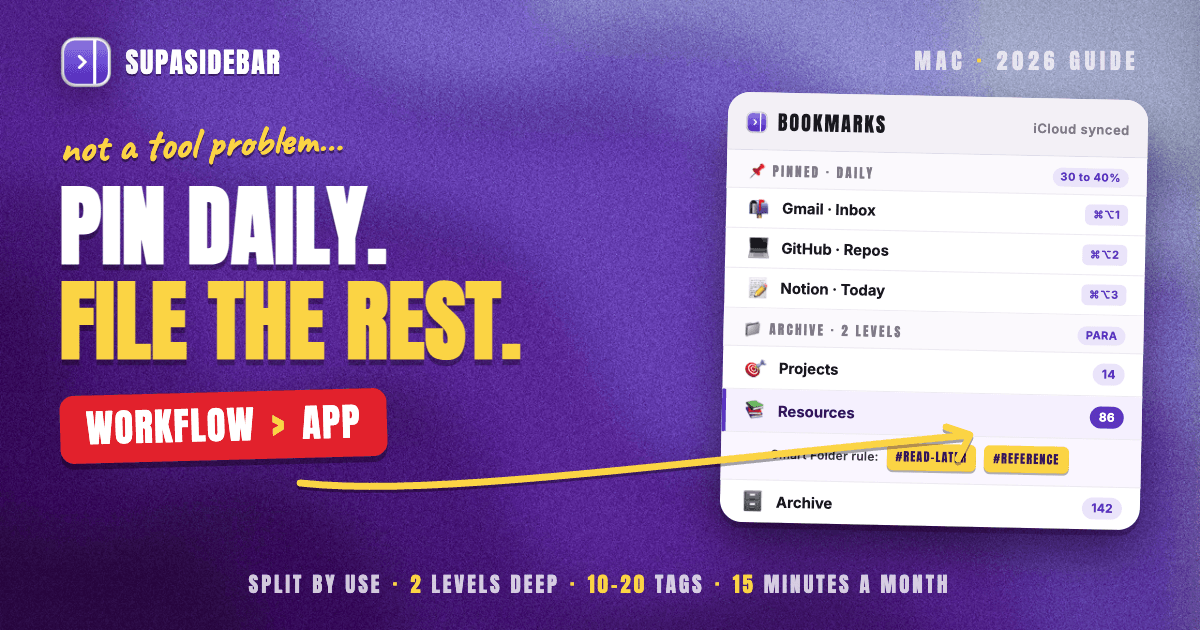
Bookmark chaos on a Mac is almost never a tool problem. It is a workflow problem. A bookmark organizer for Mac is the set of habits that keeps a saved-page list usable: a shallow folder structure (no more than two levels deep), a small fixed tag vocabulary instead of ever-deeper folders, a monthly 15-minute cleanup pass, and an automated dead-link and duplicate audit. The single biggest fix is to stop treating bookmarks as one giant pile and split them by use: the 30 to 40 percent of saved pages that are actually weekly-used sites belong pinned where they are one click away, and the rest get archived and tagged. SupaSidebar (free tier) is built around exactly this split, pinning frequent sites in a sidebar that works across every browser while Smart Folders auto-file the archive by rule. The workflows below apply whether bookmarks live in Chrome, Safari, or a dedicated app.
A bookmark organizer for Mac is best understood as a routine, not a download. The folder structures, tagging conventions, dedup tools, and cleanup cadence in this guide are the part that actually keeps bookmarks findable a year later. Picking which app to store them in matters too, and the bookmark manager comparison covers that question in full. This post is about what to do once the saved pages already exist and the list has gotten out of hand.
Why bookmark lists fall apart
Most people have folders of bookmarks from years ago with names like "research-temp", "read later", and "stuff", holding hundreds of links that are never opened again. The pages did not stop being useful. They became unfindable.
The root cause is that browser bookmarks store only a title and a URL. There is no note explaining why a page was saved, no tag for cross-cutting topics, and no full-text search of the saved page. Organization happens through one mechanism: nested folders. Folders work for 30 bookmarks and collapse at 300, because any given page could reasonably live in three or four different folders. A guide to Mac keyboard shortcuts fits under "Mac", "productivity", "reference", or "read later", so it lands in whichever folder got clicked first and is effectively lost.
This is a documented, recurring complaint, not a niche one. On r/chrome, the thread "Alternatives for Chrome Bookmark Manager" collected a wall of replies describing the same problem. On r/macapps, bookmark-organization questions surface monthly. The shared thread: the saving was easy, the organizing never happened, and the list became archaeology.
The fix is a small number of rules applied consistently, plus one automated cleanup pass. The rest of this guide is those rules.
The first move: split bookmarks by use, not by topic
Before any tagging or foldering, separate saved pages into two buckets by how often they get opened.
Daily and weekly sites
are the 30 to 40 percent of bookmarks that are real destinations: the project tracker, the email tab, the docs site checked every morning, the two or three reference pages opened constantly. These do not belong in a folder at all. Burying a daily-use site three folders deep adds friction to something done ten times a day. They belong pinned somewhere one click or one shortcut away.
Archive material
is everything else: the article saved to read someday, the tool to evaluate later, the reference page that might matter in three months. This is the genuine archive, and this is where tags, shallow folders, and cleanup routines earn their keep.
The mistake almost everyone makes is treating both buckets the same way, dumping daily sites and someday-archive into one folder tree. Splitting them first makes every later decision easier, because the two buckets want opposite things: instant access versus searchable storage.
A Mac sidebar app makes this split concrete. SupaSidebar keeps up to nine Pinned items visible across every workspace, each openable with a keyboard shortcut (⌘⌥1 through ⌘⌥9), so frequent sites sit one keystroke away regardless of which browser is in front. The archive then lives in the sidebar's Saved section with folders and tags, kept entirely separate from the pinned daily set. The point is not the app; the point is that daily sites and archive material are different jobs and should not share a folder.
Folder structure: keep it two levels deep
The most common foldering failure is depth. A bookmark tree that runs five levels deep is unnavigable, because retrieving a page means remembering the exact path that was chosen months ago.
Cap the structure at two levels. A top level of broad life areas (Work, Personal, Learning, Reference) and one level of folders inside each is enough for almost any archive. If a folder needs sub-sub-folders, that is the signal to switch to tags for that slice instead of digging deeper.
Two folder-structure templates work well on Mac:
PARA, applied to bookmarks.
Borrowed from Tiago Forte's PARA method, the four top-level buckets are Projects (active, time-bound work), Areas (ongoing responsibilities), Resources (topics of interest), and Archive (inactive). Bookmarks map cleanly: an active project's reference tabs go in Projects, evergreen references go in Resources, finished-project links move to Archive instead of getting deleted. PARA's strength is that it sorts by how active a page is, which matches how bookmarks actually get used.
Project-based folders.
Simpler: one folder per active project or context, archived when the project ends. This works best for people whose browsing is organized around discrete projects rather than ongoing topics. It pairs naturally with workspace-style tools that group tabs and bookmarks per context.
| Structure | Best for | Top-level folders | Watch out for |
|---|---|---|---|
| PARA | Mixed work and personal, lots of evergreen references | Projects, Areas, Resources, Archive | Deciding Area vs Resource for edge cases |
| Project-based | Project-driven work, clear start and end dates | One per active project | Orphaned folders when projects end |
| Flat plus tags | Heavy taggers, under ~200 bookmarks | Minimal or none | Needs a tool that supports tags |
Whichever template fits, the rule holds: two levels maximum, and reach for tags before a third level.
Tagging: a small fixed vocabulary beats deep folders
Tags solve the problem folders cannot: a single page belonging to several topics at once. A page can carry "mac", "productivity", and "reference" simultaneously, so it surfaces no matter which angle the search comes from. Folders force one home; tags allow many.
The trap is letting the tag list grow without limit. A bookmark store with 80 one-off tags is as useless as one with 80 folders. The discipline that makes tagging work:
Keep a small fixed vocabulary, roughly 10 to 20 tags total, and reuse them. Decide the set up front (for example: work, personal, reference, read-later, tool, inspiration, client, learning) and resist inventing a new tag for every page. When tempted to add a new tag, check whether an existing one is close enough first.
Use broad tags, not narrow ones. "design" beats "figma-component-library-2026". Narrow tags are used once and never again, which defeats the purpose. Broad tags accumulate enough pages to be worth filtering by.
Pick a casing convention and never break it. Lowercase, no spaces, hyphens for multi-word tags (read-later, not "Read Later" or "readLater"). Inconsistent casing creates phantom duplicate tags that split a topic across two lists.
Safari and Chrome do not support bookmark tags natively, which is the main reason tagging requires either an extension (Raindrop.io is the common pick) or a Mac app. SupaSidebar supports tags on saved items and, more usefully, Smart Folders that auto-populate from rules, so a Smart Folder set to match the tag "read-later" stays current without manual filing. That moves tagging from a chore into something that maintains itself.
The dedup problem: find and kill duplicates
Duplicate bookmarks accumulate invisibly. The same article gets saved twice months apart, a page gets bookmarked once at the top level and again inside a folder, an import from another browser doubles everything. Over a few years a list can be 15 to 25 percent duplicates.
On Mac, three approaches handle this:
Chrome's bookmark manager, manually.
chrome://bookmarks has a search field. Sort and scan for obvious repeats. Tedious, but free and built in. Best for a one-time cleanup of a small list.
A dedicated dedup tool.
Bookmarks clean up and similar Chrome extensions scan for duplicate and dead bookmarks and remove them in a batch. Verify any extension is still actively maintained and well-reviewed before installing, since bookmark extensions request broad access to saved data. (Never install The Great Suspender, which Google delisted in 2021 after it shipped malware. Always confirm an extension is current and safe.)
Export and dedup in a script.
Power users can export bookmarks to HTML, run a quick dedup on the URLs, and re-import. Overkill for most, but the most thorough option for a very large list. If you'd rather skip the script, the free bookmark cleaner does the same pass in your browser: drop the HTML export, it strips duplicate URLs and empty folders, and hands back a clean file to re-import. No extension permissions, nothing uploaded.
The more durable fix is to not create duplicates in the first place. A capture tool that activates the existing entry instead of saving a second copy avoids the problem at the source. SupaSidebar's saving flow, for example, recognizes a URL that is already saved rather than silently creating a duplicate, which keeps the archive from re-accumulating the same junk after a cleanup.
The maintenance routine: 15 minutes a month
A one-time cleanup decays. Without a recurring pass, the list is back to chaos within a year. The routine that keeps it usable is short and worth scheduling as a recurring calendar event.
Monthly, about 15 minutes:
Move finished-project folders to Archive rather than deleting them. Past-project links have a way of becoming relevant again, and archiving keeps the active list short without losing the history.
Run the dead-link and duplicate scan. Linkrot is real: roughly a quarter of links from a decade ago are gone, per research summarized by the Pew Research Center. A quarterly or monthly dead-link audit keeps the archive honest.
Re-home anything saved to the wrong place. The pages saved in a hurry last month into "Inbox" or the top level get tagged and filed during this pass.
The archive-versus-delete decision
trips people up, so make it a rule rather than a case-by-case judgment: archive references and anything tied to a person or project (cheap to keep, occasionally valuable), and delete pure read-later items that were never read within 90 days (if it sat unread for three months, it will not get read). This single rule prevents both the bloated-archive failure and the anxious-hoarder failure.
The lighter the routine, the more likely it survives. Fifteen minutes once a month beats a heroic four-hour cleanup once a year that never gets scheduled again.
Mac-native tools that extend any bookmark setup
Beyond the bookmark app itself, several macOS tools make whatever store is in use faster to search and maintain.
Spotlight and Raycast
can search bookmarks. Raycast has bookmark-search extensions that pull from Chrome, Safari, and other browsers, so a saved page is reachable from a keyboard launcher without opening the browser's bookmark manager. This is the fastest path to a specific bookmark for keyboard-first users.
Hazel
can automate file-level housekeeping for anyone who saves pages as PDFs or web archives. Hazel rules can sort, rename, and archive saved files by age or pattern, which complements bookmark cleanup for the read-later-as-PDF crowd.
A Mac sidebar app
ties the daily-versus-archive split together at the system level. SupaSidebar's Command Panel (⌘⌃K) is a fuzzy search across every saved item, recent page, and live browser tab at once, so retrieval does not depend on remembering which browser or folder a page lives in. Because the sidebar sits outside the browser, the same pinned sites and saved archive are reachable whether Safari, Chrome, Firefox, or Arc is in front, across 25 or more browsers. For the daily-use bucket especially, a system-wide sidebar removes the "which browser was that in" question entirely.
Conclusion: the workflow is the organizer
A bookmark organizer for Mac is a habit set, not a single app: split bookmarks by use before anything else, keep folders two levels deep, tag with a small fixed vocabulary instead of digging folders deeper, run an automated dedup and dead-link scan, and spend 15 minutes a month archiving and re-homing. The tool only matters once those habits exist.
Single-browser users who mostly need search and tags on top of their saved pages are well served by a bookmark-manager extension like Raindrop.io plus the monthly routine above. People whose bookmarks split across Safari and Chrome on the same Mac, or who keep a large mix of daily sites and someday-archive, get more from a Mac sidebar app that pins frequent sites one keystroke away and auto-files the archive with Smart Folders across every browser. Heavy PDF-savers should add Hazel for file-level housekeeping; keyboard-first users should add Raycast for instant bookmark search.
Whichever store the bookmarks live in, the cleanup routine is the part that lasts. Set the monthly 15-minute pass as a recurring event today, and the list stays usable a year from now. To pin daily sites and auto-organize the archive across every browser on Mac, try SupaSidebar (free tier).
Why SupaSidebar fits the organize-your-bookmarks workflow
SupaSidebar is a macOS app that brings Arc's sidebar to every browser, one sidebar for tabs, bookmarks, files, and apps across 25+ browsers including Safari, Chrome, Firefox, Arc, Zen, Vivaldi, Brave, Helium, and Dia (25+ browsers in total). For bookmark organizing specifically, it maps onto the workflow this guide describes: Pinned items keep the daily-use bucket one keystroke away across every browser, Smart Folders auto-file the archive by rule so tagging maintains itself, the Command Panel (⌘⌃K) fuzzy-searches every saved item at once, and the saving flow recognizes already-saved URLs to keep duplicates from re-accumulating. Saved links and folders sync across Macs via iCloud with no account required, and a free version is available. It runs on macOS 14 and later.
Written by Kshetez Vinayak, founder of SupaSidebar. Have a bookmark-organizing workflow that works? Find SupaSidebar on Reddit and the SupaSidebar site.
Frequently asked questions
What is the best way to organize bookmarks on a Mac?
Split saved pages by use first. Pin the 30 to 40 percent that are daily or weekly sites somewhere one click away, and archive the rest into a folder structure no more than two levels deep with a small set of reused tags. Then run a 15-minute cleanup once a month to archive finished items and remove dead links. The routine matters more than the specific app.
How do I organize bookmarks in Chrome on Mac?
Use chrome://bookmarks to set up a shallow folder structure, two levels at most, and the search field there to find and remove duplicates. Chrome has no native tags, so for tagging, notes, or full-text search either add a bookmark-manager extension like Raindrop.io or move bookmarks to a Mac app that supports tags and Smart Folders.
Can I tag bookmarks in Safari?
Not natively. Safari bookmarks store only a title and a URL, with no tag field. To tag, use a bookmark-manager extension (Raindrop.io publishes a Safari extension) or a Mac sidebar app like SupaSidebar that supports tags and rule-based Smart Folders on saved items.
How do I find and remove duplicate bookmarks on Mac?
Three options: scan manually in chrome://bookmarks, use a maintained duplicate-and-dead-link cleanup extension, or export to HTML and dedup the URLs in a script for very large lists. To stop duplicates recurring, use a capture tool that activates an already-saved entry instead of creating a second copy.
How often should I clean up my bookmarks?
About 15 minutes once a month. Archive finished-project folders, run a dead-link and duplicate scan, and re-home anything saved to the wrong place. A short recurring pass survives; a once-a-year marathon cleanup rarely gets scheduled twice. Roughly a quarter of decade-old links are dead, so a regular dead-link audit is worth the time.
Should I delete old bookmarks or archive them?
Make it a rule, not a judgment call. Archive references and anything tied to a person or project, since keeping them is cheap and they occasionally become relevant again. Delete pure read-later items that went unread for 90 days, because an article unread for three months will not get read.
Do I need an app to organize my bookmarks, or can I use the browser?
The browser is fine for a small, single-browser, two-level folder setup. An app earns its place once bookmarks pass roughly 100 entries, need tags or notes, or split across multiple browsers on the same Mac. At that point a bookmark-manager extension or a Mac sidebar app adds the search, tagging, and cross-browser access browsers lack.