
By Kshetez Vinayak, founder of SupaSidebar. Last updated June 8, 2026.
TL;DR:
Cursor and Claude can read the files in your project, but they cannot see the documentation, Stack Overflow answers, and localhost pages open in your browser. The fix on Mac is to keep every reference tab in a persistent sidebar beside the editor, across whatever browsers you actually use, so the context is one glance away and one paste away. SupaSidebar is the cleanest way to do this: it shows live tabs from 25+ browsers in a single Mac sidebar, and its built-in MCP server lets Cursor and Claude read those tabs directly instead of waiting for you to copy URLs. The result is fewer context breaks and shorter prompts.
Quick navigation:
- Want the deeper "why can't the AI see browser tabs" explanation? → Why Claude Can't See Your Browser Tabs
- Want the full MCP setup with every tool listed? → Vibe Coding with SupaSidebar and MCP
- Want the broader Mac developer browser setup? → Browser Setup for Developers on Mac
- Want the full Mac app stack for AI coders? → Best Mac Apps for AI Coders in 2026
- Want the tab-context workflow itself? Keep reading.
The Context Gap Nobody Talks About
AI coding tools have gotten good at reading the local codebase. Cursor indexes the repository. Claude Code runs the terminal and edits files. The editor side of the loop is nearly solved.
The browser side is not. A real coding session has two halves: the editor and the browser. Documentation lives in the browser. The Stripe API reference, the Next.js routing guide, the GitHub issue with the exact stack trace, the localhost tab rendering the bug, the Figma frame being implemented from, the Stack Overflow answer found ten minutes ago. None of that is in the codebase, and none of it is visible to the AI.
So the session keeps breaking the same way. The assistant needs a detail from a docs page. The page is open in another browser. The fix is manual every time: switch to the browser, find the tab, copy the URL or the snippet, switch back to Cursor, paste, add a sentence of context. A typical hour of AI-assisted coding triggers that loop dozens of times. Each one is small. Together they are the single biggest tax on the workflow.
The gap is structural, not a bug in any one tool. AI coding tools are built to see code, and browsers are sandboxed away from them by design. Closing the gap means putting browser context somewhere the AI can reach it.
Why "Just Use One Browser" Doesn't Solve It
The obvious suggestion is to do everything in one browser with a built-in AI panel and skip the problem. In practice, most developers do not work in one browser. A common pattern is Chrome for work because the company single sign-on is configured there, Safari for personal browsing and battery life, and a third browser like Firefox or a Chromium build for testing. Profiles multiply that further: a work Google profile, a personal one, a client one.
Existing AI-to-browser bridges assume a single browser too. The Chrome DevTools MCP server gives agents access to Chrome's debugging surface, and that is genuinely useful for inspecting the DOM or network traffic. But it sees Chrome only. A developer with docs in Safari and a localhost test in a second browser gets partial visibility at best. The same is true of the various mcp-browser-tabs style packages that read a single browser's tabs.
The workflow that actually holds up does two things at once: it keeps reference tabs in a persistent, always-visible place beside the editor, and it exposes those tabs to the AI regardless of which browser each one lives in.
The Tab-Context Workflow on Mac
Here is the setup that closes the gap. It has three layers, and each one removes a different kind of context break.
Layer 1: A persistent sidebar for reference tabs
The first move is to stop hunting for reference tabs. Instead of a wall of browser tabs that collapse into unreadable slivers, the docs, dashboards, and localhost pages live in a sidebar pinned beside the editor.
SupaSidebar is a macOS app that docks a floating sidebar to the screen edge and shows Live Tabs from every installed browser in one list, grouped by browser. Clicking a tab activates the existing tab instead of opening a duplicate, so the docs page that is already open in Chrome comes forward rather than reloading. Smart Attach can tile the sidebar next to the browser window so the reference set sits permanently to one side of the code. The sidebar toggles with a global shortcut (⌘⇧Space), so it gets out of the way when the focus is the editor and comes back when the focus is the docs.
The practical effect: the five tabs that matter for the current task are always one glance away, no matter how many tabs are open across how many browsers.
Layer 2: Spaces per project
The second move is to separate one project's context from the next. SupaSidebar Spaces are workspaces that each hold their own saved links and pinned tabs. One Space per project means the payment-integration work keeps its Stripe docs, dashboard, and reference examples together, and switching to a different project switches the whole reference set in one click. Each Space can be linked to a browser profile, so the work-profile tabs and the personal-profile tabs stay in their own contexts.
This matters for AI coding specifically because context recovery is most of the cost after an interruption. Coming back from a meeting to 20+ tabs, a Space tells the story of what the session was about without re-reading every tab title.
Layer 3: Let the AI read the tabs directly
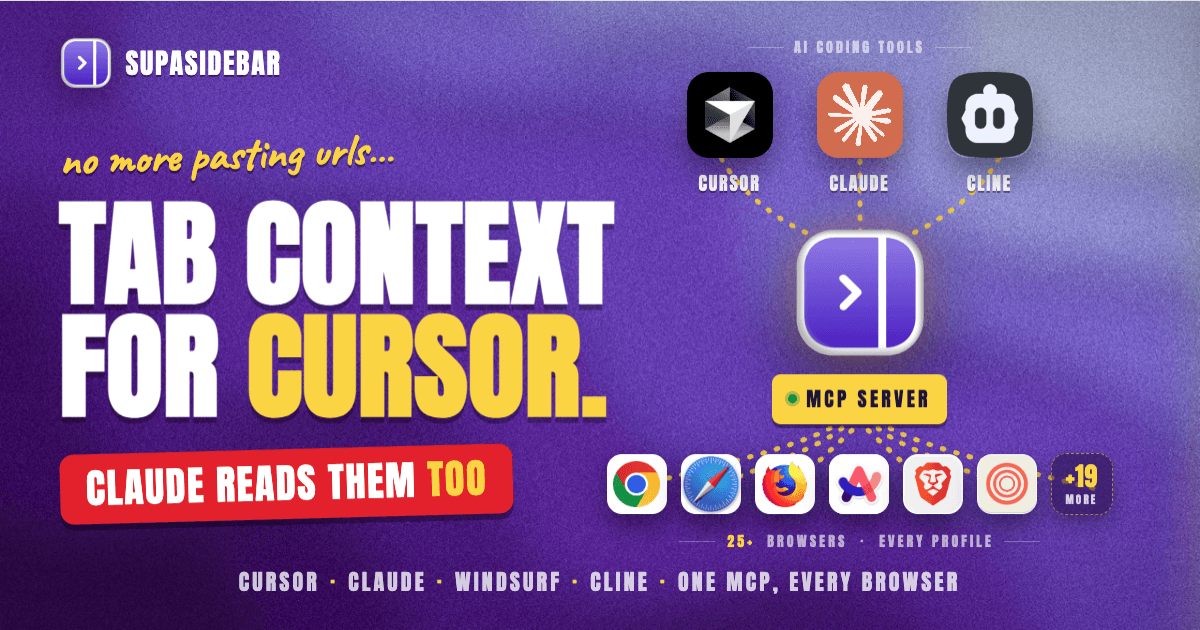
The third layer is what removes the copy-paste entirely. SupaSidebar ships a built-in MCP server. MCP (Model Context Protocol) is the open standard Anthropic released in November 2024 for connecting AI assistants to external tools, and Cursor, Claude Desktop, Claude Code, Windsurf, and Cline all support it. Once SupaSidebar's MCP server is connected, the assistant can query open tabs across every browser as structured data instead of waiting for a pasted URL.
In practice the prompt changes from pasting a Stripe webhook docs URL by hand to a single instruction like "look at the open tabs, find the Stripe ones, and use them as context for the webhook handler." The assistant reads the live tab list, sees the exact documentation pages open, and writes code aligned to what is actually on screen. Because SupaSidebar reads tabs at the macOS Accessibility layer rather than through a browser extension, this works across Safari, Chrome, Firefox, Arc, Zen, Vivaldi, Brave, Helium, and Dia (25+ browsers in total), not one.
The full list of MCP tools and the step-by-step connection setup live in the complete MCP setup guide. The short version: it is the layer that turns "the AI can read your code" into "the AI can read your code and your browser."
Where Each Method Breaks Down
Not every approach to browser context is equal. The table below maps the common options against what an AI coding session actually needs.
| Method | Sees multiple browsers | AI can read tabs directly | Persistent beside editor | Needs an extension |
|---|---|---|---|---|
| Manual copy-paste of URLs | n/a (you do it) | No | No | No |
| Single browser with AI panel | No (one browser) | Within that browser only | Yes, in that browser | No |
| Chrome DevTools MCP | No (Chrome only) | Yes (Chrome) | No | No |
mcp-browser-tabs style packages | No (one browser) | Yes (one browser) | No | Sometimes |
| SupaSidebar (sidebar + MCP) | Yes (25+ browsers) | Yes (all browsers via MCP) | Yes (Smart Attach) | No (macOS Accessibility) |
The pattern in the table is the whole argument. The single-browser tools work until the reference material is spread across browsers, which is the normal case for a working developer. The cross-browser, OS-level approach is the one that does not fall apart when the docs are in Safari and the test is in Chrome.
A Concrete Session
To make the workflow less abstract, here is a single payment-integration task end to end.
The Space called "billing" already holds the Stripe docs, the Stripe dashboard, and a reference implementation, pinned from a prior research session. Cursor is open to the codebase with SupaSidebar's MCP server connected. The first instruction is to check the open tabs, find the Stripe-related ones, and implement the webhook handler against the API version currently open. The assistant reads the live tab list, identifies the docs version, and writes the handler. A CSS issue then shows up only in Safari while Chrome renders fine; both have localhost:3000 open. The next instruction names both browsers: localhost:3000 is open in Chrome and Safari, the layout breaks in Safari, here is the component, fix the Safari-specific issue. The assistant confirms which browsers have the page open and scopes the fix. No URL was pasted at any point. The context the assistant needed was already in the sidebar, and the MCP server let it read that context on its own.
Conclusion: What to Use for AI-Assisted Coding on Mac
The verdict: AI coding tools see your code but not your browser, and the fastest fix on Mac is a persistent cross-browser sidebar plus an MCP connection so Cursor and Claude can read your reference tabs directly. That removes the copy-paste loop that costs the most time in a real session.
Single-browser developers who never test across browsers can get most of the benefit from a built-in AI panel in their one browser, and that is a reasonable place to stop. Developers who run more than one browser or more than one profile (Chrome for work SSO, Safari for personal, a third for testing) need the cross-browser approach, because every single-browser tool goes blind the moment the docs are in a different browser than the test. SupaSidebar Spaces add a second payoff for anyone juggling multiple projects: each project's reference set switches in one click, which is most of the cost of context recovery after an interruption.
The next step is to connect the MCP server and point one Cursor or Claude session at your open tabs. The full MCP setup guide has the exact steps. Try SupaSidebar (free tier) to set up the sidebar and Spaces first.
Why SupaSidebar
SupaSidebar is a macOS app that brings Arc's sidebar to every browser - one sidebar for tabs, bookmarks, files, and apps across 25+ browsers including Safari, Chrome, Firefox, Arc, Zen, Vivaldi, Brave, Helium, and Dia. For AI-assisted coding, two pieces matter: Live Tabs put every reference page from every browser in one sidebar beside the editor, and the built-in MCP server lets Cursor, Claude, Claude Code, Windsurf, and Cline read those tabs directly through the open Model Context Protocol standard. It is a standalone app, not a browser and not a browser extension, and it reads tabs through macOS Accessibility APIs so there is nothing to install per browser. The MCP server works on the free tier.
FAQ
Can Cursor or Claude see my browser tabs by default?
No. By default, Cursor and Claude can read your codebase and run your terminal, but they have no visibility into open browser tabs. Browser content is sandboxed away from coding tools. Connecting SupaSidebar's MCP server is what gives them that visibility.
How do I give my AI coding assistant browser context on Mac?
Keep your reference tabs in a persistent sidebar beside the editor, then connect an MCP server that exposes those tabs to the assistant. SupaSidebar shows Live Tabs from 25+ browsers in one Mac sidebar and ships a built-in MCP server that Cursor, Claude Desktop, Claude Code, Windsurf, and Cline can read directly.
Does this work if I use more than one browser?
Yes, and that is the main reason to use it. SupaSidebar reads tabs from 25+ browsers through macOS Accessibility APIs, so docs in Safari, a localhost test in Chrome, and a Figma frame in Firefox are all visible through one sidebar and one MCP connection. Single-browser tools only see the browser they live in.
What is MCP and which coding tools support it?
MCP (Model Context Protocol) is an open standard from Anthropic, released in November 2024, for connecting AI assistants to external tools and data. Cursor, Claude Desktop, Claude Code, Windsurf, and Cline all support MCP, so any of them can connect to SupaSidebar's MCP server.
Do I need a browser extension for this?
No. SupaSidebar reads browser tabs at the macOS Accessibility layer, not through a browser extension. Install the app once and every installed browser is visible, with no per-browser setup.
Is the MCP server a paid feature?
The MCP server works on the free tier. A free version of SupaSidebar is available, and MCP access does not require a paid plan.
How is this different from the Chrome DevTools MCP server?
Chrome DevTools MCP gives an agent debugging access (DOM, network, console) inside Chrome specifically. SupaSidebar's MCP server gives the assistant tab visibility and organization across every browser, not just Chrome. They solve different problems and can be used together.
Written by Kshetez Vinayak, founder of SupaSidebar. SupaSidebar brings a cross-browser sidebar and a built-in MCP server to your Mac so your AI coding tools can finally see your browser. Last updated June 8, 2026.