
By Kshetez Vinayak, founder of SupaSidebar. Last updated June 12, 2026.
Quick navigation:
- Comparing in-browser workspace tools like Workona? → Workona Alternatives for Tab Workspaces
- Building a distraction-free desk setup? → Mac Workspace Setup for Deep Work
- Want one sidebar across every browser? → The Mac Sidebar App Guide
- Looking for the best workspace launcher apps? → You're in the right place. Keep reading.
TL;DR:
A workspace launcher opens an entire working context on a Mac in one action instead of five apps and fifteen tabs opened by hand. Bunch (free, plain-text files) is the best pick for launching sets of apps, Apptorium Workspaces (one-time purchase) for project files and documents, and Raycast for keyboard-first launching. None of them manage what happens inside the browser, which is where most project state actually lives. SupaSidebar covers that half: a Space holds a project's tabs and links and opens them in one click in any of 33 supported Mac browsers. The full comparison table and per-tool breakdown are below.
What a workspace launcher for Mac actually does
A workspace launcher for Mac is a tool that opens everything a project needs, apps, files, folders, and websites, in one action, so switching projects takes seconds instead of minutes. Instead of launching the editor, then the design file, then the three reference sites, then the client's Slack, one click or shortcut restores the whole context.
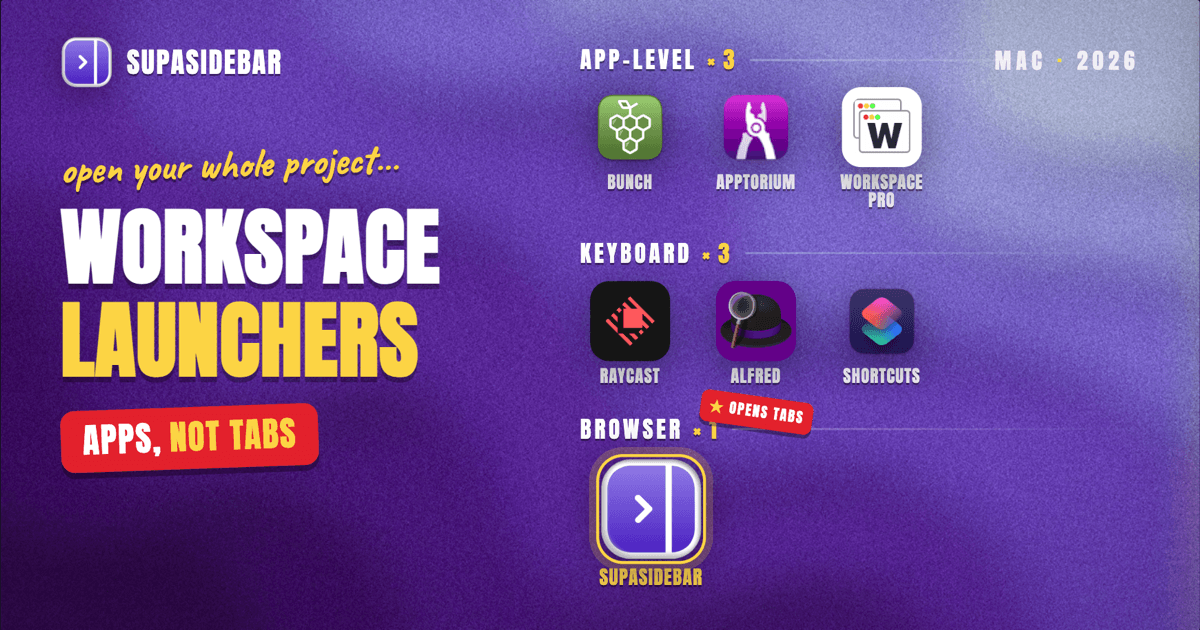
This guide covers the three kinds of workspace launcher that exist on macOS in 2026: app-level launchers (Bunch, Apptorium Workspaces, WorkspacePro), keyboard launchers with workspace tricks (Raycast, Alfred, macOS Shortcuts), and browser workspace launchers (SupaSidebar). It does not cover in-browser workspace extensions in depth; that category has its own comparison in the Workona alternatives guide.
The pain these tools solve shows up constantly in productivity forums: dozens of tabs open across the day while switching between tasks, tools, and research, with no fast way to reset to a clean working state. The launcher's job is to make "start project X" a single action.
The quick comparison
| Tool | What it launches | Browser tabs? | Pricing model | Best for |
|---|---|---|---|---|
| Bunch | Apps, files, URLs, system settings | Opens URLs as new tabs | Free | Scriptable context switching |
| Apptorium Workspaces | Files, folders, apps, websites, Terminal, emails | Opens URLs, no tab state | One-time purchase | Document-heavy projects |
| Raycast | Apps, Quicklinks, scripts | No workspace concept | Free plan; Pro $8/mo | Keyboard-first launching |
| Alfred + Powerpack | Apps, multi-step workflows | No workspace concept | £34 one-time | Workflow automation veterans |
| WorkspacePro | Apps, URLs, files + window layout | Opens URLs | Paid | Window-position control |
| macOS Shortcuts | Apps, URLs, scripts | Opens URLs | Free, built in | No-new-apps automation |
| SupaSidebar | A project's tabs, bookmarks, files, and links in any browser | Yes, saved links + live tabs per Space | Free version available | Browser-heavy project work |
Bunch: free context switching from plain text files
Bunch by Brett Terpstra is the purist's workspace launcher, and it costs nothing. A Bunch is a plain text file listing apps to launch, one per line. Drop Code.bunch, Writing.bunch, and Podcast.bunch into a folder and they become a menu bar list of one-click contexts. Prefix an app with an exclamation point and Bunch quits it instead, which turns each file into a real context switch: close the distractions, open the work.
Beyond apps, a Bunch can open files and websites, change system settings like Do Not Disturb, and run scripts. The sample library includes a coding-project Bunch that closes Finder windows, opens the project folder, runs a git pull in iTerm, and opens the editor.
The limitation is the flip side of the design: everything is text-file configuration. There is no visual editor, and URLs open as fresh tabs in the default browser with no awareness of what is already open.
Apptorium Workspaces: the project launcher Mac users keep recommending
Workspaces by Apptorium is the most conventional take on a project launcher for Mac: each workspace is a named project holding links to files, folders, apps, websites, Terminal commands, and even Mail messages. Clicking START opens the resources marked for auto-launch; clicking FINISH can clean everything up, including quitting apps via its QuitApps plugin.
It is a one-time purchase for the current major version with no subscription, runs on macOS 10.14 or newer, and ships a 30-day trial. Two honest gaps, both confirmed in the developer's own FAQ: it does not sync over iCloud yet, and it does not remember or set window layout (the FAQ points to Apple Shortcuts for that).
For long-term, document-heavy projects, this is the strongest dedicated tool in the roundup. Websites, though, are launch-only: it opens the URLs you saved and is done. Tab state, the pile of research that accumulated since the last session, is out of scope.
Raycast: the everything launcher with a workspace-shaped hole
Raycast is the default answer to "best launcher for Mac" in 2026, and the free plan is generous: app launching, Quicklinks, window management, clipboard history, snippets, Hyper Key, and the full extensions store. Pro costs $8 per user per month billed annually ($10 month to month) and mainly adds AI features, cloud sync, and unlimited clipboard history.
But Raycast is a launcher of single things. Pressing the hotkey and typing an app name is fast, and Quicklinks open individual URLs anywhere, yet there is no native "open these 6 things together" workspace primitive. Getting project-level launching out of Raycast means writing a script command that opens each app and URL, which lands closer to Bunch territory with more setup friction.
Alfred sits in the same spot with a different pricing model. The Powerpack (£34 one-time, £59 for lifetime upgrades) unlocks Workflows, which can chain "open app, open URL, open folder" sequences into one keyword. Veterans with years of muscle memory will be fine here; anyone starting fresh gets a steeper build-it-yourself curve than Bunch's plain text files.
WorkspacePro deserves a short mention for one trick the others skip: it launches a workspace's apps, files, and URLs and also sets window positions and sizes, useful when a project means "editor left, browser right, terminal bottom" every time.
macOS Shortcuts is the no-install route. A shortcut can open apps, URLs, files, and folders in sequence, triggered from the menu bar, the Dock, or a keyboard shortcut. It is free and built in, and for a simple "open these 4 things" launcher it works. Maintaining anything more elaborate inside the Shortcuts editor gets tedious fast.
The gap: launchers open apps, not the browser's working state
Look at what every tool above does with the browser and the same pattern repeats: it opens URLs. A fixed, pre-saved list of links fires into the default browser as new tabs, and that is the end of the launcher's involvement.
That worked when a project meant three bookmarked dashboards. A 2026 project is browser-heavy: the staging site in Chrome, client SSO locked to a work profile, research split across windows, a Figma board, two docs, and yesterday's half-read threads. The browser IS most of the workspace, and app launchers treat it as one opaque icon.
The specific failures:
- No memory. Launchers open the same static URL list every time. The tabs that accumulated during the last session, the actual working state, are gone or duplicated.
- One browser, one profile. A launcher fires URLs at the default browser. Projects that live in Chrome Work, Safari, and Firefox simultaneously get no routing.
- No mid-session access. A launcher's job ends at launch. Reaching the project's links two hours in means digging through bookmarks anyway.
There's a specific gap none of these tools close, and it is the half of the workspace problem that matters most for browser-heavy work.
SupaSidebar: launch a workspace of tabs and links in any browser
SupaSidebar is the browser-side workspace launcher in this list. It is a macOS app, not a browser or an extension, that adds a persistent sidebar to any screen edge. Inside it, Spaces are project workspaces: each Space holds the links, folders, and files for one context, Work, Client A, Side Project, and switching Spaces swaps the whole set.
The launch motion works at three speeds:
- One link: the sidebar appears with ⌘⇧Space, pinned items open with a per-slot shortcut.
- One folder: right-click a folder and open every link in it in a fresh browser window. A folder named "Monday standup" with five dashboards becomes a one-click launcher.
- One project: jump straight to a Space with a keyboard shortcut, then open what the session needs. With Live Tabs enabled, the sidebar also shows which of the project's pages are already open across browsers and activates the existing tab instead of opening a duplicate.
Two capabilities separate this from the app launchers above. First, it is cross-browser: SupaSidebar works across 33 Mac browsers, so a Space's links can open in Safari, Chrome, Firefox, Arc, Brave, Vivaldi, Dia, or Comet, and Air Traffic Control rules route links automatically, Figma always to the Chrome work profile, docs always to Safari. Second, it stays useful after launch: the sidebar is the project's home base all session, not just its ignition.
Users describe exactly this pattern. "The ability to organize multiple workspaces and flows is great! Perfect for keeping each project/motion grouped together," as one Reddit user put it on r/macapps. Another user, a Raycast user who switched, wrote: "With Supasidebar, I hope to be able to use any browser and send my URL to a specific profile of that browser, while keeping my links organized in groups that are always at hand."
Honest limits: SupaSidebar does not launch non-browser apps, so the editor and Slack still need Bunch, Shortcuts, or a login-items setup. It arranges browser windows (Smart Attach tiles the sidebar against the browser) but is not a general window manager. And Spaces organize links and tabs; they do not isolate browser sessions the way Arc's Spaces did. It requires macOS 14 or newer, and a free version is available.
The strongest setup is a pair: Bunch or Shortcuts opens the apps, SupaSidebar opens and manages the browser side. Both halves stay one action deep. The project-switching workflow guide walks through that pairing in detail.
Picking a workspace launcher for your Mac
The verdict: Bunch is the best free workspace launcher for Mac in 2026 for app-level contexts, Apptorium Workspaces is the best one-time-purchase project launcher for file-heavy work, and SupaSidebar is the launcher for the browser half of the workspace, the only one here that treats tabs and links as first-class project state.
By segment: tinkerers who like plain text get the most from Bunch. Academics, lawyers, and anyone whose projects are folders of documents should trial Apptorium Workspaces. Keyboard-first users already paying for Raycast or Alfred can script project launching, but should expect to build it themselves. People whose projects live in 20+ tabs across two or more browsers get the most from SupaSidebar, alone or paired with Bunch.
Try SupaSidebar (free version) if the browser side is the bottleneck, or start with the deep work setup guide to design the full desk.
Why we recommend SupaSidebar
SupaSidebar is a macOS app that brings Arc's sidebar to every browser - one sidebar for tabs, bookmarks, files, and apps across 33 browsers including Safari, Chrome, Firefox, Arc, Brave, Vivaldi, Dia, and Comet. For workspace launching specifically, Spaces give every project a one-click home: saved links, live tabs, files, and per-project pins that follow the work into whichever browser it happens in. 3,000+ Mac users have tried SupaSidebar, and the free version covers the core sidebar, Spaces, and every supported browser.
FAQ
What is a workspace launcher on Mac?
A workspace launcher is a Mac app that opens a whole working context, apps, files, folders, and websites, in one click or keyboard shortcut. Examples include Bunch (free, plain-text app sets), Apptorium Workspaces (project resources with START/FINISH actions), and SupaSidebar (a project's tabs and links across any browser).
How do I open multiple apps at once on Mac?
Three ways. Bunch launches a list of apps from a plain text file via a menu bar menu. macOS Shortcuts can chain "Open App" actions into one shortcut, free and built in. Apptorium Workspaces opens a saved set of apps, files, and websites when clicking START on a project.
Can you open apps and browser tabs together on Mac?
Yes, with a combination. An app launcher like Bunch or macOS Shortcuts opens the apps and can fire a list of URLs into the default browser. For real tab workspaces, browser tabs that stay organized per project across browsers, SupaSidebar Spaces hold the project's links and live tabs and open them in the right browser or profile.
Is there a free workspace launcher for Mac?
Yes. Bunch is completely free and handles apps, files, URLs, and system settings. macOS Shortcuts is built into every Mac. Raycast's free plan covers app launching and Quicklinks. SupaSidebar has a free version that includes Spaces and works with every supported browser.
Is Raycast or Alfred better for launching whole projects?
Neither has a native multi-item workspace feature; both launch one thing per action out of the box. Raycast needs a custom script command to open a project's apps and URLs together, while Alfred needs a Powerpack Workflow (£34 one-time). For project launching without scripting, Bunch or Apptorium Workspaces gets there faster.
What is the difference between a workspace launcher and a window manager?
A workspace launcher opens things: the apps, files, and sites a project needs. A window manager arranges things that are already open, snapping and tiling windows into layouts. WorkspacePro blends the two by launching apps and setting their window positions, and SupaSidebar's Smart Attach tiles the sidebar against the active browser window.
By Kshetez Vinayak, founder of SupaSidebar.