
By Kshetez Vinayak, founder of SupaSidebar. Last updated 2026-06-27.
TL;DR
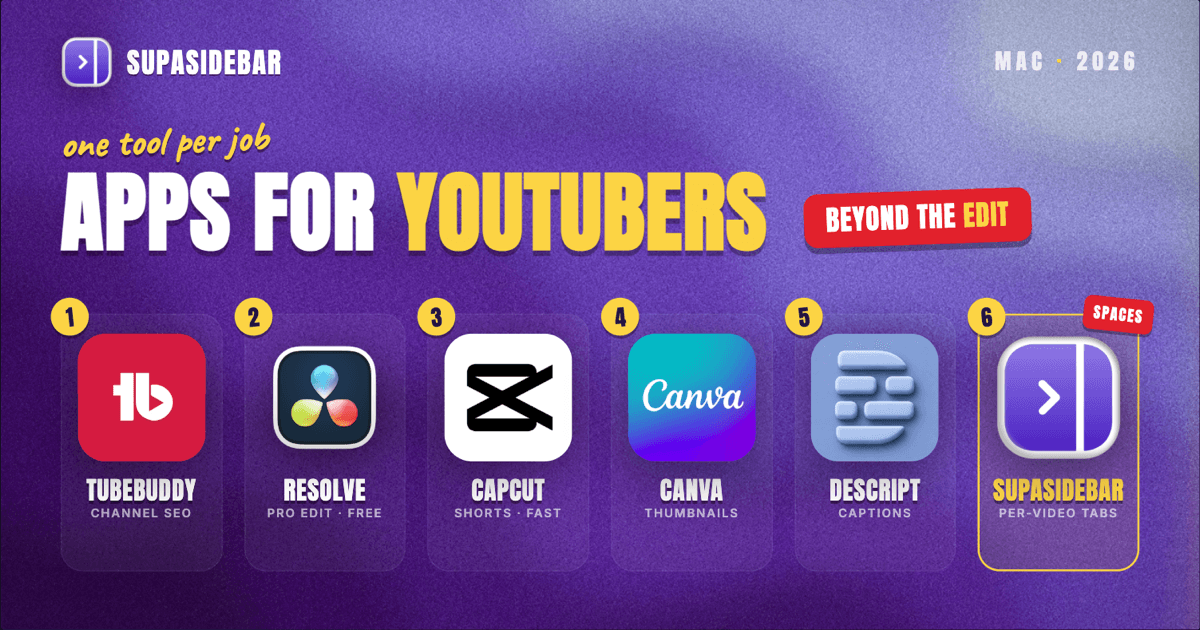
The best Mac apps for YouTubers in 2026 are organized by the job, not by suite: TubeBuddy for channel SEO and thumbnail A/B testing, DaVinci Resolve or Final Cut Pro for the main edit, CapCut for fast short-form cuts, Canva for thumbnails, Descript for transcript-based editing and captions, and SupaSidebar for keeping each video's research tabs, analytics dashboard, and upload page grouped by Space across every browser. A YouTuber's real bottleneck is rarely the timeline, it is everything around it: the keyword research, the competitor videos, the thumbnail references, the analytics dashboard, the music-license site, and the upload page, all spread across browsers and all open at once. Most of this stack starts free, TubeBuddy and VidIQ both have free tiers, DaVinci Resolve's free version is a full pro editor with no watermark, and CapCut Free exports 1080p with no watermark.
Quick navigation:
- Editing as a full-time job? → Best Mac Apps for Video Editors 2026
- Scripting and writing the channel? → Best Mac Apps for Writers and Creators 2026
- Recording a podcast too? → Best Mac Apps for Podcasters 2026
- Drowning in research and reference tabs? → Too Many Tabs Open on Mac
- Building a YouTube stack on a Mac? You are in the right place. Keep reading.
| App | Job in the stack | Pricing model | Best for |
|---|---|---|---|
| TubeBuddy | Channel SEO and A/B testing | Free; paid from ~$2.25/mo | Title, tag, and thumbnail decisions from data |
| DaVinci Resolve | Full pro NLE with color and audio | Free; Studio $295 one-time | A free, full-featured pro editor |
| Final Cut Pro | Apple-silicon native editing | $299.99 one-time | Mac-only creators chasing timeline speed |
| CapCut | Fast short-form and Shorts cuts | Free (no watermark); Pro $19.99/mo | Shorts and fast social video |
| Canva | Thumbnail design | Free; Pro ~$15/mo | Thumbnails without Photoshop |
| Descript | Transcript-based editing and captions | Free tier; paid from ~$16/mo | Talking-head edits and auto-captions |
| SupaSidebar | Per-video research and analytics across browsers | Free version available | Several videos' tabs across browsers |
Why a YouTuber's app stack isn't a generic "best apps" list
A salaried office worker lives in one set of tools and one login. A YouTuber runs a small production pipeline solo, and every video drags in its own research, its own thumbnail iterations, its own analytics, and its own upload deadline. The apps that matter for a creator are not only the editor, they are the ones that handle the parts a video editor's list skips: finding a topic that will rank, designing a thumbnail that earns the click, captioning the cut, and keeping the surrounding research from collapsing into browser-tab chaos.
So this list is organized by the jobs a creator actually does on every video: research the topic, edit the footage, design the thumbnail, caption it, and keep all the reference material visible without burying the day in tabs. The tools are picked for solo and small-team channels, a sensible free-to-paid path, and Mac-native or Apple-silicon performance where it exists.
TubeBuddy: channel SEO and thumbnail testing from real data
TubeBuddy is the channel-SEO pick for YouTubers on a Mac, a browser extension and web app that adds keyword research, tag suggestions, and competitor data straight into the YouTube interface. TubeBuddy has a free tier and paid plans starting around $2.25/month, per a 2026 TubeBuddy vs vidIQ comparison. For a creator, the first job on any video is picking a topic and a title that will actually get found, and that is a research job, not an editing one.
TubeBuddy's higher Legend tier is where its standout features live: A/B testing of titles, thumbnails, descriptions, and tags against click-through rate and watch time, plus bulk processing and full SEO tools.
The honest line on TubeBuddy is that the free tier is genuinely limited, with only a basic keyword explorer and tag suggestions, so the A/B testing that makes it worth the install sits behind the paid Legend plan.
vidIQ is the common alternative, stronger on AI ideation and competitor tracking but pricier, with paid plans starting around $16.58/month, per the same comparison. For a creator who wants to make title and thumbnail calls from data rather than instinct, one of the two belongs in the stack.
Best for:
creators who want title, tag, and thumbnail decisions driven by click-through data instead of guesswork.
DaVinci Resolve: the free all-in-one editor
DaVinci Resolve is the most capable free NLE on a Mac in 2026, a full professional editor with no watermark and no time limit, covering editing, color grading, the Fairlight audio suite, and Fusion visual effects, per DaVinci Resolve pricing coverage. The center of a long-form creator's pipeline is the NLE, and few solo YouTubers outgrow Resolve's free version.
The paid Resolve Studio is a $295 one-time purchase, not a subscription. Resolve Studio adds AI tools, HDR grading, higher frame-rate support, and remote collaboration via Blackmagic Cloud, with future major version updates included.
The trade-off with Resolve is the learning curve, because its all-in-one scope means more to learn up front than a lighter editor. For a creator who wants one tool that handles the whole edit without a recurring bill, Resolve is hard to beat.
Best for:
long-form creators who want a professional editor with color and audio built in, free until they genuinely need Studio.
Final Cut Pro: the Apple-silicon pick
Final Cut Pro is the Apple-silicon-native editor for Mac-only creators who want every frame of performance, sold as a $299.99 one-time purchase on the Mac App Store with no subscription, per Final Cut Pro pricing coverage. For Mac-only creators chasing raw timeline speed, Final Cut is the obvious pick.
One change worth knowing: Apple discontinued the individual free trial after launching its Creator Studio bundle in January 2026, so trying Final Cut now means either the bundle's one-month trial ($12.99/month or $129/year) or buying the app outright.
Final Cut's strength is speed and tight macOS integration, with a magnetic timeline, background rendering, and ProRes handling that feels effortless on an M-series Mac.
The trade-off with Final Cut is platform lock-in, because it is Mac-only, so a creator who might collaborate on Windows should weigh that first.
Best for:
Mac-only creators who want the fastest native timeline and one-time pricing.
CapCut: fast Shorts and short-form cuts
CapCut is the fast pick for Shorts and short-form video on a Mac, handling vertical cuts, captions, and trend-friendly templates faster than a full NLE. CapCut's free desktop plan is genuinely capable, with a multi-track timeline, keyframe animation, chroma key, and 1080p export with no watermark, per CapCut pricing coverage.
Paid tiers run Standard at $9.99/month and Pro at $19.99/month, where Pro adds 4K export, the full AI toolkit, and cloud storage.
One caution worth naming: CapCut restructured its pricing in early 2026, and the annual Pro plan jumped from roughly $78/year to $179.99/year, so the "cheap" reputation is dated, and the live plan is worth a check before subscribing. For free Shorts and clips repurposed from a long-form upload, CapCut is the most capable no-watermark option in 2026.
Best for:
creators cutting Shorts and short-form clips who want speed and a no-watermark free tier.
Canva: thumbnails without opening Photoshop
Canva is the practical thumbnail tool for YouTubers on a Mac, with template-driven design, a large free stock library, and a background remover that turns a quick photo into a clickable thumbnail without a full image editor. For a creator, the thumbnail is half the upload, and Canva makes iterating five versions a ten-minute job rather than a Photoshop session.
Canva Free is genuinely usable for most thumbnail work, with hundreds of thousands of templates and free assets and no card required. Canva Pro at roughly $15/month adds the Brand Kit, Background Remover, and Magic Studio AI tools, though the exact Pro price varies across 2026 sources so the live page is worth a check, per Canva pricing coverage.
The honest scope limit is that Canva is not a precision photo editor, so a creator doing heavy compositing or pixel-level retouching will still reach for Photoshop or Affinity. For fast, repeatable thumbnails that match a channel's look, Canva is the efficient choice.
Best for:
creators who want clickable thumbnails fast without learning a full image editor.
Descript: edit by transcript and caption in one pass
Descript is the talking-head editor's shortcut on a Mac, transcribing the footage and letting a creator edit the video by editing the transcript, then generating captions and removing filler words automatically, per Descript pricing coverage. For a creator who talks to camera, cutting "ums" and tightening a ramble is faster as text than on a timeline.
Descript's free plan covers light use, with around 60 media minutes per month, 1080p export with a watermark, and one watermark-free export, per a 2026 Descript free-plan breakdown. Paid plans start around $16/user/month billed annually and lift the transcription and export limits.
The honest scope limit is that Descript is built for spoken-word and podcast-style video, not heavy multi-cam or VFX work, so it complements a full NLE rather than replacing it. For caption-heavy, talking-head uploads, Descript removes the most tedious part of the edit.
Best for:
creators doing talking-head or podcast-style videos who want transcript editing and auto-captions.
The research-tab problem (and the workspace layer)
Here is the problem no editor or SEO tool solves. A YouTuber's browser is several videos deep at once: the next upload has its keyword-research tabs, a pile of competitor videos, thumbnail references, and a music-license site in one cluster; the current edit has its analytics dashboard, the YouTube Studio upload page, and the comments to answer in another; the channel admin has the sponsor's brief, the brand-deal email, and a media kit in a third. Some of it sits in Chrome because the analytics login lives there, some in Safari for personal browsing, and some in a separate browser used only for a brand account. Finding "the competitor video the sponsor linked last week" turns into a window-by-window hunt, and closing a window to clean up means losing a research set built over the whole project.
Tab groups inside one browser do not fix this, because the tabs span browsers and profiles. Bookmarks do not fix it either, because half the value is the live, logged-in state of a YouTube Studio session or an analytics dashboard that vanishes the moment the browser restarts.
SupaSidebar: keep each video's research and analytics tabs together
SupaSidebar is the cross-browser workspace layer for YouTubers: one Space per video or channel that keeps its research, analytics, and upload tabs separated across every browser, so the next upload's keyword tabs never mix with the current edit's Studio dashboard. SupaSidebar is a native Mac app that adds one persistent sidebar across every major Mac browser - Safari, Chrome, Firefox, Edge, Arc, Brave, Vivaldi, Comet, Dia, and more (33 browsers counting channel variants).
For a creator the unit of organization is the video, and that maps directly to Spaces: one Space per upload holding its keyword research, competitor references, thumbnail sources, analytics dashboard, and the YouTube Studio page, separated from every other video and from personal browsing.
Live Tabs shows the open tabs from every running browser in one list, so the Chrome analytics pile and the Safari reference pile stop being separate hunts. Command Panel (⌘⌃K) searches saved links and live tabs across all Spaces in one keystroke, which is the fastest way back to a buried competitor video or reference thumbnail.
SupaSidebar also saves files and folders, not only links, so a video's B-roll folder or thumbnail-export folder lives in the same Space as its web tabs, and Save All Browser Tabs (⌘⌃T) captures a whole research session into a folder in one shortcut.
A Reddit user described the underlying habit plainly: "Not just bookmarks - I can drop a project folder right into my workspace." For a creator that maps to one Space per video holding both the footage folder and the research tabs.
SupaSidebar organizes the tabs around the video, it is not an analytics tool and does not replace YouTube Studio. A free version is available, and 3,000+ Mac users have tried SupaSidebar.
Best for:
creators running two or more videos whose research, analytics, and upload tabs live across different browsers and keep bleeding into each other.
Which YouTuber setup should you pick?
- If you are just starting: run nearly the whole stack free - TubeBuddy's free tier, DaVinci Resolve, CapCut Free, Canva Free, Descript's free tier, and the free version of SupaSidebar.
- If you want to grow on titles and thumbnails: invest in TubeBuddy's Legend tier for A/B testing, or vidIQ for AI ideation, and make every thumbnail call from click-through data.
- If you are Mac-only and chasing edit speed: buy Final Cut Pro outright for the fastest Apple-silicon timeline.
- If you do talking-head or podcast video: add Descript so the edit and the captions happen in one transcript pass.
- If you run several videos across browsers: the workspace layer is your biggest win - research-tab sprawl is otherwise your daily tax, and SupaSidebar groups each video's research, analytics, and upload tabs by Space.
- If you also script and write the channel: pair this with the writers and creators Mac stack.
Conclusion: Picking the YouTuber Mac setup
The 2026 verdict: research topics and test thumbnails in TubeBuddy, edit in DaVinci Resolve or Final Cut Pro, cut Shorts in CapCut, design thumbnails in Canva, caption talking-head video in Descript, and keep each video's research, analytics, and upload tabs grouped by Space in SupaSidebar. Starting creators can run almost the entire stack on free tiers; the first paid upgrade most channels feel is a channel-SEO tool for data-driven titles and thumbnails. Mac-only creators chasing raw timeline speed should buy Final Cut Pro outright, and talking-head channels get the most from Descript's transcript editing.
Try SupaSidebar (free tier) if your research, analytics, and upload tabs are scattered across browsers right now.
Why we recommend SupaSidebar
SupaSidebar is a macOS app that brings Arc's sidebar to every browser - one sidebar for tabs, bookmarks, files, and apps across 33 browsers including Safari, Chrome, Firefox, Edge, Arc, Brave, Vivaldi, Comet, and Dia. For YouTubers, it turns each video into a Space holding that upload's keyword research, competitor references, analytics dashboard, and YouTube Studio page, searchable in one keystroke with Command Panel (⌘⌃K) no matter which browser they are open in. iCloud sync keeps the setup identical across an editing Mac and a laptop, with no account required. macOS 14+ required.
FAQ
What apps do YouTubers use on a Mac in 2026?
A common solo or small-channel stack is TubeBuddy or vidIQ for channel SEO and thumbnail testing, DaVinci Resolve or Final Cut Pro for the main edit, CapCut for Shorts and short-form cuts, Canva for thumbnails, Descript for transcript-based editing and captions, and SupaSidebar for keeping each video's research and analytics tabs organized across browsers. Most of these start free, so the stack scales with the channel rather than a fixed subscription bill.
What is the best free video editor for YouTube on Mac in 2026?
DaVinci Resolve's free version is the strongest free editor for long-form YouTube video - it has no watermark, no time limit, and includes editing, color grading, Fairlight audio, and Fusion visual effects. For Shorts and short-form clips, CapCut Free is the most capable no-watermark option, with a multi-track timeline, keyframe animation, and 1080p export. The paid upgrades (Resolve Studio at $295 one-time, CapCut Pro at $19.99/month) only matter once advanced AI tools, HDR, or 4K export become the job.
Is TubeBuddy or vidIQ better for a Mac YouTuber?
Both run as browser tools and both have free tiers. TubeBuddy is the budget pick, with paid plans from around $2.25/month and its A/B testing for titles and thumbnails landing on the Legend tier; vidIQ is pricier, with paid plans from around $16.58/month, and stronger on AI ideation and competitor tracking. A creator who wants cheap, data-driven thumbnail and title decisions usually starts with TubeBuddy; one who leans on AI suggestions and competitor monitoring often prefers vidIQ.
How do YouTubers keep research and analytics tabs organized on a Mac?
The reliable method is per-video workspaces plus cross-browser search. SupaSidebar creates one Space per video that holds its keyword research, competitor references, analytics dashboard, and YouTube Studio page, and its Live Tabs view plus Command Panel (⌘⌃K) search every running browser at once, so a tab in Chrome and a tab in Safari are found in the same keystroke. It also saves the video's B-roll or thumbnail folder alongside the web tabs, so the whole working context for an upload lives in one place.
Do I need to pay for Descript to caption a video?
Not to start. Descript has a free plan that covers light use - around 60 media minutes per month with 1080p export (watermarked) and one watermark-free export - which is enough to test transcript editing and auto-captions on a short video. Paid plans start around $16/user/month billed annually and lift the transcription and export limits, so the free tier is the sensible starting point until a creator's volume outgrows it.
By Kshetez Vinayak, founder of SupaSidebar. Last updated 2026-06-27.