
By Kshetez Vinayak, founder of SupaSidebar. Last updated July 9, 2026.
Quick navigation:
- Lost a paper in your tab pile? → Find Open Tabs Instantly on Mac
- Too many tabs across browsers? → Too Many Tabs Open on Mac: How to Tame Them
- Comparing bookmark tools? → Best Bookmark Manager for Mac and Chrome (2026)
- Want the full researcher setup? → You're in the right place. Keep reading.
TL;DR
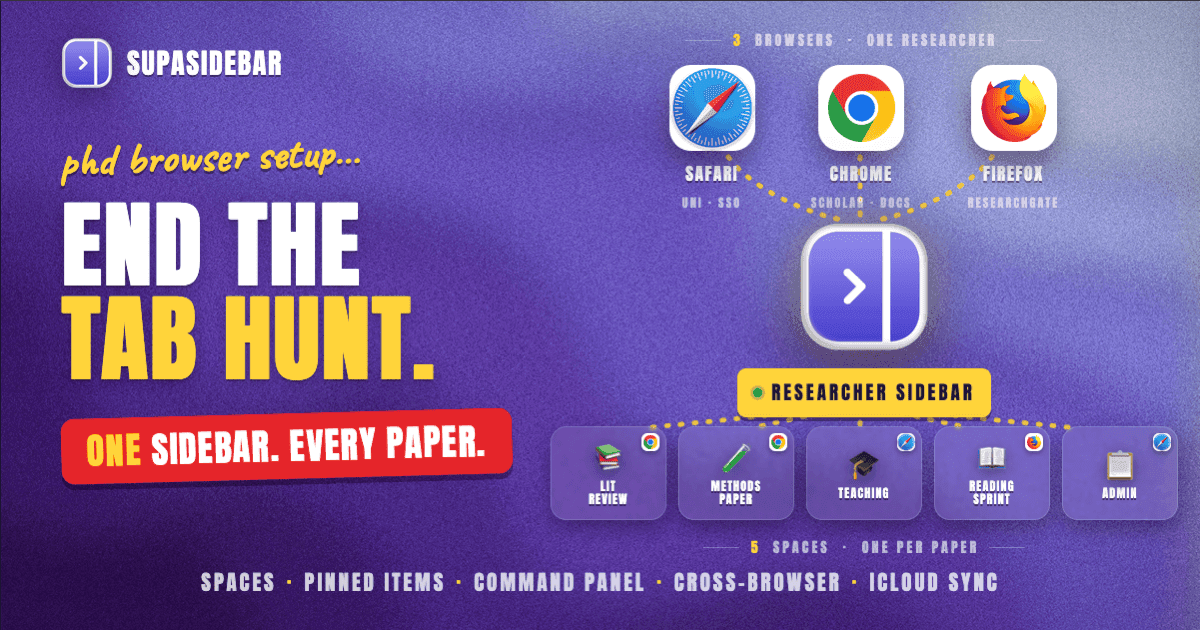
The best browser setup for researchers and academics on Mac in 2026 is not a single browser, it is one persistent macOS sidebar layered over every browser. Most researchers keep Safari signed into the university single sign-on, Chrome signed into Google Scholar and Google Docs, and Firefox open for ResearchGate and privacy-sensitive lookups, which leaves three tab piles that never see each other. A native sidebar app fixes that by holding per-paper spaces, citation-ready pinned tabs, lit-review drafts, and a cross-browser command panel in one place that survives every browser quit. SupaSidebar is a macOS app that brings Arc's sidebar to every browser, one sidebar for tabs, bookmarks, files, and apps across 32+ browsers including Safari, Chrome, Firefox, Arc, Vivaldi, Brave, Helium, and Dia. This guide covers the per-paper space pattern, the Zotero and Obsidian integration points, the cross-browser search shortcut that ends the "which-browser-was-that-paper-in" hunt, and how to set it up in under 15 minutes.
This guide covers the browser-and-sidebar layer of an academic Mac setup. It does NOT cover reference managers in depth (use Zotero, Mendeley, or Paperpile), citation styles, or LaTeX workflows. For broader tab-management advice on Mac, see Too Many Tabs Open on Mac: How to Tame Them.
Why researchers use three browsers (and why that breaks)
A typical Mac researcher does not use one browser. A literature review session usually looks like Safari signed into the university SSO for journal access through the library proxy (Apple's ecosystem makes Safari the path of least resistance for institutional logins), Chrome signed into Google Scholar plus Google Docs plus the lab Notion (because the Google account is already there), and Firefox open for ResearchGate, sci-hub mirrors, and any lookup that benefits from container tabs or stricter privacy. Each browser holds its own tab pile, its own bookmarks bar, and its own history. The proxied JSTOR session lives in Safari, the lit-review Doc lives in Chrome, the half-read preprint lives in Firefox, and nothing knows about the other two.
The cost is interruption, not storage. A grad student described the lit-review version of this problem on r/GradSchool: "the thoughts can be interrupted again and again cause I have to jump between documents and tabs, and finding missing articles in my messy knowledge base. A solid prep can make a lot of difference." (r/GradSchool, Sep 2025). A PhD candidate posting on r/PhD framed the same loop differently: "I'd read half a paragraph, realize I didn't fully understand something, then suddenly I'm checking email, opening random tabs, scrolling Reddit for no reason." (r/PhD, Nov 2025). The tab pile is not the only problem, but it is the structural one. Every cross-browser context switch is a chance to lose the thread.
A browser sidebar fixes the structural part. The sidebar is a separate UI layer on macOS, not inside any one browser, and it holds the references that need to outlive any single browser session. When Chrome runs out of memory and crashes mid-paper, or Safari quits to apply an OS update, the sidebar still shows the syllabus, the PI's office-hours page, the active draft, and yesterday's tabs grouped by paper.
The four-layer researcher sidebar
A workable researcher sidebar has four layers. The names below are specific to SupaSidebar, but the pattern works in any Mac sidebar app.
1. Per-paper Spaces
One Space per active paper or research thread. A Space holds the tabs, pinned items, bookmarks, and recents for that paper only. Switching from a thermodynamics review to a methods paper should not require closing tabs, it should be a single hotkey.
The practical ceiling is five to eight Spaces. More than that and the Space switcher becomes its own tab pile. Use abbreviated paper names (Lit-Review-Memory-Consolidation, not Literature Review on Sleep-Dependent Memory Consolidation in Adolescents). Per HubSpot's research on context-switching, full visual reset between tasks reduces resumption time by roughly 25% versus switching inside one shared window, which matches the lived experience of moving between papers.
2. Pinned items at the top of every Space
The four to six items that need to survive every Cmd+W:
- The active draft (Google Doc, Overleaf, Notion, or Obsidian note)
- The primary source PDF (linked through the library proxy when possible)
- The Zotero, Mendeley, or Paperpile web library for this project
- The PI's contact page or shared lab calendar
- The institutional repository or preprint server (arXiv, bioRxiv, SSRN)
- The library proxy login URL for off-campus access
Pinning these to the Space means they are one click away even after every tab is closed. The next time the laptop opens for that paper, the workspace is already set, no hunting through browser history.
3. Recent tabs section, scoped to the Space
A rolling list of every tab visited recently, scoped to the active Space. Researchers close tabs more aggressively than they admit, then need them back. A typical case: a researcher opens twelve secondary sources from a citation chain, closes them after skimming, then needs three of them back for the actual citation. A Recent Items section keeps the last 50-100 closed tabs reachable without digging into browser history (which is cluttered with personal browsing and only covers one browser).
4. Command Panel for cross-browser tab search
One keyboard shortcut to search across pinned items, recent tabs, AND live browser tabs from every browser. Researchers who keep tabs open in Safari, Chrome, and Firefox cannot find anything via any single browser's tab UI, each browser only sees its own tabs. A cross-browser search shortcut is the single biggest productivity gain in this setup.
SupaSidebar's Command Panel is an upgrade over Arc's Cmd+T: it searches across all Spaces, includes Live Tabs from every supported browser, and has seven scopes (slash commands narrow the result to bookmarks, tabs, recents, apps, etc.). Press ⌘⌃K, start typing three words from the paper title, and the right tab surfaces regardless of which browser holds it.
The per-paper Space pattern, concretely
Here is a working layout for a PhD candidate writing a literature review, with a side methods paper and a teaching commitment running in parallel.
| Space | Pinned items | What lives in Recent | Default browser via ATC |
|---|---|---|---|
| Lit-Review | Draft in Overleaf, Zotero web library for this project, ScienceDirect search page, supervisor's notes Doc, last meeting minutes | This week's open papers from Scholar, secondary sources, key author home pages | Chrome (Scholar + Docs) |
| Methods-Paper | Methods draft Doc, statistical analysis Notion page, dataset Drive folder, IRB approval, BibTeX file in repo | Open preregistration pages, methods preprints, R/Python docs as tabs | Chrome (Docs) |
| Teaching | Course Canvas page, syllabus, grading rubric, office-hours calendar, student email queue | Open assignment submissions, grading drafts | Safari (school SSO) |
| Reading-Sprint | arXiv daily digest, RSS reader, Twitter list of researchers in field, Zotero unsorted folder | Yesterday's saved papers, ongoing skim-and-decide queue | Firefox (privacy + ResearchGate) |
| Admin | University HR portal, conference deadlines, travel reimbursement form, library hold queue | Whatever the week threw at it | Safari |
Air Traffic Control (ATC) rules route each Space to its preferred browser automatically. When a tab gets saved from the Lit-Review Space, it opens in Chrome next time. When something gets saved from the Teaching Space, it opens in Safari (because that is where the SSO session lives). This sounds small. It is not. It removes the mental tax of remembering which browser a paper was opened in, which is exactly the friction described in the r/GradSchool post above.
Integration with the rest of the research stack
A sidebar app is the browser layer of a research setup. It is not a replacement for Zotero, Obsidian, or a notes system. The integration points are simple.
Zotero, Mendeley, or Paperpile
Pin the project's web library to its Space. The web view of Zotero (zotero.org/users/...) opens fast in any browser and is the single source of truth for citations. Saving a paper to the right collection from the desktop Zotero app stays the canonical workflow, the pinned web view is for grabbing a citation key or checking what is already in the collection without leaving the Space.
Obsidian or Notion for notes
Pin the active note (the lit-review outline, the methods draft, the daily research journal) at the top of each Space. If notes live in Obsidian, the obsidian:// URL scheme opens straight to a specific note, so the pinned item is a one-click jump into the right page. The sidebar holds the URL, Obsidian holds the content, the browser stays out of it.
Reference manager browser extensions
Keep them where they are, in the browser they work best in. The Zotero Connector is most reliable in Firefox; the Paperpile extension is Chrome-only. Pinning the web library to the Space gives a cross-browser fallback when an extension breaks after an update, which happens more often than the reference manager community admits.
Search engines and databases
Configure the Command Panel's search scopes for the databases used most often. The default scopes (Live Tabs, Saved, Spaces, Folders, Settings, YouTube, Reddit, GitHub) cover most needs, and additional search shortcuts can be added for Google Scholar, PubMed, or the institutional library catalog so ⌘⌃K + slash + query goes straight to the right database.
Setting it up in under 15 minutes
The full setup takes about ten to fifteen minutes the first time. The steps work for any Mac sidebar app, with SupaSidebar-specific names in brackets.
-
Install the sidebar app and grant permissions.
A Mac sidebar app needs Accessibility and Automation permissions to read live tabs across browsers. This is a one-time prompt at first launch. (SupaSidebar download)
-
Create Spaces for each active paper plus an Admin Space.
Five to eight Spaces is the practical ceiling. Use a short slug as the Space name (Lit-Review-Memory, not the full paper title).
-
Pin four to six items per Space.
Open each anchor link in the matching browser (active draft in Chrome, Canvas in Safari, ResearchGate in Firefox), then pin from the sidebar. Use an emoji prefix so the eye finds it instantly: 📝 draft, 📚 library, 📖 syllabus, 👤 PI, 🔑 proxy.
-
Set ATC rules for the dominant browser per Space.
In SupaSidebar, this is Preferences → ATC → New rule → "If Space is Lit-Review-Memory, open in Chrome." Repeat for each Space. (Air Traffic Control docs)
-
Bind the Command Panel shortcut.
Default in SupaSidebar is ⌘⌃K. If muscle memory already binds that to something else, rebind to whatever the brain already reaches for.
-
Bind the sidebar toggle.
⌘⇧Space to show/hide. Use Compact Mode on smaller laptops; the sidebar collapses to a thin strip and expands on hover.
-
Turn on iCloud sync if there is a second Mac.
Most researchers have a laptop for campus and a desktop or older Mac at home. Spaces, pinned items, and folders sync across both via iCloud with no separate account required.
-
Import existing bookmarks.
If there is an Arc browser sidebar to bring over, the 3-click import path is Preferences → Import and Export → Arc → Import. For other browsers, drag-import the HTML export. (Export Arc sidebar guide)
That is the whole setup. Most researchers take longer to list their active projects than to actually configure it.
Common researcher workflows the sidebar solves
The which-browser-was-that-paper-in hunt
A researcher opens a paper from Google Scholar in Chrome on Monday, reads half of it, closes the tab. On Thursday, the paper needs to be cited. Without a cross-browser search, that means digging through Chrome history, then Safari history, then Firefox history, then giving up and re-searching Google Scholar (and risking a different DOI for the same paper). With a Command Panel that includes recent tabs from every browser, ⌘⌃K, type three words from the paper title, and the tab appears. The same workflow is covered in more depth in Find Open Tabs Instantly on Mac.
Snapshot before close (the 80-tab problem)
The end of a reading sprint produces a browser with 80 open tabs and a Mac that is starting to swap. Closing them means losing the citation chain. The Recent section captures every closed tab into a searchable archive. Close Chrome; the tabs stay reachable for the next two weeks from Recent. For the structural version of this problem, see Too Many Tabs Open on Mac: How to Tame Them.
The three-browser pile (one researcher, three workflows)
One Reddit researcher described it cleanly: "I use different browser for different workflows like Safari for social media, Chrome for web development, and Firefox for research." That maps directly to academic work where Safari holds the SSO session, Chrome holds Google Scholar and Docs, and Firefox holds ResearchGate. A sidebar app does not force consolidation, it accepts the three browsers are correct for three different reasons and adds one layer that sees all three.
Citation chain across three sessions
The annotated PDF lives in one app (Preview, Skim, Highlights), the Zotero entry lives in a second, and the cited-by chain lives in the browser. The sidebar holds the entry points for all three (📄 PDF deeplink, 📚 Zotero library, 🔗 cited-by Scholar search) pinned to the paper's Space. The first ten minutes of any session start from there, not from a guess at where the last session ended.
Reading group thread plus the actual paper
A reading group runs across Slack or Discord, with the paper open in a separate window. Pin both into the same Space: the Slack channel link as one pinned item, the paper PDF as another. ⌘⇧Space toggles the sidebar; clicking the Slack pin brings up the thread, clicking the paper pin opens the PDF. Both stay one click away through the whole discussion.
How this setup compares to common research browser advice
Most online advice on browsers for researchers recommends a single browser. The 2026 reality is that academics rarely use just one. The setup above is browser-agnostic on purpose: it works with whatever combination of Safari, Chrome, and Firefox already lives on the Mac.
For reference, here is how the popular single-browser picks line up against the unified-sidebar approach.
| Approach | Strength | The researcher gap it leaves |
|---|---|---|
| Safari only | Best battery on Apple Silicon (Apple M-series specs, up to 24 hours streaming); tightest iCloud sync; native macOS integration | Limited extension ecosystem for Zotero, Paperpile, and citation tools; no native cross-browser tab access; sidebar forces choosing tabs OR bookmarks (Apple Safari sidebar docs) |
| Chrome only | Best for Google Scholar, Docs, and Paperpile; widest extension ecosystem; familiar tab management | Heavy RAM use during long reading sessions; no native vertical-tab UI; no built-in workspaces for paper-by-paper context |
| Firefox only | Best privacy stance; Container Tabs isolate identities (useful for separating personal and institutional logins); ResearchGate and Zotero Connector work natively | Smaller extension ecosystem for some citation tools; less reliable with Google-stack workflows that researchers cannot avoid |
| Arc only | Vertical sidebar, Spaces per project; the closest match to what researchers actually want | The Browser Company put Arc into maintenance mode on May 27, 2025 (The Browser Company Substack, Oct 2024); no new features, single-browser only |
| Unified sidebar across all three | Per-paper Spaces, cross-browser search, sidebar that survives any browser quit; keeps each browser doing what it does best | Adds one app to the setup; needs Accessibility permission at first launch |
The honest answer for a working researcher is the last row. The first four either constrain the workflow or pretend a single browser is enough.
Privacy, security, and institutional considerations
Three points that come up often in academic settings.
Library proxy and off-campus access.
Most universities provide off-campus journal access through a proxy URL (typically EZProxy or OpenAthens). Pin the proxy login URL to every Space that needs paywalled access; this is faster than navigating through the library home page each time. Some proxies require a fresh login per browser per session, which is exactly the kind of friction a per-Space Pinned setup smooths over.
Container tabs and identity separation.
Firefox's Multi-Account Containers isolate logins by tab color, which is useful for researchers who run multiple institutional affiliations (a postdoc with appointments at two universities, for example). The sidebar respects whichever browser the tab was opened in, so an institution-specific Container Tab stays an institution-specific Container Tab when opened from a pinned item.
Data location for sensitive work.
A Mac sidebar app stores data on-device. SupaSidebar specifically uses iCloud for sync (no separate account required) and stores all bookmarks and Pinned items locally in the macOS Application Support directory. For IRB-sensitive workflows where data location matters, this is materially different from a browser extension that syncs through a third-party server. Verify the specifics with the IT department if the research involves regulated data.
Picking what to use
The right setup depends on which browsers already hold the researcher's logins.
Single-browser researchers (Safari only, Chrome only, Firefox only).
A sidebar app is helpful but not transformative. The bigger gain is from per-paper workspaces within that browser, plus a cross-browser command panel that becomes useful the day a second browser enters the workflow.
Two-or-three-browser researchers (the typical case).
A unified sidebar is the missing layer. The Pinned-per-Space pattern plus ATC routing solves the "which browser was that in" problem that costs the most time during literature reviews and writing sessions.
Arc refugees.
Researchers who built workflows on Arc Spaces and are looking for what comes next can recreate the per-Space pattern in any Mac sidebar app. The 3-click Arc import in SupaSidebar (Preferences → Import and Export → Arc → Import) pulls Spaces, Pinned items, and Folders directly across.
Heavy reference-manager users (Zotero, Mendeley, Paperpile).
The sidebar holds the entry points; the reference manager holds the citations. Do not try to replace the reference manager with the sidebar; they solve different problems.
Why we recommend SupaSidebar for academic browser workflows
SupaSidebar is a macOS app that brings Arc's sidebar to every browser, one sidebar for tabs, bookmarks, files, and apps across 32+ browsers including Safari, Chrome, Firefox, Arc, Vivaldi, Brave, Helium, and Dia. For researchers running the three-browser pattern (Safari for SSO, Chrome for Google Scholar, Firefox for ResearchGate), the unified sidebar covers the layer no single browser will. Spaces map cleanly to active papers, Pinned items hold the four-to-six anchors per project, the Command Panel searches Live Tabs from every browser at once, and iCloud sync keeps the setup consistent across a campus laptop and a home desktop without a separate account. The 3-click Arc import lets researchers leaving Arc keep their existing Spaces structure rather than rebuild from scratch.
A free tier covers most of the setup, with the Spaces feature gated at the higher tier for researchers who want more than three active projects at once.
Conclusion: The right researcher browser setup on Mac
The right browser setup for researchers and academics on Mac in 2026 is not a single browser, it is a unified sidebar layered over the three browsers that already hold the work: Safari for institutional SSO, Chrome for the Google stack, Firefox for ResearchGate and privacy. The per-paper Space pattern plus cross-browser tab search closes the structural gap that wastes the most lit-review time, the cross-tab-pile hunt for a paper that was opened in the wrong browser three days ago.
Single-browser researchers:
stay where you are; the marginal gain is small until a second browser enters the picture. Two- or three-browser researchers (most academics): add a unified sidebar; the Pinned-per-Space and Command Panel layers pay back the setup time within the first reading sprint. Arc refugees: import directly via the 3-click Arc import in SupaSidebar and keep the Space structure you already trained on. Reference-manager-heavy workflows: keep Zotero or Paperpile as the canonical citation store; the sidebar just holds the entry points.
Try SupaSidebar (free tier), set up one Space per active paper, and the next literature review starts from the correct Space instead of a cold hunt across three browser histories.
Frequently Asked Questions
What is the best browser for academic research on Mac?
There is no single best browser for academic research on Mac in 2026 because most researchers already use two or three browsers (Safari for institutional SSO, Chrome for Google Scholar and Docs, Firefox for ResearchGate and privacy). The better question is how to unify those three browsers, which is what a Mac sidebar app like SupaSidebar does by holding per-paper Spaces and cross-browser tab search in one persistent UI.
How do I organize my research tabs on Mac?
Organize research tabs on Mac by creating one Space per active paper, pinning four to six anchor items per Space (active draft, primary source PDF, Zotero web library, PI contact, library proxy URL), and binding a cross-browser command-panel shortcut. The combination keeps each paper's context one hotkey away regardless of which browser holds the active tabs.
How do I save all my research tabs before closing a browser?
Three ways. First, save individual tabs as Pinned items in the sidebar (one click per tab). Second, use the Save All Browser Tabs shortcut (⌘⌃T in SupaSidebar) to capture every open tab in the active browser into the sidebar's Recent or Saved section. Third, let the Recent Items section archive closed tabs automatically for the last 50-100 entries, so a Cmd+W is not permanent.
Does a Mac sidebar app work with Zotero, Mendeley, and Paperpile?
A Mac sidebar app does not replace Zotero, Mendeley, or Paperpile. It works alongside them by pinning the project's web library and reference-manager URLs to the right Space. The reference manager stays the canonical citation store; the sidebar holds the entry points. Browser extensions for these tools continue to work in whichever browser they are installed in.
Is there a browser sidebar that works across Safari, Chrome, and Firefox at the same time?
Yes. SupaSidebar is a native Mac app (not a browser extension) that runs as a separate sidebar on macOS and reads Live Tabs across 32+ browsers including Safari, Chrome, Firefox, Arc, Vivaldi, Brave, Helium, and Dia. The sidebar persists when any single browser quits or crashes.
What's the best browser sidebar for PhD students and grad students?
The best browser sidebar for PhD students and grad students is one that holds per-paper Spaces, includes a cross-browser command panel for tab search, and syncs across a campus laptop and a home Mac. SupaSidebar covers all three on macOS, and the free tier includes three Spaces, which is enough for one literature review plus one side project at a time.
Can a sidebar app help with literature reviews?
A sidebar app helps with literature reviews by giving each review its own Space with pinned anchors (Zotero library, Overleaf or Doc draft, supervisor notes, database search pages) and a Recent Items section that holds the last 50-100 closed tabs across every browser. The structural part of the problem (jumping between documents and tabs and losing the thread) is what the sidebar fixes.
How do I handle off-campus journal access in this setup?
Pin the library proxy login URL (typically EZProxy or OpenAthens) to every Space that needs paywalled access. The pinned item opens the proxy login in one click, which is faster than navigating through the library home page each session. The sidebar respects which browser the proxy session lives in, so if Safari holds the institutional SSO, the proxy stays in Safari.
By Kshetez Vinayak, founder of SupaSidebar. Last updated July 9, 2026.