
By Kshetez Vinayak, founder of SupaSidebar. Last updated August 15, 2026.
TL;DR
A Safari Favorite is a bookmark stored in one specific folder, called Favorites, which Safari surfaces as a one-click row instead of burying it in a menu. The fastest way to add a favorite in Safari on Mac is Bookmarks > Add Bookmark (⌘D), then pick Favorites in the "Add this page to" pop-up and click Add. Three other routes do the same job: drag the address from the Smart Search field onto the Favorites bar, use the Share button, or drop the address into the Favorites area on the start page. All four are covered below, along with folders, renaming, and the icons-only view. The limit worth knowing before you invest an afternoon in this: a Safari Favorite lives inside Safari, so the row disappears the moment you open Chrome.
Quick navigation:
- Want something better than built-in bookmarks entirely? → Bookmark Alternatives for Safari and Chrome
- Comparing dedicated bookmark managers? → Best Bookmark Manager for Mac and Chrome 2026
- After a full Arc-style sidebar in Safari? → How to Add a Sidebar to Safari
- New to the Mac sidebar app category? → Mac Sidebar App
- Want to rename, reorder, or remove a favorite instead? → How to Edit, Reorder and Remove Safari Favorites on Mac
- Just trying to add a favorite right now? You are in the right place. Keep reading.
At a glance: four ways to add a favorite in Safari
| Method | What you do | Speed | Best for |
|---|---|---|---|
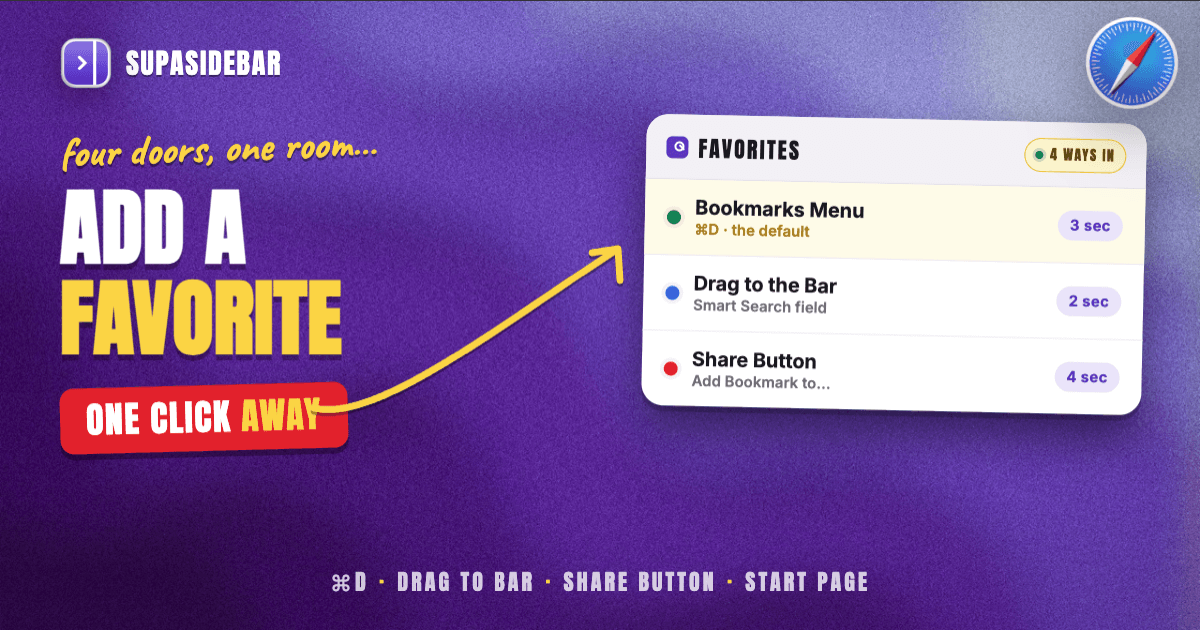
| Bookmarks menu | Bookmarks > Add Bookmark (⌘D), choose Favorites, click Add | 3 seconds | The default. Lets you rename and add a description before saving |
| Drag to the Favorites bar | Click the Smart Search field, drag the address onto the bar | 2 seconds | Adding a site to an exact position in the row |
| Share button | Share button > Add Bookmark to, choose Favorites, click Add | 4 seconds | People who already use the Share menu for everything |
| Drag to the start page | Drag the address into the Favorites area on the start page | 2 seconds | Building the grid you see on every new tab |
Every one of those four writes to the same Favorites folder. They are four doors into one room, not four different features.
What a Safari Favorite actually is
A Safari Favorite is an ordinary bookmark that happens to sit in the Favorites folder, and Safari treats that one folder specially. Favorites appear in the Favorites bar under the toolbar, in the grid on the start page, and under the Smart Search field when you click into it, per Apple's Safari User Guide.
That is the whole distinction. A bookmark in any other folder needs the sidebar or the Bookmarks menu to reach. A bookmark in Favorites is one click away from wherever you already are.
Reading List is the third thing, and it is separate again. ⇧⌘D adds the current page to Reading List, which is an offline queue for articles you intend to read once, not a shortcut row for sites you open daily.
How to add a favorite in Safari on Mac
Use whichever of these fits your hands. The first is the one worth learning.
Method 1: the Bookmarks menu (the default).
- Open the page you want in Safari.
- Choose Bookmarks > Add Bookmark. The keyboard shortcut ⌘D shown beside it in the menu does the same thing, as MacMost documents.
- In the "Add this page to" pop-up, choose Favorites. Apple's guide notes Favorites is the default target, so often this is already selected.
- Rename it to something short. "Google Analytics 4 dashboard" becomes a five-character sliver in a favorites row, so short names are not cosmetic here.
- Click Add.
Method 2: drag the address onto the Favorites bar.
Click in the Smart Search field to reveal the full address and its icon, then drag that icon down onto the Favorites bar, per Apple. Drop it exactly where you want it in the row. This is the fastest method once the bar is visible, and it skips the naming dialog entirely.
Method 3: the Share button.
Click the Share button in the toolbar, choose Add Bookmark to, pick Favorites in the "Add this page to" pop-up, optionally add a description, then click Add. Apple's bookmarking guide documents this route, including the description field the Bookmarks menu also offers.
Method 4: drop it into the start page grid.
Drag the address from the Smart Search field into the Favorites area on the start page, or into the Favorites folder in the sidebar. Same result, and it is the natural move if you are already looking at the start page.
How to show the Favorites bar
Choose View > Show Favorites Bar and a row of your favorite sites appears directly below the toolbar. The ⇧⌘B shortcut toggles it. If you see angle brackets at the right end of the bar, Apple's guide explains that the row has overflowed: click the brackets to reveal the rest, or make the Safari window wider.
That overflow behavior is the real ceiling on this feature. There is no fixed maximum number of favorites, but there is a maximum number that fits across your screen, and everything past it collapses into a menu that is no faster than the Bookmarks menu you were trying to avoid.
The Bookmarks sidebar is a separate surface with its own shortcut, ⌃⌘1, and it shows every bookmark rather than just Favorites.
Where your Favorites show up
Three places, and they are all fed by the same folder:
- The Favorites bar, once you turn it on with View > Show Favorites Bar.
- The start page, as a grid of icons.
- The Smart Search field, when you click into it. Apple notes the start-page view does not appear if you click the field while already viewing the start page, and it vanishes as soon as you start typing.
New tabs show Favorites too, though that depends on a setting. If they do not appear there, Safari > Settings > General controls it.
One useful setting most people never find: Safari > Settings > General has a Start Page Favorites pop-up menu that points the start-page grid at a different bookmarks folder. So the grid on your start page and the strip under your toolbar do not have to show the same sites.
Organizing favorites: folders, names, and icons
Apple's organize guide covers the full set, and four moves do most of the work:
- Reorder: drag favorites left or right along the bar.
- Rename: Control-click the name in the bar or on the Favorites page, then choose Rename. Force click also works.
- Shrink to icons: Control-click a title and deselect Show Title to shrink one item to its favicon. Control-click between items and choose Show Icons Only to do it to the whole row. On a 13-inch MacBook this is the difference between eight favorites fitting and twenty fitting.
- Group into folders: a folder placed in the Favorites bar becomes a drop-down. Command-click a folder in the bar to open every bookmark inside it at once, which turns a folder into a crude session launcher.
Removing one is deliberately awkward so you do not do it by accident: drag the item off the bar into the toolbar and let go, or Control-click it and choose Delete. For a fuller walkthrough of renaming, reordering, and removing favorites, see How to Edit, Reorder and Remove Safari Favorites on Mac.
Where Safari Favorites stop working
Favorites are good at exactly one job, and they fail in three predictable places.
They are Safari-only.
The row lives inside Safari. Open Chrome for a work login or Firefox for testing and it is simply not there, because a browser can only see its own bookmarks. This is the complaint that shows up most often in bookmark threads: people describe hating that their saved sites end up scattered across three different browsers, with no single place that holds all of them.
They are one flat row.
Folders help, but there are no separate contexts. Client work, personal banking, and a research project all share the same strip, so the more you use Favorites the less useful any single item becomes.
iCloud sync is Apple-only, and it syncs deletions too.
Apple's iCloud setup guide keeps your favorites identical across your Apple devices, which is genuinely good until you delete something on the Mac and it disappears from the iPhone before you notice.
None of that makes Favorites bad. It makes them a single-browser convenience feature, which is worth knowing before you spend an afternoon curating a row you cannot take anywhere.
SupaSidebar: a favorites row that survives a browser switch
SupaSidebar is a macOS app that puts the same one-click row outside the browser, so it stays on screen in Safari, Chrome, Firefox, or anything else you open. It is not a browser and not an extension, which is the reason the row does not vanish when you switch. That makes it the answer for the specific problem Safari Favorites cannot solve: a Mac where more than one browser is in daily use.
The mechanics map closely onto what you already know from Favorites. Pinned Items are the direct equivalent of the Favorites bar, with 12 slots and keyboard shortcuts (⌘⌥1 through ⌘⌥9, plus ⌘⌥0 for the tenth). Saved links and folders handle the deeper storage that Favorites folders handle. ⌘⇧Space shows and hides the whole sidebar.
Spaces are the part Safari has no equivalent for. Each Space is its own set of pinned items, saved links, and folders, so you are not fitting every context into one horizontal strip. Here is what that looks like in practice for someone running Safari personally and Chrome for work:
| Example Space | What lives in it |
|---|---|
| Work | mail.google.com, linear.app, github.com, notion.so, the company Slack |
| Personal | reddit.com, youtube.com, the banking login, a recipes folder |
| Reading | substack.com, an RSS reader, a couple of long articles saved for the weekend |
Switching Space swaps the whole rail at once: pins, saved links, and folders all change together, and none of it depends on which browser happens to be in front. Existing Safari bookmarks come across through a guided import (Preferences, Import and Export, Safari), with an HTML export as a fallback. SupaSidebar reads live tabs across 32+ Mac browsers, including Safari, Chrome, Firefox, Edge, Arc, Brave, Vivaldi, Dia, and Comet, and the Command Panel (⌘⌃K) searches saved links and open tabs across every Space at once. More than 3,000 Mac users have tried SupaSidebar.
Honest scope limits: it runs on macOS 14 and later only, it does not render web pages beyond link previews, its search covers link titles, URLs, folder names, and notes rather than the text inside a page, and only saved links sync via iCloud, so live tabs stay local to the Mac.
Best for:
anyone who has curated a Favorites bar in one browser and then wanted the same row in a second browser.
Which favorites setup should you pick?
If Safari is the only browser you use:
the Favorites bar plus icons-only view is genuinely enough. Turn on View > Show Favorites Bar, add your ten daily sites, and stop there.
If your favorites row has become unmanageable:
group them into folders and point the start page at a different folder from the toolbar strip, using the Start Page Favorites setting. That buys you two surfaces instead of one.
If you want tags, notes, or full-text search over saved pages:
Favorites will never do that. A dedicated bookmark manager is the right category, and the bookmark manager comparison covers the options.
If you run Safari plus any second browser:
no browser-native favorites feature helps, because each browser is blind to the others. That is the case for a Mac app that sits above all of them.
If you left Arc and miss the sidebar specifically:
the add a sidebar to Safari guide covers that narrower question.
Conclusion: what to use
Adding a favorite in Safari on Mac takes three seconds through Bookmarks > Add Bookmark (⌘D) with Favorites selected, and the other three methods exist mainly to suit different habits rather than to do anything the first cannot.
Single-browser Safari users should turn on the Favorites bar, switch it to icons-only once it overflows, and use folders in the bar as one-click session launchers. Anyone whose row has grown past what fits on screen should split it, pointing the start page grid at a second folder. Anyone who wants tags, notes, or search over saved page contents has outgrown Favorites entirely and should look at a dedicated bookmark manager. And anyone running a second browser alongside Safari is facing a problem Favorites is structurally unable to solve, because the row cannot leave the browser it lives in.
If you want the same one-click row in every browser on the Mac, try SupaSidebar (free version available). If the built-in bookmarks are the real frustration rather than the favorites row specifically, bookmark alternatives for Safari and Chrome is the better starting point.
Why we recommend SupaSidebar
SupaSidebar is a macOS app that brings Arc's sidebar to every browser - one sidebar for tabs, bookmarks, files, and apps across 32+ browsers including Safari, Chrome, Firefox, Edge, Arc, Brave, Vivaldi, Dia, and Comet. For anyone who has built a Favorites bar and then wanted it in a second browser, that is the entire pitch: the row is a Mac app, so switching browsers does not take it away.
Pinned Items give 12 quick-access slots with their own shortcuts, saved links and folders hold the deeper library, and Spaces separate contexts so one strip does not have to serve work, personal, and research at once. The Command Panel (⌘⌃K) searches saved links, recent items, and live tabs across every Space. Air Traffic Control routes links to a chosen Space, browser, and profile automatically. Safari bookmarks import through a guided flow in Preferences, and saved links sync via iCloud with no account required. A free version is available.
Two things it deliberately does not do: it is not a browser, and it does not replicate Arc's Boosts or Easels, which are browser-engine features rather than sidebar ones.
FAQ
How do I add a favorite in Safari on Mac?
Open the page, choose Bookmarks > Add Bookmark (⌘D), choose Favorites in the "Add this page to" pop-up, then click Add. You can also click in the Smart Search field and drag the address onto the Favorites bar, use the Share button and choose Add Bookmark to, or drag the address into the Favorites area on the start page.
How do I add to favourites in Safari if I do not see the Favorites bar?
The bar is hidden by default. Choose View > Show Favorites Bar, or press ⇧⌘B, and a row of your favorite sites appears below the toolbar. Adding a favorite works with the bar hidden too, through Bookmarks > Add Bookmark, but the bar is what makes them one click away.
What is the difference between Favorites and bookmarks in Safari?
Favorites are bookmarks stored in one specific folder that Safari surfaces in the Favorites bar, on the start page, and under the Smart Search field. Every other bookmark sits in the sidebar or the Bookmarks menu and takes an extra click or two to reach. There is no separate Favorites system, only a folder Safari treats specially.
Is there a limit to how many favorites Safari can hold?
There is no fixed maximum, but the Favorites bar only shows as many as fit across the window. Once it overflows, Apple's guide explains that the rest collapse behind angle brackets at the right end of the bar. Switching the bar to icons only, by Control-clicking between items and choosing Show Icons Only, roughly doubles what fits.
Do Safari favorites sync to my iPhone and iPad?
Yes, if Safari is turned on in iCloud settings on each device. Apple's iCloud setup guide keeps your favorites identical across your Apple devices. Deletions sync too, so removing a favorite on the Mac removes it everywhere.
Can I use my Safari favorites in Chrome?
Not directly. Safari Favorites live inside Safari, and Chrome cannot read them without a one-time import that then drifts out of date. A Mac app such as SupaSidebar holds the row outside the browser, so the same pinned items and saved links stay on screen in Safari, Chrome, Firefox, and Edge.
How do I organize favorites into folders in Safari?
Create a bookmarks folder from the Bookmarks sidebar (⌃⌘1) by Control-clicking and choosing to create a folder, then drag favorites into it. A folder sitting in the Favorites bar becomes a drop-down, and Command-clicking that folder opens every bookmark inside it at once.
Written by Kshetez Vinayak, founder of SupaSidebar, a Mac sidebar app that works across every browser.