
By Kshetez Vinayak, founder of SupaSidebar. Last updated July 30, 2026.
TL;DR
Safari Favorites are ordinary bookmarks living in one folder named Favorites, so editing a favorite is editing a bookmark, and every action below happens in one of two places: the Favorites bar or the Bookmarks sidebar. To remove one favorite on a Mac, Control-click it and choose Delete, or drag it off the bar into the toolbar. To clear a lot of them, choose Bookmarks > Edit Bookmarks, Command-click each one, and press the Delete key. Reordering is a drag, renaming is Control-click > Rename, and changing the address is a separate menu item most people never find. Two things nobody mentions: a deleted favorite is gone from every Safari profile and every device signed into the same iCloud account, and hiding the Favorites bar with ⇧⌘B is not the same as clearing it.
Quick navigation:
- Trying to add one rather than remove one? → How to Add Favorites in Safari on Mac
- Want a real system instead of a tidier row? → Bookmark Organizer for Mac
- Thinking in workspaces rather than folders? → Organize Browser Bookmarks Into Workspaces
- Saved sites scattered across two or three browsers? → Cross-Browser Bookmark Sync
- Here to fix a messy Favorites bar? You are in the right place. Keep reading.
At a glance: every favorites edit and where to do it
| Task | Where | What you do | Best for |
|---|---|---|---|
| Reorder | Favorites bar | Drag an item left or right along the row | Putting the three sites you open hourly at the far left |
| Rename | Bar or Favorites page | Control-click the name, choose Rename | Shortening long titles so more fit across the row |
| Change the address | Bookmarks sidebar | Control-click the bookmark, choose the edit-address option | A site that moved domains and now opens the wrong page |
| Remove one | Favorites bar | Control-click, choose Delete, or drag it into the toolbar | One-off cleanup while you are browsing |
| Remove many | Bookmarks > Edit Bookmarks | Command-click each item, press Delete | Clearing out a row that grew for three years |
| Sort A to Z | Bookmarks sidebar | More button, Show Folders on Top, then Sort By | Long folders where you cannot find anything |
| Hide the whole row | View menu | View > Hide Favorites Bar, or ⇧⌘B | Screen space, without losing a single favorite |
Notice that the row and the sidebar are not interchangeable. Reordering only really works in the bar; changing an address only works in the sidebar. Knowing which surface owns which action is most of the difficulty with this feature.
The two surfaces, and why it matters which one you are in
Safari gives you two editors for the same set of favorites, and they expose different powers.
The Favorites bar
is the row under the toolbar, turned on with View > Show Favorites Bar. It handles drag-to-reorder, rename, icon-only display, and single deletes. It is the fast surface for small fixes.
The Bookmarks sidebar
is the full list, opened with the sidebar button in the toolbar or Bookmarks > Show Bookmarks. It handles everything the bar does plus address editing, moving items between folders, sorting, and multi-select deletes. Apple's own management instructions point here rather than at the bar, per the Safari User Guide.
There is a third door, Bookmarks > Edit Bookmarks, which opens the same data as a full-window list. That is the one to use for anything involving more than about five items.
How to reorder favorites in Safari
In the Favorites bar, reordering is exactly what you would guess: drag an item left or right and drop it where you want it, per Apple's organize guide. Order matters more than it sounds, because the items that fall off the right edge of the window are the ones that get buried behind the overflow brackets.
In the Bookmarks sidebar there is a trap. Apple's rearrange instructions say to click the More button and deselect Show Folders on Top before dragging, then drag bookmarks and folders to new positions. Leave Show Folders on Top selected and manual dragging fights you, because Safari keeps forcing folders back above loose bookmarks.
The same setting works in reverse for sorting. To alphabetize, you select Show Folders on Top, click the More button again, click Sort By, and pick an order. So one checkbox has to be off to arrange things by hand and on to sort them automatically. That single detail is why "reordering is broken" is such a common complaint about Safari bookmarks.
One more thing from that page: Option-drag copies a bookmark instead of moving it. Useful when you want the same site in two folders rather than moved out of one.
How to edit a favourite: names and addresses
Renaming is the same everywhere. Control-click the name in the Favorites bar or on the Favorites page and choose Rename. Apple notes you can also force click the name, or click and hold until it highlights, then type the new one.
Short names are not cosmetic here. A favorite called "Q3 Marketing Dashboard - Looker Studio" is a truncated sliver in a horizontal row, and it pushes everything to its right closer to the overflow. Renaming to "Q3 Looker" often does more for a crowded bar than deleting anything.
Editing the address is a different action and it lives only in the Bookmarks sidebar. Control-click the bookmark there and Safari offers to edit the bookmark's website address, alongside rename, copy, delete, create folder, and move to another folder. This is the fix for a favorite that still opens a URL from two redesigns ago.
How to remove favorites on a Safari MacBook
Apple documents two ways to remove a single favorite, and they are both in the bar:
- Drag it out. Drag the website from the Favorites bar or the Favorites area up into the toolbar, then let go. It vanishes with a puff.
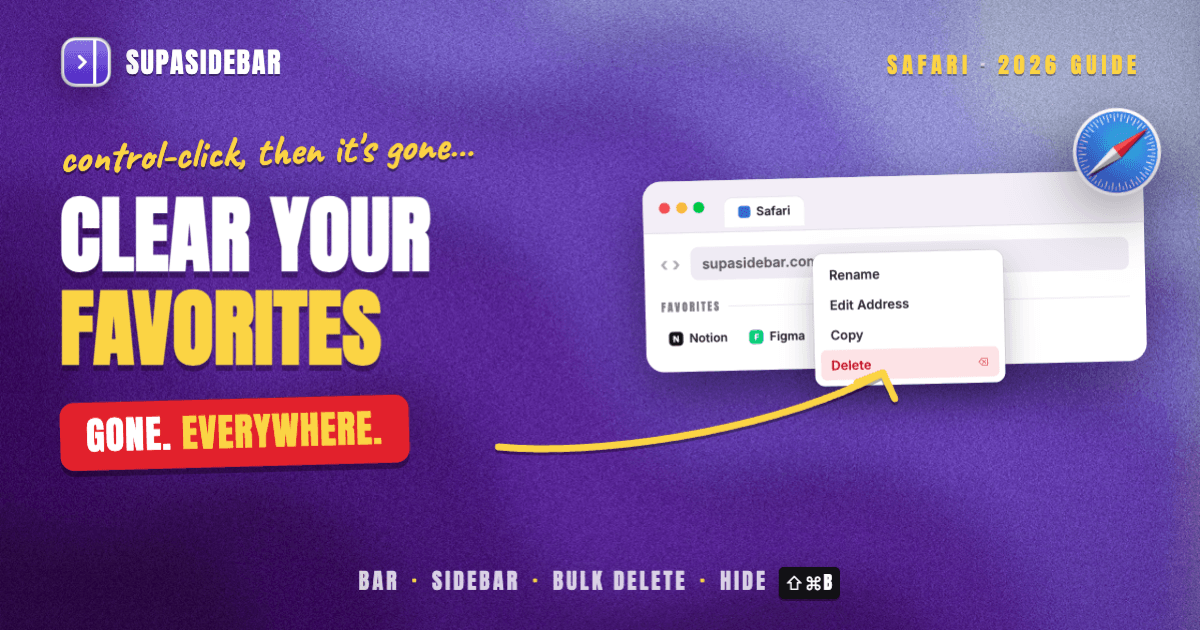
- Control-click and delete. Control-click the item and choose Delete from the shortcut menu.
That awkward drag-into-the-toolbar gesture is deliberate. A favorite you can delete with a stray click is a favorite you will lose by accident.
From the sidebar, the route is the same idea with different scenery: open Bookmarks in the sidebar, click the More button, choose Show Folders on Top, then Control-click the bookmark or folder and choose Delete, per Apple's delete-a-bookmark page. Deleting a folder takes everything inside it, with no confirmation prompt and no visible trash to fish it back out of.
How to clear favorites on Safari in bulk
Apple's documentation covers deleting bookmarks one at a time and stops there, which is why the bulk-clearing question keeps landing in Apple's own discussion forums instead.
The working method is multi-select in the bookmarks editor:
- Choose Bookmarks > Edit Bookmarks.
- Command-click each favorite you want gone, or Shift-click two items to take everything between them.
- Press the Delete key.
MacPaw's Mac bookmark guide documents the same Command-click-then-Delete flow, and it works in the sidebar list as well as the full editor. Treat it as reliable but undocumented by Apple, which is a fair description of a lot of Safari bookmark behavior.
Two cautions before you start selecting. There is no documented undo for a bookmark deletion in Safari, so a slip here is not a slip you can take back with a keystroke. And if the goal is a cleaner screen rather than a shorter list, do not delete anything: View > Hide Favorites Bar (or ⇧⌘B) puts the entire row away and keeps every favorite intact. Hiding and clearing get confused constantly, and only one of them is reversible.
What deleting a favorite actually deletes
This is the part worth reading before a cleanup session, because a Safari favorite is not as local as it looks.
It disappears from every Safari profile.
Profiles separate history, cookies, website data, and Tab Groups, but bookmarks including favorites are shared across all of them, per Apple's profiles documentation. Only the Favorites bar can differ between profiles, and only when each profile points at a different favorites folder. Delete a favorite in your Work profile and it is gone from Personal too.
It disappears from every device.
Apple's iCloud setup guide keeps favorites identical across devices signed into the same account, and identical includes absent. A cleanup on the Mac at 9am is a cleanup on the iPhone at 9am.
It does not disappear from any other browser, because it was never there.
This is the flip side people notice later. A Safari favorite lives inside Safari, so the row you just spent an hour curating is invisible the moment you open Chrome for a work login. Users describe the frustration plainly in bookmark threads: saved sites end up scattered across three different browsers with nothing holding all of them.
So the honest summary of Safari favorites maintenance is that deletes are broad and permanent, while the benefit stays narrow and stuck in one browser. That asymmetry is the reason a lot of people stop curating the bar and start looking for something that sits above the browser instead, which is the gap SupaSidebar was built for.
SupaSidebar: one editable row that every browser can see
SupaSidebar is a macOS app that keeps the same quick-access row outside the browser, so reorganizing it once applies in Safari, Chrome, Firefox, and anything else you open. It is not a browser and not an extension, which is exactly why the row survives a browser switch. For anyone whose Favorites bar has outgrown a single horizontal strip, that is the structural fix rather than another cleanup pass.
The editing model is closer to a file manager than to a toolbar. Pinned Items are the direct equivalent of the Favorites bar, with 12 slots and their own shortcuts (⌘⌥1 through ⌘⌥9, plus ⌘⌥0 for the tenth). Folders nest, so a crowded row becomes a shallow tree instead of an overflow menu.
Bulk cleanup is a first-class action rather than an undocumented trick. Shift-click selects a range and ⌘-click toggles individual items, and a selection can be turned into a folder, moved to another Space, copied as URLs, or deleted in one go. Smart Folders go further: a rule such as *.figma.com collects matching links automatically, so a category stays organized without anyone maintaining it.
Spaces are the part Safari has no equivalent for. Each Space carries its own pinned items, folders, and saved links, so contexts stop competing for one strip. Here is what that looks like for someone whose Favorites bar has been doing three jobs at once:
| Example Space | What lives in it |
|---|---|
| Client work | linear.app, figma.com, the client's staging URL, notion.so, a shared drive folder |
| Admin | mail.google.com, the invoicing tool, the bank login, calendar.google.com |
| Reading | substack.com, an RSS reader, youtube.com, a saved-articles folder |
Switching Space swaps the whole rail at once, and none of it depends on which browser happens to be in front. Existing Safari bookmarks come across through a guided import (Preferences, Import and Export, Safari) with an HTML export as a fallback, so a curated Favorites folder is a starting point rather than something to rebuild. SupaSidebar reads live tabs across 32+ Mac browsers, including Safari, Chrome, Firefox, Edge, Arc, Brave, Vivaldi, Dia, and Comet, and the Command Panel (⌘⌃K) searches saved links and open tabs across every Space at once. More than 3,000 Mac users have tried SupaSidebar.
Honest scope limits: it runs on macOS 14 and later only, its search covers link titles, URLs, folder names, and notes rather than the text inside a page, and only saved links, folders, and pins sync via iCloud, so live tabs stay local to that Mac.
Best for:
anyone whose Favorites bar has become a cleanup chore, and who would rather have several small organized sets than one long row.
Which favorites cleanup should you pick?
If two or three items are in the wrong order:
drag them along the Favorites bar and stop there. Nothing else is worth opening.
If the row has overflowed:
rename before you delete. Shorter titles, or Show Icons Only from a Control-click between items, usually recovers more room than removing sites you actually use.
If dozens of favorites need to go:
use Bookmarks > Edit Bookmarks with Command-click multi-select. Doing that one Control-click at a time in the bar is how a ten-minute cleanup becomes an hour.
If you only want the screen space back:
press ⇧⌘B. Hiding the bar costs you nothing and deletes nothing.
If the same sites need to be reachable in a second browser:
no amount of tidying fixes that, because each browser can only see its own bookmarks. That is the case for a Mac app such as SupaSidebar that sits above all of them.
If the underlying problem is that flat folders never worked for you:
the issue is the model, not the mess, and organizing bookmarks into workspaces is the better framing.
Conclusion: what to use
Removing a favorite in Safari on a Mac is a Control-click and Delete, or a drag off the bar into the toolbar, and clearing many of them means Bookmarks > Edit Bookmarks with Command-click multi-select and the Delete key. Reordering is a drag in the bar; in the sidebar it requires deselecting Show Folders on Top first, which is the single most confusing detail in the whole feature.
Light users of the Favorites bar should rename and reorder rather than delete, and reach for ⇧⌘B when the goal is screen space. Anyone doing a real purge should work in the bookmarks editor, remembering that the delete lands on every Safari profile and every iCloud device at once and has no documented undo. Anyone who keeps rebuilding the same row in a second browser has hit a limit no cleanup can move, since Safari favorites cannot leave Safari.
If the row needs to exist in every browser on the Mac rather than just one, try SupaSidebar (free version available). If you are here to build the row rather than trim it, how to add favorites in Safari is the companion guide, and the bookmark manager comparison covers the dedicated-app route.
Why we recommend SupaSidebar
SupaSidebar is a macOS app that brings Arc's sidebar to every browser - one sidebar for tabs, bookmarks, files, and apps across 32+ browsers including Safari, Chrome, Firefox, Edge, Arc, Brave, Vivaldi, Dia, and Comet. For a Favorites bar that has outgrown one row, the relevant part is that the row is a Mac app: it holds structure a horizontal strip cannot, and it does not vanish when the browser changes.
Pinned Items give 12 quick-access slots with their own shortcuts, nested folders and Smart Folders hold the rest, and multi-select turns batch cleanup into one action instead of a sequence of Control-clicks. Spaces separate contexts so work, admin, and reading are not competing for the same strip. The Command Panel (⌘⌃K) searches saved links, recent items, and live tabs across every Space, and Air Traffic Control routes links to a chosen Space, browser, and profile automatically. Safari bookmarks import through a guided flow in Preferences, and saved links sync via iCloud with no account required. A free version is available.
Two things it deliberately does not do: it is not a browser, and it does not replicate Arc's Boosts or Easels, which are browser-engine features rather than sidebar ones.
FAQ
How do I remove favorites on Safari on my MacBook?
Control-click the favorite in the Favorites bar and choose Delete, or drag it from the bar up into the toolbar and let go. From the Bookmarks sidebar, click the More button, choose Show Folders on Top, then Control-click the bookmark and choose Delete. Deleting a folder removes everything inside it.
How do I clear all favorites on Safari at once?
Choose Bookmarks > Edit Bookmarks, Command-click each favorite (or Shift-click two items to select the range between them), then press the Delete key. Apple's guide only documents deleting one bookmark at a time, so this multi-select route is the practical way to empty a long row. If the aim is a cleaner window rather than fewer favorites, press ⇧⌘B to hide the bar instead.
How do I edit favourites in Safari?
Control-click a favorite's name in the Favorites bar or on the Favorites page and choose Rename, or force click the name until it highlights and type a new one. To change the website address rather than the name, Control-click the bookmark in the Bookmarks sidebar and choose the edit-address option, which also offers copy, delete, and move to another folder.
Why can I not drag my Safari bookmarks into the order I want?
Because Show Folders on Top is switched on. In the Bookmarks sidebar, click the More button and deselect Show Folders on Top, and manual dragging starts working. The same setting must be switched back on to use Sort By, which is why the two behaviors seem to cancel each other out.
Does deleting a Safari favorite delete it on my iPhone too?
Yes, if Safari is turned on in iCloud settings on both devices. Apple's iCloud setup guide keeps favorites identical across every device signed into the same account, and that includes deletions. There is no per-device favorites list to fall back on.
Do Safari profiles have separate favorites?
Not really. Profiles separate history, cookies, website data, and Tab Groups, but bookmarks including favorites are shared across all profiles. Only the Favorites bar can differ, and only if each profile is pointed at a different bookmarks folder using the Start Page Favorites setting in Safari > Settings > General.
Can I undo deleting a Safari bookmark?
There is no undo documented for bookmark deletion in Safari, so treat a delete as final. The realistic recovery routes are an iCloud bookmarks restore or a Time Machine backup, both of which restore a whole earlier state rather than the one item you removed. Select carefully before pressing Delete in the bookmarks editor.
Written by Kshetez Vinayak, founder of SupaSidebar, a Mac sidebar app that works across every browser.