
By Kshetez Vinayak, founder of SupaSidebar. Last updated June 13, 2026.
TL;DR:
The fastest way to organize your browser bookmarks is to stop sorting them by topic and start grouping them by workspace: one group per project or life context, holding everything that context needs. On a Mac in 2026 there are four real ways to do that. Bookmark folders treated as workspaces work for light, single-browser use. Chrome profiles give hard separation but lock each workspace inside one browser. A cloud service like Raindrop.io adds cross-device collections but lives outside the browser chrome. A Mac sidebar app like SupaSidebar is the strongest option for multi-browser users: each Space holds the bookmarks and folders for one project, visible next to any browser, switchable with a keyboard shortcut.
Looking for something specific?
- Comparing every bookmark manager? → Best Bookmark Manager for Mac and Chrome 2026
- Syncing bookmarks across browsers? → Cross-Browser Bookmark Sync
- Outgrown built-in bookmarks entirely? → Bookmark Alternatives for Safari and Chrome
- Want bookmarks grouped by project or context? → You're in the right place. Keep reading.
Why folder-only bookmark organization breaks down
Almost every browser bookmark organization guide says the same thing: make folders, name them by topic, file each bookmark in the right one. That advice fails in slow motion. The folders fill up, the names stop meaning anything ("research-temp", "read-later-2", "misc"), and the bookmarks bar becomes a museum of links nobody opens.
The reason is structural, not laziness. Folders sort bookmarks by what they are: "Design tools", "Recipes", "Documentation". But work happens in contexts: a client project, a course, a job hunt, a kitchen renovation. One project needs a design tool, two docs pages, a spreadsheet, and a vendor login at the same time, and a topic-based folder tree scatters those five links across five folders. Every project switch becomes a scavenger hunt.
Multi-browser users feel a second layer of the same problem. As one Reddit user put it: "I hate having bookmarks scattered across 3 different browsers". Each browser has its own folder tree, none of them agree, and the link needed right now is always in the other browser. The pain compounds because, as covered in the cross-browser bookmark sync guide, browsers deliberately do not sync bookmarks with each other.
So the fix is not better folders. It is a different unit of organization.
The workspace model: organize by context, not category
A bookmark workspace is a container that holds everything one context needs: the links, the logins, the docs, the tools, regardless of topic. Switch context, switch workspace, and the screen shows only what that context uses. The model is the same one Arc popularized with Spaces and macOS uses for desktop Spaces, applied to bookmarks.
Organizing bookmarks into workspaces beats topic folders on three counts:
- Retrieval matches intent. The question during work is never "where are the design tools", it is "where is everything for Project X". A workspace answers that in one click.
- Archiving is one move. When a project ends, archive the workspace. No picking through topic folders deciding which links are dead.
- The default view stays small. A workspace shows 10-30 links that matter now instead of a 500-bookmark tree. Less scanning, fewer duplicates, no "misc" folder.
The practical question is where those workspaces should live on a Mac. There are four real options in 2026, and they suit different setups.
Method 1: Bookmark folders treated as workspaces
The zero-new-tools version: create one top-level folder per project in the bookmarks bar, not per topic. "Client A", "Apartment hunt", "Q3 planning". File every link the project needs into its folder, whatever the topic.
Chrome makes seeding these folders fast. Bookmark All Tabs (⌘⇧D on Mac) saves every tab in the current window into a new folder in one move, and right-clicking that folder later offers "Open all" to restore the whole set, per Google's bookmark documentation. Safari, Firefox, Edge, Brave, and Vivaldi all support the same folder-per-project pattern with their own shortcuts. For the basics of folder management on a Mac, any browser's built-in manager does the job, and to organize bookmarks into folders on Mac this way costs nothing and takes minutes.
Where it breaks:
the folders live inside one browser, so a Chrome "Client A" folder is invisible from Safari. There is no keyboard switching between contexts, no way to see the workspace next to the page being read, and discipline decays: the bookmarks bar slowly reverts to a junk drawer. Folder-per-project is a naming convention, not a real workspace. It suits single-browser users with two or three light projects.
Method 2: Browser profiles as workspaces
Profiles are the heaviest native separation a browser offers. In Chrome, each profile keeps its own bookmarks, history, passwords, and extensions, so a "Work" profile and a "Personal" profile are effectively two parallel browsers. One profile per major life context gives true bookmark workspaces with hard walls between them.
One catch surprises Safari users. Safari profiles share bookmarks across all profiles: profiles separate history, cookies, Tab Groups, and extension settings, but the bookmark library, including favorites, is shared everywhere. Safari profiles are workspaces for browsing data, not for bookmarks. Only the Favorites bar can differ per profile, and only when profiles use different favorites folders.
Where it breaks:
profiles are walls, and walls cut both ways. Moving a bookmark between contexts means exporting or re-saving it. The wrong-profile-window problem is constant. And profiles are still per-browser: a Chrome Work profile does nothing for the Safari window next to it. As one Reddit user described the daily reality: "I use Safari for personal and Chrome for work. Switching manually is painful". Profiles suit people who live in one browser and want strict work/personal separation, a setup covered in more depth in the bookmark alternatives guide.
Method 3: A cloud bookmark service with collections
Services like Raindrop.io move bookmarks out of the browser entirely. Links live in the service's database, organized into collections that work exactly like workspaces: one collection per project, with tags, covers, and search on top. Raindrop's free plan includes unlimited bookmarks, collections, and devices, and per-browser extensions plus mobile apps make the same collections reachable from Chrome, Safari, Firefox, a phone, or a work PC.
This is the strongest method for cross-device, cross-platform reach, and the right pick when the bookmark library is also a research archive that needs full-text search and permanence. The bookmark manager comparison covers how these services stack up against each other.
Where it breaks:
the workspace lives in a website. Opening a link means going to the Raindrop tab or extension first, so the collection is never simply present next to the current page. There is no awareness of which browser opens what, no keyboard shortcut that flips the whole working context, and the service holds the data, which account-averse users dislike. Collections organize the library; they do not change how the desktop feels during a project switch.
Method 4: A Mac sidebar app with Spaces
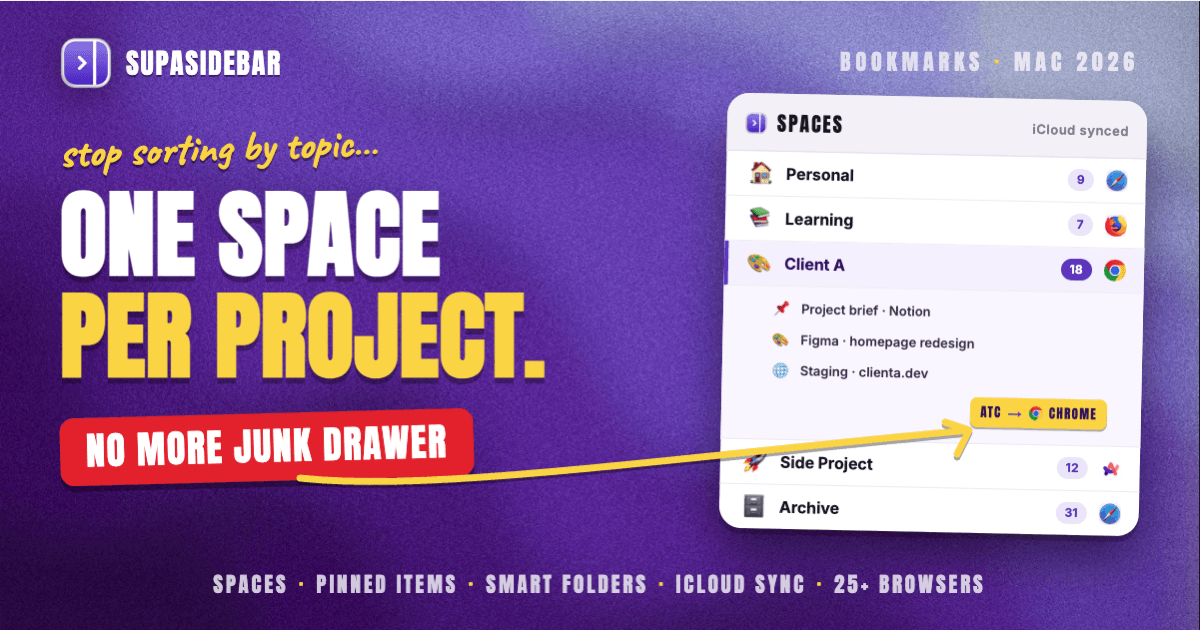
The fourth method puts workspaces at the operating-system level instead of inside any single browser or website. SupaSidebar is a macOS app that brings Arc's sidebar to every browser - one sidebar for tabs, bookmarks, files, and apps across 32+ browsers including Safari, Chrome, Firefox, Arc, Zen, Vivaldi, Brave, Helium, and Dia.
In SupaSidebar the workspace unit is called a Space. Each Space holds the saved links and folders for one context: a "Client A" Space carries the brief, the Figma file, the staging URL, and the invoice page, while a "Personal" Space carries none of that. The sidebar floats next to whatever browser is open, so the active Space's bookmarks are one click away from a Safari window, a Chrome window, or both at once. Switching Spaces is a keyboard shortcut (⌘⌃1 through ⌘⌃9, or arrows to step through), which makes a project switch feel like changing desktops rather than digging through menus.
A few details matter for bookmark organization specifically:
- Pinned items stay visible across Spaces, so the calendar and email links that every context needs never get duplicated into each workspace.
- Folders and Smart Folders work inside each Space. A Smart Folder can auto-collect links by rule, for example every
*.figma.comlink or every PDF, so part of the filing happens automatically. - Each Space can be linked to a browser profile, which connects the bookmark workspace to the matching browsing context in Chrome or Safari.
- Saved links sync via iCloud with no account required, so the same Spaces appear on a second Mac.
The honest limits: SupaSidebar is Mac-only, so it does not help on a Windows PC or a phone the way a cloud service does. And Spaces do not isolate browser sessions the way Chrome profiles do; they organize links and context, not cookies. A free version is available, and the Mac sidebar app guide explains the category in full.
The four methods side by side
| Method | Where workspaces live | Cross-browser | Cross-device | Effort to maintain | Best for |
|---|---|---|---|---|---|
| Bookmark folders per project | Inside one browser's bookmark tree | No | Via that browser's own sync only | High (pure discipline) | Light use, 2-3 projects, one browser |
| Browser profiles | One profile per context, per browser | No | Via that browser's own sync | Medium (profile switching) | Strict work/personal split in one browser |
| Cloud service collections (Raindrop.io) | The service's website + extensions | Yes | Yes (Mac, Windows, mobile) | Medium (filing into collections) | Research archives, cross-platform users |
| Mac sidebar app Spaces (SupaSidebar) | A sidebar at the macOS level | Yes (32+ browsers) | Macs via iCloud | Low (save into active Space) | Multi-browser Mac users, project-based work |
Setting up bookmark workspaces in about 15 minutes
Whichever method fits, the migration is the same three moves:
- List the contexts, not the topics. Write down the 3-7 things that actually structure the week: active projects, "Personal admin", "Learning", maybe "Someday". If the list passes 7-9, merge until it fits; too many workspaces recreates the folder-sprawl problem one level up.
- Create one workspace per context and fill it from real usage. Do not sort the old 500-bookmark tree first. Instead, work normally for a few days and save each link into its context's workspace the moment it gets used. The links that matter migrate themselves.
- Archive the old tree, do not delete it. Export bookmarks to an HTML file or park the old folders in an "Archive" folder. Anything genuinely needed will be pulled into a workspace within a month; the rest was already dead weight.
In SupaSidebar this takes the form of creating Spaces from the Space selector, then saving pages into the active Space with ⌘⌃S as they come up. The same pattern works with folders, profiles, or collections.
Picking what to use
The verdict by setup. Single-browser users with light needs: folder-per-project inside the browser is free and good enough, seeded with Chrome's ⌘⇧D when a window already holds the project. Users who need hard separation between work and personal in one browser: Chrome profiles, with the caveat that Safari profiles do not separate bookmarks at all. Users whose bookmarks are a long-term research library spanning a Mac, a PC, and a phone: a cloud service like Raindrop.io with one collection per project.
For Mac users who work across two or more browsers and think in projects, a sidebar app is the only method where the workspace exists outside every browser and next to all of them. SupaSidebar Spaces keep each project's bookmarks one keyboard shortcut away regardless of which browser is in front, which is the closest a Mac gets to true bookmark workspaces in 2026. The pillar comparison of bookmark managers covers the tool landscape if the decision is still open.
Why we recommend SupaSidebar
SupaSidebar is a macOS app that brings Arc's sidebar to every browser - one sidebar for tabs, bookmarks, files, and apps across 32+ browsers including Safari, Chrome, Firefox, Arc, Zen, Vivaldi, Brave, Helium, and Dia. For bookmark organization it adds the one thing folders, profiles, and cloud collections each miss: Spaces that group bookmarks by project at the macOS level, visible beside any browser, switchable with a shortcut, synced between Macs via iCloud without an account. A free version is available at supasidebar.com.
Frequently asked questions
How do I organize my browser bookmarks into folders on Mac?
Open the browser's bookmark manager (in Chrome: Bookmarks menu, then Bookmark Manager; in Safari: Sidebar, then Bookmarks tab), create folders, and drag links in. The faster route for a project is Chrome's Bookmark All Tabs (⌘⇧D), which files every tab in the current window into one new folder. For bookmarks that span more than one browser, folders alone will not work; see the cross-browser methods above.
What is a bookmark workspace?
A bookmark workspace is a container that groups bookmarks by context (a project, a client, a life area) instead of by topic. Each workspace holds everything that context needs, whatever the subject, so switching projects means switching one container rather than hunting through topic folders. Examples include a top-level folder per project, a Chrome profile, a Raindrop.io collection, or a SupaSidebar Space.
Do Safari profiles keep bookmarks separate?
No. Safari profiles separate history, cookies, website data, Tab Groups, and extension settings, but bookmarks including favorites are shared across all profiles, per Apple's documentation. Only the Favorites bar can differ between profiles, and only when each profile points at a different favorites folder. For bookmark separation on Safari, use folders, a cloud service, or a sidebar app.
Can I organize bookmarks across Chrome and Safari at the same time?
Not with either browser's built-in tools, since browsers do not read each other's bookmark libraries. Two methods work: a cloud bookmark service (Raindrop.io and similar) reachable from both browsers via extensions, or a Mac sidebar app like SupaSidebar that keeps one set of Spaces visible next to every browser. The sidebar route also opens each link in whichever browser it belongs to.
What's the best way to organize bookmarks by project?
Create one workspace per active project and save every link the project touches into it, regardless of topic. On a single browser, a top-level bookmark folder per project works. Across browsers, a SupaSidebar Space per project is stronger: the project's links sit beside any browser window, and archiving the project later is one action instead of a folder cleanup.
How many bookmark workspaces should I have?
Three to seven covers most setups: one per active project plus "Personal admin" and "Learning" style standing contexts. Past seven to nine, workspaces get hard to scan and the sprawl problem returns one level up. Merge dormant projects into an archive workspace instead of keeping a workspace per finished project.
By Kshetez Vinayak, founder of SupaSidebar.