
By Kshetez Vinayak, founder of SupaSidebar. Last updated 2026-11-01.
TL;DR
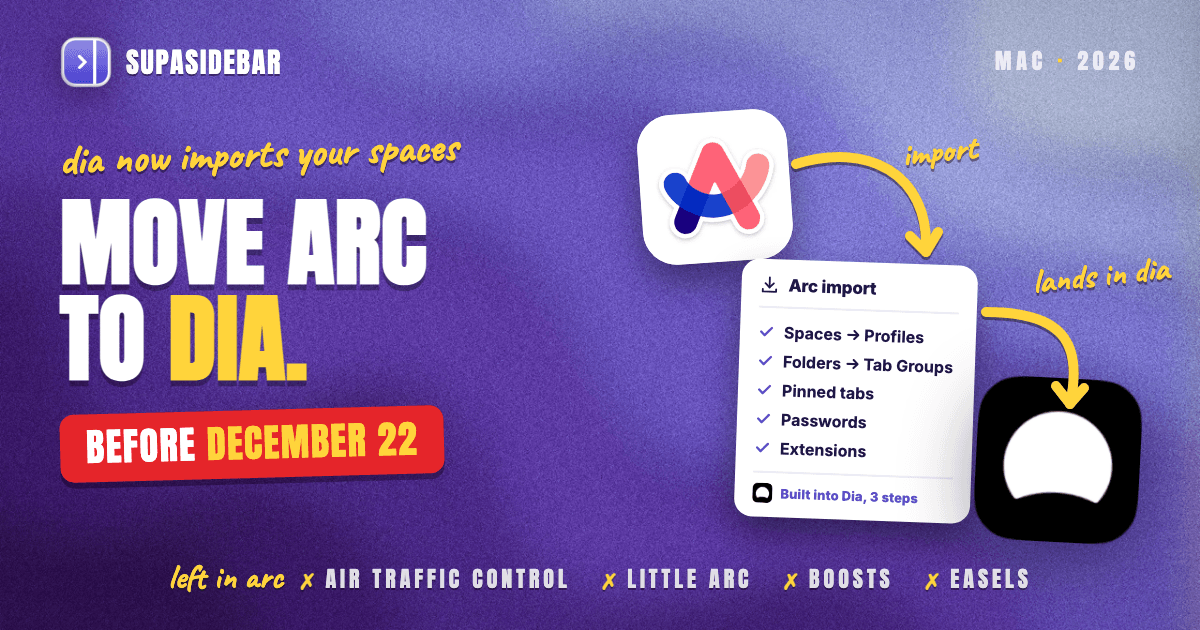
Migrating from Arc to Dia is the most direct Arc move on a Mac, because Dia is built by Arc's own team and its importer copies Arc's Spaces, pinned tabs, folders, bookmarks, passwords and extensions in three steps. Spaces arrive as Dia Profiles and folders as pinned Tab Groups, but nested folders get flattened, and Air Traffic Control, Little Arc, Peek, Boosts and Easels don't come over at all. Dia reads Arc's data through the Arc app, and Arc stops working on December 22, 2026, so run the import while Arc is still installed. Dia's Profiles only exist inside Dia, so anyone who also keeps Safari or Chrome can import the same Arc sidebar into SupaSidebar and use it next to every browser.
Quick navigation
- Moving to Zen or Chrome instead of Dia? → How to Import Arc to Zen or How to Move Arc to Chrome
- Comparing every destination, Safari included? → How to Migrate from Arc, Step by Step
- Still deciding whether Dia can replace Arc? → Arc Browser vs Dia Browser
- Want an honest look at Dia on a Mac first? → Dia Browser Mac Review
- Moving your Arc setup into Dia? You are in the right place. Keep reading.
What Dia imports from Arc, item by item
| Arc item | What it becomes in Dia | Comes over? | Worth knowing |
|---|---|---|---|
| Spaces | Profiles, same order and colors | Yes, renamed | Swipe between Profiles |
| Favorites | Icon-only pinned tabs at the top | Yes | Custom names kept |
| Pinned tabs | Pinned tabs | Yes | Titles kept |
| Folders | Pinned Tab Groups | Partly | Nested folders become separate groups |
| GitHub Live Folders | Live Groups | Yes | Pull requests stay current |
| Bookmarks, history, passwords, cookies | The same data in Dia | Yes | Sites stay signed in |
| Extensions | Chrome Web Store extensions | Yes, you pick | Chosen during the import |
| Tab auto-archive | Tidy Tabs | Changed | Off until turned on |
| Air Traffic Control | Nothing | No | Switch Profiles by hand |
| Little Arc and Peek | Nothing | No | Split View is the stand-in |
| Boosts | Nothing | No | Can't be exported either |
| Easels | Nothing | No | Export them from Arc first |
| Saved payment methods and autofill | Nothing | No | Dia skips these from every browser |
The mapping is Arc's own, taken from The Browser Company's Move from Arc to Dia guide and its Arc Sunset FAQ, both written for the December 22 shutdown.
Why Dia can read Arc when other browsers can't
Arc never kept its sidebar in normal browser bookmarks. Spaces, pinned tabs and folders live in one file, StorableSidebar.json, in Arc's Application Support folder, and the guide to exporting Arc's sidebar file covers what is inside it. Chrome on a Mac has no Arc option in its importer at all, as the Arc to Chrome guide explains, and Zen only added an Arc importer in Zen 1.24b on October 29, 2026.
Dia is built by the team that made Arc, and its importer finds Arc's data through the Arc app itself. That is why Dia moves Spaces, Favorites and pinned tabs in one pass, while most other browsers need a converter such as SupaSidebar's free Arc Sidebar Exporter. It is also why Arc has to stay installed until the import finishes.
Older migration guides, many written in the first half of 2026, say Dia drops Spaces and pinned tabs. Arc's documentation now lists both as imported, and Dia's Mac changelog shows the Arc import keeping custom pinned-tab names since version 1.28.0 in April 2026.
The import is a one-time copy, so anything changed in Arc afterwards stays in Arc. Dia also needs its own account, because the Arc account does not carry over.
Step 1. Check the Mac and back up Arc before December 22
Dia runs on macOS 14 or later and only on Apple silicon Macs, per MacRumors' report on Dia's public launch. The Dia 1.54.2 app bundle, checked on November 1, 2026, still has that macOS 14 minimum and an Apple silicon build only, so an Intel Mac can't make this move.
Leave Arc installed until Dia confirms the import. Arc stops working on December 22, 2026, when every Arc account is deactivated and its personal data is deleted within 30 days, per the Arc farewell page. The story of how Arc got here is a separate read.
A backup of the Arc sidebar takes a minute.
- In Finder, press ⇧⌘G and paste
~/Library/Application Support/Arc/StorableSidebar.json. - Copy the file to Documents or an external drive.
Nobody has said whether that file stays readable after December 22, but SupaSidebar's Arc import and the Arc Sidebar Exporter both accept a copied file. Arc's own Export Data option is a different thing. Per Arc's help article on exporting data, it saves Arc Data Export.md, a list of links rather than a bookmarks file, so no browser imports it.
Easels need their own export. They are stored with the Arc account, so they disappear after the sunset and never reach Dia. In Arc, open Library → Easels → Export All Easels to save every Easel you made as web pages in one ZIP file. Boosts can't be exported at all.
Step 2. Run Dia's Arc import
On a Mac without Dia yet, the move itself is three steps.
- Download Dia from diabrowser.com, open it, and follow the setup, which includes signing in to a Dia account.
- When Dia asks which browser to import from, choose Arc.
- Pick which Arc extensions to install in Dia.
Already using Dia? Choose Dia → Import from Another Browser… in the menu bar and select Arc. Each Arc Space arrives as a new Profile, so nothing already in Dia changes.
When the import finishes, sites stay signed in because cookies come across, and Dia skips setup steps the import already covered, such as choosing pinned tabs. One Arc user who made the move on Windows in October said the Spaces "ported over as is" in an r/ArcBrowser thread.
Step 3. Check what landed in Dia
Arc's sidebar arrives in Dia under new names, so a five-minute check catches the surprises.
- Spaces are Profiles now. Swipe between them or click the Profile indicator. Spaces that shared one Arc profile become Profiles that share logins, passwords, history, bookmarks and extensions, while Spaces from different Arc profiles stay separate.
- Favorites sit at the top as icon-only pinned tabs, with their custom names.
- Folders became pinned Tab Groups. Dia doesn't nest Tab Groups, so a folder inside a folder turns into its own group at the same level. A deep Arc folder tree needs regrouping or renaming afterwards.
- The layout should be the sidebar. An import during setup switches Dia to the sidebar layout. If tabs show up in a top bar instead, press ⌘⇧S or open Dia → Settings → Tabs.
- Auto-archive is off. Dia's version of Arc's tab archiving is Tidy Tabs, and it starts switched off. Once turned on, it moves inactive tabs to Recently Closed once a day.
Does Dia have Spaces like Arc?
Not by that name. Dia calls them Profiles, and its importer turns each Arc Space into one, in the same order and colors, per Arc's Move from Arc to Dia guide. Each Profile keeps its own tabs, and Dia added swiping between Profiles in version 1.43.1 in August 2026.
The difference shows up in routing. Arc's Air Traffic Control could send a site to a chosen Space automatically. Dia has no equivalent, and the Arc Sunset FAQ says to switch Profiles by hand instead. The Arc vs Dia comparison goes further into how the two browsers differ.
What Dia leaves behind
Seven Arc features are not in Dia at all, per the Arc Sunset FAQ. They are Air Traffic Control, Boosts, Easels, Little Arc, Peek, TypeTravel and Instant Links. For Peek, the FAQ suggests a normal tab plus Split View, and Little Arc has no stand-in.
The flattened folders are the loss most people notice later. An Arc Space with a Clients folder holding one folder per client becomes a row of separate Tab Groups in Dia, with no hierarchy between them.
How to export bookmarks from Dia
Dia keeps Chromium's bookmark manager, so a Dia bookmark export works the way it does in Chrome.
- Open a new tab and go to
dia://bookmarks, or right-click the bookmarks bar and choose Manage Bookmarks. - Open the three-dot menu on that page.
- Choose Export bookmarks and save the HTML file.
That file imports into Safari, Chrome, Firefox and SupaSidebar, which all read standard bookmarks HTML.
The export comes from Dia's bookmarks library. Arc's old sidebar now lives in Dia as pinned tabs and Tab Groups, and Dia keeps pinned tabs separately, in an encrypted database. Zen's new Dia importer brings Dia's bookmarks, history and passwords across, but its source code states that Dia's pinned tabs cannot be imported. Moving Arc into Dia is easy. Moving that sidebar back out of Dia is not, which is the best reason to keep the copied StorableSidebar.json.
The part a Dia import can't fix
Every step above puts Arc's sidebar inside Dia, and that is the whole job if Dia becomes the only browser. Plenty of Arc users never had one browser, though. Safari often stays for battery life and Chrome for a work sign-in, and Dia's Profiles exist in neither of them. The routing and quick-preview parts of Arc are gone too, and the folder tree is flat.
Keep Arc's sidebar next to Dia with SupaSidebar
SupaSidebar keeps Arc's sidebar outside any one browser. It imports the same Arc sidebar into a native Mac sidebar that sits next to Dia, Safari and Chrome, with Spaces, folders and pinned links kept, so the layout survives whichever browser opens the link.
The import runs from Preferences → Import & Export → Arc, and SupaSidebar's import guide shows how to preview the Spaces and pick which to bring in. A saved copy of StorableSidebar.json works too, through Choose File…, and imported links keep their original folder structure, so nested folders stay nested.
SupaSidebar also covers two of the Arc pieces Dia dropped. Its Air Traffic Control rules send links saved or opened from the sidebar to a chosen Space or browser, so figma.com can open in Chrome while everything else opens in Dia. Link Preview opens a link in a small floating window with ⌘-click, close to what Little Arc did. Dia's open tabs show up in SupaSidebar's Live Tabs list next to tabs from Safari and Chrome.
Here is a typical setup for someone moving from Arc to Dia while keeping Safari for personal browsing.
| SupaSidebar Space | Links inside |
|---|---|
| Work | mail.google.com, calendar.google.com, linear.app, notion.so |
| Personal (linked to Safari) | youtube.com, reddit.com/r/ArcBrowser, letterboxd.com, music.apple.com |
| Side project | github.com, vercel.com, figma.com |
Switching Spaces swaps the whole sidebar with one shortcut. With Dia set as SupaSidebar's default browser, Work and Side project links open in Dia, while the Personal Space, linked to Safari, opens its links in Safari.
In an r/diabrowser thread asking whether Dia had met expectations, one user described their working setup as Chrome plus SupaSidebar. "SupaSidebar is an app someone made to basically be the Arc sidebar feature, except for any browser," wrote u/queacher.
SupaSidebar's scope next to Dia is specific. It shows Dia's tabs in Live Tabs, saves the current Dia page and opens links in Dia, but it can't link a Space to a single Dia Profile yet, per the SupaSidebar browser support table, so routing to Dia works by browser, not by Profile. Its Spaces organize links and don't separate logins the way Dia Profiles do. It is a sidebar app, not a browser, so passwords and history stay in Dia. It runs on macOS 14 and later.
Which Arc to Dia setup should you pick?
- If Dia will be your only browser, run Dia's import now and you are done. It is the path The Browser Company itself recommends for keeping Spaces, tabs and browsing data.
- If December 22 feels close, copy
StorableSidebar.jsonand export your Easels today, then import as soon as Dia is installed. - If your Arc folders nest several levels deep, plan to regroup them in Dia, or import Arc into SupaSidebar too, where the folder tree stays intact.
- If you also keep Safari or Chrome, or miss Air Traffic Control, import Arc into SupaSidebar as well, so the same Spaces and routing rules work in every browser.
- If Dia's AI-first design isn't for you, the Arc to Zen guide covers the other browser that now imports Arc Spaces directly, and the Dia vs Zen comparison weighs the two.
What Arc users moving to Dia should do
The verdict for Arc to Dia in November 2026 is to import now, not on December 21. Dia's importer moves Spaces, Favorites, pinned tabs, folders, bookmarks, passwords and extensions across in three steps, keeps sites signed in because cookies come along, and is the path Arc's own team built. It only works while Arc is still installed.
Single-browser users should run the import this week and spend five minutes regrouping flattened folders. Heavy Arc setups should export Easels first and accept that Boosts end with Arc. Setups built on deep folder trees lose the hierarchy in Dia, so they either regroup by hand or keep the tree in SupaSidebar. Anyone who splits the day between Dia and Safari or Chrome needs the sidebar to live outside the browser, which is where SupaSidebar fits.
Whatever the plan, copy StorableSidebar.json before December 22. To keep Arc's sidebar across every browser, try SupaSidebar (free version available).
Why we recommend SupaSidebar
SupaSidebar is a macOS app that brings Arc's sidebar to every browser - one sidebar for tabs, bookmarks, files, and apps across 32+ browsers including Safari, Chrome, Firefox, Edge, Brave, Vivaldi, Dia, Helium and Orion. With Dia it shows live tabs, saves pages and opens links, and it imports the same Arc sidebar that Dia does. 3,000+ Mac users have tried SupaSidebar, and for Arc users moving to Dia who still keep a second browser, it keeps one set of Spaces across all of them.
FAQ
Can Dia import from Arc?
Yes. Dia's built-in importer copies Arc's Spaces, Favorites, pinned tabs, folders, bookmarks, history, passwords, cookies and extensions on macOS and Windows. New users pick Arc during setup, and existing Dia users choose Dia → Import from Another Browser… and select Arc. Arc must still be installed, and Arc stops working on December 22, 2026.
Will my Arc folders and pinned tabs come over to Dia?
Yes. Pinned tabs stay pinned with their titles, Favorites become icon-only pinned tabs at the top, and each folder becomes a pinned Tab Group. Dia doesn't nest Tab Groups, so folders inside other folders become separate groups.
Do my Arc extensions work in Dia?
Yes. Dia is built on Chromium and installs extensions from the Chrome Web Store, just like Arc. During the Arc import, Dia lists the Arc extensions and lets users choose which ones to install.
What doesn't transfer from Arc to Dia?
Air Traffic Control, Boosts, Easels, Little Arc, Peek, TypeTravel and Instant Links are not in Dia, and Boosts and Easels don't come over in the import. Dia also skips saved payment methods and autofill data. Easels can be saved from Arc first with Library → Easels → Export All Easels, but Boosts can't be exported at all.
How do I export bookmarks from Dia?
Open dia://bookmarks in a new tab, or right-click the bookmarks bar and choose Manage Bookmarks. In the three-dot menu on that page, choose Export bookmarks to save a standard HTML file that Safari, Chrome, Firefox and SupaSidebar can import. Dia keeps pinned tabs in a separate encrypted database, so other browsers' importers can't read them.
What happens to my Arc data after December 22, 2026?
Arc stops working on macOS and Windows on December 22, 2026, every Arc account is deactivated, and personal data tied to an account is deleted within 30 days. Dia finds Arc's data through the Arc app, so the import has to run before then. Copying ~/Library/Application Support/Arc/StorableSidebar.json keeps a backup of the sidebar either way.
Can I keep Arc's sidebar in Dia and Safari at the same time?
Not with Dia alone, since Dia's Profiles only exist inside Dia. SupaSidebar imports the same Arc sidebar into a Mac sidebar that sits next to Dia, Safari and Chrome, and it shows Dia's open tabs in its Live Tabs list, so the same Spaces work in every browser.
By Kshetez Vinayak, founder of SupaSidebar. Last updated 2026-11-01.