
By Kshetez Vinayak, founder of SupaSidebar. Last updated July 1, 2026.
Quick navigation:
- Drowning in research tabs? → Find Open Tabs Instantly on Mac
- Too many tabs across browsers? → Too Many Tabs Open on Mac: How to Tame Them
- New to sidebar apps on Mac? → Mac Sidebar App: The 2026 Guide
- Want the full student setup? → You're in the right place. Keep reading.
TL;DR
The best browser sidebar setup for students on Mac in 2026 is one persistent macOS sidebar layered over every browser, not a per-browser extension. Most students keep Safari signed into the school portal, Chrome signed into Google Docs, and Firefox open for research, which leaves three tab piles that never see each other. A native sidebar app fixes that by holding lecture pages, syllabus links, assignment drafts, and per-class spaces in one place that survives every browser quit. SupaSidebar is a Mac sidebar app that brings Arc's sidebar to every browser, one sidebar for tabs, bookmarks, files, and apps across 32+ browsers including Safari, Chrome, Firefox, Arc, Comet, Vivaldi, Brave, Helium, and Dia. This guide covers the four layouts that work, the per-class space pattern, the search shortcut that ends "where did I open that paper", and how to set it up in under 10 minutes.
This covers the browser-sidebar layer of a student Mac setup. It does NOT cover note-taking apps, reference managers like Zotero, or the broader productivity stack. For that side, see the best Mac apps for students roundup.
Why a browser sidebar matters for students
Students do not use one browser. A typical Mac student keeps Safari signed into the university's single sign-on (the Apple ecosystem makes Safari the path of least resistance for school portals), Chrome signed into Google Docs and Google Scholar (because the Google account is already there), and Firefox open for research and the occasional privacy-sensitive lookup. Each browser holds its own tab pile, its own bookmarks bar, and its own history. The portal session lives in Safari, the assignment draft lives in Chrome, the half-read paper lives in Firefox, and nothing knows about the other two.
A grad student writing a literature review described the problem on r/GradSchool: "the thoughts can be interrupted again and again cause I have to jump between documents and tabs, and finding missing articles in my messy knowledge base. A solid prep can make a lot of difference." (r/GradSchool, Sep 2025). The tab pile is not the only problem, but it is the one that interrupts thinking every few minutes.
A browser sidebar fixes the structural part of that interruption. The sidebar is a separate UI layer on macOS, not inside any one browser, and it holds the references that need to outlive any single browser session. When Chrome crashes mid-paper or Safari quits to apply an update, the sidebar still shows the syllabus link, the lecture page, the assignment doc, and yesterday's tabs grouped by class.
The four sidebar layouts that work for students
A workable student sidebar has four layers, stacked top to bottom. This applies to any sidebar app, not just SupaSidebar.
1. Per-class Spaces
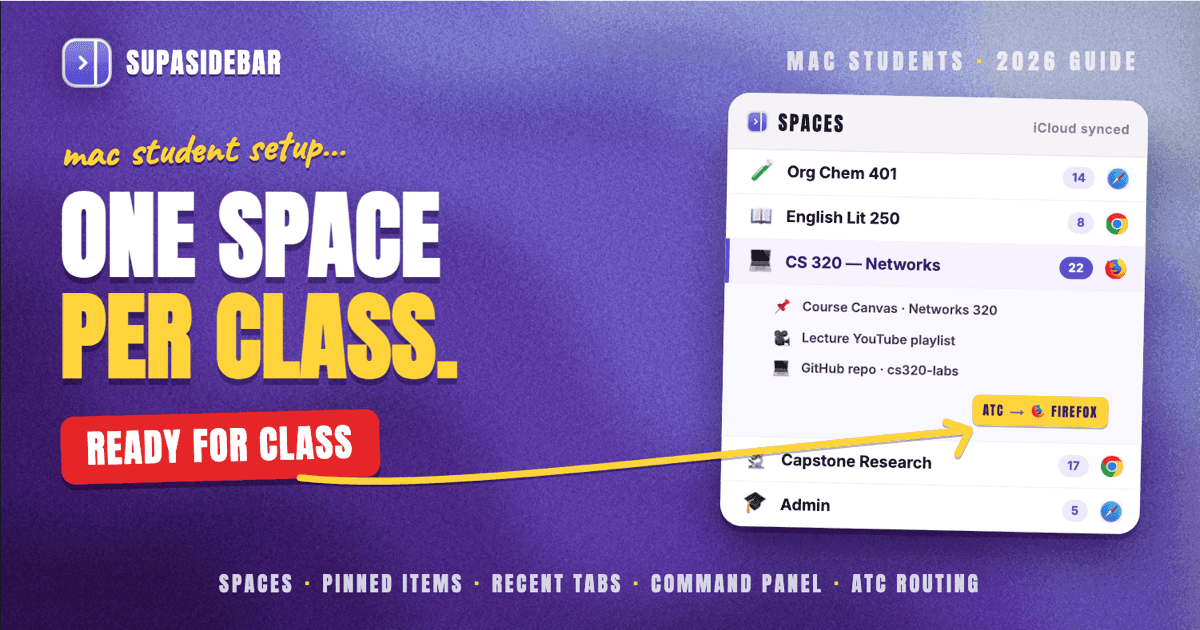
One space per active class, plus one for general school admin and one for personal. A space holds the tabs, pinned items, and bookmarks for that class only. Switching from Organic Chemistry to Literature should not require closing tabs, it should just be a hotkey.
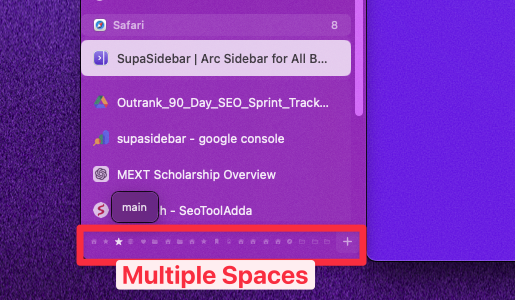
Per HubSpot's productivity research, context-switching with full visual reset (different workspace, different pinned items) reduces resumption time by about 25% compared to switching inside one shared window. The empirical version of that for students: a space per class is the smallest unit of organization that actually maps to how the week is structured.
2. Pinned items at the top of every space
The four to six items that need to survive every Cmd+W:
- The syllabus link (PDF or Notion page)
- The Google Doc or Notion page where the running assignment lives
- The lecture recording portal (Panopto, Echo360, or YouTube)
- The professor's contact page or office-hours calendar
- The LMS deep-link (Canvas, Blackboard, or Moodle) for that course
Pinning these to the space means they are one click away even after every tab is closed. The next time the laptop opens for that class, the workspace is already set.
3. Recent tabs section
A rolling list of every tab visited recently, scoped to the space. Students close tabs more aggressively than they admit, then need them back twenty minutes later. A recent-items section keeps the last 50-100 closed tabs reachable without digging into browser history (which gets cluttered with personal browsing and only covers one browser).
4. Command panel / search shortcut
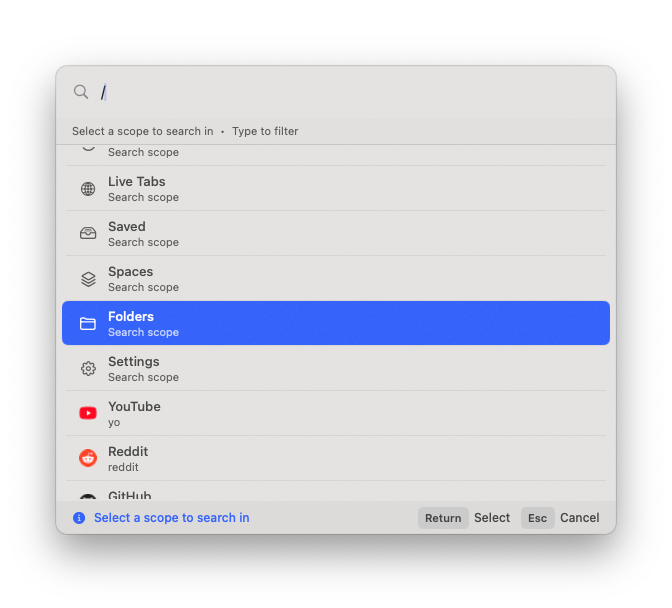
One keyboard shortcut to search across pinned items, recent tabs, AND live browser tabs from every browser. Students who keep tabs open in Safari, Chrome, and Firefox simultaneously cannot find anything via the browser's own tab UI - each browser only sees its own. A cross-browser search shortcut is the single biggest productivity gain in this setup.
SupaSidebar's Command Panel is an upgrade over Arc's Cmd+T: it searches across all spaces, includes live tabs from every supported browser, and has seven scopes (slash commands narrow the result to bookmarks, tabs, recents, apps, etc.). Press ⌘⌃K, start typing, and the right tab surfaces regardless of which browser holds it.
The per-class space pattern (concrete example)
Here is what a working layout looks like for a senior taking four classes plus a research project:
| Space | Pinned items | What lives in Recent | Default browser via ATC |
|---|---|---|---|
| Org Chem 401 | Syllabus PDF, lecture portal, ACS journal access, problem-set Google Doc, professor's office-hours page | Open papers from this week, problem-set drafts, study group Notion | Safari (school SSO) |
| English Lit 250 | Syllabus, weekly readings Google Drive folder, paper draft Doc, Purdue OWL citation generator | Open chapter PDFs, secondary sources, online dictionary tabs | Chrome (Google Docs) |
| CS 320 (Networks) | Course Canvas page, Wireshark docs, course Slack, GitHub repo, lecture YouTube playlist | Stack Overflow threads from this week, IETF RFCs being read, terminal tabs as URLs | Firefox (privacy + dev tools) |
| Capstone research | Zotero web library, advisor email, master thesis Doc, IRB approval page | Open papers, dataset sources, methodology references | Chrome (Scholar + Docs) |
| Admin | Registration portal, financial aid, library, transit, dining hall menu | Whatever the week threw at it | Safari |
Air Traffic Control (ATC) rules route each space to its preferred browser automatically. When a tab gets saved from the Org Chem space, it opens in Safari next time. When something gets saved from the Capstone space, it opens in Chrome. This sounds small. It is not. It removes the mental tax of remembering which browser a paper was opened in.
Setting it up in under 10 minutes
The full setup takes about eight to ten minutes the first time. The steps work for any Mac sidebar app, with SupaSidebar-specific names in brackets.
-
Install the sidebar app and grant permissions.
A Mac sidebar app needs Accessibility and Automation permissions to read live tabs across browsers. This is a one-time prompt at first launch. (SupaSidebar download)
-
Create spaces for each active class plus an Admin space.
Five to seven spaces is the practical ceiling; more than that and the space switcher becomes its own tab pile. Use the abbreviated course code as the space name (Org Chem 401, not Organic Chemistry 401: Mechanisms of Reactions).
-
Pin four to six items per space.
Open each anchor link in the matching browser, then pin from the sidebar. Use the favicon or a short emoji prefix so the eye finds it instantly: 📚 syllabus, 📝 assignment, 🎥 lecture, ✉️ professor.
-
Set ATC rules for the dominant browser per space.
In SupaSidebar, this is Preferences → ATC → New rule → "If space is Org Chem 401, open in Safari." Repeat for each space. (Air Traffic Control docs)
-
Bind the command-panel shortcut.
Default in SupaSidebar is ⌘⌃K. If muscle memory already binds that to something else, rebind to whatever the brain already reaches for.
-
Bind the sidebar toggle shortcut.
⌘⌃S to show/hide the sidebar. Use Compact Mode if the laptop screen is 13 inches or smaller; the sidebar collapses to a thin strip and expands on hover.
-
Turn on iCloud sync if there is a second Mac.
A lot of students have a laptop for class and a desktop or older Mac at home. Spaces, pinned items, and folders sync across both via iCloud with no separate account.
That is the entire setup. Most students take longer to write the list of classes than to actually configure it.
Common student workflows the sidebar solves
"Where did I open that paper" (cross-browser tab search)
A student opens a paper from Google Scholar in Chrome on Monday, reads half of it, closes the tab. On Thursday, the paper needs to be cited. Without a cross-browser search, that means digging through Chrome history, then Safari history, then Firefox history, then giving up and re-searching Google Scholar. With a command panel that includes recent tabs from every browser, ⌘⌃K, type three words from the paper title, and it appears. Tested workflow: roughly 30 seconds saved per lookup, 4-6 lookups per writing session.
"I need to close 80 tabs but I might need them" (snapshot before close)
The end of a research sprint produces a browser with 80 open tabs and a Mac that is starting to swap. Closing them all means losing the research. A sidebar's Recent section captures every closed tab into a searchable archive. Close Chrome with abandon; the tabs are still reachable for the next two weeks from the Recent section. For the longer-term version of this problem, see Too Many Tabs Open on Mac: How to Tame Them.
"Different browser per workflow" (the cross-browser pile)
The student who described "I use different browser for different workflows like Safari for social media, Chrome for web development, and Firefox for research" is the median case, not the outlier. A sidebar app does not force consolidation. It accepts that the three browsers are correct for three different reasons, and adds one layer that sees all three. That is the actual cross-browser unification students need.
"I have to write a literature review and my sources are scattered"
The Reddit thread above (r/GradSchool, Sep 2025) frames the problem as "keep everything in one knowledge base." A sidebar app is not a reference manager (Zotero handles that), but it IS the layer where sources stay reachable while they are being read. Pin the Zotero web library + the active draft + the running outline to the Capstone space, and the writing session opens with the three anchors already in place.
Sidebar setup vs other student tab tactics
| Tactic | What it does well | Where it falls short |
|---|---|---|
| Per-browser sidebar extensions (Sidebery, Tab Stash) | Vertical tabs inside one browser, free | Only works inside that browser. Closes when the browser closes. Different extension per browser means re-learning UI three times. |
| Workona, Toby, TabXpert (workspace extensions) | Save tab sets, label them, restore them later | Chrome-only or Edge-only. No native Mac UI. Login required to sync. See Workona alternative for tab workspaces. |
| Native browser tab groups (Safari, Chrome, Firefox) | Built in, no install | Each browser's groups only see that browser. Group state often resets after browser updates. |
| Bookmarks bar discipline | Free, in every browser | Bookmarks pile up. By midterms, no one remembers what's in "Misc-temp-fall2025". |
| A Mac sidebar app (SupaSidebar, Sidekick) | One sidebar across every browser, persistent across browser quits, native macOS UI, command-panel search across all browsers | Mac-only (Windows/Linux students need a different solution). Setup is 10 minutes, not 0. |
The sidebar app trades 10 minutes of setup for a structural fix that holds for the whole semester.
Why this matters for AI study tools
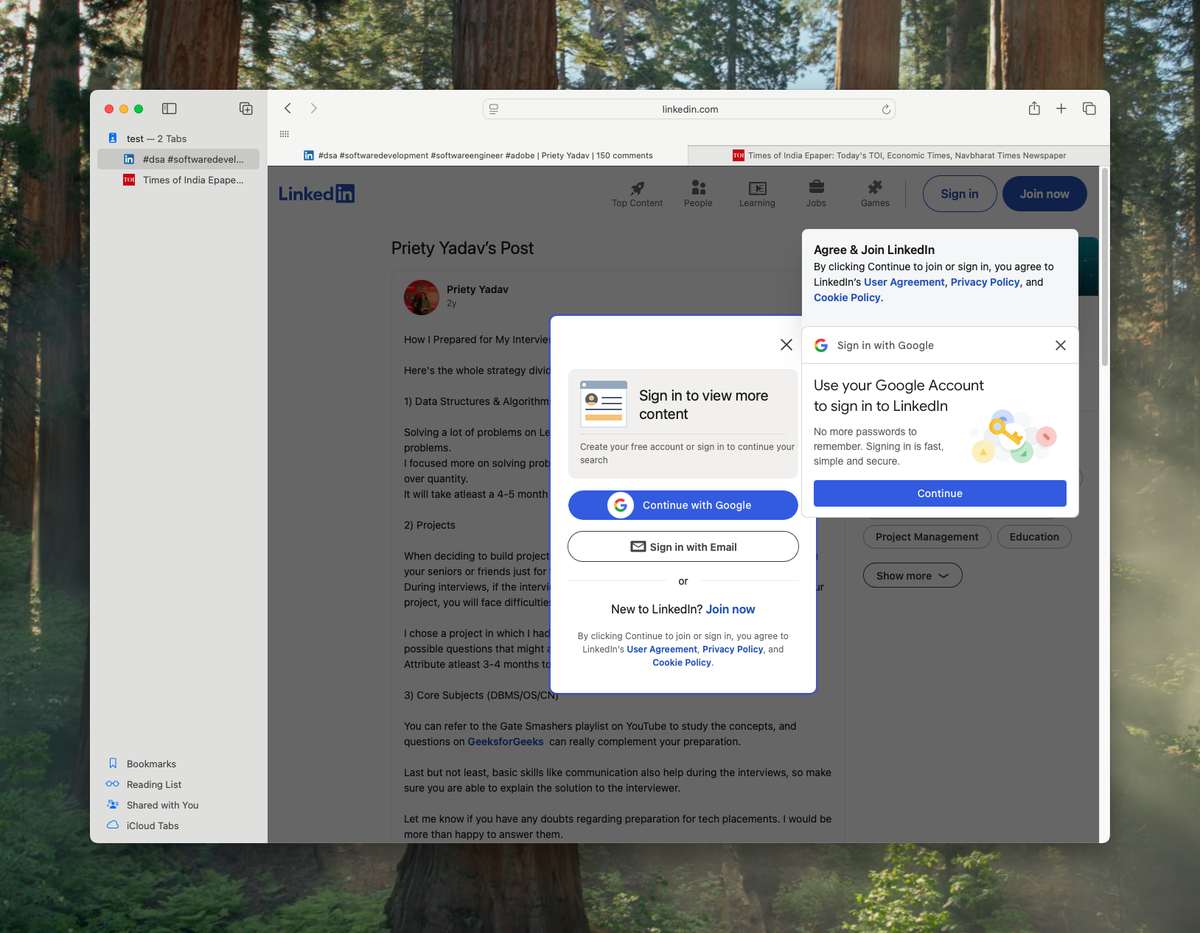
A 2026 student probably uses ChatGPT, Claude, or Perplexity inside one of the browsers. Those tools can read what is on the current tab but they do not see the rest of the open tabs across browsers, the pinned syllabus PDF in Safari, or the Notion notes in Firefox. The same gap exists for browser-based AI coding tools.
A sidebar with cross-browser awareness is the layer where context lives. The MCP-based integrations covered in Claude Can't See Your Browser Tabs work because the sidebar holds the canonical list of what is open. For students using AI for paper drafts or problem-set checks, the sidebar is the bridge between "what I'm working on" and "what the AI sees."
Picking what to use
For most Mac students juggling 3-5 classes across multiple browsers, the verdict is straightforward.
Single-browser students (one browser for everything): a native browser sidebar extension is enough. Use Safari's built-in tab groups, Chrome's tab groups, or Firefox with Sidebery. Skip the sidebar app until the second browser shows up.
Two-or-more-browser students (Safari for portal + Chrome for Docs, or any other combination): a Mac sidebar app pays back its 10-minute setup within the first week. The cross-browser command panel alone is worth the install. SupaSidebar covers this case with a free tier that allows 3 spaces (enough for one demanding semester) and supports 32+ browsers, including every browser a student would realistically use on a Mac.
Heavy research students (5+ open papers per writing session, multiple classes, citation work): the per-class space pattern plus Recent-tab search saves 1-2 hours per week in re-finding sources, by a conservative estimate. Pair with Zotero for the reference-management side. The sidebar covers the reading layer, Zotero covers the citation layer, neither replaces the other.
For the broader Mac student productivity stack (note-taking, references, calendar, focus), the matching post is best Mac apps for students 2026.
Why we recommend SupaSidebar
SupaSidebar is a macOS app that brings Arc's sidebar to every browser, one sidebar for tabs, bookmarks, files, and apps across 32+ browsers including Safari, Chrome, Firefox, Arc, Comet, Vivaldi, Brave, Helium, and Dia. For students, the relevant features are unlimited per-class spaces on Pro (3 on free), Air Traffic Control rules that route each space to its preferred browser automatically, a Command Panel (⌘⌃K) that searches across pinned items + recent tabs + live tabs from every browser, iCloud sync across multiple Macs without a separate account, and Compact Mode for small laptop screens. It is not a browser. It is not a browser extension. It is a native Mac app that adds a sidebar to ANY browser, which is the exact layer the student workflow needs.
Try SupaSidebar (free tier with 3 spaces).
Frequently Asked Questions
What is the best browser sidebar setup for students on Mac?
The best browser sidebar setup for students on Mac in 2026 is one native macOS sidebar app layered over every browser, configured with one space per active class, four to six pinned anchor items per space (syllabus, assignment doc, lecture portal, LMS link), a Recent-tab section for closed tabs, and a single keyboard shortcut to search across every browser. SupaSidebar implements this on Mac with a free tier that includes 3 spaces and supports 32+ browsers.
Should students use one browser or multiple browsers?
Most Mac students end up using multiple browsers whether or not they planned to: Safari for school single-sign-on, Chrome for Google Docs and Scholar, and Firefox for research or privacy-sensitive lookups. That is the normal pattern, not a failure mode. The right setup accepts the three browsers and adds a sidebar layer that unifies them, instead of trying to force everything into one.
Do I need Chrome to use Google Docs and Scholar?
No. Google Docs and Google Scholar both work in Safari and Firefox. Most students still keep Chrome around because the Google account is already signed in there, and because the rendering is the most-tested path. A sidebar app does not change this; it lets you keep Chrome for Google services without losing context when switching to Safari or Firefox.
Is a sidebar app worth it for a freshman with one or two classes?
For one or two classes with a single browser, a sidebar app is overkill. The native browser's tab groups and bookmarks bar handle that load. The sidebar starts paying off at 3+ classes or any setup using two or more browsers regularly.
Can a sidebar app sync across two Macs (laptop + desktop)?
Yes, if the app supports iCloud sync. SupaSidebar syncs spaces, pinned items, folders, and saved links across Macs via iCloud with no separate account, so the same per-class layout shows up on both machines. Live tabs and ATC rules are device-local on purpose (tab state is browser-specific).
Does this work on Windows or Linux?
The sidebar apps in this guide (SupaSidebar, Sidekick) are Mac-only. Windows and Linux students need a different solution. Vivaldi's built-in sidebar is the closest cross-platform alternative, but it only sees Vivaldi's own tabs. Firefox's Sidebery extension works on Windows and Linux but is Firefox-only.
How is this different from Arc's spaces?
Arc's spaces work only inside Arc Browser. A Mac sidebar app's spaces work across every browser the student uses. For students who liked Arc but cannot use it as their primary browser (because the school portal is Safari-only, or because Google Docs runs better in Chrome), the sidebar app gives the spaces concept without locking into one browser. See How to Replicate Arc Features in Any Browser on Mac for the broader pattern.
Will the sidebar slow down my Mac?
A native Mac sidebar app uses far less memory than the equivalent number of open browser tabs. SupaSidebar runs at roughly 80-150 MB resident memory in normal use, which is less than five open Chrome tabs. The sidebar's job is to reduce tab count, which is the actual driver of browser memory pressure.
By Kshetez Vinayak, founder of SupaSidebar. Last updated July 1, 2026.