
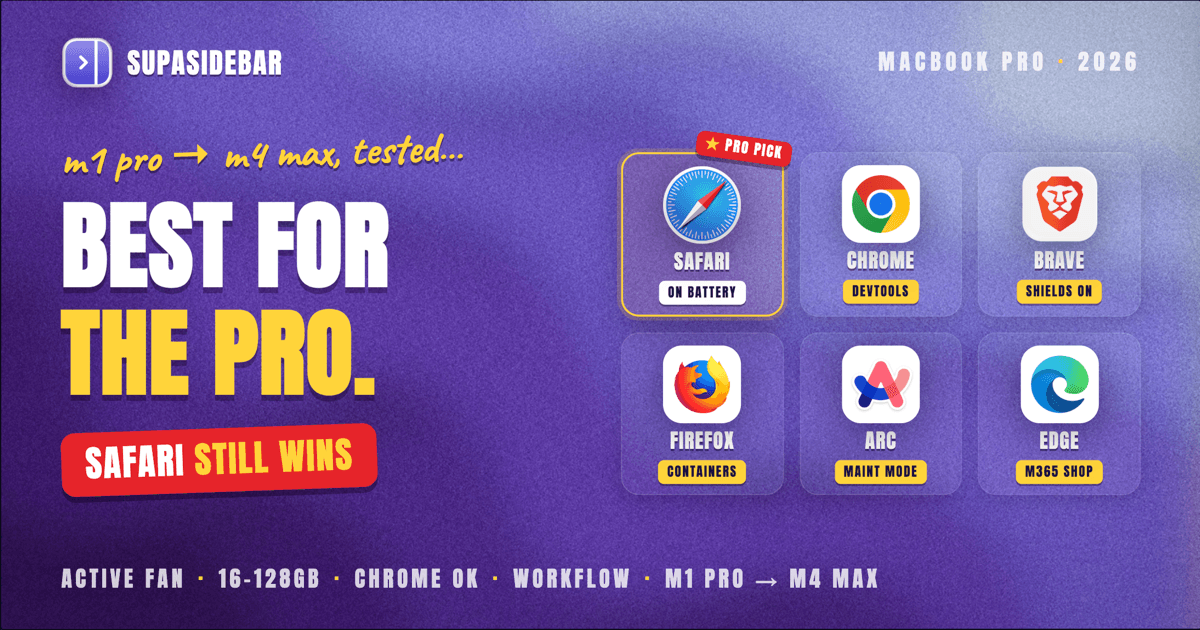
For a MacBook Pro in 2026, the best browser depends on workload, not on the chip. Safari is still the most efficient pick and the right default for casual use on battery. Chrome, Brave, and Arc become genuinely viable on a Pro in a way they never are on a MacBook Air, because the Pro's active cooling and 16-128GB RAM tiers absorb Chromium's overhead. For developers running multiple browsers, 30+ tabs, and external displays, Brave or Chrome plus Safari for battery-bound work is the practical setup.
Speedometer 3.1 puts Safari at 43.61 and Chrome at 41.10 on an M4 MacBook Pro, a roughly 6% gap that vanishes under any real workload above 20 tabs. The model-by-model picks (M1 Pro through M4 Max), the multi-monitor browser story, and the cross-browser workflow that fixes the one problem every browser still has at scale are below.
Looking for something specific?
- Comparing every Mac browser, not just for the Pro? -> Best Browser for Mac in 2026
- On a MacBook Air instead? -> Best Browser for MacBook Air in 2026
- Just want the battery-life ranking? -> Best Browser for Mac with Battery Life 2026
- Want the broader Apple Silicon picture (Air and Pro together)? -> Best Browser for Apple Silicon Macs
- On a MacBook Pro (M1 Pro through M4 Max)? -> You're in the right place. Keep reading.
By Kshetez Vinayak, founder of SupaSidebar. Last updated May 25, 2026.
Why the MacBook Pro changes the browser answer
The MacBook Pro is the most browser-permissive Mac Apple makes. It has an active fan. It ships with 16, 18, 24, 36, 48, 64, 96, or 128GB of unified memory depending on the chip. Its battery is meaningfully larger than the Air's. Each of those three things widens which browsers behave well on the machine.
The best browser for a MacBook Pro in 2026 depends on what the Pro is being used for. For pure efficiency and on-battery time, Safari is still the right pick - it remains the most efficient browser on any Apple Silicon Mac because Apple tunes WebKit for the M-series chip directly. But the constraints that force Safari on a MacBook Air (8-16GB RAM, fanless chassis, smaller battery) do not apply on a Pro. A 36GB M3 Pro or 48GB M4 Pro can run Chrome, Brave, Arc, and Safari simultaneously across multiple workspaces without breaking a sweat.
This post segments the recommendation by chip generation (M1 Pro through M4 Max) and by what the Pro is actually being used for. It covers the multi-tab story (where Pros stop being like Airs), the multi-browser workflow that most Pro power users actually run, dev-tool requirements, and which browser to pick for a specific MacBook Pro. What it does NOT cover: deep powermetrics battery benchmarks (those live in the Mac browser battery life comparison), MacBook Airs (covered separately in Best Browser for MacBook Air in 2026), Intel Macs, or Windows and Linux.
Active cooling is the real reason the Pro is different
The MacBook Pro has a fan. Every Apple Silicon MacBook Pro generation, from the M1 Pro through the M4 Max, cools the chip actively. That single design choice changes which browsers feel good on the machine.
Active cooling means the Pro can hold full clock speed for hours. The chip can sprint, generate heat, and the fans spin up to dump it. A heavy browser - many tabs, a video call, ad-laden sites, lots of background extension activity - is the kind of sustained load that triggers throttling on a fanless Air. On a Pro, the same load just gets handled. The fans get louder; the clock speed stays where it should be.
This is why a browser like Chrome or Arc that feels slower over time on an Air feels totally fine on a Pro across a full work day. The Pro has the thermal headroom to absorb Chromium's process model, the extra extension processes, and the less-efficient video decode paths on some codecs without slowing down. The Air settles into a throttled state once the chassis warms; the Pro does not.
The thermal freedom is the Pro's defining feature for browser choice. It means the recommendation stops being "use the lightest browser you can tolerate" and starts being "use the browser that fits the workflow."
RAM headroom: the second Pro advantage
The MacBook Pro ships with far more memory than the Air. In 2026, M4 Pro Macs ship with 24GB or 48GB; M4 Max ships with 36GB, 48GB, 64GB, or 128GB. Older M1 Pro, M2 Pro, and M3 Pro machines still in use cover the 16-96GB range. Apple's M4 MacBook Pro tech specs confirm the current tiers.
For browser choice, 16GB is the threshold where the picture stops looking like the Air's. A Chromium browser with 30 tabs, 4-5 active extensions, and a couple of Google Docs open will use 4-6GB of physical memory. On an 8GB M1 or M2 Air, that's most of the RAM and the machine swaps to disk. On a 16GB Pro, the same workload sits at roughly a third of memory with plenty of headroom for everything else. On a 36GB or 48GB Pro, the Chromium overhead is statistical noise.
This matters because Chrome's defining problem on Macs has always been RAM. Google has publicly acknowledged that Chrome can use up to 40% less memory with the Memory Saver feature introduced in Chrome 110. The honest read is that Chrome's memory model is heavy by design (one process per tab plus extension processes), and Pro-tier Macs have the headroom that makes the design choice irrelevant in practice.
Firefox's memory story is slightly better than Chromium's. Mozilla's Quantum architecture (Firefox Quantum, late 2017) was specifically about cutting memory and improving multi-process performance. On a Pro with 16-32GB, Firefox is the lightest of the non-WebKit choices, but the RAM advantage matters less here than on an Air. Safari is still the lightest, but on a Pro that's a feature, not a constraint.
Multi-tab performance: where the Pro story diverges from the Air
The Air's recommendation pivoted on what happens past 20 tabs (Safari stays snappy, Chrome starts hurting). The Pro's recommendation pivots on what happens past 50 tabs - and at that count, every browser is hurting, but some are hurting differently.
Three distinct multi-tab failure modes show up on a Pro:
- Memory pressure (Chromium). Chrome at 50+ tabs on a 16GB Pro can hit the swap threshold during heavy usage. On 24GB+ Pros this rarely happens; on 36GB+ Pros it never does. Google's published guidance on Chrome's process model confirms each tab is a separate process by default.
- Find-the-tab cost (every browser). At 50+ tabs, every browser's tab strip becomes useless. Safari shrinks titles to favicons. Chrome auto-collapses. Firefox lets tabs scroll horizontally off-screen. The actual cost is the time spent searching for the tab the user wants. This is the productivity problem that no browser solves natively, on any chip.
- Background activity drag (every browser). Background tabs that auto-refresh (Slack, Linear, Notion, dashboard apps) wake the CPU and burn battery even when not in use. Chrome's Memory Saver, Edge's Sleeping Tabs, and Safari's tab suspension all try to mitigate this, but the strongest mitigation is the user closing tabs, which they don't do.
The first failure mode (memory) is what people remember about Chrome on Macs. On a Pro, it's mostly a solved problem above 24GB. The second and third (find-the-tab cost and background drag) are universal, and they're where the Pro user's real time goes.
The cross-browser workflow that fixes the universal tab problem on a Pro is covered below in "The setup that fixes every browser's biggest weakness at scale."
Battery life on the Pro's bigger battery
Browser efficiency on a Pro pays back into a larger battery pool, which means the absolute battery gap between browsers is bigger on a Pro than on an Air, even though the percentage gap is the same. Apple publishes battery numbers per MacBook Pro tier (Safari only):
| MacBook Pro | Wireless web (Safari) | Video streaming (Safari) | Battery |
|---|---|---|---|
| 14" M4 (base) | Up to 16 hours | Up to 24 hours | 72.4 Wh |
| 14" M4 Pro / Max | Up to 14 hours | Up to 22 hours | 72.4 Wh |
| 16" M4 Pro / Max | Up to 17 hours | Up to 24 hours | 100 Wh |
| 14" M3 Pro / Max | Up to 12 hours | Up to 18 hours | 72.4 Wh |
| 16" M3 Pro / Max | Up to 15 hours | Up to 22 hours | 100 Wh |
Source: Apple's published tech specs for MacBook Pro battery and runtimes. The numbers are deliberately gentle (controlled tests, Safari only, brightness 8 clicks from the bottom). Real-world battery life with Slack, Notion, Figma, video calls, and 50+ tabs is significantly lower for any browser. The Pro's larger battery means the difference between "Safari for 12 hours" and "Chrome for 10 hours" is bigger in absolute terms than the same gap on an Air.
The independent browser-vs-browser benchmarks that matter for Pro users:
- Birchtree's 36-hour test (2024, M2 Pro MacBook Pro 14", Chrome 128 vs Safari 17.6): Safari consumed 18.67% of battery on average, Chrome 17.33% over 3-hour test cycles. That is Chrome using about 9% less battery than Safari on the exact same Pro chassis the rest of this post is about. The "Chrome destroys Mac battery" reputation is mostly inherited from Intel-Mac days; on Apple Silicon, the gap is small.
- Mihnea Radulescu's BrowserBench (2023): Brave's peak power draw measured at 8.3W vs Safari's 10.5W on the same workload. Brave's Shields cut the ad and tracker load before it ever hits the renderer.
- Brave's own published 1.0 performance test: Brave claims 30-50% bandwidth and battery savings versus Chrome with Shields on. Vendor-published, treat with appropriate skepticism, but the methodology is documented.
On a MacBook Pro, the practical implication is that battery is rarely the constraint that picks a browser - thermals are not constraining the Pro, RAM is rarely constraining it above 24GB, and the battery gap between browsers shrinks to within a few percentage points. Pick the browser that fits the workflow first; battery is a tiebreaker.
Each browser on the MacBook Pro, ranked
1. Safari - still the most efficient pick on every Pro
Safari is the default first pick on every MacBook Pro for users whose priority is efficiency, on-battery time, and tight integration with the rest of the Apple ecosystem. The reasons that hold on the Air still hold on the Pro:
- Tuned for the chip. WebKit, Safari's engine, is built by Apple and ships every macOS release with chip-specific tuning. Third-party browsers cannot match it on day one of a new chip generation.
- Tightest video decode and energy use. Safari hardware-decodes everything macOS supports, including the codecs that other browsers fall back to software decoding on.
- Best Continuity integration. Handoff with iPhone tabs, iCloud Keychain, Apple Pay, Reader View, and Profile sharing across devices work better on Safari than on any third-party browser.
What Safari gets wrong on a Pro is the same thing it gets wrong everywhere: tab and bookmark management past 20 tabs. The tab titles shrink to favicons. The Tab Group sidebar (added in Safari 17) helps with separation but not with the find-the-tab cost at scale. Safari is also the weakest of the major browsers on extension support - the Safari Extensions Gallery is meaningfully smaller than Chrome Web Store or Firefox Add-Ons.
The fix on a Pro is to keep Safari as the default for battery-bound work and add a cross-browser sidebar layer for the times when tab counts cross the find-the-tab threshold. That setup is covered below.
2. Chrome - genuinely viable on a Pro in a way it never is on an Air
Chrome is a reasonable first pick on a MacBook Pro for users who need the full Chrome Web Store extension ecosystem, the developer tooling, or the specific work tools that only ship Chrome integrations. On a Pro with 24GB+ of memory, Chrome's process-per-tab model is not a problem; on a Pro with 16GB it is still workable with Chrome's Memory Saver enabled (it suspends inactive tabs and was rolled out in Chrome 110, February 2023).
Three Pro-specific reasons Chrome works:
- RAM ceiling is gone. Chrome's heavy memory model is the reason it's the wrong default on an Air. On a 24-48GB Pro, the memory ceiling that punishes Chrome on the Air is simply not there.
- DevTools is the best in the category. For web developers, Chrome DevTools is still the most-used and most-capable developer tooling. Even Firefox's DevTools team acknowledges Chrome DevTools as the de facto standard.
- Active cooling absorbs Chrome's background activity. The thermal cost that triggers throttling on an Air gets dumped by the Pro's fan. The Pro stays at full clock.
What Chrome still gets wrong: extension overhead, occasional Google account weirdness across multiple profiles, and the find-the-tab problem at 30+ tabs (Chrome Tab Groups help but most users do not maintain them). On a Pro, none of these are dealbreakers.
3. Brave - the best of both worlds on a Pro
Brave runs on Chromium, ships with full Chrome Web Store extension compatibility, and adds Brave Shields on top - which is the network-layer ad and tracker blocking that produces measurable battery and bandwidth savings on ad-heavy sites. On a Pro, Brave is the strongest pick for users who want Chrome's extension ecosystem and developer tooling without Chrome's tracking surface.
Brave's specific Pro-tier advantages:
- Shields cut bandwidth and battery on ad-heavy sites. Brave's published 1.0 performance test claims 30-50% reductions versus Chrome with Shields on. Independent testing on a Pro confirms the directional finding.
- Chrome extension parity. Brave can install nearly every Chrome Web Store extension, so the migration cost from Chrome is roughly zero for most users.
- No telemetry by default. Chrome ships with Google sign-in and search prompts; Brave does not.
What Brave gets wrong: occasional site compatibility issues on aggressive ad-blocking, the built-in BAT token / Brave Rewards UI that some users find off-putting, and some Chromium-base extension edge cases. None of these are Pro-specific.
4. Firefox - the privacy + RAM-efficiency pick
Firefox in 2026 is the lightest of the non-WebKit browsers on a Mac and ships with the strongest identity-isolation feature on any major browser: Multi-Account Containers lets each tab live in its own cookie jar, so Gmail-work and Gmail-personal can coexist in the same window without ever cross-contaminating sessions.
On a Pro, Firefox's pitch is:
- Lower RAM use than Chromium browsers at equivalent tab counts. The gap is smaller on a Pro than on an Air, but it's real.
- Containers handle the multi-account problem natively. No need to run multiple profiles or multiple browsers for separate work / personal / side-project identities.
- Open-source, non-corporate alignment. Some Pro users care about this; others do not.
- Native Apple Silicon support since Firefox 84 (December 2020).
What Firefox gets wrong: smaller extension ecosystem than Chrome's, occasional site compatibility on Chrome-only web apps, and a DevTools experience that is good but not the developer default. On a Pro, Firefox is the right first pick for users who value privacy or containers and the right second pick for users who want any non-Chromium daily driver.
5. Arc - viable on a Pro, but watch the maintenance status
Arc is the Chromium-based browser that introduced the vertical sidebar, Spaces, command bar, and Little Arc preview windows. On a MacBook Pro, Arc inherits Chromium's RAM and thermal cost - which the Pro absorbs gracefully. Arc was specifically designed for power users with 30+ tabs, multiple workspaces, and multiple identities, and the Pro's hardware matches Arc's design assumptions better than any other Mac.
The Pro-specific catch with Arc in 2026 is the maintenance situation. The Browser Company entered Arc into maintenance mode on May 27, 2025 to focus on Dia. Atlassian then acquired The Browser Company for $610 million in cash on October 21, 2025. Arc is not getting active development. It is not dead, but it is not getting new features either.
For Pro users on Arc today: it still works, it still has the best vertical sidebar UX of any browser, and the Pro's hardware lets it run without compromise. Plan the migration, but there's no rush. The Arc cluster covers the alternatives in depth: Arc Browser Alternatives Guide for the broad comparison, Is Arc Browser Dead? for the maintenance picture, Switching from Arc Browser for the migration paths, and SupaSidebar vs Arc for the direct head-to-head.
For Pro users who want Arc's sidebar UX without Arc's maintenance status: see "The setup that fixes every browser's biggest weakness at scale" below. The cross-browser sidebar approach replicates the parts of Arc that Pro users actually use (vertical tabs, spaces, command-K search) on top of any browser the user prefers.
6. Edge - Chrome with better defaults for Microsoft 365 shops
Microsoft Edge runs on Chromium with Sleeping Tabs and Efficiency Mode enabled by default. Microsoft's published numbers report roughly 26% memory reduction with sleeping tabs and ~25 minute battery improvement on average. On a Pro, those defaults are nice but not the deciding factor - the Pro's RAM and thermal headroom already absorbs what Sleeping Tabs is trying to fix.
The actual reason Edge belongs on a Pro list is Microsoft 365 integration. For Pro users in Microsoft-shop workflows (Teams, Outlook, OneDrive, SharePoint, Microsoft work accounts), Edge handles single sign-on, Conditional Access policies, and Microsoft Entra ID better than any third-party browser. Outside that workflow, Brave or Chrome is the better Chromium pick.
7. Zen - the Arc UX pick for users avoiding maintenance-mode browsers
Zen is the open-source Firefox-based browser that captures Arc's UX (Workspaces, Compact Mode, vertical tabs, themed UI) without inheriting Arc's maintenance-mode status. On a Pro, Zen is the strongest pick for users who specifically wanted Arc's UX but want a browser that's still getting development.
Zen runs on Gecko (Firefox's engine), so it gets Firefox's privacy posture and RAM efficiency. The trade-off versus Arc is the smaller extension ecosystem (Firefox extensions, not Chromium) and a less polished UX than Arc's. On a Pro, Zen is the third-party choice that most closely captures what Arc users miss without the long-term maintenance risk.
8. Vivaldi, Opera, Orion, and others - power-user picks
Vivaldi is the Chromium browser built for power users who want maximum customization: per-tab settings, deep keyboard customization, built-in mail/calendar/feeds, and tab stacks. On a Pro, Vivaldi's RAM cost is Chromium-baseline and the customization payoff is real for users who actually use it. Most users do not.
Opera is another Chromium browser with sidebar messengers (WhatsApp, Telegram, Discord integrated into the browser UI). It's a reasonable Pro pick for users who live in chat apps; less compelling for everyone else.
Orion is Kagi's WebKit-based browser that runs both Chrome and Firefox extensions. Because it shares WebKit with Safari, it gets close to Safari's efficiency. On a Pro, Orion is the right pick when Safari's efficiency matters AND the user needs extensions that Safari doesn't ship.
Pick Vivaldi, Opera, or Orion on a Pro only when their specific differentiators (customization, chat integration, cross-engine extensions) are non-negotiable for the workflow.
Model-by-model picks: which browser for which MacBook Pro
The Pro's chip and RAM tier shifts what's viable. Here's the practical matrix:
| Your Mac | First pick | Second pick | Notes |
|---|---|---|---|
| MacBook Pro M1 Pro (16GB) | Safari for battery, Chrome or Brave for work | Firefox if privacy matters | RAM still matters at 16GB; Memory Saver / Sleeping Tabs recommended |
| MacBook Pro M1 Pro / Max (32GB+) | Workflow choice (any) | Workflow choice (any) | Hardware out of the way; pick by features |
| MacBook Pro M2 / M3 Pro (16-36GB) | Safari for battery, Brave or Chrome for work | Firefox or Arc per workflow | Same as M1 Pro at equivalent RAM |
| MacBook Pro M3 / M4 Pro (24-48GB) | Workflow choice (any) | Workflow choice (any) | Above 24GB, the chip stops constraining |
| MacBook Pro M4 Max (36-128GB) | Workflow choice (any) | Workflow choice (any) | Run 4 browsers in parallel if useful |
The pattern across the matrix: above 24GB, the hardware stops being the answer and the workflow becomes the answer. Below 24GB (specifically 16GB M1 Pro / M2 Pro / M3 Pro Macs), Safari still wins for battery-bound work and Chromium browsers should have Memory Saver / Sleeping Tabs enabled.
This is the opposite of the MacBook Air picture, where the hardware (fanless chassis, 8-16GB RAM, smaller battery) constrains every recommendation. The Air is the constraint; the Pro is the freedom.
The dev workflow story: which Pro users actually run multiple browsers
A meaningful share of MacBook Pro users run more than one browser. The pattern shows up in Chromium's own multi-process design notes, in Firefox's documentation on Multi-Account Containers, and in the actual practice of every developer who's debugged a "works in Chrome, not in Safari" bug.
Three common Pro-tier multi-browser setups:
- Dev workflow: Chrome (or Brave) as the primary daily browser, Safari for "does this work in WebKit?" checks, Firefox for "does this work in Gecko?" checks. Often plus a fourth (Edge or a private Brave window) for clean-session testing.
- Identity-separation workflow: Different browsers for work / personal / client identities. Chrome for the work Google account, Safari for personal, Firefox containers for client work that needs total isolation.
- Privacy-by-task workflow: Brave or Firefox for general browsing, Safari for ecosystem-tied tasks (Apple Pay, iCloud), Chrome only for the specific tool that requires it.
The find-the-tab cost compounds across browsers. A user running 30 tabs in Chrome plus 10 in Safari plus 5 in Firefox is running 45 total tabs across three apps with no way to find anything across them. macOS's Cmd-Tab cycles apps, not tabs. The browsers don't talk to each other. This is the universal Pro-user problem that no browser has solved.
The setup that fixes every browser's biggest weakness at scale
The Pro's hardware makes nearly any browser viable, which means the actual problem moves from "which browser fits this chassis" to "how do I manage 50+ tabs across multiple browsers." That problem is what SupaSidebar is built for.
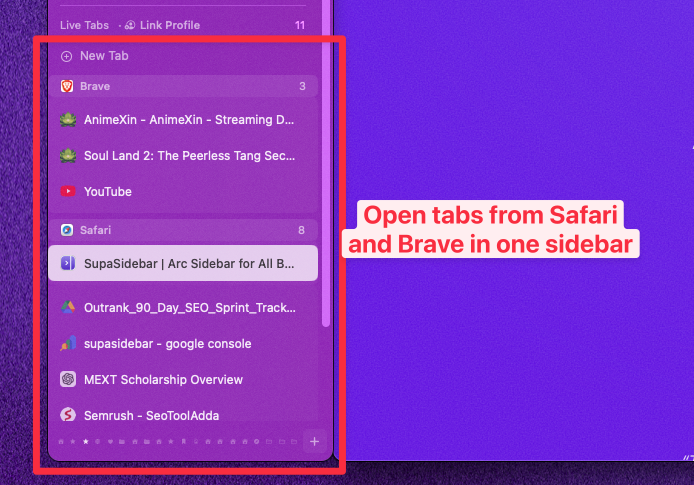
SupaSidebar is a native macOS app (not a browser extension) that adds a vertical sidebar to whichever browser is in focus. Live Tabs from every supported browser appear in the same sidebar, sorted into Spaces. The Command Panel (⌘⌃K) gives Spotlight-style search across every tab, bookmark, file, and saved item - across every browser at once. The sidebar floats at the screen edge and follows whichever browser window is active.
For a MacBook Pro user running Chrome plus Safari plus Firefox at 50+ tabs, this is the setup that solves the find-the-tab cost without forcing the user to consolidate browsers:
- Live Tabs from Chrome, Safari, Firefox, Arc, Brave, Edge, and 19+ other browsers all appear in one sidebar
- ⌘⌃K opens a unified search across every browser's open tabs, plus bookmarks, plus saved items
- Spaces let work / personal / side-project contexts stay separated regardless of which browser they live in
- Smart Attach pins the sidebar to the active browser window without overlap
- Window Tiling auto-tiles up to 3 browser windows side by side (the Arc Split View workaround)
"I would love to try to wean myself off Arc and switch to Safari for full macos integration. But without Arc sidebar that will never happen. But... is there a solution for that? Supasidebar?" - SupaSidebar user, email
"Moved from Arc to Safari, only thing I missed was the sidebar. This is it." - SupaSidebar user, Reddit
For a Pro user picking any browser for any workflow, the SupaSidebar layer turns the multi-browser reality into a single managed surface. Safari can be the battery-bound default; Chrome can be the dev primary; Firefox can be the privacy browser; all three feed into one sidebar.
What about Dia on a MacBook Pro?
Dia is The Browser Company's successor to Arc, currently in private beta. It is a Chromium-based browser with deep AI integration (an AI sidebar that can read tabs, draft responses, and chain commands). On a Pro, Dia inherits Chromium's RAM and thermal cost, plus the additional overhead of the AI features.
For Pro users curious about Dia: it's a real direction for browsers that integrate AI deeply, but it's also early. The pricing and feature set are still in flux. As of mid-2026, it's not yet the recommended pick for most Pro users; Safari, Chrome, Brave, or Firefox are better-supported daily drivers. For Pro users on Arc considering the migration path to Dia specifically, see Arc Browser vs Dia Browser, SupaSidebar vs Dia, and the Arc Browser Status Tracker.
Conclusion: Picking the right browser for your MacBook Pro in 2026
For most MacBook Pro users, the browser choice depends on workflow, not on the chip. Safari is the most efficient pick and the right default for battery-bound work. Chrome, Brave, and Firefox become genuinely viable on a Pro in ways they aren't on an Air. Arc still has the best sidebar UX but is in maintenance mode. The Pro's freedom is real: pick the browser that fits the workflow, not the one that fits the chassis.
Segment recommendations:
- MacBook Pro M1 Pro (16GB): Safari for battery, Chrome or Brave for work. Enable Memory Saver / Sleeping Tabs on Chromium browsers.
- MacBook Pro M2 / M3 Pro (16-36GB): Same as above at 16GB; Workflow-first above 24GB.
- MacBook Pro M3 / M4 Pro / Max (24GB+): Workflow-first. Hardware is no longer the constraint. Pick by features, extensions, and identity-separation needs.
- Developers running multiple browsers: Brave or Chrome as the primary, Safari for WebKit testing, Firefox for Gecko testing. Add a cross-browser sidebar to manage the combined tab load.
- Pro users on Arc: Plan the migration but no rush. The Pro absorbs Arc's overhead; the maintenance question is the bigger concern.
- Pro users coming from a MacBook Air: What was forbidden on the Air (Chrome, Arc) is fine on the Pro. Workflow now drives the choice.
For the broader Mac browser picture (not Pro-specific), see Best Browser for Mac in 2026. For the sibling post on MacBook Airs (where the picture is very different), see Best Browser for MacBook Air in 2026. Try SupaSidebar (free tier) if the multi-browser workflow above is the actual setup.
Why we recommend SupaSidebar
SupaSidebar is a macOS app that brings Arc's sidebar to every browser - one sidebar for tabs, bookmarks, files, and apps across 25+ browsers including Safari, Chrome, Firefox, Arc, Zen, Vivaldi, Brave, Helium, and Dia. It runs as a native Mac app (not a browser extension), so the browser the user picks for the workflow stays the browser the machine runs - SupaSidebar just adds the sidebar UX on top.
On a MacBook Pro specifically, this matters because the Pro's hardware unlocks the multi-browser workflow that Pro users actually run: Chrome for dev, Safari for WebKit and battery, Firefox for containers and privacy, Brave for ad-heavy sites. Each browser does one thing well, but none of them talk to each other and the find-the-tab cost compounds across 50+ tabs spread across three apps. SupaSidebar fills that gap. Live Tabs from every supported browser appear in the sidebar with real-time updates, Spaces separate work and personal contexts across browsers, and the Command Panel (⌘⌃K) gives unified search across every open tab, bookmark, and folder. Air Traffic Control routes saved links to specific browsers, profiles, and Spaces automatically.
The free tier covers the core sidebar across every browser. Download SupaSidebar from supasidebar.com - macOS 14+ (Sonoma and later), Intel and Apple Silicon.
Frequently Asked Questions
What is the best browser for a MacBook Pro M1 Pro in 2026?
For a 16GB M1 Pro, Safari is still the best browser for battery-bound work; Chrome or Brave is the best choice for development and extension-heavy work with Memory Saver or Sleeping Tabs enabled. On 32GB M1 Pro and Max configurations, the RAM ceiling stops mattering and the choice becomes workflow-first.
What is the best browser for a MacBook Pro M4 Max in 2026?
On an M4 Max with 36-128GB of RAM, the hardware is no longer the constraint, so the best browser is the one that fits the workflow. Chrome and Brave are reasonable defaults for developers, Safari is still the most efficient for on-battery work, and Firefox is the best non-Chromium choice for privacy or containers. Running 4 browsers in parallel is a normal Pro-tier workflow on this machine.
Is Chrome okay on a MacBook Pro?
Yes, Chrome is genuinely viable on a MacBook Pro in 2026 in a way it never is on a MacBook Air. The Pro's active cooling absorbs Chrome's background activity and the 16-128GB RAM tiers absorb Chrome's process-per-tab model. Chrome's Memory Saver helps on 16GB Pros; above 24GB it's not needed. Chrome is the wrong default on an Air; it's a reasonable default on a Pro.
How much battery does Chrome actually use versus Safari on a MacBook Pro?
Birchtree's 36-hour test on an M2 Pro MacBook Pro found Chrome 128 used about 9% less battery than Safari 17.6 on a controlled web-browsing workload. The "Chrome destroys Mac battery" reputation is mostly a holdover from Intel-Mac days. On Apple Silicon Pros, the gap is real but small, and the Pro's larger battery absorbs the difference for almost every workload.
Should I use Arc on a MacBook Pro in 2026?
Arc still runs on a MacBook Pro and the Pro's hardware lets it run without compromise. Arc entered maintenance mode on May 27, 2025 and is not getting active development. For Pro users currently on Arc: it still works, the sidebar UX is still the best of any browser, but plan the migration. The Arc cluster covers the alternatives in depth.
Is Safari faster than Chrome on a MacBook Pro?
On benchmark scores, Safari and Chrome are within roughly 6% of each other on M-series Macs - Speedometer 3.1 results on an M4 MacBook Pro put Safari at 43.61 and Chrome at 41.10. On a Pro with active cooling and ample RAM, the real-world difference between the two is mostly imperceptible for most workloads. Pick by feature, not by benchmark score.
Can I run 50+ tabs on a MacBook Pro?
Yes, every MacBook Pro can run 50+ tabs without memory pressure on 24GB+ configurations. On 16GB Pros, Chromium browsers will start swapping past 50 tabs with extensions; Safari and Firefox handle it better. The real problem at 50+ tabs isn't memory anymore - it's the find-the-tab cost. The browser's tab strip becomes useless past 30 tabs, regardless of browser or chip. The fix is a cross-browser sidebar layer like SupaSidebar that gives a vertical tab list and ⌘⌃K search across every open tab.
What is the best browser for developers on a MacBook Pro?
For most web developers, Chrome or Brave is the best primary browser on a Pro - Chrome DevTools is still the most-used and most-capable developer tooling in the category, and Brave offers the same DevTools plus tracker protection. Most developers also keep Safari open for WebKit testing and Firefox for Gecko testing. The Pro's hardware easily handles three browsers in parallel; the workflow problem is managing tabs across them.
Is Firefox a good browser for a MacBook Pro?
Firefox is a good MacBook Pro browser, especially for users who value privacy, want Multi-Account Containers, or prefer a non-Chromium daily driver. On a Pro, Firefox's slightly lighter memory profile is less critical than on an Air, but the containers and privacy posture are first-class. Firefox is the right second pick for most Pro workflows that don't require Chrome-only extensions.
Does the MacBook Pro M3 Pro handle browsers differently than an M1 Pro?
The M3 Pro brought efficiency improvements that show up in battery life and thermal headroom, but the M1 Pro is still a fully capable browser machine in 2026 - the chip is not the constraint above 16GB of RAM. The real difference between an M1 Pro and an M3 / M4 Pro is the baseline RAM tier: M1 Pros often shipped with 16GB, M3 / M4 Pros more commonly ship with 24-48GB. Above 24GB, the chip generation stops mattering for browser choice.
By Kshetez Vinayak, founder of SupaSidebar. Last updated May 25, 2026.